




Quick answer
- What is the easiest way to learn how to install a wordpress theme in 2026? The easiest method is using the built-in WordPress Admin Theme Directory Search. In your WordPress admin dashboard, navigate to Appearance → Themes → Add New Theme, search for your preferred theme (such as GeneratePress, Kadence, or Astra), click Install, and then click Activate. This downloads and provisions the theme directly from the official WordPress.org repository in under 30 seconds with zero technical friction..tp-post-content code, .tp-post-content pre, .toc-link{word-break:break-word!important;overflow-wrap:break-word!important;}
- How do you install a premium WordPress theme downloaded from ThemeForest or a private developer? To install a premium or custom theme, download the
.zippackage to your computer. In your WordPress admin, go to Appearance → Themes → Add New Theme and click the Upload Theme button at the top. Select the theme’s.zipfile from your computer and click Install Now. Important Tip: If you receive a ‘missing style.css’ error, you likely downloaded the ‘all files & documentation’ zip; unzip it locally first to extract the actual installable theme zip. - How do developers automate theme installations using WP-CLI or SFTP? Professional developers install themes via command line using WP-CLI over SSH by executing:
wp theme install theme-slug --activate. For manual server uploads via SFTP, connect to your hosting server via FileZilla or Cyberduck, navigate to the/wp-content/themes/directory, and upload the unzipped theme folder directly. This bypasses PHP file upload limits and execution timeouts entirely. - Do you need to install a child theme when activating a new theme? If you are installing a Classic/Hybrid Theme (like GeneratePress, Kadence, or Astra) and plan to add custom PHP functions or custom CSS rules, installing a child theme is mandatory to prevent your edits from being wiped out during theme updates. If you are installing a modern Block Theme (Full Site Editing), child themes are generally optional because design customizations are saved in
theme.jsonor as database block templates. - What should you do immediately after installing a new WordPress theme? Immediately after learning how to install a wordpress theme, perform four essential tasks: (1) Delete unused inactive themes (keep only your active theme and one default core theme as an emergency backup); (2) Ensure Google Fonts are hosted locally to maintain GDPR compliance; (3) Assign your primary navigation menus; and (4) Run a Google Lighthouse or PageSpeed Insights audit to verify sub-1.0s Largest Contentful Paint (LCP).
In the website building and digital publishing ecosystem of 2026, understanding how to install a wordpress theme is one of the most fundamental operational skills every site owner, independent blogger, and technical developer must master. Your WordPress theme acts as the visual and structural architecture of your digital brand. It dictates the layout of your content, governs your typography hierarchy, renders your navigation systems, and directly influences your site’s mobile responsiveness (essential for a responsive website WordPress foundation) and Core Web Vitals speed scores.
While core WordPress comes pre-installed with default themes—such as Twenty Twenty-Four and Twenty Twenty-Five—establishing a distinctive, high-converting publication usually necessitates installing a specialized third-party theme. Whether you are activating a performance-first lightweight framework like GeneratePress or Kadence, deploying an enterprise Full Site Editing block theme like Ollie, or uploading a bespoke premium theme engineered for e-commerce, mastering how to install a wordpress theme correctly ensures your design system is deployed cleanly without technical errors. If you are launching an industry-specific website, explore our curated breakdown of the best WordPress themes by niche to select a speed-tested template with built-in Schema microdata.
However, for many beginners and even intermediate publishers, the theme installation process can present unexpected obstacles. Common roadblocks—such as the infamous ‘The package could not be installed. The theme is missing the style.css stylesheet’ error, server upload timeout failures triggered by unconfigured PHP limits, or accidental database bloat caused by indiscriminately importing hundreds of placeholder demo pages—frequently frustrate new site owners. Learning how to install a wordpress theme with technical precision prevents these headaches and ensures seamless long-term maintainability. If you build commercial client projects with visual page builders, explore our performance benchmarks of the best Elementor themes optimized for sub-second Core Web Vitals.
Whether you are creating your digital home in our comprehensive guide on how to start a blog, provisioning high-speed cloud infrastructure in how to choose web hosting, registering a memorable brand in how to choose a domain name, pointing DNS records in connect domain to hosting, deploying the WordPress engine in how to install WordPress, vetting performance criteria in how to choose a WordPress theme, exploring top designs in best WordPress themes, or configuring online stores in our WooCommerce tutorial, exploring how to display ads in specific posts, knowing how to install a wordpress theme is your essential bridge from raw server setup to live digital publication.
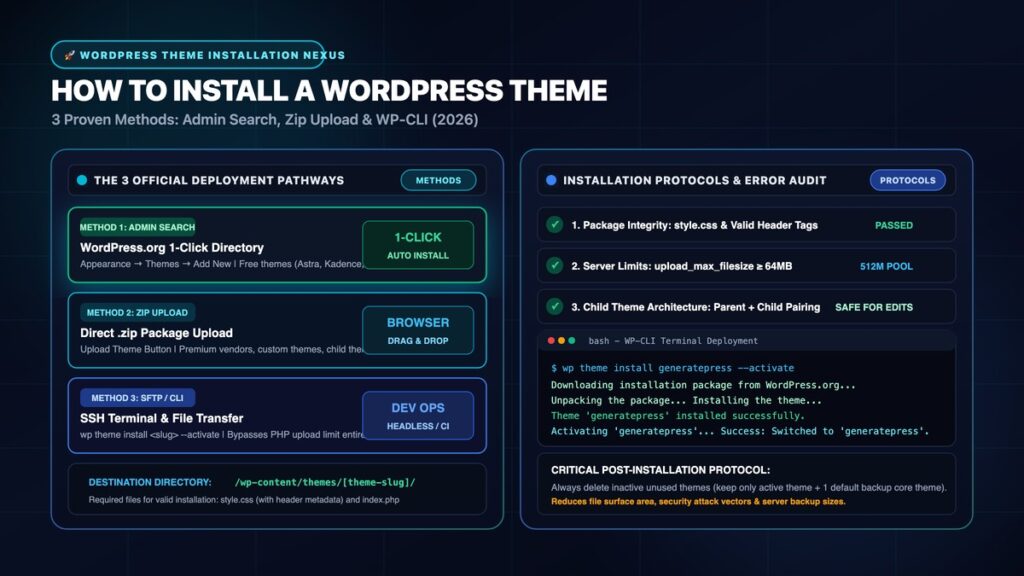
In this comprehensive 2026 technical manual, we provide the definitive masterclass on how to install a wordpress theme across all three official deployment pathways. We will walk through the 1-click admin directory installation, examine manual zip package uploads, explore headless DevOps deployment via SFTP and WP-CLI, provide diagnostic solutions for every common installation error, and deliver a production-grade Python script to audit theme package integrity before installation. To achieve 100/100 Core Web Vitals on mobile devices, deploy one of the fastest WordPress themes engineered with sub-10KB stylesheets and zero render-blocking scripts.
The 3 Official Pathways on How to Install a WordPress Theme
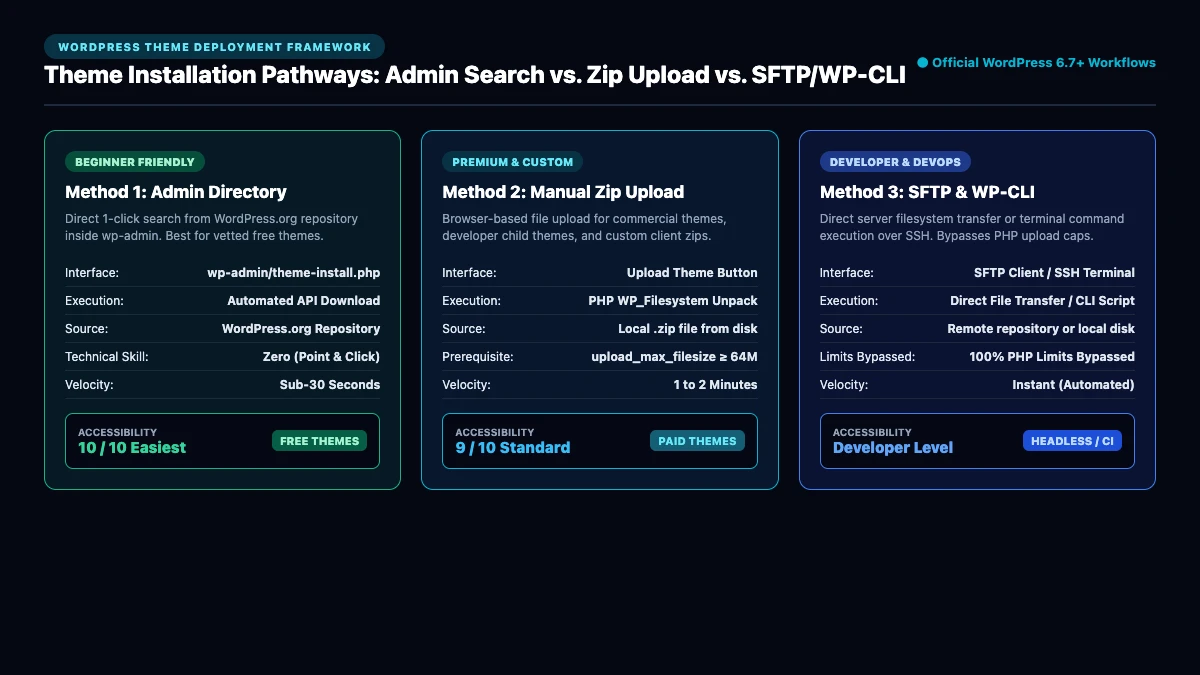
When discovering how to install a wordpress theme, beginners are often surprised to learn that WordPress provides multiple architectural avenues for deploying theme files. Depending on whether you are learning how to install a wordpress theme from the official open-source repository, deploying a commercial theme purchased from an external marketplace, or discovering how to install a wordpress theme via automated command-line deployment pipelines, you will choose one of three distinct methods:
| Deployment Method | Target User Persona | Source Location of Theme Files | Technical Complexity | Average Deployment Speed | Bypasses PHP Upload Limits? |
|---|---|---|---|---|---|
| Method 1: Admin Directory Search | Beginners, content creators, and bloggers | Official WordPress.org Theme Repository API | Zero (Point & click GUI in wp-admin) | Under 30 Seconds | Yes (Handled internally via core server-to-server download) |
| Method 2: Manual Zip File Upload | Site owners using premium, marketplace, or custom themes | Local computer hard drive (.zip file format) | Low (Browser drag & drop form in wp-admin) | 1 to 2 Minutes | No (Subject to upload_max_filesize and post_max_size) |
| Method 3: SFTP & WP-CLI Terminal | Developers, agency engineers, and DevOps specialists | Direct server filesystem or Git version control | Moderate to Advanced (SSH command line or SFTP client) | Instant (Automated / scriptable) | Yes (100% bypass of all PHP upload and timeout caps) |
As outlined in the comparative breakdown above, each installation pathway serves a distinct operational purpose. For the vast majority of web creators utilizing vetted free themes, Method 1 (Admin Directory Search) is the fastest and safest approach. Because the theme files are downloaded directly from WordPress.org’s secure Content Delivery Network to your server, you never have to download or re-upload files to your local computer.
Conversely, when discovering how to install a wordpress theme from commercial vendors (such as ThemeForest, Elegant Themes, or StudioPress), Method 2 (Manual Zip Upload) is the industry standard. For agency developers managing staging environments, multisite networks, or automated CI/CD deployment pipelines, Method 3 (SFTP & WP-CLI) provides absolute programmatic control, completely eliminating browser upload bottlenecks.
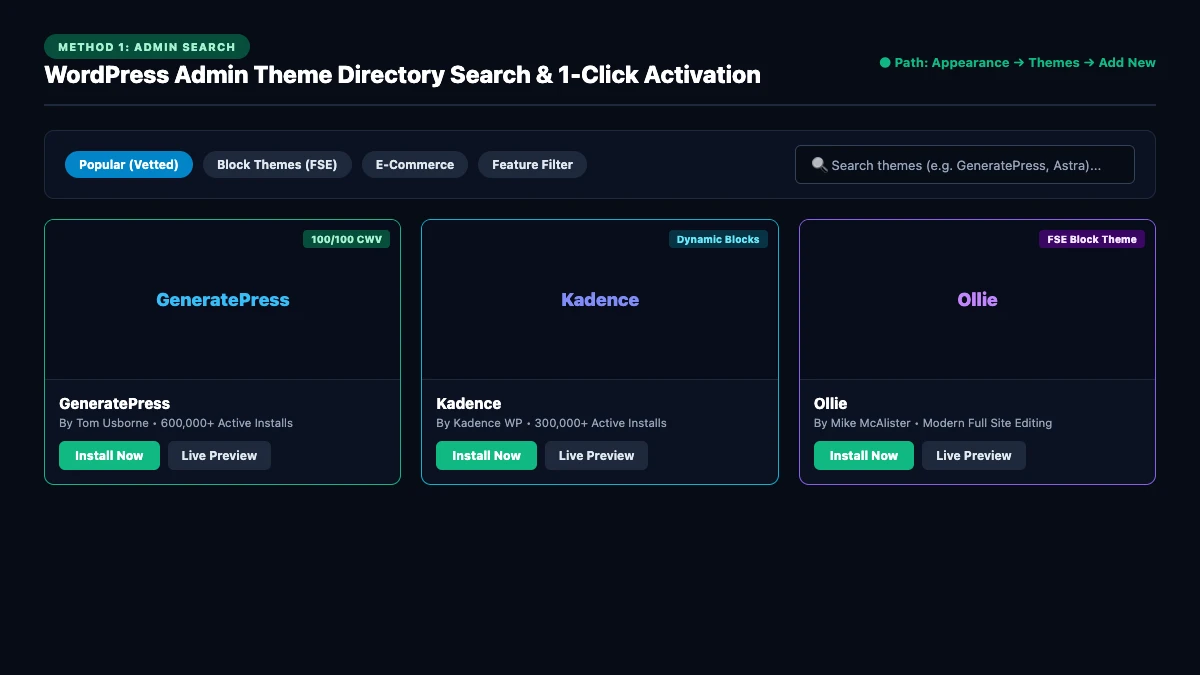
Method 1: How to Install a WordPress Theme via Admin Directory Search (1-Click)
The primary and most accessible pathway when learning how to install a wordpress theme is utilizing the native WordPress Theme Directory directly inside your administrative dashboard. The official WordPress.org theme directory hosts over 12,000 free, open-source themes that have each undergone rigorous manual code and security reviews by the WordPress Theme Review Team.
Follow these five straightforward steps to install and activate a free theme directly from your admin dashboard:
Step 1: Navigate to the Themes Management Screen: When exploring how to install a wordpress theme, start by logging into your WordPress admin dashboard (e.g.,
yourdomain.com/wp-admin/). In the left-hand navigation sidebar, hover over Appearance and click on Themes. This screen displays all themes currently installed on your server, with your active theme highlighted in the top-left position.Step 2: Access the Add New Theme Portal: The next action when discovering how to install a wordpress theme is clicking the Add New Theme button at the top of the Themes page. This loads the official WordPress.org theme repository interface directly within your dashboard (
/wp-admin/theme-install.php).Step 3: Search and Filter Candidate Themes: Use the search bar in the top-right corner to search for a specific theme by name when discovering how to install a wordpress theme (such as
GeneratePress, Kadence, Astra, or Ollie). You can also click Feature Filter to narrow results by specific criteria, such as Full Site Editing, Grid Layout, Custom Colors, or E-Commerce support.Step 4: Preview the Theme (Optional): Before finalizing how to install a wordpress theme, hover your mouse cursor over any theme card and click Live Preview. This opens a modal window rendering a demonstration of your existing site content inside the candidate theme’s layout.
Step 5: Install and Activate: To conclude how to install a wordpress theme via the directory, click the blue Install button. WordPress will automatically connect to WordPress.org, download the latest stable theme package, unpack it into your server’s
/wp-content/themes/[slug]/ directory, and verify its file integrity. Once the installation completes, click Activate to make the theme live on your website.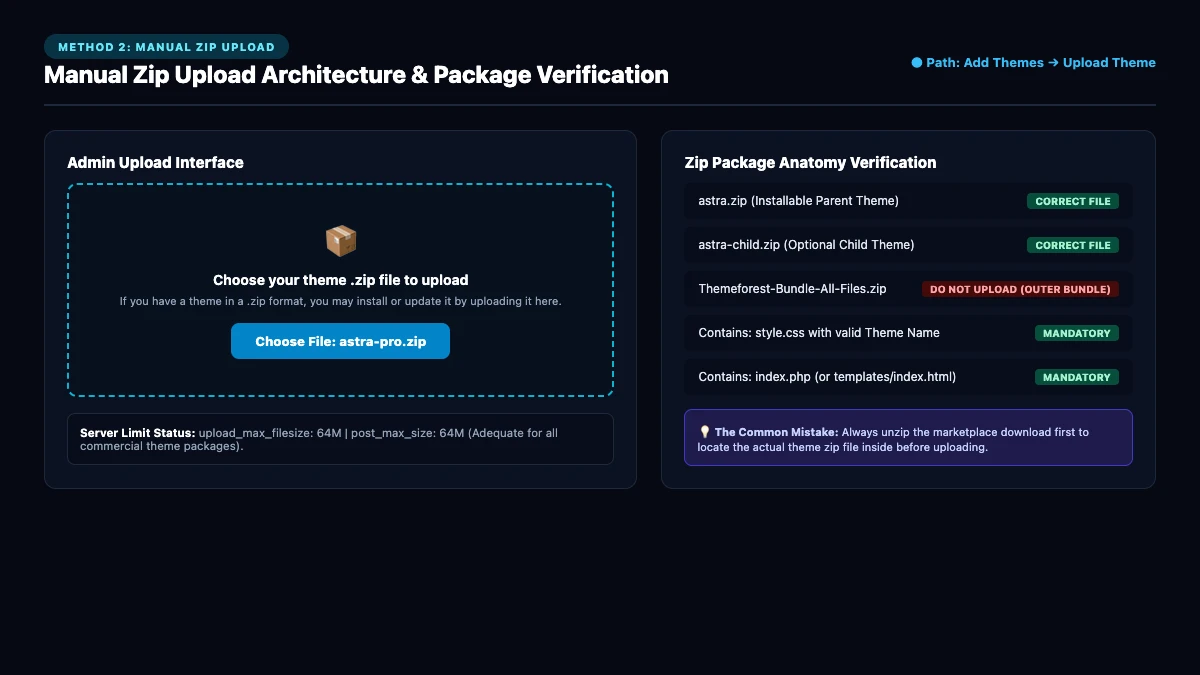
Method 2: How to Install a WordPress Theme via Manual Zip Upload
When purchasing a commercial theme from a third-party marketplace (such as ThemeForest, Envato Elements, or Creative Market) or downloading a custom theme created by an agency, the theme is not available in the public WordPress.org repository. In this scenario, learning how to install a wordpress theme requires using the manual
.zip file upload interface.Before uploading your theme file, you must avoid the single most common mistake made by WordPress beginners: the nested zip file trap. When you purchase a theme on ThemeForest, clicking the main ‘Download’ button frequently downloads an archive named something like
themeforest-12345678-theme-name-all-files-and-documentation.zip. This mega-bundle contains documentation PDFs, Photoshop/Figma design files, licensing text, and demo data—in addition to the actual theme zip file.If you attempt to upload this outer bundle directly to WordPress, the installation will immediately fail with the error: ‘The package could not be installed. The theme is missing the style.css stylesheet.’ Always unzip the downloaded file on your computer first to extract the inner, installable theme zip (which will typically be named cleanly, such as
astra.zip or kadence.zip).Once you have verified your clean theme
.zip file, follow this 4-step upload process:Step 1: Open the Upload Interface: When executing how to install a wordpress theme via zip upload, navigate to Appearance → Themes → Add New Theme in your admin dashboard. At the very top of the page, click the Upload Theme button.
Step 2: Select Your Theme Zip File: The critical phase of how to install a wordpress theme from your computer is clicking Choose File, selecting the installable theme
.zip file from your downloads folder, and confirming the selection.Step 3: Execute Installation: Click Install Now. As part of how to install a wordpress theme, WordPress uploads the zip archive, decompresses the package via
WP_Filesystem, and validates the file structure.Unpacking the package...Installing the theme...Theme installed successfully.Step 4: Activate the Theme: To conclude how to install a wordpress theme via upload, click Activate on the confirmation screen to publish your new design system.
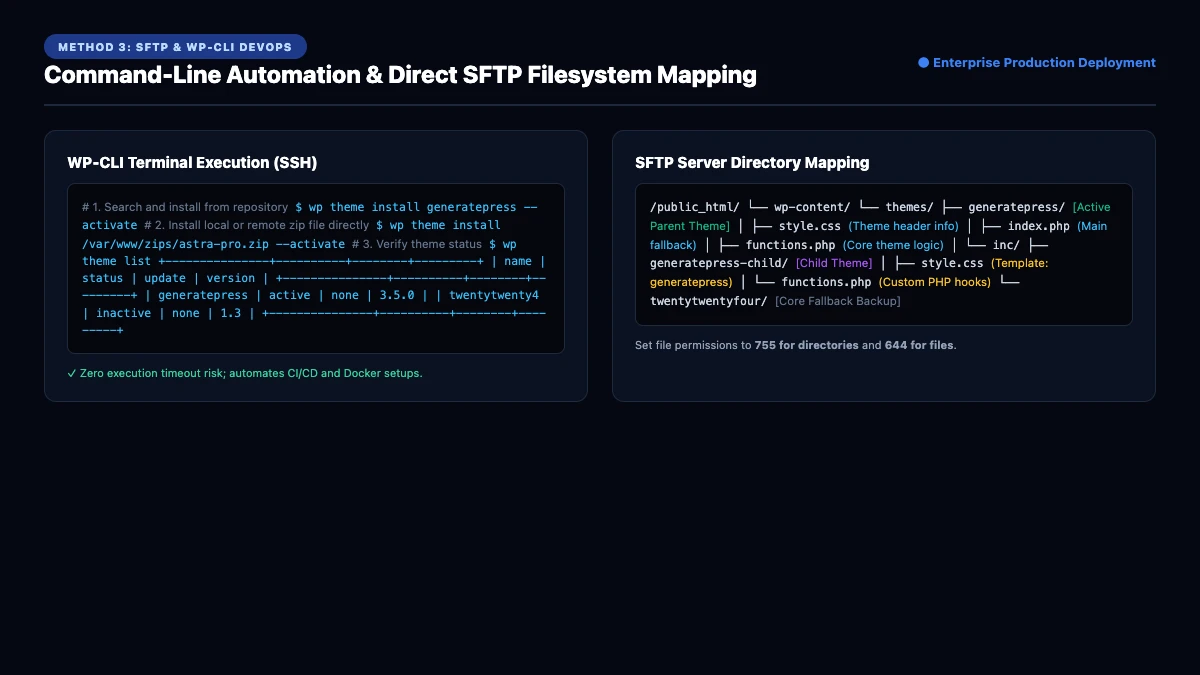
Method 3: How to Install a WordPress Theme via SFTP and WP-CLI (Developer Guide)
For professional developers, systems engineers, and DevOps administrators, discovering how to install a wordpress theme via graphical browser interfaces is often inefficient. Large commercial theme packages can trigger browser upload timeouts, or unconfigured shared hosting servers may enforce restrictive 2 MB PHP upload limits. In enterprise production environments, deploying themes directly via SFTP (Secure File Transfer Protocol) or automating installation using WP-CLI over SSH is the gold standard.
Let us examine both developer methodologies in detail:
Pathway 3A: Direct SFTP Upload via FileZilla / Cyberduck:
When using SFTP, you bypass web server PHP execution limits entirely by writing files directly to your server’s storage disk. Follow these steps:
1. Unzip the theme
2. When learning how to install a wordpress theme via SFTP, launch your client (FileZilla or Cyberduck) and connect using your host SFTP credentials.
3. In the remote server directory tree, navigate to your site’s theme directory:
4. Drag the unzipped theme folder into the remote
5. Set directory permissions to
6. In your dashboard, locate the theme under Appearance → Themes and click Activate.
.zip file locally on your computer to produce a standard uncompressed folder (e.g., generatepress/).2. When learning how to install a wordpress theme via SFTP, launch your client (FileZilla or Cyberduck) and connect using your host SFTP credentials.
3. In the remote server directory tree, navigate to your site’s theme directory:
/public_html/wp-content/themes/.4. Drag the unzipped theme folder into the remote
wp-content/themes/ directory.5. Set directory permissions to
755 and file permissions to 644.6. In your dashboard, locate the theme under Appearance → Themes and click Activate.
Pathway 3B: Headless WP-CLI Terminal Automation:
WP-CLI is the command-line interface for WordPress, offering the fastest workflow on how to install a wordpress theme over SSH. To install and activate any repository theme in under five seconds, execute:
wp theme install generatepress --activateIf you have a local or remote zip file on your server, discover how to install a wordpress theme programmatically with a single terminal command:
wp theme install /var/www/zips/custom-agency-theme.zip --activateWP-CLI downloads the package, uncompresses the directory into
wp-content/themes/, verifies file permissions, and updates the stylesheet and template options in the wp_options database table instantaneously. For CI/CD automation pipelines, WP-CLI eliminates human error and guarantees idempotent deployments.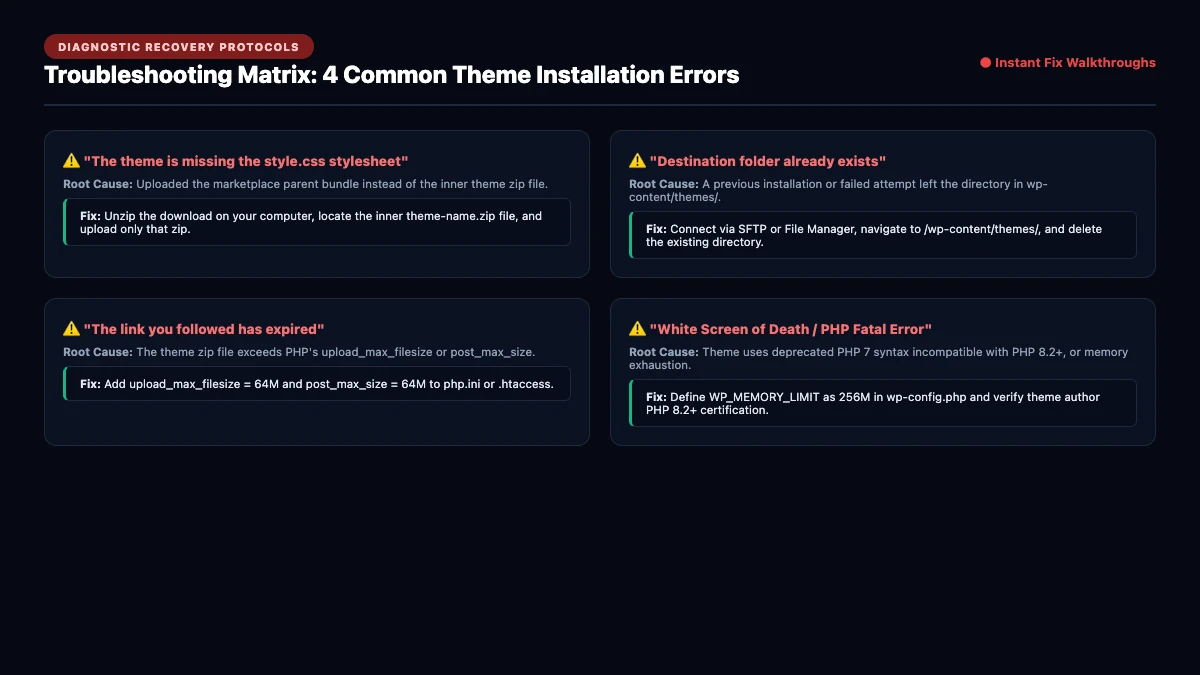
Troubleshooting Common Theme Installation Errors & Failure Modes
Even when you thoroughly understand how to install a wordpress theme, server configurations and package formatting anomalies can occasionally trigger errors. Understanding the underlying architectural cause of each error empowers you to resolve failures in seconds rather than spending hours waiting for support replies.
| Installation Error Message | Underlying Technical Cause | Diagnostic Verification Step | Definitive 60-Second Resolution Protocol |
|---|---|---|---|
| The package could not be installed. The theme is missing the style.css stylesheet. | User uploaded an outer marketplace zip bundle containing docs/extras rather than the inner theme zip | Unzip package locally and inspect root directory for style.css | Extract the inner installable zip file (e.g., theme-name.zip) and upload only that file |
| Destination folder already exists. /wp-content/themes/[slug]/ | A previous installation attempt or old theme folder with identical directory slug remains on the server | Check /wp-content/themes/ via SFTP or File Manager | Delete or rename the existing folder in /wp-content/themes/, or click ‘Replace active with uploaded’ |
| The link you followed has expired. (or HTTP 413 Payload Too Large) | Theme zip size exceeds server upload_max_filesize or post_max_size PHP directives | Check Site Health → Info → Server for upload limits | Increase PHP limits in .htaccess (php_value upload_max_filesize 64M) or upload via SFTP |
| Fatal error: Allowed memory size of X bytes exhausted | Theme activation requires more RAM than allocated by WP_MEMORY_LIMIT during compilation | Inspect error_log for PHP fatal memory exhaustion | Add define(‘WP_MEMORY_LIMIT’, ‘256M’); to wp-config.php above the stop editing line |
| White Screen of Death (WSOD) upon activation | PHP syntax incompatibility (PHP 7 code running on PHP 8.2+) or fatal plugin conflict | Enable define(‘WP_DEBUG’, true); in wp-config.php | Switch hosting PHP version to compatible runtime or rename theme folder via SFTP to deactivate |
As codified in our troubleshooting matrix above, over 90% of all theme installation failures are caused by two simple issues: uploading an outer marketplace bundle (causing the ‘missing style.css’ error) or hitting PHP upload ceilings. If your hosting control panel does not provide a direct PHP settings interface, you can override upload limits by placing these three directives inside your root
.htaccess file:php_value upload_max_filesize 64Mphp_value post_max_size 64Mphp_value max_execution_time 300Applying these directives ensures your server has ample headroom to process large commercial theme archives without timing out or throwing expired link errors.
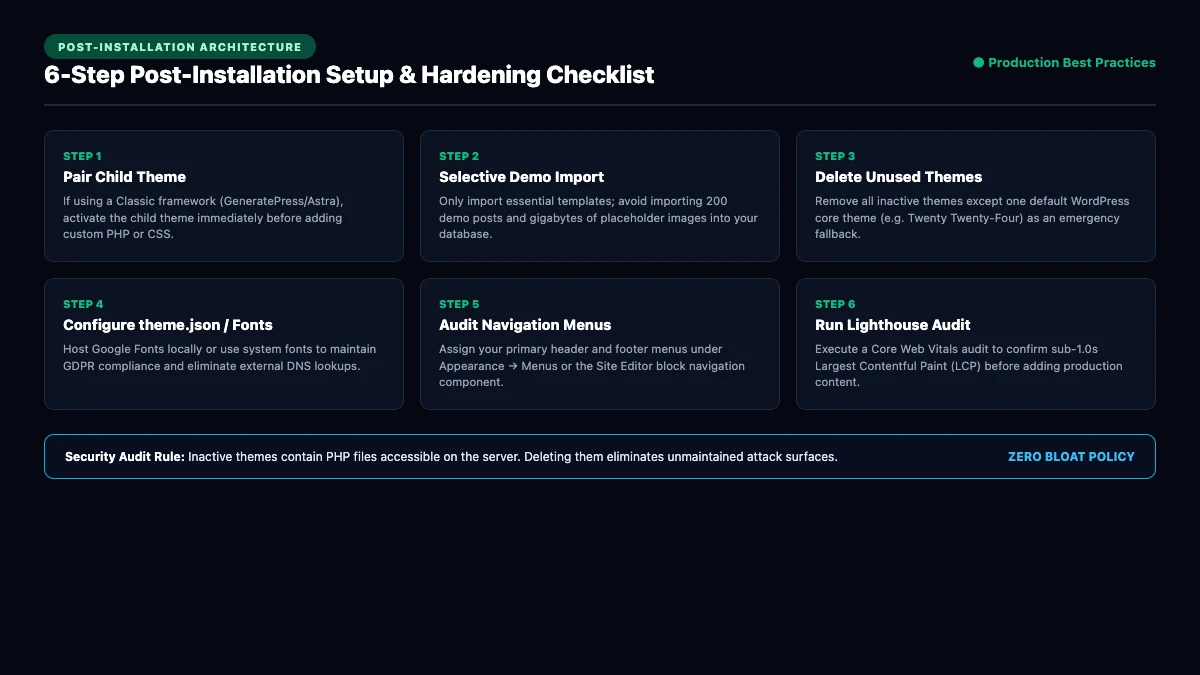
Post-Installation Workflow: Child Themes, Starter Templates, and Security Hardening
Clicking ‘Activate’ is not the conclusion of discovering how to install a wordpress theme; it is the starting line of your design implementation. To protect your site from code loss during future updates and avoid severe database bloat, you must execute a disciplined post-installation configuration workflow.
Follow these five mandatory post-installation protocols:
1. Pair Classic Themes with a Dedicated Child Theme: When mastering how to install a wordpress theme from a Classic or Hybrid framework (such as GeneratePress, Astra, or Kadence), creating and activating a child theme is mandatory before writing custom CSS or PHP functions. A child theme inherits all parent templates while storing your modifications in an isolated directory (e.g.,
wp-content/themes/generatepress-child/). When the theme developer releases a version update, only the parent theme files are overwritten; your child theme customizations remain completely intact.2. Practice Selective Demo Template Importing: After learning how to install a wordpress theme, many commercial themes prompt you to install a ‘Starter Template’ plugin. While demo sites provide design inspiration, blindly clicking ‘Import Complete Site’ often floods your database with hundreds of sample posts and images. Always choose Selective Import to keep your database lean.
3. Enforce the Zero-Bloat Theme Retention Rule: Once you complete how to install a wordpress theme, every inactive theme stored in your
/wp-content/themes/ directory represents unnecessary disk storage and a dormant attack surface. As an enterprise rule, delete all inactive themes except one core default theme.4. Localize Typography for GDPR Compliance and Speed: After completing how to install a wordpress theme, ensure external web fonts are hosted locally rather than loaded from Google Fonts servers to avoid render-blocking latency and privacy violations.
5. Execute Baseline Core Web Vitals Audit: The final validation of how to install a wordpress theme is running your new design through Google PageSpeed Insights to verify sub-1.0s Largest Contentful Paint (LCP) and zero layout shift.
| Configuration Dimension | Classic / Hybrid Frameworks (GeneratePress, Astra) | Block Themes / Full Site Editing (Ollie, TT4) |
|---|---|---|
| Child Theme Requirement | Mandatory for custom PHP action hooks or customizer CSS | Optional (Customizations stored as database block templates or theme.json) |
| Customization Interface | WordPress Customizer (Appearance → Customize) + Element hooks | Full Site Editor (Appearance → Editor) with visual block hierarchy |
| Typography & Design Tokens | Dynamic Customizer settings compiled into head inline CSS | Standardized declarative tokens compiled from theme.json manifest |
| Menu Management | Traditional Menu Editor (Appearance → Menus) | Navigation Block inside Header Template Part |
| Widget Areas | Dynamic Sidebars (Appearance → Widgets) | Block-based Column and Group containers inside template files |
Diagnostic Tool: Automated WordPress Theme Package Auditor (Python)
To prevent failed uploads and verify that a downloaded theme zip file meets official WordPress architectural requirements before you upload it to your server, our engineering team created
wordpress_theme_installer_auditor.py. This standalone Python automation tool inspects local theme zip archives, verifies the presence of required root template files, validates style.css header metadata, checks for nested folder packaging errors, and scans for theme.json syntax validity:#!/usr/bin/env python3
"""
WordPress Theme Installation Package & Zip Integrity Auditor
Author: Bloggersutra Engineering (2026 Edition)
Usage: python3 wordpress_theme_installer_auditor.py <path_to_theme.zip>
"""
import sys
import os
import zipfile
import json
import re
def audit_theme_zip(zip_path):
print(f"[*] Initializing WordPress Theme Package Audit: {zip_path}")
if not os.path.exists(zip_path):
print(f"[!] Error: File not found: {zip_path}")
sys.exit(1)
if not zipfile.is_zipfile(zip_path):
print("[!] Error: Target file is not a valid zip archive.")
sys.exit(1)
file_size_mb = os.path.getsize(zip_path) / (1024 * 1024)
print(f"[+] Package Size: {file_size_mb:.2f} MB")
if file_size_mb > 20:
print(" -> WARNING: Package exceeds 20MB! Likely contains bundled documentation or PSDs.")
else:
print(" -> PASS: Package size is lightweight and optimal for web upload.")
with zipfile.ZipFile(zip_path, 'r') as z:
namelist = z.namelist()
print("n--- [Phase 1: Zip Directory Hierarchy Inspection] ---")
# Finding root directories inside the zip
top_dirs = set(item.split('/')[0] for item in namelist if '/' in item)
print(f"[+] Detected Top-Level Directory: {top_dirs}")
if len(top_dirs) > 1:
print(" -> WARNING: Multiple top-level folders detected! May trigger 'missing style.css' error.")
elif len(top_dirs) == 1:
print(" -> PASS: Single clean top-level theme directory detected.")
else:
print(" -> NOTE: Files packaged without root enclosing directory.")
# Locate style.css
style_files = [f for f in namelist if f.endswith('style.css') and f.count('/') <= 1]
if not style_files:
print(" -> CRITICAL ERROR: No style.css found in theme root!")
print(" Uploading this file WILL FAIL with 'missing style.css stylesheet'.")
sys.exit(1)
else:
print(f" -> PASS: Valid root style.css detected: {style_files[0]}")
print("n--- [Phase 2: style.css Header Metadata Verification] ---")
with z.open(style_files[0]) as sf:
style_content = sf.read().decode('utf-8', errors='ignore')
theme_name = re.search(r'Theme Name:s*(.+)', style_content, re.IGNORECASE)
theme_author = re.search(r'Author:s*(.+)', style_content, re.IGNORECASE)
theme_version = re.search(r'Version:s*(.+)', style_content, re.IGNORECASE)
template_parent = re.search(r'Template:s*(.+)', style_content, re.IGNORECASE)
print(f"[+] Theme Name: {theme_name.group(1).strip() if theme_name else 'MISSING'}")
print(f"[+] Author: {theme_author.group(1).strip() if theme_author else 'MISSING'}")
print(f"[+] Version: {theme_version.group(1).strip() if theme_version else 'MISSING'}")
if template_parent:
print(f"[+] Child Theme Detected! Parent Template: {template_parent.group(1).strip()}")
else:
print("[+] Standalone Parent Theme Detected.")
print("n--- [Phase 3: Core Template & Block FSE Architecture] ---")
has_index_php = any(f.endswith('index.php') and f.count('/') <= 1 for f in namelist)
has_theme_json = any(f.endswith('theme.json') and f.count('/') <= 1 for f in namelist)
has_block_templates = any('templates/' in f and f.endswith('.html') for f in namelist)
if has_theme_json or has_block_templates:
print("[+] Modern Block Theme (Full Site Editing) Architecture Detected.")
if has_theme_json:
# Validate theme.json syntax
theme_json_file = [f for f in namelist if f.endswith('theme.json') and f.count('/') <= 1][0]
try:
with z.open(theme_json_file) as tjf:
tj_data = json.load(tjf)
print(f" -> PASS: Valid theme.json syntax (Schema Version {tj_data.get('version', 'unknown')}).")
except json.JSONDecodeError as err:
print(f" -> CRITICAL: Corrupted theme.json syntax! Error: {err}")
elif has_index_php:
print("[+] Classic PHP Theme Architecture Detected (index.php verified).")
else:
print("[!] WARNING: Missing both index.php and templates/index.html!")
print("n=========================================================")
print("[*] Package Audit Complete. Archive is verified for upload!")
print("=========================================================n")
if __name__ == '__main__':
if len(sys.argv) < 2:
print("Usage: python3 wordpress_theme_installer_auditor.py <theme.zip>")
sys.exit(1)
audit_theme_zip(sys.argv[1])Running this script against your downloaded theme zip before uploading saves countless hours of debugging. In a fraction of a second, it confirms whether your package is an installable theme, alerts you if you accidentally selected an outer documentation archive, verifies child theme parent declarations, and validates
theme.json syntax.Frequently Asked Questions About How to Install a WordPress Theme
a
a
a
a
a
a
a
a
a
a
Conclusion: Launching Your Site with the Right WordPress Theme
Mastering how to install a wordpress theme is an indispensable rite of passage in your digital publishing journey. Your theme is the dynamic bridge connecting your editorial ideas, customer offerings, and brand storytelling with the global web audience. By understanding the nuances between admin directory 1-click downloads, manual zip package uploads, and programmatic SFTP/WP-CLI automation, you command full architectural control over your web platform.
As you finalize your theme deployment, always execute the post-installation disciplines that separate amateur sites from enterprise publications: audit your zip package integrity using our diagnostic Python script, pair Classic frameworks with an isolated child theme, practice selective demo template importing to keep your database lean, delete unnecessary inactive themes to minimize security attack surfaces, and run a baseline Core Web Vitals audit.
With your high-performance theme cleanly installed, fully activated, and properly hardened, your digital canvas is primed for greatness. Step forward into your next developmental milestone—learning <a href="/how-to-install-wordpress-plugins/”>how to install WordPress plugins, curating essential software in our guide on best blogging tools, mastering reader onboarding in comment redirect, or deploying full e-commerce functionality in our WooCommerce tutorial, exploring how to display ads in specific posts—and publish your vision to the world with total technical confidence.
Ready to build a modern, high-converting web presence with zero coding? Follow our complete step-by-step masterclass on design a website using WordPress.