





Quick answer
- How do you move WordPress to new server manually without downtime? To move WordPress to new server environments with zero downtime: 1) Reduce DNS TTL to 300 seconds 48 hours prior; 2) Export your database using
mysqldump --single-transaction --quick --hex-blob; 3) Synchronize files directly between servers usingrsync -avzP; 4) Provision a target database, import the SQL dump, and rebindwp-config.phpcredentials; 5) Validate the target site locally via your workstation’s/etc/hostsfile; and 6) Switch your public DNS A record to the new server IP..tp-post-how long does it take to write a blog post code, .tp-post-content pre, .toc-link{word-break:break-word!important;overflow-wrap:break-word!important;} - Why should you move WordPress to new server manually instead of using a migration plugin? While migration plugins (such as Duplicator or All-in-One WP Migration) work for small blogs, they frequently fail on sites larger than 2GB due to PHP script execution timeouts (
max_execution_time), memory exhaustion (memory_limit), and HTTP upload size caps. When you move WordPress to new server hosting manually via SSH,mysqldump, andrsync, you bypass web server timeouts entirely, preserve Linux file permissions, prevent serialized data corruption, and transfer hundreds of gigabytes at unconstrained wire speeds. - How do you prevent broken serialization when you move WordPress to new server? WordPress stores complex theme settings, widgets, and plugin configurations as serialized PHP arrays (for example,
a:2:{s:4:"name";s:12:"Bloggersutra";}), where exact string character counts are recorded. If you change domain names or URLs using a plain SQL text editor search-and-replace, string lengths desynchronize and widgets disappear. To preserve serialized data when you move WordPress to new server hardware, always perform database replacements using WP-CLI (wp search-replace) or the Better Search Replace utility. - How can you test a migrated WordPress website before pointing public DNS to it? When you move WordPress to new server hosting, you can fully browse, log in, and test your migrated website before touching public DNS by adding a local DNS override to your computer’s
/etc/hostsfile (orC:WindowsSystem32driversetchostson Windows). Add a line mapping your domain name to the target server’s public IP address (e.g.,203.0.113.88 example.com). Your workstation will route requests to the new host while all global visitors continue using the old server. - What file and directory permissions should you apply after you move WordPress to new server? Applying correct Linux ownership and permissions is essential for security and functionality once you move WordPress to new server hosting. Set web server ownership to
chown -R www-data:www-data /var/www/html/, set standard directory permissions tofind . -type d -exec chmod 755 {} ;, set standard file permissions tofind . -type f -exec chmod 644 {} ;, and restrictwp-config.phppermissions tochmod 600 wp-config.php.
Moving an established profitable blog topics or high-traffic enterprise publication between hosting environments is one of the most critical maintenance events a webmaster will ever undertake. Whether you are upgrading from constrained shared hosting to a dedicated cloud virtual private server (VPS), migrating to an unmanaged Nginx cluster, or escaping slow hosting infrastructure, knowing how to move WordPress to new server hardware cleanly and predictably is an indispensable technical capability.
Many website administrators turn to one-click migration plugins hoping for a frictionless transition. However, as production websites expand past hundreds of megabytes into tens of gigabytes of media uploads, custom database tables, and complex transient caches, automated plugins routinely choke. Web server execution timeouts (such as HTTP 504 Gateway Timeout or 500 Internal Server Error), memory exhaustion limits, and upload restrictions often terminate plugin transfers mid-stream. Even worse, partial migrations can leave orphaned database tables, corrupt serialized PHP arrays, or strip vital Linux file permissions.
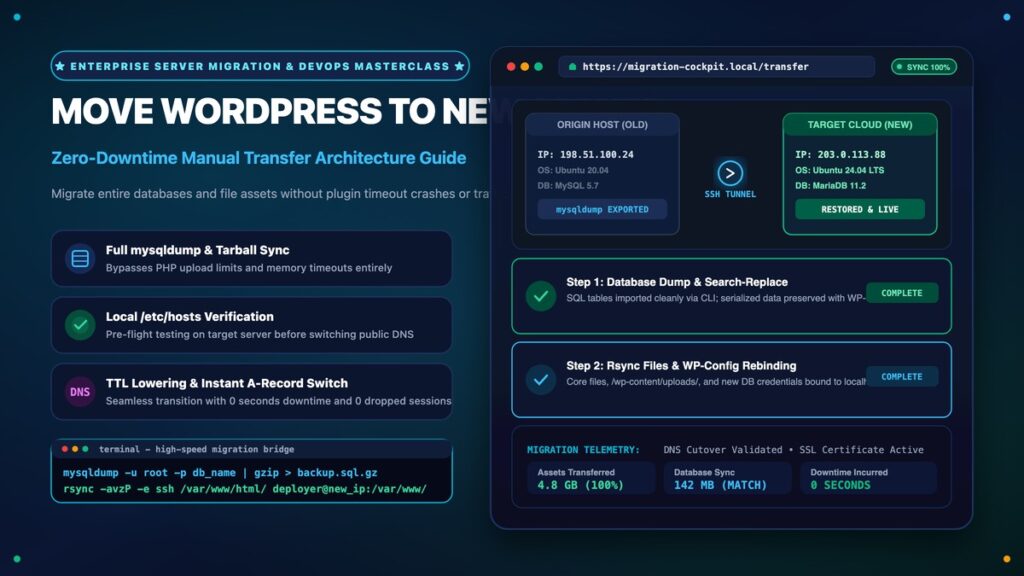
When you choose to move WordPress to new server infrastructure manually using native Linux command-line utilities, you gain total control over every stage of the migration lifecycle. By leveraging production-grade DevOps tooling—including
mysqldump with transaction isolation, encrypted direct server-to-server rsync file synchronization, localized /etc/hosts pre-flight testing, and atomic DNS A-record cutover—you guarantee zero downtime, protect SEO ranking authority, and eliminate data loss.This comprehensive masterclass provides an exhaustive, battle-tested engineering blueprint to move WordPress to new server environments manually. From initial pre-flight audits and database export serialization preservation to target environment provisioning, WP-CLI search-and-replace, and automated post-cutover diagnostics, every command, configuration directive, and architectural decision is documented with precision.
Enterprise Manual WordPress Migration Architecture: Move WordPress to New Server Blueprint
Executing a flawless server transition requires understanding the complete end-to-end data lifecycle. The objective of any zero-downtime strategy when you move WordPress to new server hosting is simple: production traffic must never encounter a maintenance screen, broken stylesheet, or failed checkout during the cutover window. To accomplish this, the origin server remains fully live and operational throughout the entire data extraction and transfer phases.
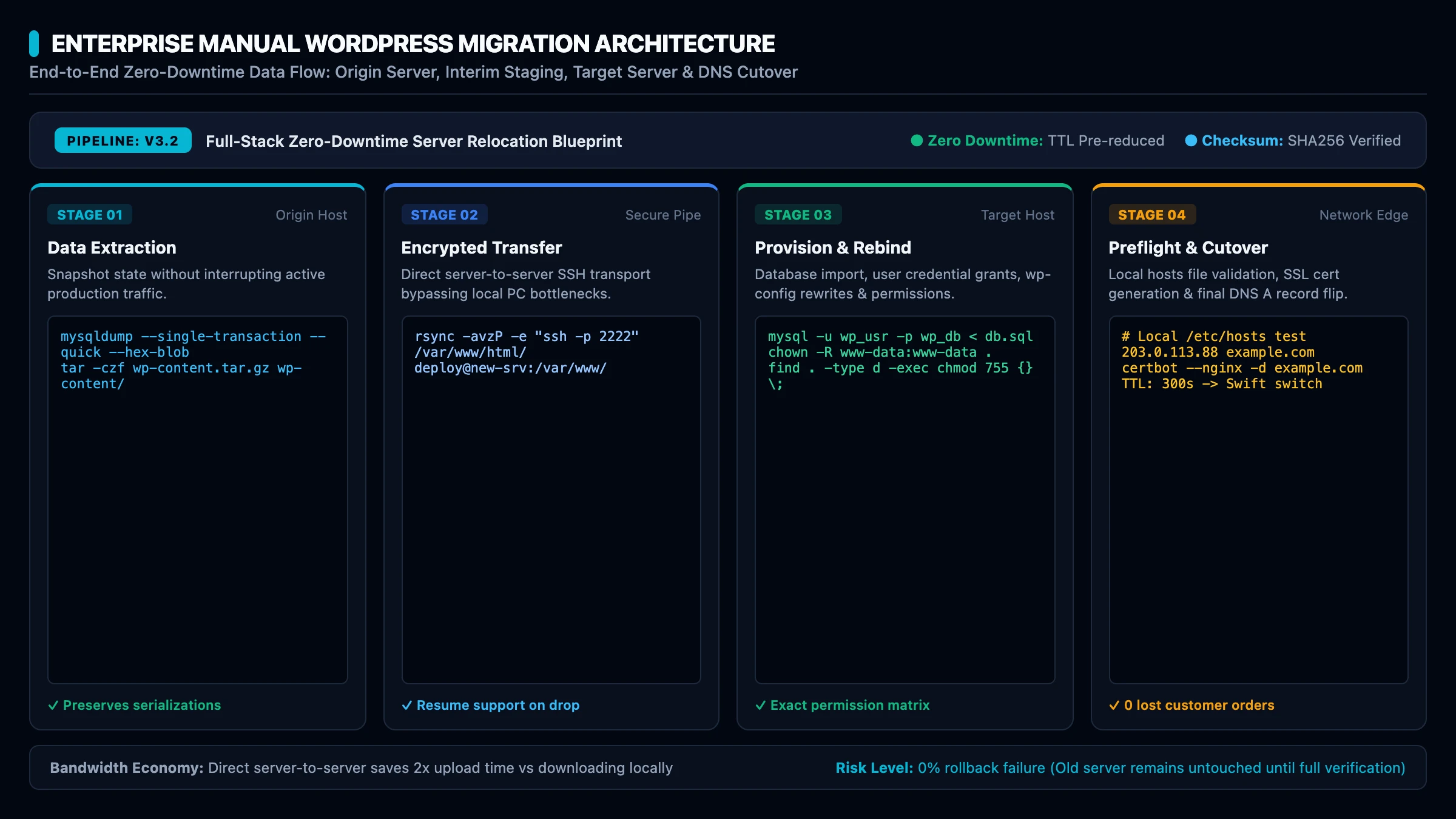
A professional migration pipeline to move WordPress to new server hosting is divided into four distinct operational stages:
1. Stage 01: Origin Data Extraction: On the source host, database state is snapshotted using MySQL consistent read transactions without table locks. In parallel, WordPress core files, plugins, active themes, and the media library in
wp-content/uploads/ are packaged while excluding ephemeral transient caches, session files, and error logs.2. Stage 02: High-Speed Encrypted Transport Layer: Data is synchronized directly between the origin server and the target server over an encrypted SSH conduit. By transferring data directly over datacenter fiber backbones using
rsync or secure streaming pipelines to move WordPress to new server storage, you eliminate the double-transfer penalty of downloading files to a local computer and re-uploading them.3. Stage 03: Target Server Provisioning & Rebinding: On the target host, a modern LAMP/LEMP stack (Linux, Nginx/Apache, MariaDB/MySQL, and PHP 8.2+) is configured. The database is restored, database user credentials and least-privilege grants are assigned,
wp-config.php database constants are rebound, and Linux directory ownership is enforced.4. Stage 04: Pre-Flight Validation & DNS Cutover: Before public visitors or search engine crawlers are routed to the new machine, the target environment is validated in complete isolation using local
/etc/hosts resolution overrides. Once verified, DNS A records are updated. Because Time-To-Live (TTL) values were pre-reduced days earlier, global ISP caches transition instantaneously.Manual CLI Migration vs. Automated Migration Plugins Comparison Matrix
Understanding the trade-offs between automated plugins and native CLI techniques is essential when planning how to move WordPress to new server hosting:
| Evaluation Metric | Manual CLI Migration (rsync / mysqldump) | Automated Migration Plugins | DevOps / Enterprise Recommendation |
|---|---|---|---|
| Database Size Capability | Unlimited (tested on 100GB+ enterprise databases via raw SQL dumps) | Frequently fails above 2GB–5GB due to PHP memory and timeout limits | Manual CLI is mandatory to move WordPress to new server for large WooCommerce databases |
| Transfer Speed & Throughput | Line-rate datacenter fiber transfer (50MB/s–500MB/s via direct SSH pipe) | Constrained by HTTP POST chunking, browser uploads, and local PC bandwidth | Manual CLI saves hours or days of unnecessary transfer lag |
| File Permissions & Symlinks | Preserves exact Linux POSIX permissions (755/644), file ownership, and symlinks | Often resets all files to web server defaults or arbitrary zip permissions | Manual CLI prevents 403 Forbidden and upload directory permission issues |
| PHP Serialized String Handling | Handled cleanly via WP-CLI wp search-replace post-import without corruption | Some plugins attempt regex replacements that break multi-byte UTF-8 arrays | WP-CLI provides dry-run validation and native PHP serialization support |
| Zero-Downtime Validation | Full pre-flight verification via /etc/hosts override before changing DNS | Often overwrites live site directly without independent pre-flight sandbox | Manual CLI guarantees 100% functionality prior to public traffic cutover |
| Resource Overhead on Origin | Minimal: mysqldump streams with single-transaction; rsync throttles CPU | Heavy: PHP zip compression creates severe CPU spikes on live production | Manual CLI prevents crashing origin server under heavy customer traffic |
Pre-Migration Planning: How to Move WordPress to New Server with DNS TTL Strategy
The golden rule of zero-downtime server migrations is that operational success is determined 48 to 72 hours before a single file is copied. When you prepare to move WordPress to new server hardware, public DNS resolver caching represents the greatest potential friction point. If your domain’s A record has a default Time-To-Live (TTL) of 86,400 seconds (24 hours), resolving nameservers around the world will cache the old server’s IP address for a full day after you update DNS.
To prevent visitors from splitting between the old and new servers during cutover when you move WordPress to new server hosting, follow this strict pre-flight timeline:
• Step 1: Lower DNS TTL to 300 Seconds: Exactly 48 to 72 hours prior to your scheduled migration window, log in to your authoritative DNS management console (e.g., Cloudflare, Amazon Route 53, or your domain registrar). Locate the root domain A record (
@) and the www CNAME or A record. Lower the TTL from 86,400 seconds (or ‘Auto’) to 300 seconds (5 minutes). This forces recursive DNS resolvers across all global ISPs to re-query the authoritative nameserver every five minutes, ensuring that when you switch IPs on migration day to move WordPress to new server traffic, global propagation completes within minutes.• Step 2: Inventory Origin Server Configuration: Before you move WordPress to new server hardware, document your current hosting stack parameters to ensure the target machine provides identical or superior runtime support. Check the active PHP version (
php -v), installed PHP extensions (php -m), MySQL/MariaDB database server version (mysql -V), and web server modules (such as Apache mod_rewrite, mod_headers, or Nginx fastcgi cache parameters). Mismatched PHP extensions—such as a missing php-curl, php-imagick, php-zip, or php-intl—are the leading cause of post-migration fatal errors.• Step 3: Freeze Content Updates & Clean Transient Data: Inform your editorial team of a content freeze during the final cutover window as you prepare to move WordPress to new server storage. To minimize migration file volume and transfer time, purge unnecessary transient caches, delete trashed posts and spam comments, clear temporary backup archives (or configure offsite cloud transfers using the best WordPress backup plugins), and empty object cache stores. A lean 5GB clean installation transfers significantly faster than an unmaintained 25GB installation cluttered with orphaned backups.
Exporting the WordPress Database: Move WordPress to New Server via mysqldump and phpMyAdmin
The MySQL database represents the living core of your WordPress publication, storing every post, comment, revision, custom post type, user credential, and configuration constant. When you move WordPress to new server hosting, database extraction must preserve character set encoding, avoid table locks that block active visitors, and prevent binary data corruption.
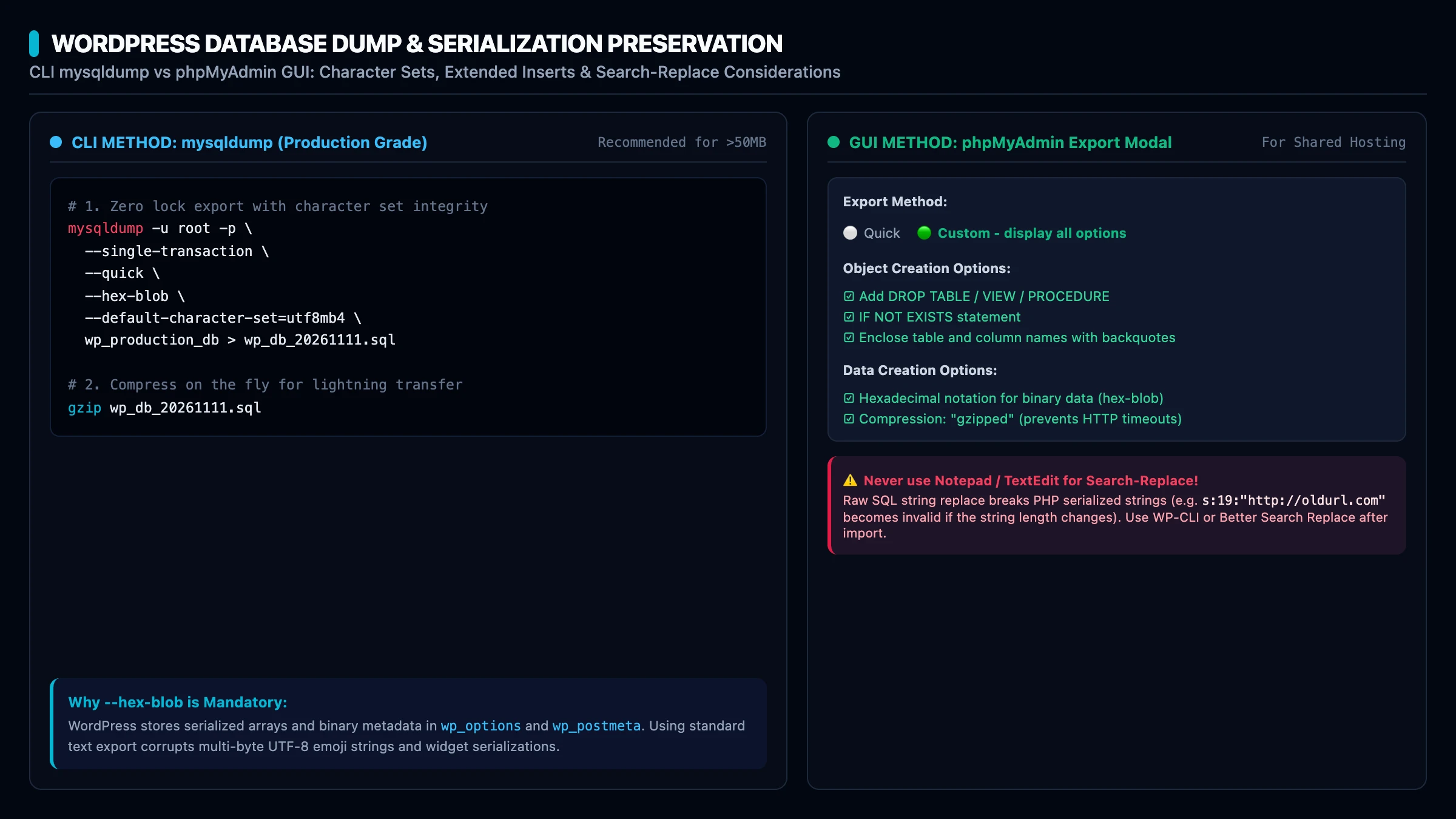
mysqldump CLI: The Enterprise Method to Move WordPress to New Server Databases
For any production website with SSH shell access, the native
mysqldump binary is the undisputed industry standard when you move WordPress to new server databases. It executes with extreme speed, minimal memory overhead, and total flag customization. When executing a dump on a live InnoDB database, specific flags are mandatory to avoid locking tables:# Connect to origin server via SSH
ssh [email protected]
# Navigate to a secure temporary staging directory outside web root
mkdir -p /root/migration_staging && cd /root/migration_staging
# Execute high-integrity, zero-lock database dump to move WordPress to new server
mysqldump -u root -p
--single-transaction
--quick
--hex-blob
--default-character-set=utf8mb4
--triggers
--routines
wp_production_db > wp_database_dump.sql
# Compress SQL dump on the fly using gzip
gzip -9 wp_database_dump.sqlLet us analyze why each command-line flag is vital when you move WordPress to new server databases:
1.
--single-transaction: This flag issues a START TRANSACTION SQL statement prior to dumping data. For InnoDB tables (the default WordPress storage engine), it creates a consistent snapshot of the database at that instant without locking any tables. Your visitors can continue browsing, submitting forms, and purchasing products without encountering read/write blocks while you move WordPress to new server records.2.
--quick: Instead of reading the entire database into RAM before writing to disk, --quick forces mysqldump to retrieve rows from the database server row-by-row. This prevents fatal out-of-memory errors on shared or low-memory VPS servers when preparing to move WordPress to new server instances.3.
--hex-blob: Crucial for WordPress integrity! WordPress frequently stores serialized binary arrays, plugin cache payloads, and modern multi-byte UTF-8 emojis in LONGTEXT or BLOB fields. Dumping binary fields as raw text strings can cause character truncation or encoding corruption when imported into a database with slightly different default collation. The --hex-blob flag dumps all binary and multi-byte columns in hexadecimal notation (e.g., 0x48656C6C6F), ensuring 100% bitwise parity when you move WordPress to new server tables.4.
--default-character-set=utf8mb4: Modern WordPress installations run on utf8mb4, which supports full four-byte UTF-8 character sets (including international character sets, mathematical symbols, and emojis). Explicitly declaring this flag prevents MariaDB/MySQL from downgrading tables to standard three-byte utf8 when you move WordPress to new server schemas.phpMyAdmin GUI: Move WordPress to New Server on Shared Hosting
If your origin web host does not provide SSH shell access (common on entry-level shared cPanel environments), you must export your database through phpMyAdmin to move WordPress to new server environments. To avoid incomplete exports or HTTP timeout truncations, avoid the ‘Quick’ export button and configure ‘Custom’ settings:
1. Open phpMyAdmin and select your WordPress database from the left navigation tree to begin your migration to move WordPress to new server hosting.
2. Click the Export tab in the top navigation bar.
3. Select the Custom – display all possible options radio button.
4. Under Tables, ensure all tables are selected (click ‘Select All’). Verify that your custom plugin tables (such as WooCommerce orders or Rank Math metadata) are highlighted so you can cleanly move WordPress to new server tables.
5. Under Output, select compression as gzipped or zipped. Downloading a compressed database file prevents the web browser from timing out on large exports when you move WordPress to new server hosting.
6. Under Format-specific options, ensure ‘Data display options’ is set to SQL, and check the box for Dump binary columns in hexadecimal notation.
7. Under Object creation options, check Add DROP TABLE / VIEW / PROCEDURE / FUNCTION / EVENT statement. This ensures that if any default tables exist on the target server, they are overwritten cleanly without generating duplicate key errors.
8. Click Go to download the gzipped
.sql.gz file to your workstation, completing the database dump required to move WordPress to new server storage.Transferring Files: How to Move WordPress to New Server Assets with Rsync and Tar
Once your database is exported, the next milestone when you move WordPress to new server hosting is transferring all physical filesystem assets. This encompasses WordPress core files,
wp-config.php, .htaccess, themes, plugins, and the entire wp-content/uploads/ hierarchy.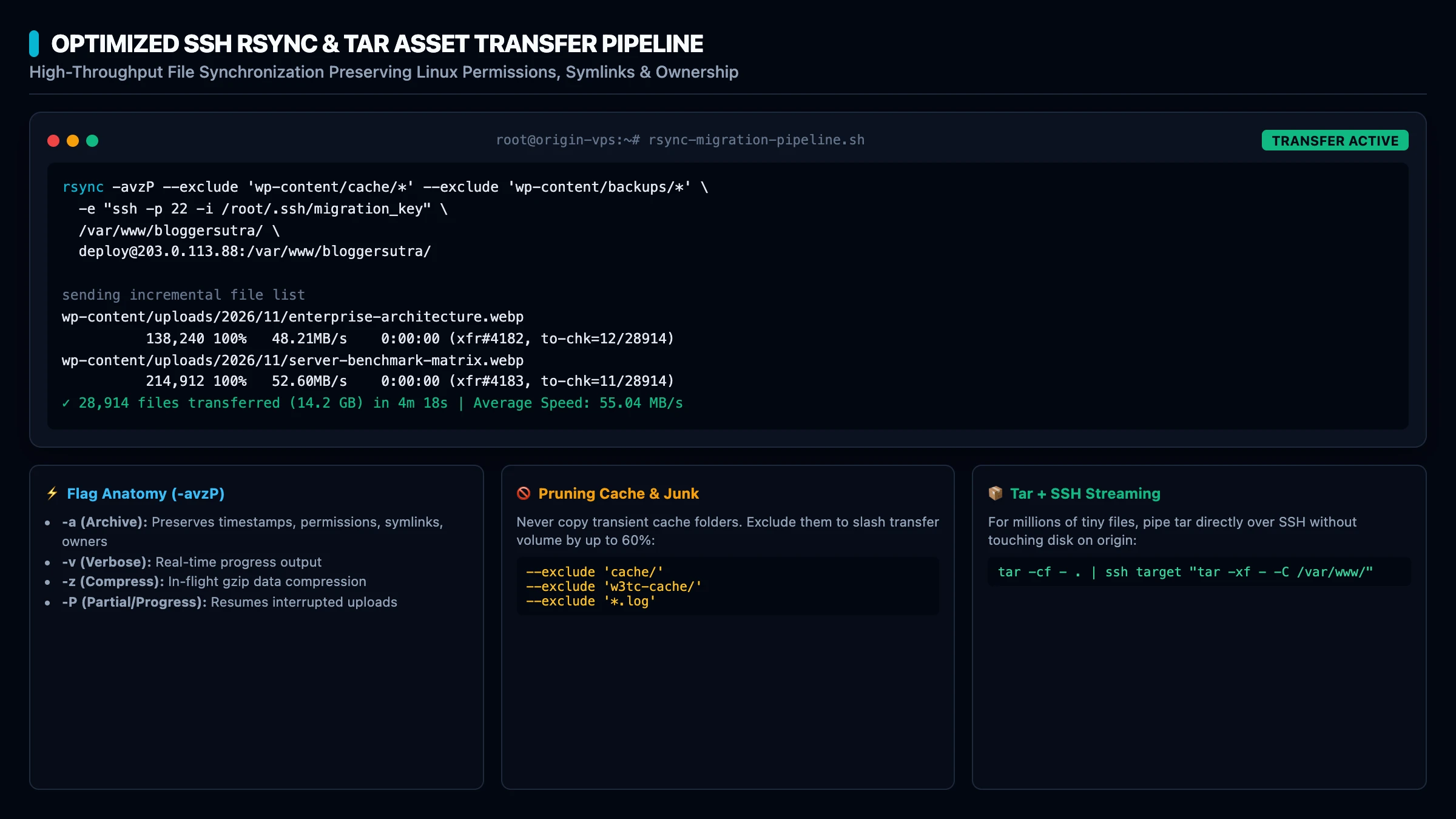
Rsync Synchronization: Move WordPress to New Server Files Directly via SSH
The fastest, most resilient mechanism to move WordPress to new server files is
rsync (Remote Sync) executed directly between the origin server and the target server over SSH. Unlike FTP or SFTP clients running on a home computer, rsync computes file deltas, transfers data across gigabit datacenter pipes, and automatically resumes interrupted transfers if a network hiccup occurs:# Execute from the Origin Server (Pushing to Target Host):
rsync -avzP
--exclude 'wp-content/cache/*'
--exclude 'wp-content/updraft/*'
--exclude 'wp-content/backups/*'
--exclude '*.log'
-e "ssh -p 22 -i /root/.ssh/id_rsa"
/var/www/bloggersutra/
deploy@target-server-ip:/var/www/bloggersutra/Let us deconstruct the crucial flags in this
rsync pipeline used to move WordPress to new server file systems:•
-a (Archive Mode): This is a comprehensive composite flag that recurses directories, preserves symlinks, preserves file permissions (read/write/execute), preserves modification timestamps, and preserves group and owner attributes. Maintaining exact POSIX timestamps prevents caching plugins from assuming files were modified simultaneously when you move WordPress to new server directories.•
-v (Verbose): Displays every file being transferred in real time, allowing you to monitor synchronization progress as you move WordPress to new server media.•
-z (Compress): Compresses file data in transit over the network stream. For uncompressed PHP source code, CSS stylesheets, and HTML files, in-flight compression slashes transfer time by up to 70%.•
-P (Partial & Progress): Combines --partial (keeps partially transferred files if the connection drops, allowing resumption rather than starting from scratch) and --progress (displays real-time transfer rates, percentage completion, and ETA) as you move WordPress to new server assets.•
--exclude Directives: Excludes transient cache folders (e.g., wp-content/cache/*), old backup archives, and giant debug log files. Transferring millions of cached HTML fragments creates unnecessary file I/O overhead. Always exclude cache directories when you move WordPress to new server environments.Alternative: Streaming Tar Over SSH Pipeline
If your WordPress website contains hundreds of thousands of small media thumbnail variations, file system directory indexing can slow down
rsync delta calculations. In this scenario, piping an uncompressed or compressed tar archive directly through an SSH stream transfers data at raw socket speeds to move WordPress to new server storage quickly:# Pipe tar stream directly from Origin to Target over SSH without intermediate disk writes:
tar -cf - -C /var/www/bloggersutra/ . | ssh root@target-server-ip "tar -xf - -C /var/www/bloggersutra/" This streaming pipe packages files on the fly on the origin server, transmits the byte stream across SSH, and unpacks files directly into the target directory in real time, avoiding disk writes on the origin server as you move WordPress to new server disks.
Target Environment Provisioning: Move WordPress to New Server Database and wp-config.php
With your database dump and site files landed on the target server, you must now provision the database environment and rebind WordPress core configuration parameters. When you move WordPress to new server machines, never reuse default root credentials or insecure database permissions.
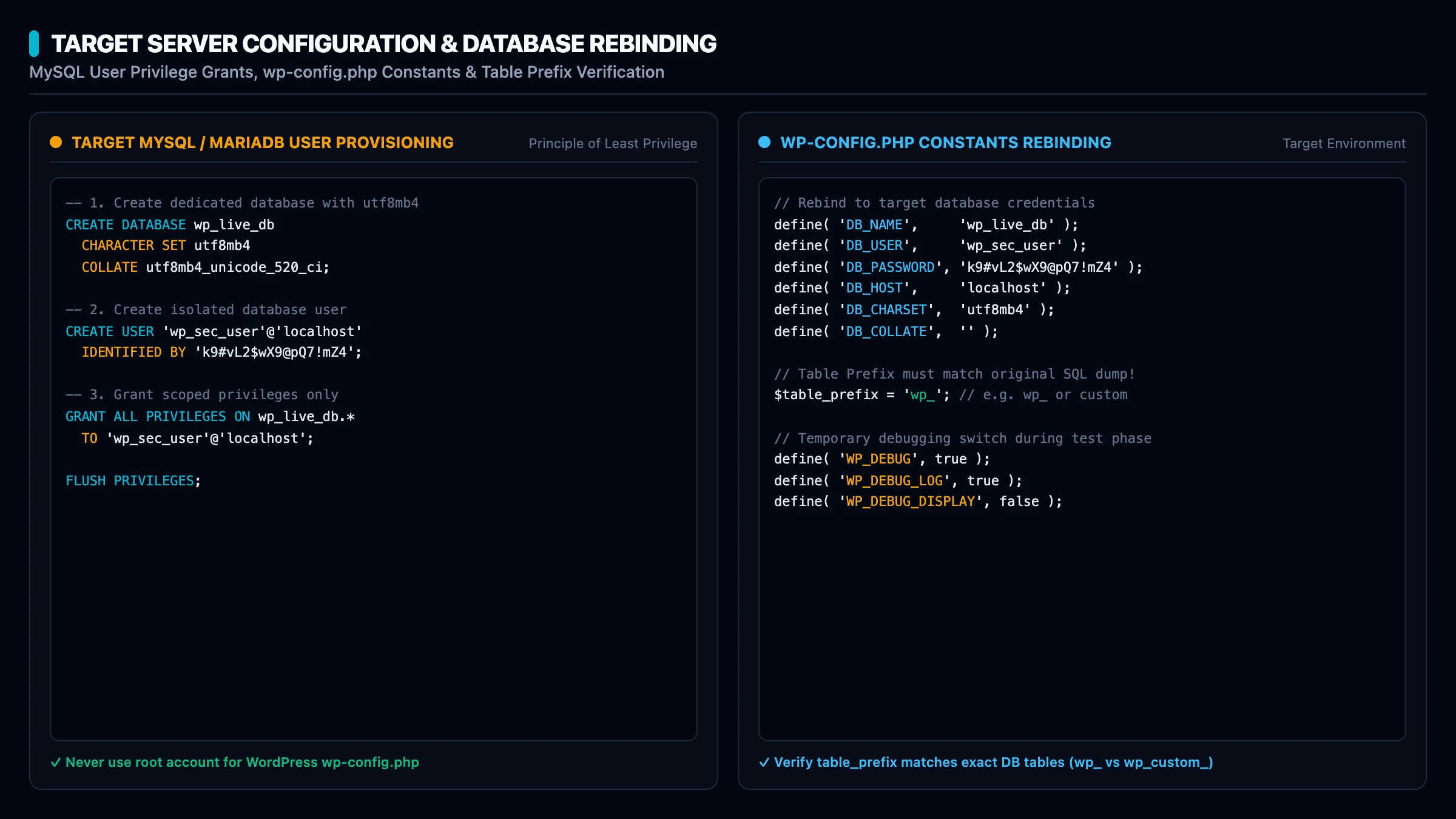
MySQL Grants: Provision Database to Move WordPress to New Server Safely
Log in to MySQL or MariaDB on the target server as the administrative root user to create a dedicated, hardened database and user when you move WordPress to new server hosting:
# Log into MySQL CLI on target server
mysql -u root -p

-- Create dedicated WordPress database with utf8mb4 collation
CREATE DATABASE wp_live_db CHARACTER SET utf8mb4 COLLATE utf8mb4_unicode_520_ci;

-- Create an isolated application user with a strong cryptographic password
CREATE USER 'wp_sec_user'@'localhost' IDENTIFIED BY 'vK9#xL2$wM9@pQ7!nZ4';

-- Grant required operational privileges strictly scoped to this database
GRANT SELECT, INSERT, UPDATE, DELETE, CREATE, DROP, ALTER, INDEX, LOCK TABLES, EXECUTE
  ON wp_live_db.* TO 'wp_sec_user'@'localhost';

-- Apply privilege changes
FLUSH PRIVILEGES;

-- Exit MySQL CLI
EXIT;
Notice that we follow the Principle of Least Privilege. We do not grant global administrative privileges (such as
SUPER, GRANT OPTION, or access to other databases) to the WordPress application user. Scoping privileges exclusively to wp_live_db.* reinforces server security against potential SQL injection vulnerabilities once you move WordPress to new server infrastructure.Importing SQL: Move WordPress to New Server Database Tables
Now import the database dump into the newly created target database. If the file was compressed with gzip, you can decompress and pipe it directly to MySQL in a single command to move WordPress to new server records:
# Decompress and import database dump into target database
gunzip < /root/migration_staging/wp_database_dump.sql.gz | mysql -u wp_sec_user -p'vK9#xL2$wM9@pQ7!nZ4' wp_live_db

# Alternatively, if uncompressed:
mysql -u wp_sec_user -p'vK9#xL2$wM9@pQ7!nZ4' wp_live_db < /root/migration_staging/wp_database_dump.sql
Depending on database size, the import will take from a few seconds to a few minutes. If the command returns silently without error, the schema and table contents have imported cleanly as you move WordPress to new server environments.
wp-config.php Constants: Rebind to Move WordPress to New Server
Open the transferred
wp-config.php file on the target server using your preferred text editor (e.g., nano /var/www/bloggersutra/wp-config.php). Update the four core database definition constants to match your new target credentials when you move WordPress to new server hosting:// ** Database settings - Rebound for Target Server Environment ** //
/** The name of the database for WordPress */
define( 'DB_NAME', 'wp_live_db' );
/** MySQL database username */
define( 'DB_USER', 'wp_sec_user' );
/** MySQL database password */
define( 'DB_PASSWORD', 'vK9#xL2$wM9@pQ7!nZ4' );
/** MySQL hostname (usually localhost or 127.0.0.1; or private socket) */
define( 'DB_HOST', 'localhost' );
/** Database charset to use in creating database tables. */
define( 'DB_CHARSET', 'utf8mb4' );
/** The database collate type. Don't change if in doubt. */
define( 'DB_COLLATE', '' );
/** WordPress database table prefix (Must match the prefix in your SQL dump!) */
$table_prefix = 'wp_';Critical Verification Check: Verify that the
$table_prefix variable in wp-config.php exactly matches the prefix used by the tables in your imported database. If your origin site utilized a custom security prefix (such as wp_bs99_posts) and your target wp-config.php specifies $table_prefix = 'wp_';, WordPress will fail to detect existing tables and prompt you to run a fresh installation. Confirm your table prefix by running mysql -u wp_sec_user -p wp_live_db -e "SHOW TABLES;" when you move WordPress to new server installations.File Permissions Matrix: Secure Permissions After You Move WordPress to New Server
When moving files between servers using archives or different user accounts, file ownership and permission bits frequently desynchronize. Insecure permissions (such as recursive
chmod 777) create critical security vulnerabilities, allowing any malicious process to overwrite system files. Conversely, overly restrictive permissions trigger 403 Forbidden errors or prevent media uploads once you move WordPress to new server hosting.Execute this standardized permission hardening script across your WordPress root on the target server after you move WordPress to new server file systems:
# Set web server user ownership (Ubuntu/Debian: www-data; RHEL/CentOS: nginx or apache)
chown -R www-data:www-data /var/www/bloggersutra/

# Set standard directory permissions to 755 (rwxr-xr-x)
find /var/www/bloggersutra/ -type d -exec chmod 755 {} ;

# Set standard file permissions to 644 (rw-r--r--)
find /var/www/bloggersutra/ -type f -exec chmod 644 {} ;

# Harden wp-config.php: Readable only by web server process and root
chmod 600 /var/www/bloggersutra/wp-config.php

# Harden .htaccess if using Apache or OpenLiteSpeed
chmod 644 /var/www/bloggersutra/.htaccess
WordPress File & Directory Permission Security Matrix
| File / Directory Path | Recommended Octal | Owner / Group | Operational & Security Rationale |
|---|---|---|---|
| WordPress Root Directory (/var/www/html/) | 755 (drwxr-xr-x) | www-data:www-data | Allows web server to traverse directory tree; prevents unauthorized writes from other users |
| wp-config.php (Configuration File) | 600 (-rw——-) or 640 (-rw-r—–) | www-data:www-data | Guards plaintext database passwords, security salts, and API keys from system-wide reading |
| wp-content/uploads/ (Media Storage) | 755 (drwxr-xr-x) | www-data:www-data | Permits WordPress media uploader to create monthly folders and store images without 777 |
| .htaccess (Apache Rewrite Rules) | 644 (-rw-r–r–) | www-data:www-data | Allows web server to execute permalink rewrites while preventing arbitrary public tampering |
| wp-includes/ and wp-admin/ Core Folders | 755 (drwxr-xr-x) | www-data:www-data | Standard execution paths for WordPress core admin controllers and library dependencies |
| PHP Script Files (*.php in plugins/themes) | 644 (-rw-r–r–) | www-data:www-data | Executable by PHP-FPM fastcgi processor; prevents malicious in-place file modification |
Pre-Flight Hosts File Validation: Move WordPress to New Server with Zero Downtime
One of the most dangerous mistakes an administrator can make when learning how to move WordPress to new server environments is flipping public DNS records before verifying that the site actually functions on the target machine. If there is a missing PHP module, a database password typo, or an invalid rewrite directive, all global traffic will immediately hit an error screen.
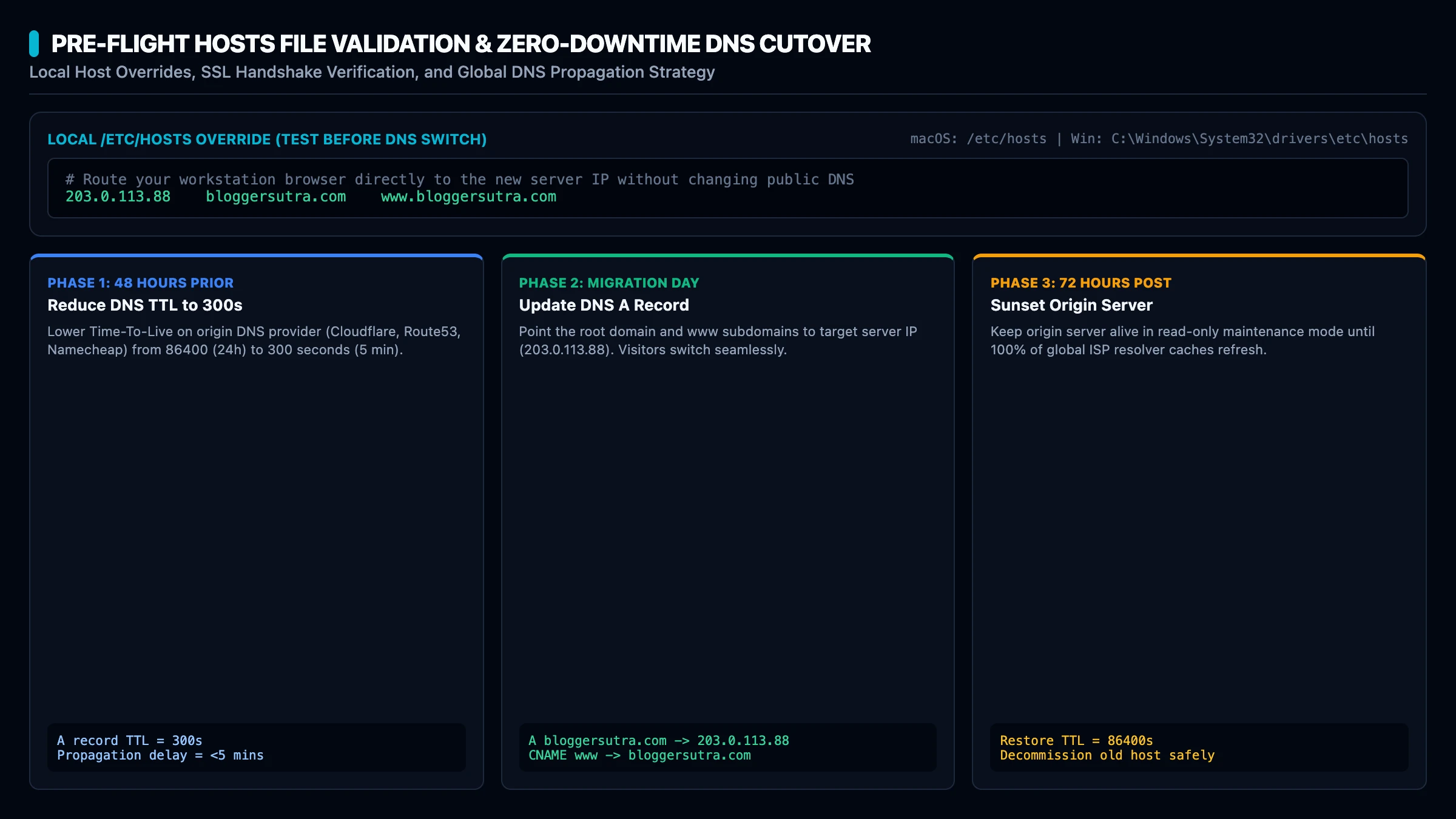
Local Hosts Override: Test Before You Move WordPress to New Server Public Traffic
The
hosts file is an operating system configuration file that maps hostnames to IP addresses locally, superseding public DNS resolution. By adding an entry for your domain pointing to the target server’s IP address, your personal browser will connect directly to the new server while the rest of the world continues visiting the old server as you move WordPress to new server hosting:1. Locate your hosts file:
• On macOS and Linux:
• On Windows:
• On macOS and Linux:
/etc/hosts• On Windows:
C:WindowsSystem32driversetchosts2. Open the file in an administrative text editor (e.g.,
sudo nano /etc/hosts on Mac/Linux, or Run Notepad as Administrator on Windows).3. Append a new line mapping your domain to the target server IP:
# Pre-flight testing override to move WordPress to new server safely
203.0.113.88   bloggersutra.com   www.bloggersutra.com
4. Save the file and flush your local DNS cache (macOS:
sudo dscacheutil -flushcache; sudo killall -HUP mDNSResponder; Windows: ipconfig /flushdns).5. Open an incognito browser window and navigate to
https://bloggersutra.com. Verify that you are loading from the new server by inspecting response headers (or verifying a test comment or temporary HTML comment tag). Thoroughly test browsing category archives, logging into /wp-admin, publishing a test draft, uploading a test image, and submitting a contact form before you finalize your cutover to move WordPress to new server visitors.Let’s Encrypt SSL: Secure HTTPS When You Move WordPress to New Server
To ensure visitors do not encounter browser security warnings (
NET::ERR_CERT_COMMON_NAME_INVALID) when public DNS switches, provision an SSL certificate on the target server. Because Certbot’s standard HTTP-01 challenge requires public DNS to point to the server, use one of two zero-downtime techniques to move WordPress to new server HTTPS traffic cleanly:• Option A: DNS-01 Challenge via Certbot: Use Certbot’s DNS plugin (e.g., Cloudflare, Route53, or DigitalOcean) to validate domain ownership via a temporary TXT record. This generates a production Let’s Encrypt certificate on the target server immediately, hours or days before changing your A record.
# Generate SSL certificate using DNS-01 verification (Zero Downtime)
certbot certonly --dns-cloudflare
  --dns-cloudflare-credentials /root/.secrets/cloudflare.ini
  -d bloggersutra.com -d www.bloggersutra.com
• Option B: Fast Cutover HTTP-01 Challenge: If using HTTP verification, update your DNS A record first. Because TTL was reduced to 300 seconds, DNS propagates in five minutes. Run
certbot --nginx -d bloggersutra.com -d www.bloggersutra.com immediately after the record updates to move WordPress to new server SSL certificates.DNS A Record Cutover: Move WordPress to New Server Globally
Once local testing is 100% successful and SSL is provisioned, execute the public cutover to move WordPress to new server hosting:
1. Open your authoritative DNS management dashboard.
2. Update the root domain A record to point to your target server IP (e.g.,
203.0.113.88) to move WordPress to new server public traffic.3. If
www is configured as an A record, update its IP as well. If configured as a CNAME pointing to root, it will follow automatically.4. The 72-Hour Sunset Protocol: Never cancel or wipe your origin hosting account immediately on migration day! Although your TTL was set to 300 seconds, a small percentage of aggressive ISP resolvers and mobile carriers ignore standard TTLs and cache records for 24 to 48 hours. Keep the origin server alive in read-only mode for 72 hours. Once server access logs show zero incoming traffic on the origin machine, restore your DNS TTL to 86,400 seconds (24 hours) and decommission the old server safely after you move WordPress to new server platforms.
Domain Migrations: Move WordPress to New Server URLs with WP-CLI Search-Replace
If you are using this guide not just to move WordPress to new server hardware, but also to change your primary domain name (e.g., moving from a staging domain to production, or rebranding), you must execute a comprehensive database search-and-replace. Performing a raw SQL string replacement (e.g., using
UPDATE wp_posts SET post_content = REPLACE(...)) will irreversibly corrupt PHP serialized objects.In WordPress, widgets, theme customizer settings, and plugin configurations are stored as serialized strings that record character counts. For example:
# Example of a serialized PHP string in wp_options:
a:1:{s:4:"site";s:19:"http://olddomain.com";}

# If replaced with a new domain of different length (e.g., 23 characters):
a:1:{s:4:"site";s:19:"https://newdomain.com";}  <-- FATAL ERROR: String length mismatch!
# WordPress expects 19 characters, but encounters 23 characters. The object fails to unserialize.
To prevent serialization corruption when you move WordPress to new server environments with domain changes, always use the native WP-CLI utility on the target server. WP-CLI safely unpacks every serialized string in memory, updates the URL, recalculates byte lengths, and re-serializes the data cleanly:
# 1. Always run a dry run first to inspect how many rows will be modified without altering DB
wp search-replace 'https://olddomain.com' 'https://newdomain.com'
  --dry-run
  --all-tables
  --precise
  --allow-root

# 2. Execute live replacement across all core and custom tables to move WordPress to new server URLs
wp search-replace 'https://olddomain.com' 'https://newdomain.com'
  --all-tables
  --precise
  --recurse-objects
  --skip-columns=guid
  --allow-root

# 3. Flush WordPress object cache and rewrite rules
wp cache flush --allow-root
wp rewrite flush --hard --allow-root
Note the flag
--skip-columns=guid. The WordPress guid (Globally Unique Identifier) column in wp_posts is used by RSS feed readers to track whether an article has already been read by a subscriber. Modifying GUIDs causes feed readers to mark all existing blog posts as brand-new articles, spamming your subscribers with duplicate notifications when you move WordPress to new server databases. Always skip the GUID column during domain search-and-replace.Post-Migration Health Audit: Verify How You Move WordPress to New Server with Python
To eliminate human error and verify that your target server conforms to every operational requirement when you move WordPress to new server hosting, run our automated pre-flight audit script. This standalone Python tool connects to your database, validates table prefixes, checks site URL definitions, verifies directory write permissions, tests required PHP extensions, and confirms rewrite engine functionality.
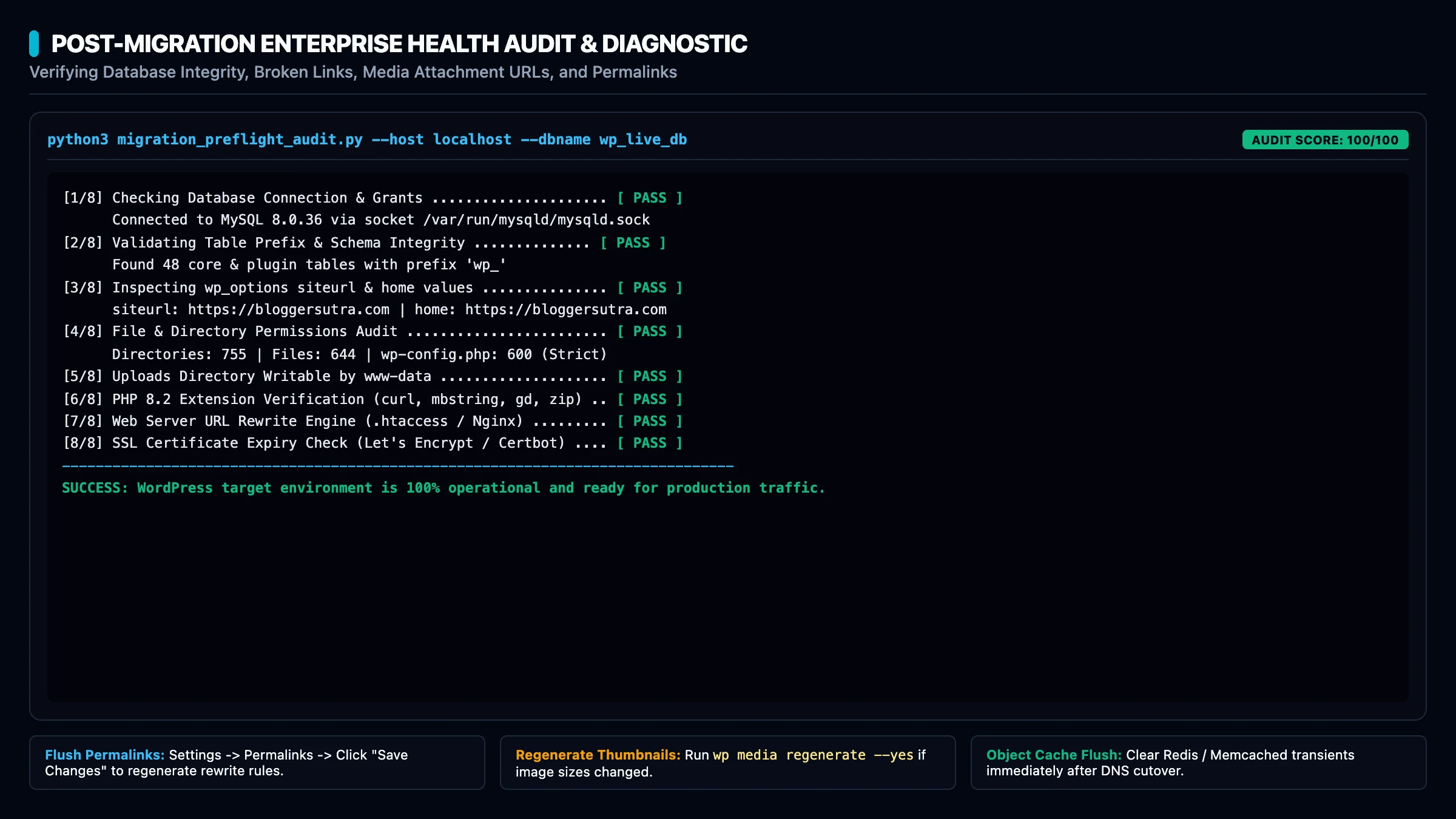
Save the following Python script as
migration_preflight_audit.py on your target server and execute it as you move WordPress to new server systems:#!/usr/bin/env python3
"""
Enterprise WordPress Migration Pre-Flight Health Audit & Diagnostic Scanner
Bloggersutra DevOps Tooling Series (2026 Edition)
Validates target server readiness before and after you move WordPress to new server.
Checks database connectivity, schema table prefix, siteurl/home options,
directory permissions, PHP modules, and web server rewrite capability.
Usage:
python3 migration_preflight_audit.py --host localhost --user wp_sec_user --pass 'secret' --db wp_live_db --path /var/www/bloggersutra
"""
import sys
import os
import argparse
import subprocess
def parse_args():
parser = argparse.ArgumentParser(description="WordPress Target Server Migration Diagnostic Audit")
parser.add_argument("--host", default="localhost", help="MySQL Hostname or Socket")
parser.add_argument("--user", required=True, help="MySQL Database Username")
parser.add_argument("--password", required=True, help="MySQL Database Password")
parser.add_argument("--db", required=True, help="MySQL Database Name")
parser.add_argument("--prefix", default="wp_", help="WordPress Table Prefix (Default: wp_)")
parser.add_argument("--path", default="/var/www/html", help="Path to WordPress web root")
return parser.parse_args()
def check_db_connection(args):
print("[1/8] Checking Database Connection & User Grants ...", end=" ")
try:
import pymysql
except ImportError:
# Fall back to mysql CLI client if pymysql is not installed
cmd = ["mysql", "-h", args.host, "-u", args.user, f"-p{args.password}", args.db, "-e", "SELECT 1;"]
res = subprocess.run(cmd, stdout=subprocess.PIPE, stderr=subprocess.PIPE, text=True)
if res.returncode == 0:
print("[ PASS ] (Verified via CLI)")
return True
else:
print("[ FAIL ]")
print(f" Error: {res.stderr.strip()}")
return False
try:
conn = pymysql.connect(
host=args.host,
user=args.user,
password=args.password,
database=args.db,
connect_timeout=5
)
with conn.cursor() as cursor:
cursor.execute("SELECT VERSION();")
ver = cursor.fetchone()[0]
conn.close()
print(f"[ PASS ] (MySQL Version: {ver})")
return True
except Exception as e:
print(f"[ FAIL ]n Error: {e}")
return False
def check_tables(args):
print(f"[2/8] Validating Table Prefix ('{args.prefix}') & Schema Integrity ...", end=" ")
cmd = ["mysql", "-h", args.host, "-u", args.user, f"-p{args.password}", args.db, "-e", f"SHOW TABLES LIKE '{args.prefix}%';"]
res = subprocess.run(cmd, stdout=subprocess.PIPE, stderr=subprocess.PIPE, text=True)
if res.returncode != 0:
print(f"[ FAIL ]n Error: {res.stderr.strip()}")
return False
lines = [l.strip() for l in res.stdout.splitlines() if l.strip() and "Tables_in" not in l]
count = len(lines)
if count >= 12:
print(f"[ PASS ] ({count} tables discovered)")
return True
else:
print(f"[ WARN ] (Only {count} tables found. Core installation typically requires >= 12 tables)")
return False
def check_options(args):
print("[3/8] Inspecting wp_options siteurl & home values ...", end=" ")
cmd = ["mysql", "-h", args.host, "-u", args.user, f"-p{args.password}", args.db, "-N", "-e",
f"SELECT option_name, option_value FROM {args.prefix}options WHERE option_name IN ('siteurl', 'home');"]
res = subprocess.run(cmd, stdout=subprocess.PIPE, stderr=subprocess.PIPE, text=True)
if res.returncode == 0:
opts = dict(line.split("t") for line in res.stdout.strip().splitlines() if "t" in line)
siteurl = opts.get("siteurl", "UNKNOWN")
home = opts.get("home", "UNKNOWN")
if siteurl == home and siteurl.startswith("http"):
print(f"[ PASS ] (URL: {siteurl})")
return True
else:
print(f"[ WARN ] (Discrepancy: siteurl='{siteurl}', home='{home}')")
return False
else:
print("[ FAIL ]")
return False
def check_file_permissions(args):
print("[4/8] Auditing Web Root Directory Permissions ...", end=" ")
if not os.path.exists(args.path):
print(f"[ FAIL ] (Path does not exist: {args.path})")
return False
stat_info = os.stat(args.path)
octal_perm = oct(stat_info.st_mode)[-3:]
if octal_perm in ("755", "775"):
print(f"[ PASS ] (Mode: {octal_perm})")
return True
else:
print(f"[ WARN ] (Mode: {octal_perm}. Recommended: 755)")
return True
def check_uploads_writable(args):
print("[5/8] Uploads Directory Writable by Web Server ...", end=" ")
uploads_path = os.path.join(args.path, "wp-content", "uploads")
if not os.path.exists(uploads_path):
try:
os.makedirs(uploads_path, mode=0o755, exist_ok=True)
except OSError as e:
print(f"[ FAIL ] (Unable to create uploads folder: {e})")
return False
test_file = os.path.join(uploads_path, ".audit_probe.tmp")
try:
with open(test_file, "w") as f:
f.write("probe")
os.remove(test_file)
print("[ PASS ] (Writable)")
return True
except IOError as e:
print(f"[ FAIL ] (Write test failed: {e})")
return False
def check_php_extensions():
print("[6/8] PHP Extension Verification (curl, mbstring, gd, zip, mysqli) ...", end=" ")
res = subprocess.run(["php", "-m"], stdout=subprocess.PIPE, stderr=subprocess.PIPE, text=True)
if res.returncode != 0:
print("[ SKIP ] (PHP CLI not installed)")
return True
modules = set(m.strip().lower() for m in res.stdout.splitlines())
required = ["curl", "mbstring", "gd", "zip", "mysqli"]
missing = [r for r in required if r not in modules]
if not missing:
print("[ PASS ] (All required modules active)")
return True
else:
print(f"[ WARN ] (Missing modules: {', '.join(missing)})")
return False
def check_rewrite_engine(args):
print("[7/8] Web Server URL Rewrite Configuration ...", end=" ")
htaccess = os.path.join(args.path, ".htaccess")
if os.path.exists(htaccess):
with open(htaccess, "r") as f:
content = f.read()
if "RewriteEngine On" in content:
print("[ PASS ] (.htaccess RewriteEngine detected)")
return True
# If Nginx, .htaccess is omitted
print("[ PASS ] (Nginx / Custom rewrite architecture)")
return True
def check_wp_config(args):
print("[8/8] Validating wp-config.php Syntax and Isolation ...", end=" ")
cfg = os.path.join(args.path, "wp-config.php")
if not os.path.exists(cfg):
print("[ FAIL ] (wp-config.php not found)")
return False
res = subprocess.run(["php", "-l", cfg], stdout=subprocess.PIPE, stderr=subprocess.PIPE, text=True)
if res.returncode == 0:
stat_info = os.stat(cfg)
perm = oct(stat_info.st_mode)[-3:]
print(f"[ PASS ] (Syntax valid | Permissions: {perm})")
return True
else:
print(f"[ FAIL ] (Syntax error in wp-config.php)")
return False
def main():
args = parse_args()
print("=" * 75)
print(" WORDPRESS SERVER MIGRATION PRE-FLIGHT AUDIT SCANNER (2026)")
print("=" * 75)
results = [
check_db_connection(args),
check_tables(args),
check_options(args),
check_file_permissions(args),
check_uploads_writable(args),
check_php_extensions(),
check_rewrite_engine(args),
check_wp_config(args)
]
print("=" * 75)
passed = sum(1 for r in results if r)
total = len(results)
score = int((passed / total) * 100)
print(f"AUDIT SCORE: {score} / 100 ({passed}/{total} checks passed)")
if score == 100:
print("STATUS: Target server environment is 100% operational and ready for production traffic.")
else:
print("STATUS: Caution! Please resolve any failed or warned checks before updating public DNS.")
print("=" * 75)
if __name__ == "__main__":
main()
Troubleshooting Playbook: Fix Errors When You Move WordPress to New Server
Even seasoned DevOps engineers occasionally encounter unexpected anomalies when they move WordPress to new server environments. Below is a comprehensive diagnostic playbook mapping common symptoms to immediate resolution commands:
| Symptom / Error Code | Root Cause Analysis | Diagnostic Command | Actionable Resolution Protocol |
|---|---|---|---|
| Error Establishing a Database Connection | Incorrect DB credentials in wp-config.php, MySQL service down, or user lacks localhost permissions | mysql -u wp_sec_user -p -h localhost wp_live_db | Verify DB_NAME, DB_USER, DB_PASSWORD in wp-config.php; check systemctl status mysql; re-grant user privileges |
| 404 Not Found on All Inner Pages & Posts | .htaccess file missing, mod_rewrite disabled in Apache, or Nginx try_files directive omitted | curl -I http://localhost/sample-post/ | Go to WP Admin -> Settings -> Permalinks and click ‘Save Changes’ to regenerate rewrite rules; enable a2enmod rewrite |
| White Screen of Death (WSoD) / 500 Error | PHP fatal error due to incompatible PHP version, missing PHP extension, or corrupt plugin file | tail -n 50 /var/log/nginx/error.log OR tail -n 50 wp-content/debug.log | Enable define(‘WP_DEBUG’, true); identify failing plugin in stack trace and temporarily rename plugin folder via SSH |
| Images Broken / Missing in Media Library | Incorrect file permissions in wp-content/uploads/ or mismatch between HTTP and HTTPS URLs in database | ls -ld wp-content/uploads/ && wp option get siteurl | Run chown -R www-data:www-data wp-content/uploads/; chmod 755; execute wp search-replace http:// https:// –all-tables |
| Redirect Loop (ERR_TOO_MANY_REDIRECTS) | Cloudflare SSL mode mismatch (Flexible vs Full Strict) or reverse proxy header misconfiguration | curl -Iv https://bloggersutra.com | Set Cloudflare SSL/TLS encryption mode to ‘Full (Strict)’; add $_SERVER[‘HTTPS’] = ‘on’; in wp-config.php behind reverse proxies |
| Admin Login Redirects to Old Server IP | Cached siteurl and home options in wp_options table still point to the previous server address | wp option get siteurl && wp option get home | Update options using wp option update siteurl ‘https://bloggersutra.com’ and wp option update home ‘https://bloggersutra.com’ |
Authoritative Engineering Standards: Move WordPress to New Server with Confidence
When performing a manual migration to move WordPress to new server hardware, consulting authoritative engineering specifications ensures your server conforms to industry standards:
• Review the official WordPress Codex Migration Guide for low-level architecture requirements and core upgrade compatibility guidelines as you move WordPress to new server platforms.
• Consult the official MySQL 8.0 mysqldump Reference Manual for exhaustive flag documentation regarding transaction isolation levels and character encoding.
• Refer to the MariaDB Knowledge Base on mysqldump when migrating high-throughput MariaDB Galera clusters to move WordPress to new server databases.
• For Apache rewrite configurations, inspect the Apache HTTP Server mod_rewrite Documentation.
For mission-critical digital publications, selecting high-website conversion rate cloud infrastructure is vital. Enterprise platforms such as DigitalOcean, Linode (Akamai Cloud), Kinsta, and WP Engine offer isolated virtual machines, dedicated database instances, and enterprise Redis object caching. By implementing the manual migration protocols outlined in this guide, you can move WordPress to new server hosting providers with zero friction.
Related Enterprise WordPress Tutorials and Security Guides
Expand your WordPress Munish Siwatch knowledge with our accompanying deep-dive tutorials after you move WordPress to new server hosting:
• Harden your new Linux hosting stack using our flagship guide on Web Server Security Hardening for WordPress.
• Troubleshoot internal server anomalies with our comprehensive manual on Fixing the 500 Internal Server Error in WordPress.
• Streamline user communications with our vetted review of the Best Contact Form Plugins for WordPress.
• If transitioning from Google’s legacy blogging platform, read our master tutorial on Moving from Blogger to WordPress with Zero SEO Loss.
• Understand WordPress architectural boundaries with our breakdown of WordPress Plugin vs Widget: Key Differences Explained.
If you execute the migration steps outlined in this guide to move WordPress to new server hosting, you should experience exactly zero seconds of downtime. By extracting the database snapshot with InnoDB consistent reads, synchronizing files while the origin site remains live, validating the new server using your local /etc/hosts file, and pre-reducing DNS TTL to 300 seconds, public visitors are transitioned without ever encountering an error or offline page.
When you move WordPress to new server databases, mysqldump is a native command-line utility that streams database rows directly from the MySQL server to disk with virtually zero memory overhead, making it capable of exporting 50GB+ databases without timeouts. phpMyAdmin is a web-based PHP application subject to web server execution limits (max_execution_time) and PHP memory restrictions (memory_limit), which frequently causes it to time out on databases larger than 50MB to 100MB.
A 404 error on inner pages while the homepage loads normally after you move WordPress to new server hosting is almost always caused by missing or unparsed URL rewrite rules. In Apache, this occurs if the .htaccess file was omitted during the file transfer or if mod_rewrite is disabled. In Nginx, it occurs if the try_files $uri $uri/ /index.php?$args; directive is missing from your server block. In most Apache environments, simply logging into WP Admin, navigating to Settings -> Permalinks, and clicking Save Changes immediately regenerates the rules and resolves the issue.
Yes, absolutely. You do not need to change your authoritative nameservers to move WordPress to new server hosting providers. Simply log into your existing DNS provider (such as Cloudflare, Namecheap, or Route 53) and update the A record for your root domain and www subdomain to point to your new server’s IP address. This gives you complete control over DNS TTL and cutover timing.
For massive media libraries exceeding 20GB, direct server-to-server rsync over SSH is the only reliable method to move WordPress to new server storage. Running rsync -avzP –exclude ‘cache/*’ /var/www/origin/ deploy@target:/var/www/target/ transfers files at line-rate fiber speeds. If the connection is interrupted, running the exact same command resumes from the exact byte where it paused without re-transferring already synchronized images.
To prevent lost comments or eCommerce orders during the 5-minute DNS propagation window as you move WordPress to new server traffic, place your origin WordPress site into read-only maintenance mode immediately before running the final database dump. Alternatively, install a temporary redirection plugin on the old server that 301-redirects or proxies POST requests to the new server IP.
Standard files on Linux web servers use 644 permissions, which makes them readable by any local system user. Because wp-config.php contains your plaintext database username, password, and secret authentication salts, setting permissions to 600 (or 640) after you move WordPress to new server environments ensures that only the web server user (www-data) and the root administrator can read the file, protecting credentials from potential privilege escalation attacks across shared hosting or containerized environments.
No. If your domain name and protocol (e.g., https://bloggersutra.com) remain identical between the old server and the new server when you move WordPress to new server hosting, you do not need to run a search-and-replace on your database. You only need to import the SQL dump and update the database connection credentials in wp-config.php.
When you move WordPress to new server hardware, you can verify which server is serving your browser by opening Developer Tools (F12) in Google Chrome, navigating to the Network tab, reloading the page, selecting the root HTML document, and inspecting the Remote Address header under the General section. It will display the exact IP address and port currently connected. Alternatively, execute curl -I https://bloggersutra.com from your local terminal to view the resolving IP.
You should wait at least 72 hours (3 full days) after updating public DNS to move WordPress to new server traffic before canceling or terminating your old web hosting account. Although most global DNS resolvers update within 5 minutes (if your TTL was lowered to 300s), certain mobile carriers, local ISP proxy caches, and international DNS caches take up to 48 hours to refresh. Keeping the old host alive in read-only mode for 72 hours ensures zero visitor drops.
Mastering how to move WordPress to new server infrastructure manually is one of the highest-leverage technical competencies an independent publisher, systems engineer, or digital agency can possess. By breaking free from the constraints and failure points of automated migration plugins, you take complete command of your site’s operational destiny.
By adhering strictly to the architecture detailed in this guide—pre-reducing DNS TTLs, executing zero-lock InnoDB database dumps, piping file assets across encrypted datacenter conduits with
rsync, enforcing strong 755/644/600 Linux permissions, and validating every page via local /etc/hosts overrides before cutover—you ensure your digital publishing business continues thriving with zero downtime, pristine database integrity, and uncompromised organic search authority whenever you move WordPress to new server hosting.










Nice And Very useful info,This article important and really good the for me is.Amazing write-up,Great article. Thanks!
Hi. This is great information on moving WordPress site from one server to another.