




Quick answer
- What is the fundamental difference in <a href="/blogger-to-building a product review website with affiliate links on WordPress/”>Blogger to WordPress migration on WordPress plugin vs widget? In the discussion of wordpress plugin vs widget, the core distinction lies in backend system functionality versus frontend visual display. A WordPress plugin is a modular software package that adds new capabilities, custom database tables, background jobs, or API endpoints to your entire WordPress site (like adding an e-commerce shop or SEO engine). In contrast, a WordPress widget (now integrated into Gutenberg blocks) is a specific visual UI element that displays static or dynamic content inside predefined widget areas, such as sidebars, headers, and footers..tp-post-content code, .tp-post-content pre, .toc-link{word-break:break-word!important;overflow-wrap:break-word!important;}
- Can a WordPress plugin create or provide widgets? Yes, absolutely. Many of the most popular WordPress plugins bundle custom widgets and blocks to allow users to showcase their plugin’s features on the frontend. For example, the WPForms plugin provides a form builder engine in the backend and supplies a dedicated WPForms block/widget so you can place a WordPress contact form plugin into your sidebar or footer.
- Are widgets dependent on your active WordPress theme? Yes. While plugins operate globally and remain fully functional regardless of which theme you activate, widgets are strictly dependent on your theme’s registered widget areas. If your theme does not register a sidebar or footer widget zone, traditional widgets cannot appear on your website.
- How has Gutenberg changed widgets in modern WordPress? Starting in WordPress 5.8 and solidified in 2026, classic PHP widgets were replaced by block-based widgets. Today, users can insert any Gutenberg block (paragraphs, buttons, images, query loops) directly into widget areas via
Appearance > Widgets. In modern block themes supporting Full Site Editing (FSE), standalone widgets are fully unified into template parts. - Which has a greater impact on website speed: plugins or widgets? Plugins have a substantially higher potential performance impact. An inefficient or bloated plugin can execute hundreds of uncached PHP database queries, enqueue heavy JavaScript site-wide, and delay Time to First Byte (TTFB). Widgets are typically lightweight display containers, although widgets rendering dynamic complex queries (like unindexed tag clouds or external social feeds) can also contribute to page latency.
When taking your first steps into website design and content management, mastering WordPress terminology can occasionally feel like deciphering a completely foreign dialect. Among the most frequent points of confusion for beginners and intermediate site owners alike is the comparison of wordpress plugin vs widget. Because both plugins and widgets allow you to customize, extend, and enhance your digital publication without touching a line of code, newcomers often wonder: ‘What is a WordPress plugin? What is a WordPress widget? And when should I use one over the other?’
Conflating these two core concepts leads to architectural missteps. Site creators often search fruitlessly for a widget to solve a backend security or SEO problem, or conversely, install five separate bloated plugins when a simple native sidebar widget could have accomplished the exact same visual objective. Understanding the technical difference between plugin and widget architecture is vital for maintaining a clean, lightning-fast, and secure WordPress installation in 2026.
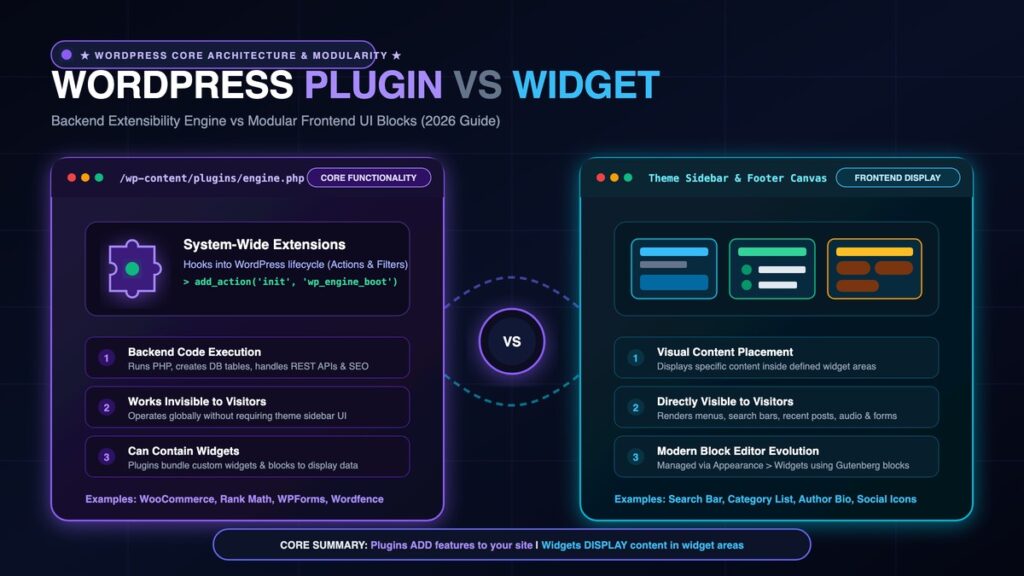
In reality, appreciating the nuances of wordpress plugin vs widget functionality protects your site against unnecessary complexity. In any serious wordpress plugin vs widget analysis, webmasters must recognize that plugins provide global capabilities while widgets deliver localized visual presentation. Evaluating wordpress plugin vs widget tradeoffs ensures you only install software that directly advances your publishing objectives. In this comprehensive 2026 engineering guide, we dissect every layer of the wordpress plugin vs widget relationship.
Furthermore, how you balance your wordpress plugin vs widget architecture directly influences your database load, security vulnerability exposure, and page rendering speed. In this technical masterclass on wordpress plugin vs widget systems, we explore the internal PHP execution lifecycles, dissect theme widget areas, examine the symbiosis where plugins supply widgets, compare classic widgets against Gutenberg block widgets across three technical comparison tables, and deliver an automated Python architecture analyzer.
Whether you are learning how to install WordPress plugins, exploring how to choose a WordPress theme, or fine-tuning your core options in WordPress settings, this comprehensive masterclass on wordpress plugin vs widget provides the clarity you need.
The Core Distinction: The Engine Under the Hood vs Dashboard Gauges
To make the abstract concepts of WordPress software architecture immediately intuitive in the debate of wordpress plugin vs widget, developers often use the automotive engineering metaphor. When analyzing wordpress plugin vs widget, thinking of a high-performance sports car clarifies their complementary roles:
1. The Plugin is the Engine, Transmission, and Turbocharger: When asking ‘what is a WordPress plugin’, imagine everything installed beneath the hood of the car. The engine, the electronic fuel injection, the anti-lock braking system, and the GPS navigation computer are plugins. They supply raw horsepower, process mechanical data, calculate performance metrics, and determine what the vehicle is fundamentally capable of doing. In the dynamic of wordpress plugin vs widget, the plugin is pure backend computational power.
2. The Widget is the Dashboard Gauge and Center Console Screen: When asking ‘what is a WordPress widget’, imagine the visual instruments sitting right in front of the driver. The speedometer needle, the digital fuel gauge, the touch-screen map display, and the radio volume slider are widgets. They do not generate horsepower or steer the wheels themselves; rather, they present specific, organized data to the driver in dedicated locations on the dashboard. In wordpress plugin vs widget, the widget is the visual presentation layer.
3. How They Intersect: Your GPS computer (the plugin) calculates your satellite coordinates and live traffic conditions. But without the visual navigation screen on your dashboard (the widget), the driver cannot see the route. In WordPress, plugins do the heavy lifting behind the scenes, and widgets display the fruits of that labor in your theme’s sidebars, footers, and headers. This structural harmony in wordpress plugin vs widget architecture explains why plugins continue running seamlessly even when you switch themes, whereas widgets may require reassignment.
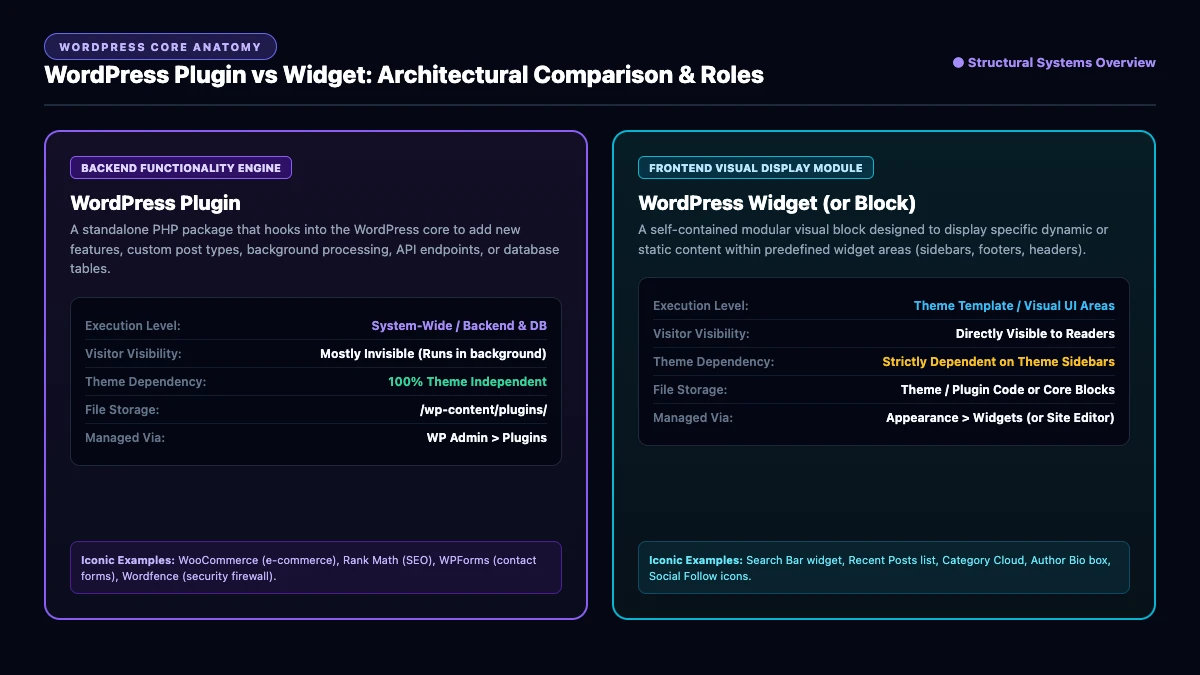
WordPress Plugin vs Widget Core Architectural Matrix
Examine the technical comparison matrix below detailing the structural differences between wordpress plugin vs widget components:
| Architectural Vector | WordPress Plugin | WordPress Widget (or Block) | Technical Interaction in Practice |
|---|---|---|---|
| Primary Functional Purpose | Adds system-wide features, backend logic, APIs & data processing | Displays modular visual content inside theme widget areas | Plugins add features; widgets showcase them visually |
| Execution Runtime Level | System-wide PHP hooks, filters & database layer | Theme template rendering layer & frontend output | Plugin executes logic; widget outputs HTML into theme |
| Visitor Visibility | Mostly invisible (operates in background or WP Admin) | Directly visible to frontend website visitors | Plugins work behind the scenes; widgets serve human eyes |
| Theme Dependency | 100% Theme Independent (Survives theme changes) | Strictly Theme Dependent (Requires registered widget areas) | Switching themes preserves plugins but reshuffles widgets |
| File System Location | Isolated folder in /wp-content/plugins/ | Core block code, theme files, or bundled inside plugins | Plugins reside in root folders; widgets embed within them |
| Administrative Control | WP Admin > Plugins (Install, activate, configure) | Appearance > Widgets (or Site Editor > Template Parts) | Admins manage plugin lifecycle; editors manage widget layout |
| Database Footprint | Custom SQL tables, wp_options records, custom post types | Serialized JSON / PHP array in wp_options (‘widget_*’) | Plugins modify database schema; widgets store UI state |
| Failure / Error Impact | Fatal PHP error can trigger White Screen of Death (WSOD) | Widget error typically breaks only that specific sidebar zone | Deactivating a plugin disables all its child widgets |
What Is a WordPress Plugin? Complete Technical Anatomy
To fully understand wordpress plugin vs widget, we must first answer ‘what is a WordPress plugin’ from an engineering standpoint. At its core, a WordPress plugin is a self-contained program written in PHP (often accompanied by JavaScript, CSS stylesheets, and relational SQL queries) that seamlessly integrates into the WordPress ecosystem through the WordPress Plugin API.
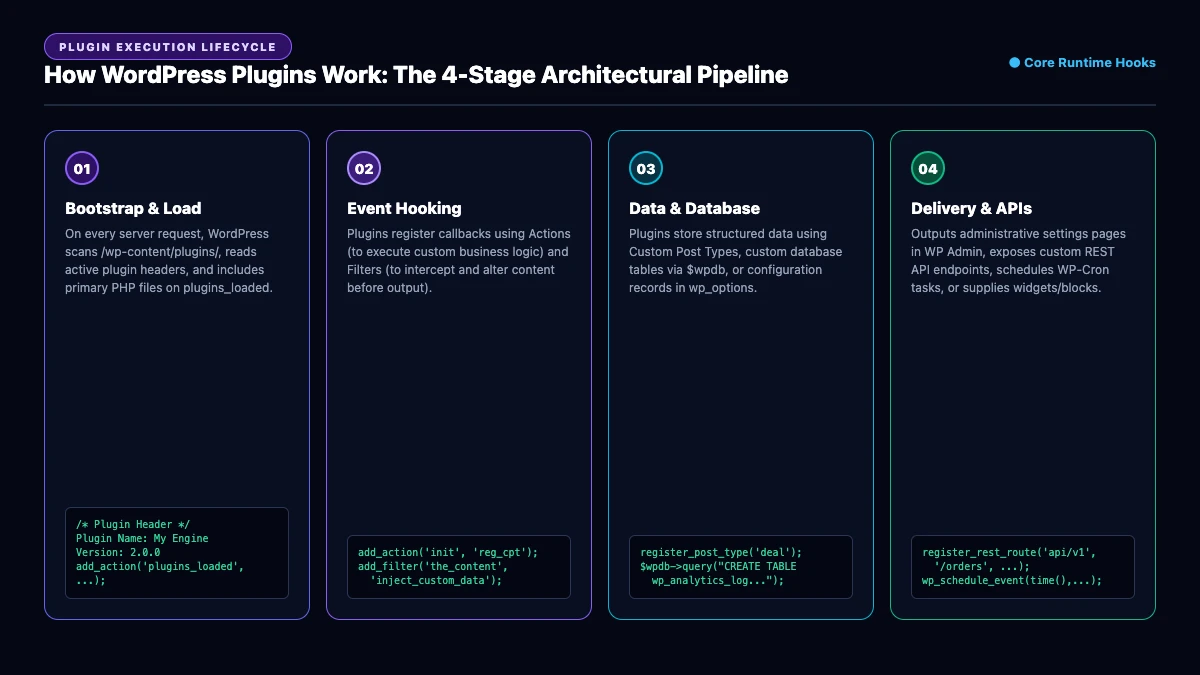
When evaluating wordpress plugin vs widget mechanisms, plugins execute across a sophisticated four-stage lifecycle:
• 1. The Bootstrap and Initialization Phase: When an HTTP request reaches your web server, WordPress loads its core configuration files and immediately scans the active plugins recorded in the
• 2. The WordPress Hook System (Actions and Filters): The genius of WordPress plugin architecture is that plugins never modify core WordPress source files. Instead, they interact via hooks. Action Hooks allow plugins to execute custom functions at specific milestones (e.g., sending an email notification when a comment is published via
• 3. Custom Database Architecture: Complex plugins do not restrict themselves to standard WordPress posts and pages. They register Custom Post Types (such as ‘products’ in WooCommerce or ‘forms’ in WPForms) and frequently generate dedicated custom SQL tables via the global
• 4. Administrative and API Endpoints: Plugins create rich administrative user interfaces within the WordPress dashboard, register custom REST API routes for mobile app integration, and schedule automated background maintenance jobs via WP-Cron.
wp_options database table. It includes each primary PHP file in alphabetical order during the plugins_loaded action hook. This occurs long before your theme templates, headers, or sidebar widgets are ever initialized.• 2. The WordPress Hook System (Actions and Filters): The genius of WordPress plugin architecture is that plugins never modify core WordPress source files. Instead, they interact via hooks. Action Hooks allow plugins to execute custom functions at specific milestones (e.g., sending an email notification when a comment is published via
comment_post). Filter Hooks allow plugins to intercept, manipulate, and return data before it is saved to the database or rendered on the screen (e.g., modifying post content via the_content).• 3. Custom Database Architecture: Complex plugins do not restrict themselves to standard WordPress posts and pages. They register Custom Post Types (such as ‘products’ in WooCommerce or ‘forms’ in WPForms) and frequently generate dedicated custom SQL tables via the global
$wpdb object to store high-volume data efficiently.• 4. Administrative and API Endpoints: Plugins create rich administrative user interfaces within the WordPress dashboard, register custom REST API routes for mobile app integration, and schedule automated background maintenance jobs via WP-Cron.
Because plugins operate at the system level, they possess virtually unlimited power. A single plugin can transform a simple personal blog into a multi-vendor marketplace, a membership subscription portal, an enterprise learning management system (LMS), or a fortified digital fortress.
What Is a WordPress Widget? Theme Canvas and Display Architecture
Now let us turn to the second half of the wordpress plugin vs widget comparison and answer ‘what is a WordPress widget’. Introduced in WordPress 2.2, wordpress widgets were originally created to give non-technical bloggers a simple, visual, drag-and-drop mechanism to control the layout and content of their website’s sidebars without editing PHP template files.
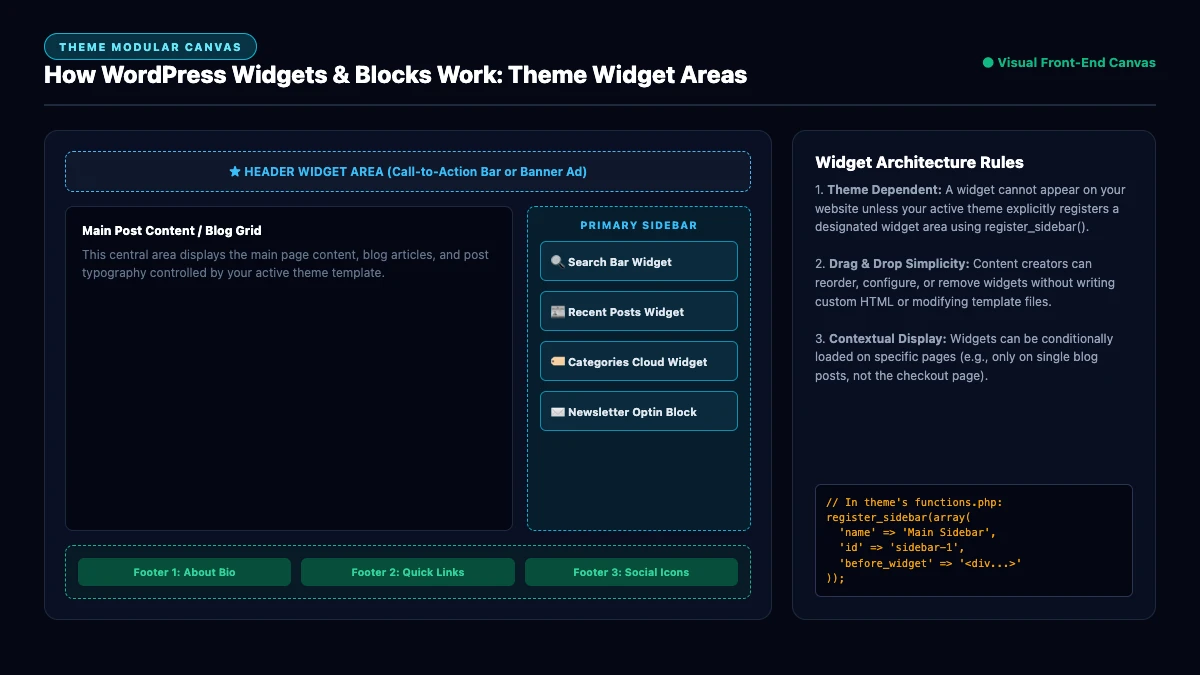
To comprehend wordpress plugin vs widget roles, you must understand how a widget functions within your website’s visual anatomy:
1. The Widget Area (Sidebar Container): A widget cannot exist in a vacuum. It requires a predefined, registered location within your theme’s template files known as a ‘Widget Area’ or ‘Sidebar’. When theme developers construct a theme, they register these areas using the PHP function
register_sidebar() in the theme’s functions.php file. Common widget areas include the Primary Sidebar, Left Sidebar, Header Top Bar, Footer Column 1, Footer Column 2, and Below Post Content. If your theme author chose not to include a sidebar widget area, you cannot display standard widgets there.2. The Visual Display Module: A widget is essentially a self-contained display box designed to sit neatly inside a widget area. Standard default wordpress widgets include Search bars, Categories lists, Recent Posts feeds, Tag Clouds, Navigation Menus, and Custom HTML boxes. When a visitor navigates to your site, WordPress queries the active widgets assigned to that page’s sidebar and renders their HTML markup inside standardized wrapper tags.
3. Contextual and Conditional Display: Modern widget architectures allow for conditional visibility. In modern wordpress plugin vs widget configurations, specialized conditional plugins allow you to instruct WordPress to show a specific email optin widget exclusively on single blog posts within the ‘Finance’ category, while hiding it completely on your static Contact page.
The Symbiosis: How Plugins Supply Widgets to Your Theme
The primary reason newcomers struggle to separate wordpress plugin vs widget is that plugins and widgets frequently work together in seamless symbiosis. When asking ‘what is the difference between plugin and widget’, the answer is often: a plugin is the parent software that gives birth to the widget.
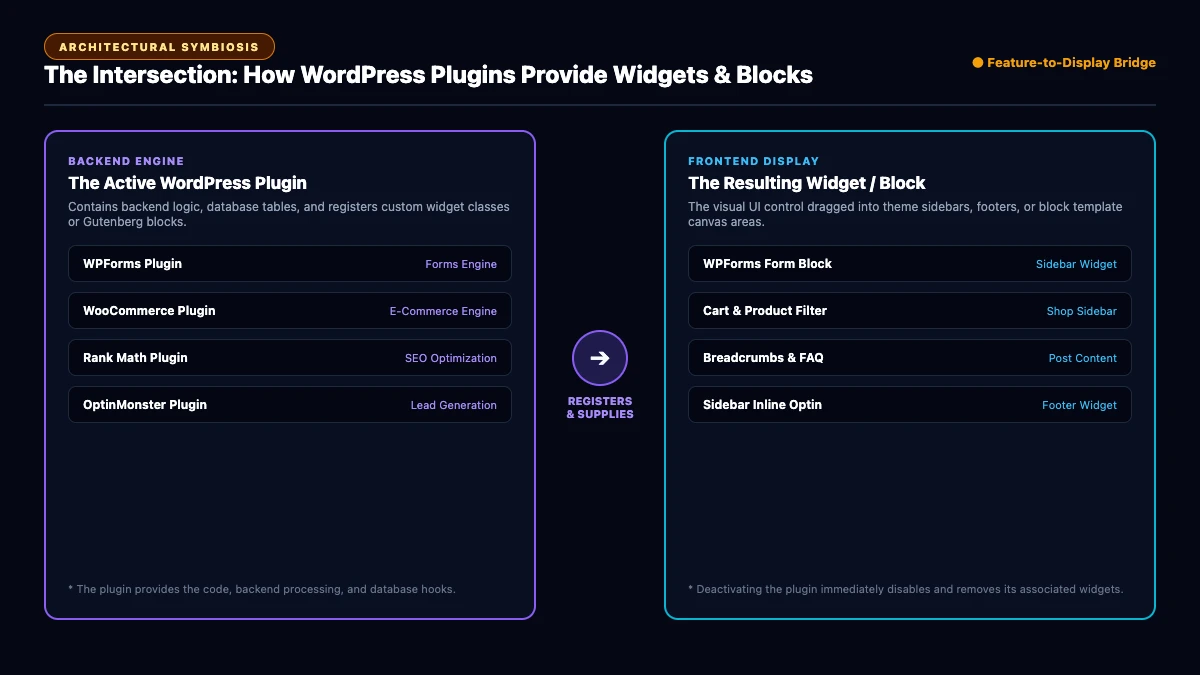
Consider how this dynamic unfolds across real-world publishing workflows in wordpress plugin vs widget implementations:
• The WPForms Symbiosis: You want to add a contact form to your website’s sidebar. First, you install and activate the WPForms plugin (the backend engine). This plugin creates the drag-and-drop form builder in your dashboard, configures SMTP email notifications, and manages entry storage in your database. Once activated, the plugin registers a brand new, specialized WPForms widget/block. You navigate to
• The WooCommerce Symbiosis: When you install the WooCommerce plugin, it creates product catalogs, shopping cart logic, checkout security, and payment gateway connections. Simultaneously, WooCommerce adds over a dozen custom widgets to your site: Price Filter Slider, Product Categories, Cart Dropdown, Top Rated Products, and Recently Viewed Items. You place these widgets into your shop’s sidebar to help customers filter products visually.
• What Happens When You Deactivate the Plugin? If you deactivate the WooCommerce plugin, all of those shopping widgets vanish from your sidebar instantly. However, the empty widget areas (the theme’s sidebar containers) remain completely intact, ready to receive other widgets.
Appearance > Widgets, drag the WPForms widget into your Primary Sidebar, select your contact form from the dropdown, and hit Save. The plugin provides the capability; the widget provides the visual placement.• The WooCommerce Symbiosis: When you install the WooCommerce plugin, it creates product catalogs, shopping cart logic, checkout security, and payment gateway connections. Simultaneously, WooCommerce adds over a dozen custom widgets to your site: Price Filter Slider, Product Categories, Cart Dropdown, Top Rated Products, and Recently Viewed Items. You place these widgets into your shop’s sidebar to help customers filter products visually.
• What Happens When You Deactivate the Plugin? If you deactivate the WooCommerce plugin, all of those shopping widgets vanish from your sidebar instantly. However, the empty widget areas (the theme’s sidebar containers) remain completely intact, ready to receive other widgets.
Popular WordPress Plugins and Their Associated Frontend Widgets
Review the table below mapping five premier WordPress plugins to the specific frontend widgets and blocks they inject into your theme:
| Plugin Name | Primary Backend Functionality | Associated Frontend Widgets & Blocks | Typical Widget Placement Area |
|---|---|---|---|
| WPForms | Drag-and-drop form builder, entry logging, SMTP routing | WPForms Form Block / Widget, Conversational Form view | Primary Sidebar, Footer Column, Contact Page |
| WooCommerce | Full e-commerce engine, product inventory, payment gateways | Cart Widget, Price Filter Slider, Product Search, Rating Filter | Shop Catalog Sidebar, Header Top Bar, Checkout Page |
| Rank Math SEO | Schema generator, sitemap generation, content SEO auditing | Breadcrumbs Block, FAQ Schema Block, HowTo Schema Block | Above Post Content, Inside Blog Posts, Footer Area |
| OptinMonster | Exit-intent technology, lead generation, audience targeting | Sidebar Slide-in Box, Inline Newsletter Optin Widget | Primary Sidebar, Footer Widget Area, Post Mid-Roll |
| Social Warfare | Social media share counters, Open Graph optimization | Floating Share Bar, Popular Posts by Share Count Widget | Primary Sidebar, Sticky Desktop Rail, Below Content |
The Gutenberg Revolution: How Blocks Replaced Classic Widgets
To remain authoritative in 2026, any analysis of wordpress plugin vs widget must account for the seismic evolution of the WordPress editing experience. In historical wordpress plugin vs widget discussions, widgets were viewed as rigid static boxes, whereas today they are flexible Gutenberg blocks. For nearly fifteen years, WordPress operated with a rigid bifurcation: you wrote post content in the TinyMCE classic editor, and you configured sidebar elements in the classic
Appearance > Widgets interface. With the introduction of Gutenberg and Full Site Editing (FSE), that historical divide has dissolved.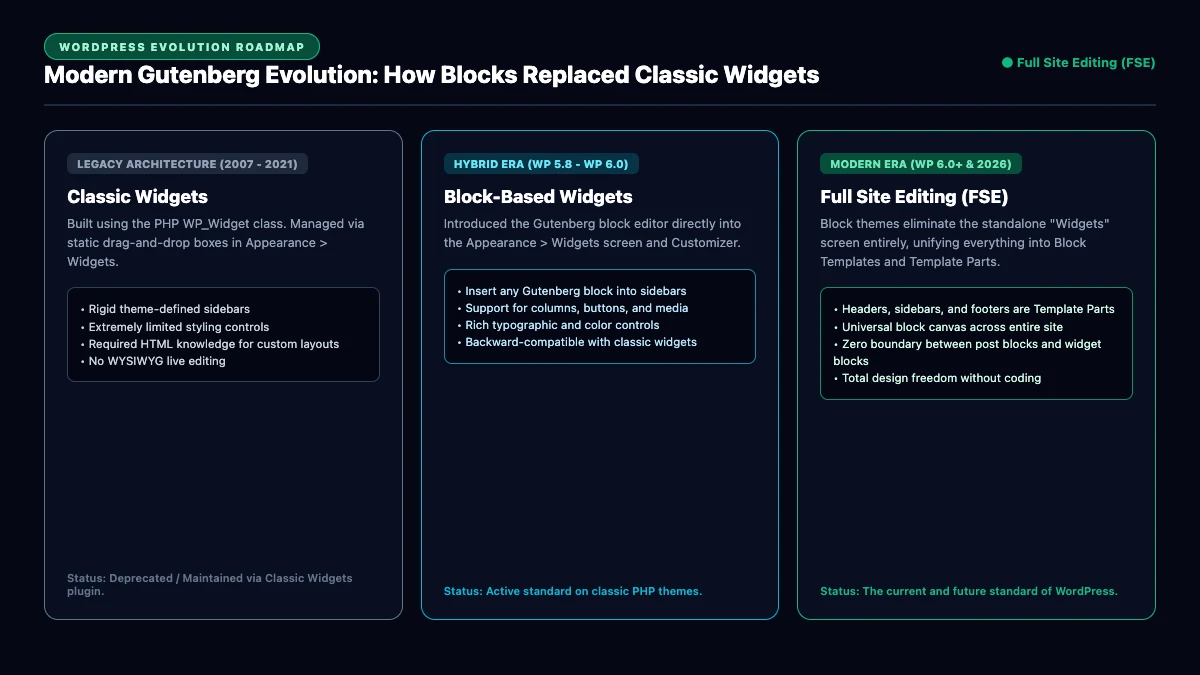
Trace the three distinct eras of widget architecture in WordPress history:
1. The Classic Widget Era (WordPress 2.2 through 5.7): Widgets were programmed using the object-oriented PHP
WP_Widget class. They lived inside rigid rectangular accordion panels in the administrative dashboard. Customization was notoriously limited: you could typically adjust a title string and check a few checkboxes, but styling fonts, column layouts, or spacing required custom CSS code or heavy third-party plugins. Many older tutorials still reference this legacy interface.2. The Block-Based Widget Era (WordPress 5.8 through 5.9): In July 2021, WordPress 5.8 fundamentally overhauled the
Appearance > Widgets screen. Instead of legacy PHP boxes, each widget area became a Gutenberg block container. Suddenly, website owners could insert any block—such as paragraph text, call-to-action buttons, multi-column layouts, image galleries, and video embeds—directly into their sidebars and footers with pixel-perfect visual styling controls. While some legacy users initially installed the Classic Widgets plugin to revert to the old UI, the block widget screen quickly became the universal standard.3. The Full Site Editing (FSE) & Block Theme Era (WordPress 6.0 through 2026): If you utilize a modern Block Theme (such as Twenty Twenty-Four or specialized FSE themes), the standalone ‘Widgets’ menu option disappears from your WordPress dashboard entirely. In Full Site Editing, there is no longer any structural distinction between page content, header templates, sidebars, and footers. Everything is composed of Gutenberg blocks managed inside the Site Editor (
Appearance > Editor). The concept of a ‘widget’ has officially merged into the universal concept of a ‘block’.Classic Widgets vs Block Widgets vs Full Site Editing Matrix
Compare the evolution of WordPress visual modularity across the three major architectural eras:
| Evolutionary Era | Release Timeline | Underlying Architecture | Styling & Layout Control | Theme Compatibility | Current 2026 Recommendation |
|---|---|---|---|---|---|
| Classic Widgets | WP 2.2 – 5.7 (2007-2021) | PHP WP_Widget Class (Static boxes) | Very Low (Requires custom CSS code) | Classic PHP themes with functions.php | Deprecated (Only for legacy sites via plugin) |
| Block-Based Widgets | WP 5.8 – 6.0 (2021-2022) | Gutenberg Block Canvas inside sidebars | High (Full block controls, colors & layout) | Classic & Hybrid themes with widget areas | Active standard for classic PHP themes |
| Full Site Editing (FSE) | WP 6.0+ & 2026 Standard | HTML Template Parts & Block Patterns | Maximum (Total design freedom in Site Editor) | Modern Block Themes (theme.json) | The recommended future-proof standard |
Performance, Database Queries and Security Comparison
One of the most consequential aspects of the wordpress plugin vs widget debate is how each technology impacts your website loading speed, Core Web Vitals, server resource consumption, and vulnerability to malicious cyberattacks. When auditing wordpress plugin vs widget performance, developers often discover that plugins cause the majority of TTFB delays, whereas widgets introduce minimal render overhead.
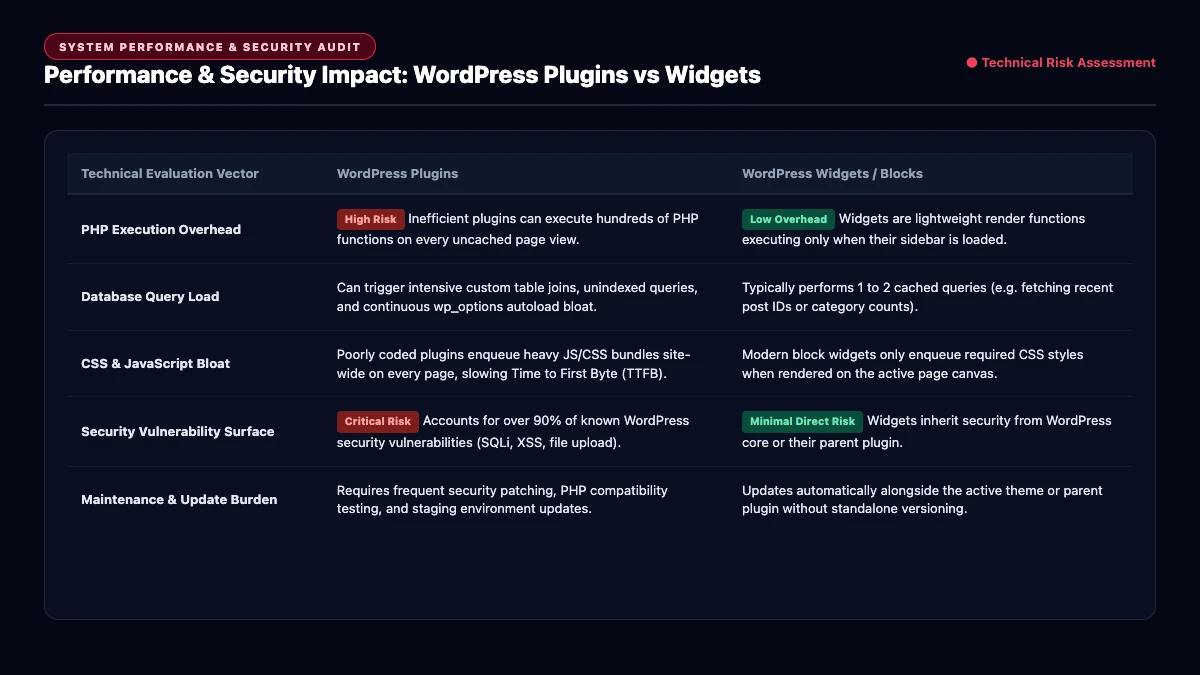
Examine the technical risk vectors governing wordpress plugin vs widget execution:
• 1. PHP Execution and CPU Overhead: When comparing wordpress plugin vs widget performance, plugins represent a far greater risk to server processing latency. On every single web request, WordPress must bootstrap every active plugin, parse its PHP code, evaluate hook registrations, and execute functions. Installing poorly optimized, bloated plugins can cause severe Time to First Byte (TTFB) degradation. Widgets, by contrast, are simply visual render functions that only execute when their specific template area is called during page rendering.
• 2. Database Queries and Autoload Bloat: Plugins frequently write configuration settings to the
• 3. Front-End Asset Bloat (CSS and JavaScript): A frequent architectural flaw of low-quality plugins is enqueueing heavy external JavaScript libraries (like jQuery plugins or complex UI scripts) across your entire website, even on pages where the plugin’s features are never used. In modern WordPress, block-based widgets benefit from intelligent conditional asset loading: WordPress only injects the CSS styles for a block if that block is actually present on the rendered page canvas.
• 4. The Cybersecurity Vulnerability Surface: According to cybersecurity audit data from Wordfence and Patchstack, over 90% of all WordPress security breaches originate from vulnerabilities in third-party plugins—such as Cross-Site Scripting (XSS), SQL Injection (SQLi), and Arbitrary File Upload exploits. Because plugins possess system-level permissions, a single vulnerable plugin can compromise your entire database and server. Widgets possess a much smaller direct attack surface because they operate within core sanitization wrappers, although a plugin that powers a custom widget can certainly introduce vulnerabilities if its input fields lack proper nonce verification.
• 2. Database Queries and Autoload Bloat: Plugins frequently write configuration settings to the
wp_options table with the autoload flag set to ‘yes’. Over time, dozens of active or poorly uninstalled plugins can inflate your autoloaded data to several megabytes, forcing MySQL to fetch massive payloads on every page hit. Furthermore, plugins that perform unindexed database queries (like searching across hundreds of thousands of post meta rows) can exhaust your server CPU. Widgets typically perform minimal, highly cacheable queries (e.g., retrieving the 5 most recent post titles).• 3. Front-End Asset Bloat (CSS and JavaScript): A frequent architectural flaw of low-quality plugins is enqueueing heavy external JavaScript libraries (like jQuery plugins or complex UI scripts) across your entire website, even on pages where the plugin’s features are never used. In modern WordPress, block-based widgets benefit from intelligent conditional asset loading: WordPress only injects the CSS styles for a block if that block is actually present on the rendered page canvas.
• 4. The Cybersecurity Vulnerability Surface: According to cybersecurity audit data from Wordfence and Patchstack, over 90% of all WordPress security breaches originate from vulnerabilities in third-party plugins—such as Cross-Site Scripting (XSS), SQL Injection (SQLi), and Arbitrary File Upload exploits. Because plugins possess system-level permissions, a single vulnerable plugin can compromise your entire database and server. Widgets possess a much smaller direct attack surface because they operate within core sanitization wrappers, although a plugin that powers a custom widget can certainly introduce vulnerabilities if its input fields lack proper nonce verification.
Python Automation: WordPress Plugin and Widget Footprint Analyzer
To help webmasters and developers quantify the exact footprint of their active wordpress plugin vs widget architecture, we have engineered an automated diagnostic script:
wordpress_plugin_widget_analyzer.py. This Python utility connects to your WordPress database or reads exported configuration JSON, analyzes your active plugins, inspects registered widget sidebars, calculates estimated autoload database weights, and generates an actionable optimization health score.You can execute this script directly in your local terminal, inside a staging container, or as part of a continuous integration (CI) performance auditing pipeline:
pythonStep-by-Step Management Guide: Plugins and Widgets in 2026
Now that you appreciate the nuanced difference between plugin and widget architecture, let us walk through the exact, step-by-step administrative procedures for managing both components cleanly in the modern WordPress dashboard. Maintaining a disciplined approach to your wordpress plugin vs widget stack ensures maximum uptime, security, and performance.
How to Manage WordPress Plugins (3 Easy Steps)
1. Locating the Plugin Directory: Log into your WordPress administrative dashboard (
2. Activating and Checking Compatibility: Once installed, click Activate. Always verify that the plugin has been tested up to your current version of WordPress and maintains active user reviews. Navigate to the plugin’s dedicated settings screen (usually found under Settings, Tools, or as a standalone top-level menu item in your sidebar) to complete configuration.
3. Safe Deactivation and Deletion: When you no longer need a plugin, click Deactivate first. This disables its PHP execution hooks without wiping your saved settings. Test your website on the frontend to verify nothing is broken. Once confirmed, click Delete to purge the plugin files from your server.
/wp-admin/). In the left-hand navigation sidebar, click on Plugins > Add New Plugin. Here you can search over 60,000 free open-source plugins listed in the official WordPress.org repository, or click the ‘Upload Plugin’ button at the top to upload a .zip file purchased from a commercial developer.2. Activating and Checking Compatibility: Once installed, click Activate. Always verify that the plugin has been tested up to your current version of WordPress and maintains active user reviews. Navigate to the plugin’s dedicated settings screen (usually found under Settings, Tools, or as a standalone top-level menu item in your sidebar) to complete configuration.
3. Safe Deactivation and Deletion: When you no longer need a plugin, click Deactivate first. This disables its PHP execution hooks without wiping your saved settings. Test your website on the frontend to verify nothing is broken. Once confirmed, click Delete to purge the plugin files from your server.
How to Manage WordPress Widgets and Blocks (3 Easy Steps)
1. Accessing the Widget Screen: On classic PHP themes, navigate to Appearance > Widgets in your admin dashboard. (If you use the WordPress Theme Customizer, you can also navigate to Appearance > Customize > Widgets for a live preview). On modern Block Themes, navigate to Appearance > Editor and select Template Parts.
2. Inserting Blocks into Widget Areas: Expand your target widget container (e.g., Primary Sidebar or Footer 1). Click the blue ‘+’ (Block Inserter) icon. You can now select any Gutenberg block: search bars, recent posts, paragraph text, buttons, social icons, or specialized blocks supplied by your active plugins.
3. Reordering and Saving: Use the block toolbar’s up/down arrows or drag handle to position the block precisely where you want it. Click the blue Update button in the top-right corner to save your changes to the live website instantly.
The simplest way to explain WordPress plugin vs widget is: a plugin adds new features and backend horsepower to your website (like e-commerce, forms, or security), while a widget displays specific visual content in dedicated areas of your theme (like sidebars and footers). Plugins supply the capability; widgets supply the visual presentation.
Yes. WordPress comes pre-packaged with dozens of native core widgets and blocks, including Search bars, Recent Posts, Categories, Archives, Tag Clouds, Navigation Menus, and Custom HTML boxes. You can build rich, functional sidebars and footers using native widgets without installing any third-party plugins.
No. Widgets require that the active theme author registers specific widget areas using the register_sidebar() function in PHP. While virtually all standard classic themes provide primary sidebars and multi-column footers, some minimalist or landing page themes do not support widget areas at all. Modern Block Themes handle modularity through Full Site Editing template parts rather than classic widget sidebars.
Switching your WordPress theme will never delete or deactivate your plugins; plugins are completely theme-independent and continue running normally. However, because widgets are tied to specific theme-registered widget areas, switching themes will often move your existing widgets into the ‘Inactive Widgets’ drawer until you reassign them to the new theme’s designated sidebars.
Starting in WordPress 5.8, the classic drag-and-drop widget interface was replaced by a block-based Gutenberg widget editor. In modern block themes supporting Full Site Editing (FSE), the standalone Widgets menu is removed entirely, and all sidebar/footer layout is managed via Template Parts inside the Site Editor.
There is no arbitrary numeric limit; performance depends entirely on code quality. A website with 40 lightweight, well-coded plugins can load significantly faster than a site with 5 poorly optimized plugins running heavy unindexed database queries. However, as a best practice, aim for 20 to 30 active plugins and under 15 modular widgets/blocks to minimize server overhead.
No. If a widget was created and supplied by a plugin (such as a WooCommerce product filter or a WPForms contact block), deactivating that plugin immediately breaks and removes the widget from your active sidebar or displays an empty placeholder block on the frontend.
In modern WordPress, yes, practically speaking. Blocks have superseded classic widgets. On classic themes, you insert Gutenberg blocks directly into widget areas via Appearance > Widgets. On block themes, Full Site Editing treats headers, sidebars, post content, and footers as a single unified canvas composed entirely of Gutenberg blocks.
By default, WordPress does not allow raw PHP execution inside widgets for security reasons. While some legacy plugins enable PHP execution in widgets, doing so introduces severe cybersecurity vulnerabilities. The recommended modern practice is to create a custom block, a custom shortcode, or use native block query loops.
Both plugin and widget configuration data are stored in the wp_options table. Widget assignments and settings are saved under serialized option keys beginning with ‘widget_*’ and ‘sidebars_widgets’. Plugins store configuration records in wp_options and frequently create dedicated custom SQL tables for complex data.
Conclusion: Building a Lean, Modular WordPress Architecture
Mastering the technical distinction of wordpress plugin vs widget is an essential milestone in your journey as a competent digital publisher and site architect. By understanding wordpress plugin vs widget dynamics and appreciating the exact difference between plugin and widget systems, you avoid common configuration traps. You now understand that plugins serve as the engine room of your website—powering business logic, security firewalls, and database capabilities—while widgets and Gutenberg blocks serve as the visual presentation layer, neatly displaying content inside your theme’s sidebars and footers.
As you continue expanding your digital empire in 2026, keep your architecture disciplined: audit your active plugin roster regularly, eliminate redundant tools, leverage native block-based widgets to minimize code bloat, and ensure every element on your canvas serves a clear how to increase conversion rate through optimal user experience goal.
With your wordpress plugin vs widget knowledge solidified, dive into our next publishing masterclasses: discover our complete beginner’s tutorial on how to install WordPress plugins, master theme selection in how to choose a WordPress theme, follow our deployment guide on how to install a WordPress theme, clean up deprecated shortcode bloat in remove unused shortcodes, or explore whether your project warrants bringing on expert help in hire a WordPress designer. Build smart, keep your site blazing fast, and grow your digital authority with complete technical confidence.