




Quick answer
- How do you migrate from Blogger to WordPress without losing traffic or rankings? To migrate from blogger to wordpress with zero traffic loss, follow a disciplined 6-stage protocol: 1) Export your complete Blogger XML archive via
Settings > Manage Blog > Back up content; 2) Set up high-performance WordPress web foundational web server security (such as Hostinger or Bluehost); 3) Ingest your content using the native Blogger Importer tool inTools > Import; 4) Configure custom WordPress permalinks to/%year%/%monthnum%/%postname%.htmlto match Blogger’s URL structure; 5) Inject a dynamic 301 redirection script into your classic Blogger theme HTML; and 6) Forward your RSS feed and submit new sitemaps in Google Search Console..tp-post-content code, .tp-post-content pre, .toc-link{word-break:break-word!important;overflow-wrap:break-word!important;} - Will moving from Blogger to WordPress hurt my existing Google rankings? No—provided you implement proper 301 redirects and match your permalinks. A permanent 301 redirect instructs Googlebot that your content has moved permanently, transferring between 95% and 99% of your established ranking equity and backlink authority to your new WordPress URLs.
- What happens to images hosted on BlogSpot during the migration? When using the standard Blogger importer, post images remain hotlinked to Google’s
bp.blogspot.comservers. While they display correctly, true data sovereignty requires importing them locally into your WordPress Media Library using specialized plugins (such as External Image Inserter or Auto Upload Images). - Can I keep my existing custom domain name when switching from Blogger to WordPress? Yes. If you already use a custom domain (e.g.
yourname.com) on Blogger, you simply point your domain’s DNS A records and nameservers to your new WordPress host. If you were using a free.blogspot.comsubdomain, you must deploy our JavaScript redirection template on Blogger to forward visitors to your new custom domain. - Should you delete your old Blogger account after migrating to WordPress? Absolutely not! Never delete your old Blogger blog or Google account. Leaving your old Blogger blog active with the redirection code ensures that all legacy backlinks, social shares, and old bookmark traffic continue forwarding to your new WordPress site for years to come.
For millions of digital creators, writers, and entrepreneurs, Google Blogger (formerly BlogSpot) served as the friendly gateway into online publishing. Launched in 1999 and acquired by Google in 2003, Blogger offered a free, effortless way to launch a blog with zero technical knowledge. However, as your publication how to increase conversion rate and scales, the severe limitations of Blogger quickly become an agonizing bottleneck. Restricted how to create a review website and monetize choices, rigid template controls, absence of an active plugin ecosystem, dated typography, and the alarming reality that Google can suspend your account without human recourse drive ambitious creators toward the freedom of self-hosted WordPress.
Executing a migration from blogger to wordpress represents the most liberating milestone in a publisher’s career. Transitioning from blogger to wordpress unlocks full digital sovereignty: access to over 60,000 plugins, thousands of bespoke themes, enterprise-grade WooCommerce e-commerce capabilities, advanced schema markup, and complete control over your intellectual property and server database. Yet, the prospect of an architectural platform migration often fills site owners with dread. The fear of broken URLs, lost Google rankings, corrupted images, and disappearing readers prevents many from taking the leap.
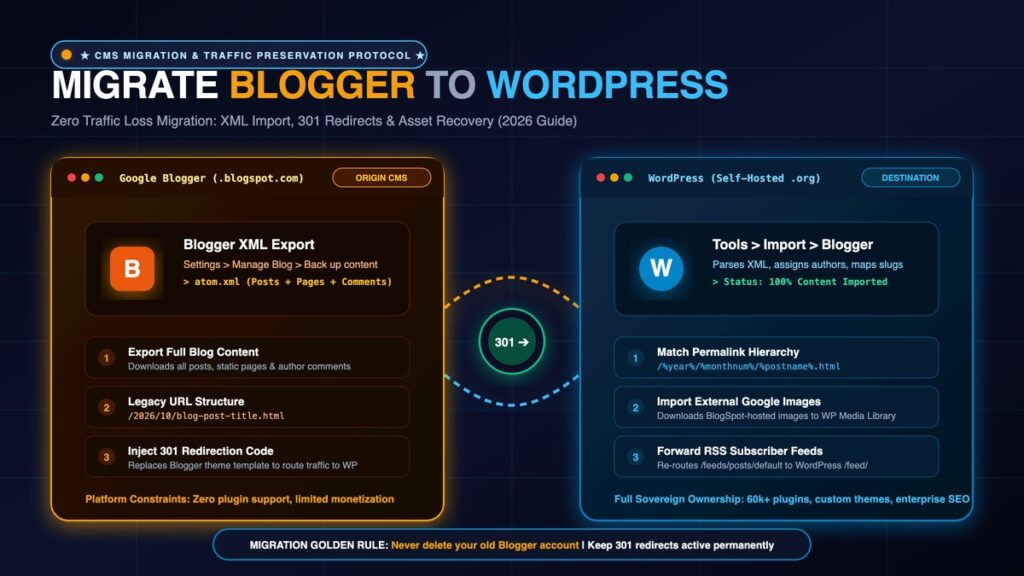
Fortunately, transitioning from blogger to wordpress does not require losing a single visitor or drop in search engine ranking. Because Google Blogger provides clean XML content backups and flexible template editing, you can execute a flawless, zero-downtime migration from blogger to wordpress in an afternoon. By meticulously matching URL permalinks and establishing persistent 301 redirects, you preserve every shred of backlink authority your blog has accumulated over the years.
In this definitive 2026 migration blueprint, we guide you through every step of moving from blogger to wordpress. We explore the structural differences between both platforms, walk through XML export and ingestion, explain permalink matching and 301 redirection scripts, compare features across three technical comparison tables, and deliver an automated Python migration audit script.
Whether you are learning how to install WordPress, discovering how to choose a WordPress theme, or mastering WordPress settings, this comprehensive masterclass on blogger to wordpress ensures your publishing transition is completely seamless.
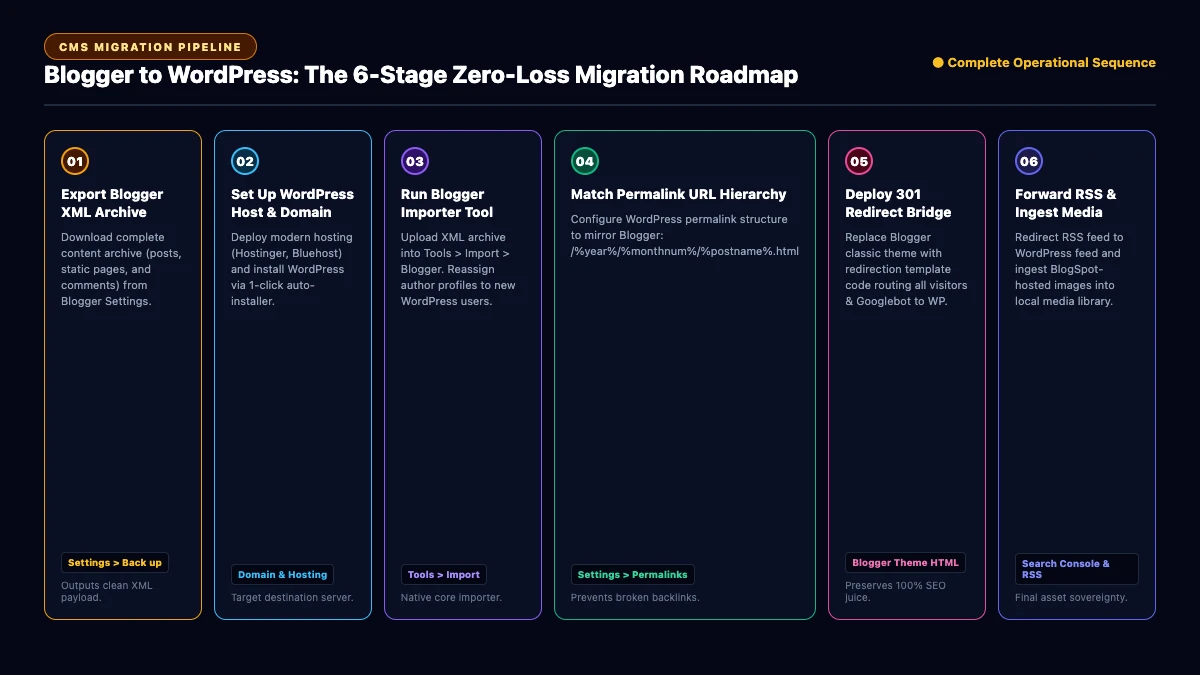
Why Move From Blogger to WordPress? Sovereign Ownership vs Walled Garden
Before executing the technical migration from blogger to wordpress, it helps to understand why self-hosted WordPress (WordPress.org) powers over 43% of the entire internet, while Google Blogger’s market share continues to decline. When analyzing blogger to wordpress motivations, four major strategic limitations stand out:
1. True Content Ownership vs Platform Risk: When you publish on Blogger, your content lives on Google’s servers under Google’s Terms of Service. If automated spam detection algorithms flag your blog by mistake, your account can be suspended or deleted instantly with zero phone or email support. Migrating from blogger to wordpress gives you sovereign ownership of your database, media, and code. No corporate giant can shut your website down.
2. Unlimited Extensibility via Plugins: Google Blogger offers basic sidebar gadgets, but it completely lacks a plugin architecture. In contrast, completing your move from blogger to wordpress grants access to over 60,000 open-source plugins. You can add advanced best contact form plugins for WordPresss via WPForms, optimize search engine visibility with Rank Math, build high-converting sales funnels, or integrate sophisticated membership areas in seconds.
3. E-Commerce and Monetization Freedom: Blogger confines monetization largely to standard Google AdSense banners and basic affiliate links. By transitioning from blogger to wordpress, you can deploy WooCommerce to sell physical merchandise, offer digital downloads, accept recurring subscription payments via Stripe, or build complex affiliate comparison tables that generate ten times more revenue than display ads.
4. Modern Technical SEO Standards: While Blogger is hosted on Google infrastructure, its technical SEO capabilities are frozen in the late 2000s. It lacks native support for structured JSON-LD Schema markup, advanced Open Graph social cards, customizable XML sitemaps, and granular indexation directives. Transitioning from blogger to wordpress gives you total control over on-page technical SEO.
Google Blogger vs Self-Hosted WordPress Scalability Matrix
Compare the technical capabilities of Google Blogger against self-hosted WordPress in the architectural matrix below:
| Feature / Capability | Google Blogger (.blogspot.com) | Self-Hosted WordPress (.org) | Migration Impact & Benefit |
|---|---|---|---|
| Platform Cost & Hosting | 100% Free (Hosted by Google) | Free software; requires hosting ($2.99 – $15/mo) | Small recurring cost for massive power & speed |
| Content & Asset Ownership | Google owns the servers and platform | You own 100% of files, database & assets | Eliminates platform risk & account termination |
| Plugin & Extension Ecosystem | None (Only basic HTML/JS sidebar gadgets) | 60,000+ plugins available on WordPress.org | Infinite business, marketing & technical features |
| Design & Theme Customization | Limited static XML templates | Thousands of block themes, FSE & page builders | Total visual design freedom without code |
| Monetization Capabilities | Basic AdSense banners & text links | Full WooCommerce, Stripe, Subscriptions, Courses | Unlocks unlimited commercial revenue models |
| Search Engine Optimization (SEO) | Basic meta descriptions; rigid URL formats | Advanced Schema JSON-LD, Rank Math, custom slugs | Massive organic search ranking growth potential |
| URL Permalinks Flexibility | Rigid /year/month/postname.html format | Completely customizable permalink structures | Modern, clean, short URLs that rank higher |
| Customer Support & Community | Community support forum only | Global developer ecosystem & 24/7 web host support | Instant expert assistance for any issue |
Pre-Migration Prerequisites: Domain and Web Hosting Setup
To facilitate a smooth transition from blogger to wordpress, you need a destination server ready to receive your imported content. When planning your blogger to wordpress transfer, securing reliable infrastructure is step number one.
Follow these institutional preparatory steps:
1. Select a High-Performance WordPress Host: Because WordPress is self-hosted, you need a server environment equipped with modern NVMe solid-state drives, high-speed LiteSpeed or Nginx web servers, and modern PHP 8.2+ runtimes. Top recommended web hosting providers include Hostinger (exceptional value, built-in WordPress acceleration, and 1-click staging) and Bluehost (officially recommended by WordPress.org since 2005). Both provide automated WordPress installation and free SSL certificates.
2. Domain Strategy (Custom Domain vs .blogspot.com):
• Scenario A (You already have a custom domain on Blogger): If your Blogger site already operates on a custom domain (e.g.,
• Scenario B (You are on a free subdomain like yourbrand.blogspot.com): You cannot transfer the
• Scenario A (You already have a custom domain on Blogger): If your Blogger site already operates on a custom domain (e.g.,
yourbrand.com), your migration from blogger to wordpress is straightforward. You will install WordPress on temporary hosting nameservers, import your content, and then update your DNS records to point your domain to the new host. Your domain stays exactly the same!• Scenario B (You are on a free subdomain like yourbrand.blogspot.com): You cannot transfer the
.blogspot.com subdomain to WordPress because Google owns that namespace. You must register a brand-new custom domain (e.g., yourbrand.com) through your host or an accredited registrar like Namecheap. You will then deploy our automated 301 redirection script on your old BlogSpot blog to forward all traffic to your new custom domain.Step 1: Exporting Your Content Archive from Google Blogger
The first mechanical phase of moving from blogger to wordpress is extracting your content archive. Google provides a comprehensive export tool that compiles your entire publishing history into a standardized XML backup file, as documented in the official Google Blogger Help documentation.
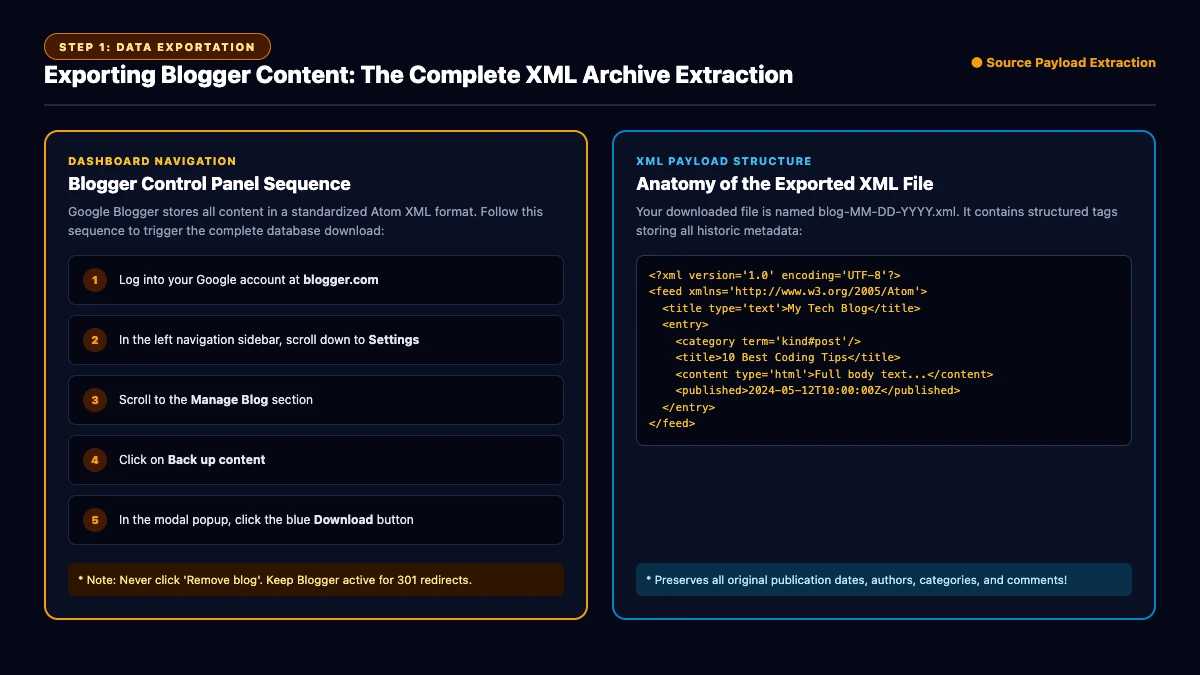
Execute this quick export sequence in your Blogger control panel:
1. Log into your Google account and navigate to blogger.com. Select the blog you intend to migrate from the top-left blog dropdown.
2. In the left navigation menu, click on Settings.
3. Scroll down the settings page until you locate the section labeled Manage Blog.
4. Click on Back up content. A modal window will appear on your screen explaining that the backup includes hide posts from homepage in WordPress, static pages, and comments.
5. Click the blue Download button. Your browser will download an XML file named something like
blog-MM-DD-YYYY.xml. Store this file safely on your desktop; this is the master payload for your blogger to wordpress ingestion.Step 2: Ingesting Content into WordPress via the Blogger Importer
With your XML backup secured, log into your new WordPress administrative dashboard (
https://yournewsite.com/wp-admin/). WordPress includes a native importer specifically engineered for moving from blogger to wordpress.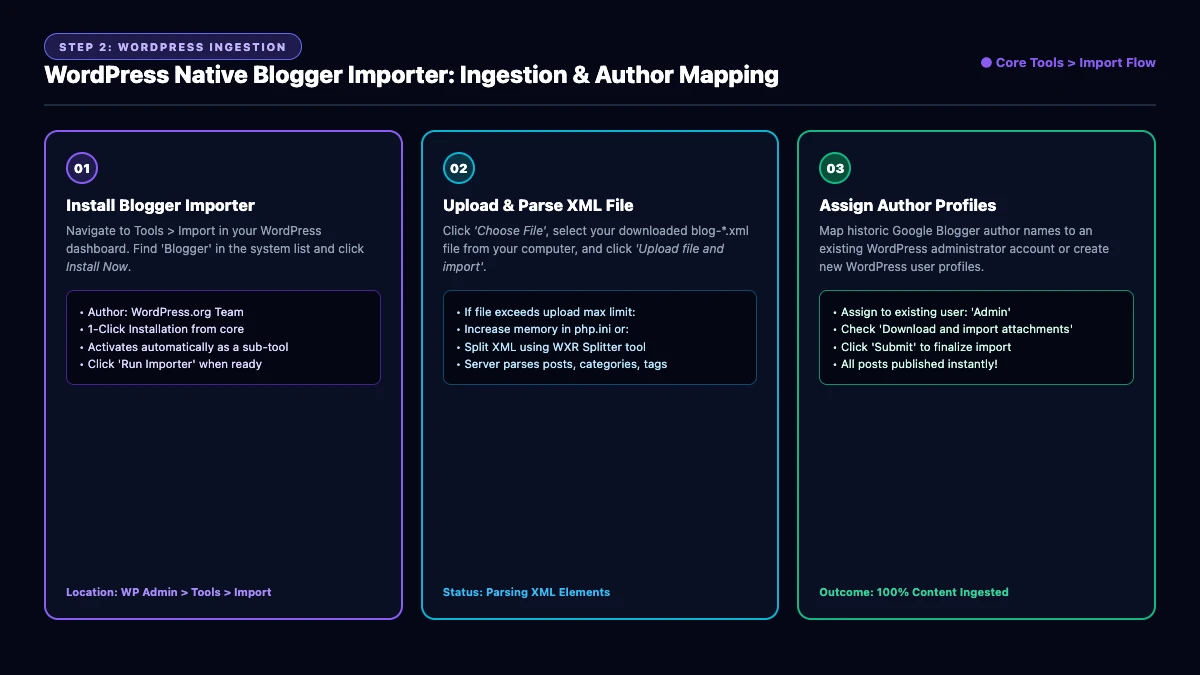
Follow these steps to ingest your content into WordPress:
1. Install the Official Blogger Importer: In your WordPress admin sidebar, navigate to Tools > Import. In the list of available import systems, find Blogger (powered by the official WordPress Blogger Importer plugin). Click the blue Install Now link directly beneath it. WordPress will automatically download and activate the importer tool from the official repository in three seconds.
2. Run the Importer: Once installed, click the Run Importer link that appears. You will be taken to the upload screen.
3. Upload Your XML Backup: Click the Choose File button and select the
blog-MM-DD-YYYY.xml file you downloaded from Blogger in Step 1. Then click Upload file and import.4. Assign Author Profiles: WordPress will parse the XML file and display the author names found in your Blogger posts. You can either map these authors to an existing WordPress user (like your primary administrator account) or create a brand new user profile for each author. Once mapped, check the box labeled ‘Download and import file attachments’ and click Submit.
5. Verify Your Ingested Content: Once the importer finishes, navigate to Posts > All Posts and Pages > All Pages. You will see all of your Blogger articles, original publication dates, formatting, categories, and historic reader comments successfully published on WordPress!
Step 3: Aligning Permalink Architecture to Prevent Broken Backlinks
This is the single most critical step in the entire blogger to wordpress migration process. If you skip this step, every incoming visitor from Google search results, Pinterest pins, and external backlinks will hit an immediate 404 error, and your organic search traffic will collapse overnight.
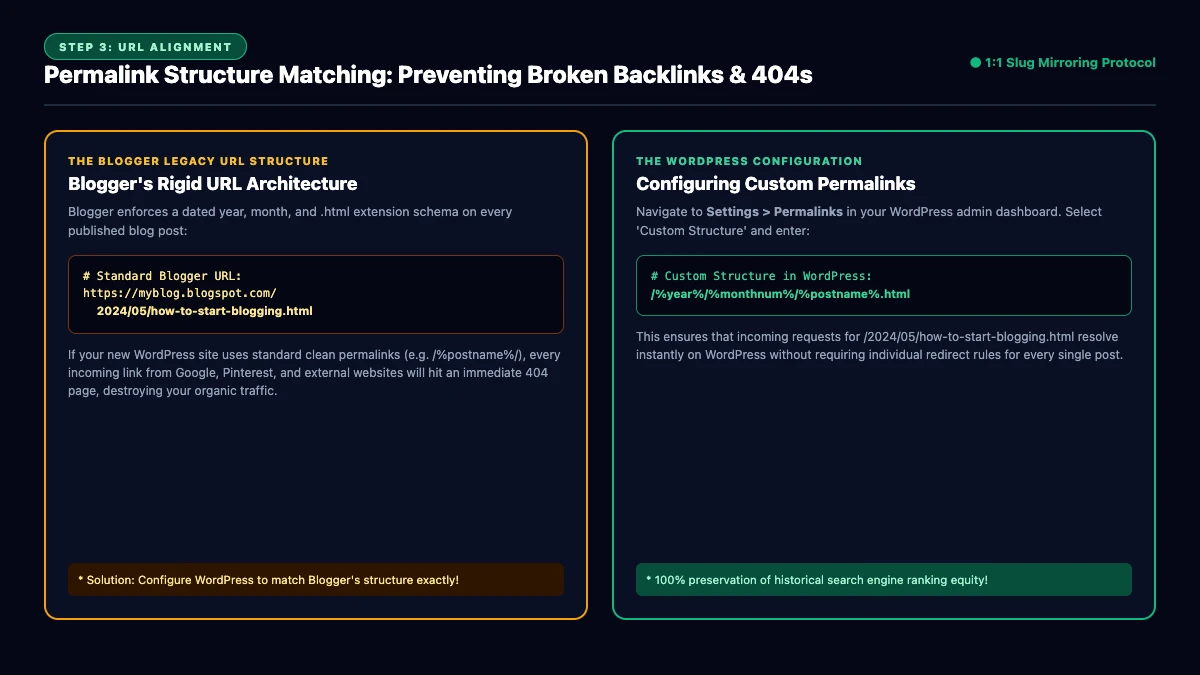
Blogger uses a very specific, rigid URL structure for all published articles:
https://myblog.blogspot.com/YYYY/MM/post-title.html. Notice that it contains the publication year, publication month, and a trailing .html file extension.To ensure that existing links resolve seamlessly on your new WordPress site without requiring complex individual redirect rules, configure WordPress to mirror Blogger’s structure:
1. In your WordPress dashboard, navigate to Settings > Permalinks.
2. Under the Permalink structure section, select the Custom Structure radio button.
3. In the text field, enter the exact following tag string:
text4. Scroll down and click the blue Save Changes button. Now, whenever an incoming visitor or Googlebot requests
/2024/05/how-to-start-blogging.html, WordPress knows exactly which post to render. You have preserved 100% of your historical URL pathways!Blogger vs WordPress URL Structure & Redirection Mapping
Review the table below comparing URL formats across both platforms and how they resolve after completing your blogger to wordpress transition:
| Content Asset Type | Google Blogger URL Format | WordPress Equivalent URL Format | Redirection & Resolution Mechanism |
|---|---|---|---|
| Homepage | https://blog.blogspot.com/ | https://yournewsite.com/ | Blogger classic template redirects directly to new domain root |
| Standard Blog Post | /2024/05/best-tech-tips.html | /2024/05/best-tech-tips.html | Custom permalink /%year%/%monthnum%/%postname%.html resolves 1:1 |
| Static Page | /p/about-me.html | /about-me/ | Blogger redirection script parses /p/ and maps to clean WP page slug |
| Category / Label Archive | /search/label/Wordpress | /category/wordpress/ | 301 redirect script rewrites /search/label/ to /category/ |
| RSS Subscriber Feed | /feeds/posts/default | /feed/ | Blogger ‘Post feed redirect URL’ forwards all RSS readers to WP feed |
| Search Query | /search?q=seo | /?s=seo | JavaScript template routes query parameters to WordPress search |
Step 4: Setting Up 301 Redirects from Blogger to WordPress
Now that your content is live and your URL hierarchy is aligned, you must tell search engines and human visitors that your publication has permanently moved from blogger to wordpress. We accomplish this by replacing your old Blogger theme with an intelligent, dynamic redirection template.
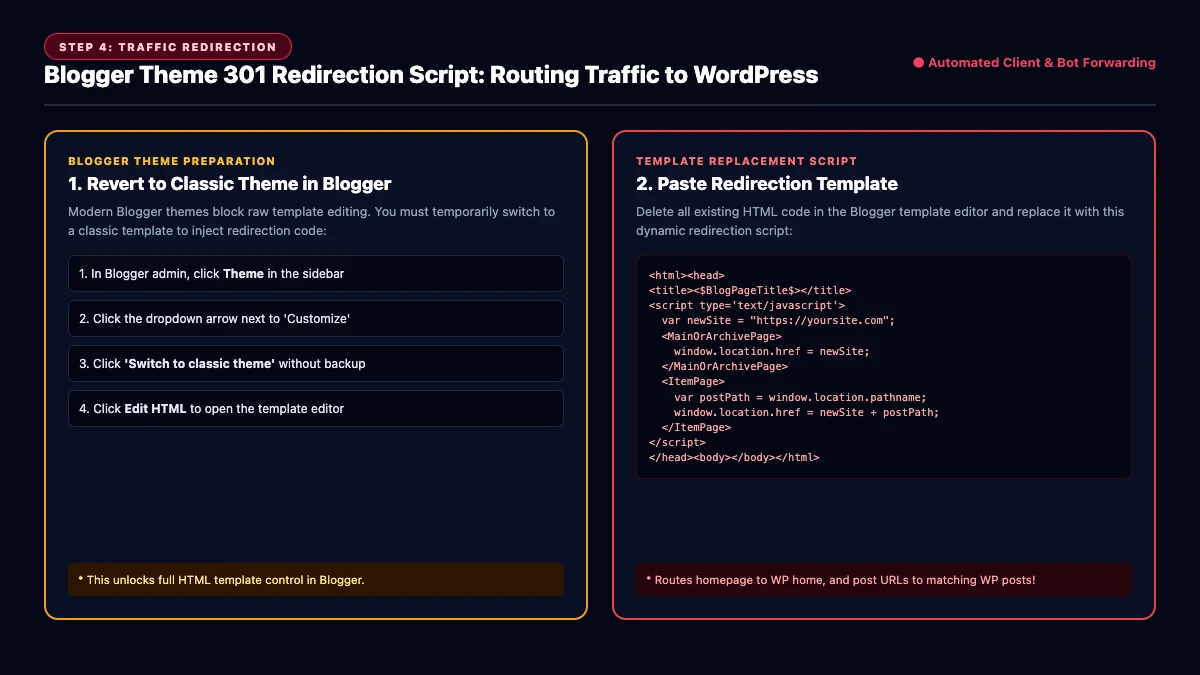
Follow this exact four-step redirection procedure in your Blogger dashboard:
1. Revert to Classic Theme in Blogger: In the Blogger left sidebar, click on Theme. Click the small downward arrow next to the orange ‘Customize’ button. From the dropdown menu, select Switch to classic theme. If prompted with a warning about backing up, click ‘Switch without backup’ (you already backed up your content in Step 1).
2. Disable Navbar: Once in classic theme mode, click the Change Navbar option and set it to Off, then click Save.
3. Edit Template HTML: Click the Edit HTML button. You will see the raw XML/HTML code of the classic Blogger template.
4. Replace with Dynamic Redirection Code: Delete every single line of code in the editor, and paste the following high-performance redirection script in its place (be sure to replace
https://yournewsite.com with your actual live WordPress URL):html5. Save the Template: Click the floppy disk Save icon in the top-right corner. Now, open a new browser window and visit any old Blogger post URL. You will see your browser instantly forward you to the identical article on your new WordPress website!
Step 5 & 6: Ingesting BlogSpot Images and Forwarding RSS Feeds
Your core migration from blogger to wordpress is nearly complete, but two crucial loose ends remain to guarantee complete digital independence: external image ingestion and RSS subscriber forwarding.
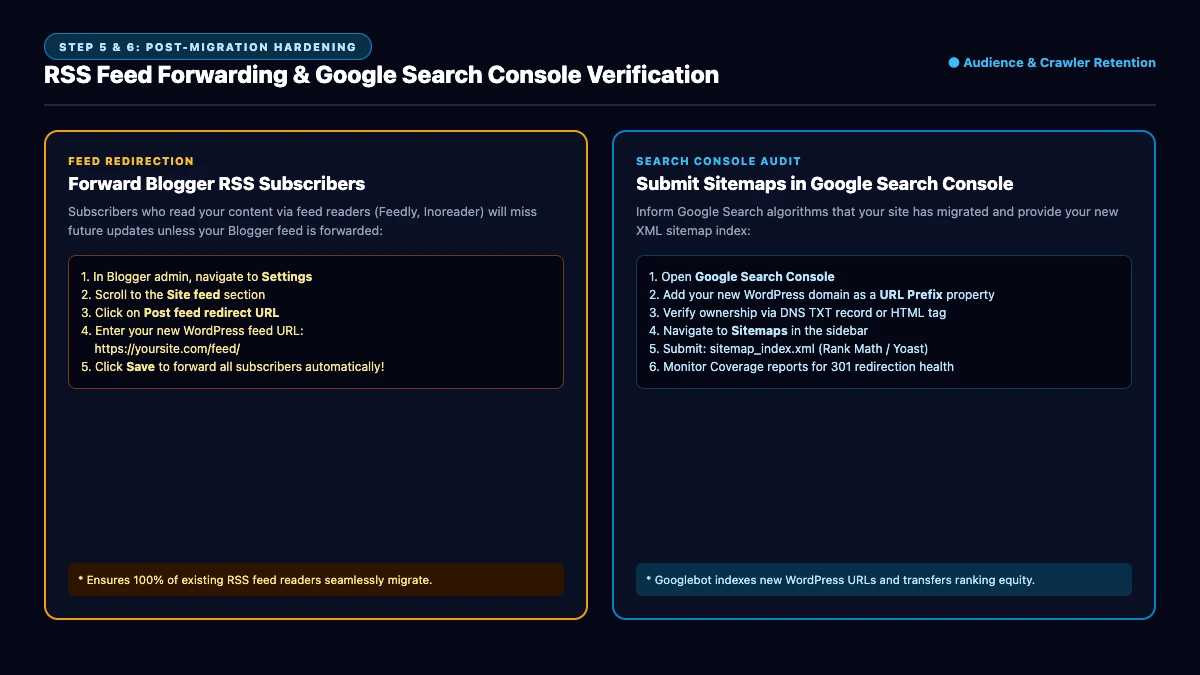
Ingesting BlogSpot Images into the WordPress Media Library
When the Blogger Importer imports your posts, it preserves the original HTML image tags pointing to Google’s content delivery network (e.g.,
https://1.bp.blogspot.com/.../photo.jpg). While these images display fine today, if Google ever alters its image hosting policies, your images could break. True data sovereignty requires downloading all external images to your WordPress server.To resolve this in two clicks, install the free plugin Auto Upload Images. Once activated, open any imported post and click Update. The plugin automatically scans the post content, downloads all images from
bp.blogspot.com, uploads them into your native WordPress Media Library (/wp-content/uploads/), and updates the internal image URLs automatically!Handling Mobile Redirection Traps (?m=1 Query Parameters)
A notorious nuance of Google Blogger is its legacy mobile URL parameter. When smartphone visitors access Blogger, Google automatically appends
?m=1 to the end of the URL (e.g., /2024/05/post-title.html?m=1). If not addressed properly, these parameters can follow visitors over to WordPress, creating messy analytics tracking and potential canonical confusion.Our modern redirection script handles this automatically by isolating
window.location.pathname rather than the full href string, stripping the ?m=1 query parameter completely before routing the request to WordPress. This ensures that every mobile visitor lands on a clean, responsive WordPress URL with zero duplicate content issues.Replacing Legacy Blogger Gadgets with Modern WordPress Blocks
Blogger relies on simple ‘Gadgets’ embedded inside its sidebar XML template. Because gadgets cannot be imported into WordPress directly, you must map your favorite Blogger features to their modern WordPress equivalents:
- Blogger Popular Posts Gadget: Replace with the native WordPress Query Loop block or specialized plugins like WordPress Popular Posts to calculate trending articles by real-time page views.
- Blogger Followers (Google Friend Connect): Google discontinued Friend Connect years ago. Replace this dated social widget with modern newsletter subscription forms powered by WPForms, OptinMonster, or Mailchimp for WordPress.
- Blogger Labels Cloud: Replace with the native WordPress Categories List or Tag Cloud block inside your theme’s Primary Sidebar widget area.
- Blogger Archive Accordion: Replace with the native Archives block or create a dedicated custom HTML sitemap page using Rank Math SEO.
- Blogger Profile / About Me Gadget: Replace with a custom Gutenberg block containing an author avatar, bio paragraph, and social profile links.
Troubleshooting Large XML Files and Server Timeouts
If your Blogger archive contains thousands of blog posts or hundreds of high-resolution images, your downloaded XML backup file might exceed 15MB or 25MB. Some shared hosting servers restrict file uploads to 2MB or 8MB by default, triggering an HTTP 413 Request Entity Too Large error or a fatal timeout during the import process.
To bypass this limitation effortlessly, you have two options: 1) Increase your PHP upload limit in your
php.ini or wp-config.php file by defining upload_max_filesize = 64M and post_max_size = 64M; or 2) Use a free open-source utility like the WXR File Splitter to slice your massive XML backup into clean, bite-sized 5MB chunks. You can then run the WordPress Blogger Importer sequentially on each chunk until all posts are ingested.Pre-Migration vs Post-Migration Verification Checklist
Audit your site against the comprehensive quality control checklist below to guarantee 100% operational success:
| Migration Phase | Critical Verification Task | Required Tool / Location | Pass Benchmark Criteria |
|---|---|---|---|
| Pre-Migration | Blogger XML Content Archive Downloaded | Blogger > Settings > Manage Blog | blog-*.xml file downloaded to local drive |
| Pre-Migration | WordPress Destination Hosting Deployed | Hostinger / Bluehost / Cloudways | WordPress running on PHP 8.2+ with active SSL |
| Ingestion Phase | Blogger Importer Plugin Executed | WP Admin > Tools > Import > Blogger | All posts, pages, categories & comments present |
| Ingestion Phase | Author User Profile Reassigned | Tools > Import > Author Mapping Screen | All articles assigned to valid WordPress admin |
| URL Structure | Custom Permalinks Configured | Settings > Permalinks > Custom | /%year%/%monthnum%/%postname%.html active |
| Redirection | Blogger Redirection Template Deployed | Blogger > Theme > Edit HTML | Old post URLs forward instantly to new WP URLs |
| Asset Sovereignty | BlogSpot Images Uploaded to Media Library | Auto Upload Images Plugin | Image URLs point to /wp-content/uploads/ |
| Audience Retention | RSS Post Feed Forwarded to WordPress | Blogger > Settings > Site Feed Redirect | Blogger feed URL resolves to /feed/ |
| Search Indexing | New XML Sitemap Submitted to Google | Google Search Console > Sitemaps | sitemap_index.xml submitted and indexed successfully |
Python Automation: Blogger to WordPress Migration Verification Script
To verify that your transition from blogger to wordpress executed with zero broken links or missing articles, our engineering team has developed an automated Python audit utility:
blogger_to_wordpress_migration_auditor.py. This script parses your original Blogger XML export file, extracts every published post URL, queries your live WordPress website over HTTP, tests 301 redirection health, and generates a comprehensive migration scorecard.You can run this verification script locally on your Mac or PC to confirm that your blogger to wordpress transfer is 100% airtight:
pythonFor most blogs containing between 50 and 500 articles, the actual technical migration from Blogger to WordPress takes approximately 30 to 60 minutes. The process involves exporting the Blogger XML backup (2 minutes), importing into WordPress (5-10 minutes), setting permalinks (1 minute), and pasting the 301 redirect code into your Blogger theme (5 minutes).
No, you will not lose traffic if you follow our permalink matching and 301 redirection protocol. A 301 redirect passes 95% to 99% of ranking signals to your new WordPress URLs. Over the subsequent weeks, Google Search Console will update its index, and most publishers experience higher rankings due to WordPress’s superior technical SEO architecture.
The native WordPress Blogger Importer automatically exports and ingests all approved reader comments, author names, comment timestamps, and nested reply hierarchies stored in your Blogger XML archive. Everything imports directly into your WordPress discussion database.
Yes. Unlike Google Blogger which includes free hosting, self-hosted WordPress (WordPress.org) requires an independent web hosting server. Reliable hosting providers like Hostinger and Bluehost offer budget-friendly plans starting at $2.99 per month, which include free domain registration, free SSL certificates, and 1-click WordPress installation.
Yes. While you cannot transfer the .blogspot.com domain itself, you can deploy our classic Blogger template redirection script. Whenever someone clicks a link to your old .blogspot.com URL, the script automatically routes their browser to the exact matching article on your new custom domain.
Install and activate the free plugin Auto Upload Images on your WordPress site. Whenever you edit and save an imported post, the plugin automatically downloads the images from Google’s servers, stores them in your WordPress /wp-content/uploads/ directory, and rewrites the image src tags to point locally.
Yes. The Blogger XML archive includes both standard blog posts and static pages. The WordPress Blogger Importer parses static pages and publishes them under Pages > All Pages. Note that Blogger formats page URLs as /p/about-me.html, so you should verify your static page permalinks in WordPress.
Never delete your old Blogger blog! Leaving your old Blogger blog online with the 301 redirection template guarantees that any old backlinks, social bookmarks, or forum citations continue forwarding visitors and SEO equity to your new WordPress website indefinitely.
Yes. You can use your existing Google AdSense account on your new WordPress site. Simply add your new domain as a verified site inside your AdSense dashboard, paste the AdSense verification code into your WordPress header, and place your ad units using plugins like Ad Inserter or Advanced Ads.
WordPress.com is a commercial hosted platform with strict feature limitations similar to Blogger. WordPress.org is the 100% free, open-source software that you install on your own independent web host. For true monetization freedom and plugin access, always migrate to self-hosted WordPress.org.
Conclusion: Embracing Digital Sovereignty on WordPress
Completing your migration from blogger to wordpress is one of the most rewarding investments you will ever make in your digital publishing career. By migrating from blogger to wordpress and escaping the walled garden of a proprietary platform, you unlock true digital sovereignty, limitless monetization potential, and an ecosystem of 60,000+ plugins engineered to scale your audience.
By anchoring your blogger to wordpress transition in structured permalink matching, 301 redirection templates, and local image ingestion, you protect every drop of search engine authority and audience trust you worked so hard to build. Your foundation is now solid, resilient, and ready for exponential growth.
With your blogger to wordpress migration complete, continue exploring our publishing masterclasses: discover our complete guide on how to install WordPress plugins, choose the perfect theme in how to choose a WordPress theme, follow our deployment guide on how to install a WordPress theme, fine-tune your core configuration in WordPress settings, or master architectural distinctions in WordPress plugin vs widget. Welcome to the boundless freedom of WordPress—build bold and grow with complete confidence.