




Quick answer
- What is the 500 internal server error in migrating from Blogger to WordPress on WordPress and why does it happen? The 500 internal server error wordpress is a generic HTTP status code indicating that the web server (Apache or Nginx) encountered an unexpected fatal condition that prevented it from completing the request. Because it is a generic catch-all status, it does not explicitly tell you what went wrong. In WordPress, over 95% of 500 errors stem from four culprits: a corrupted
.htaccessconfiguration file, exhausted PHP memory limits, a fatal syntax error in a plugin or theme, or corrupted core WordPress installation files..tp-post-content code, .tp-post-content pre, .toc-link{word-break:break-word!important;overflow-wrap:break-word!important;} - What is the fastest way to fix the 500 error in WordPress? The quickest troubleshooting sequence is: 1) Rename your
.htaccessfile to.htaccess_oldvia SFTP or File Manager to test for rewrite corruption; 2) Increase your PHP memory limit to 512MB by addingdefine('WP_MEMORY_LIMIT', '512M');towp-config.php; 3) Deactivate all plugins by temporarily renaming/wp-content/plugins/to/wp-content/plugins_old/; and 4) EnableWP_DEBUGto inspect exact fatal stack traces in/wp-content/debug.log. - Will a 500 internal server error delete my website data or posts? No. Encountering a 500 internal server error wordpress feels alarming, but your MySQL database containing all blog posts, comments, media attachments, and user accounts is completely intact. The error merely means PHP execution crashed before it could output HTML to the browser.
- How do I fix a 500 error when I am completely locked out of wp-admin? When locked out of the WordPress administrative dashboard, you must troubleshoot at the server filesystem level using SFTP, SSH terminal access, or your web hosting control panel (cPanel or hPanel File Manager). You can rename files, increase memory constants, and deactivate plugins without accessing wp-admin.
- When should you contact your web hosting provider for a 500 error? If you have verified that your
.htaccessis clean, your plugins are deactivated, your PHP memory limit is 512MB, and fresh core files are installed, the 500 error is originating from server-level daemon crashes (such as PHP-FPM pool exhaustion, corrupted FastCGI sockets, or MySQL database connection timeouts). At that stage, contact your web hosting support team to inspect the Apache/Nginx error logs.
Few experiences in digital publishing and website management are as universally terrifying as typing your website URL into a browser, hitting enter, and being greeted by a cold, stark screen declaring: ‘500 Internal Server Error’ or ‘There has been a critical error on this website.’ For website owners, e-commerce store managers, and digital agencies, encountering a 500 internal server error wordpress triggers immediate anxiety. Your public product review website or commercial site is completely offline, how to increase conversion rate for potential customers cannot browse your products, search engine crawlers receive server failure codes, and worst of all, you are often locked out of your WordPress administrative dashboard (
/wp-admin/).The primary frustration of the 500 internal server error wordpress is its total lack of diagnostic specificity. Unlike a 404 error (which clearly means a file or URL is missing) or a 403 error (which indicates a permissions block), a 500 status is a generic catch-all response from your web server. It simply informs the browser: ‘Something crashed inside the server while trying to execute this PHP script, but the server cannot give you more details.’ Navigating the 500 internal server error wordpress requires a disciplined, step-by-step diagnostic methodology rather than panicked, blind clicking.
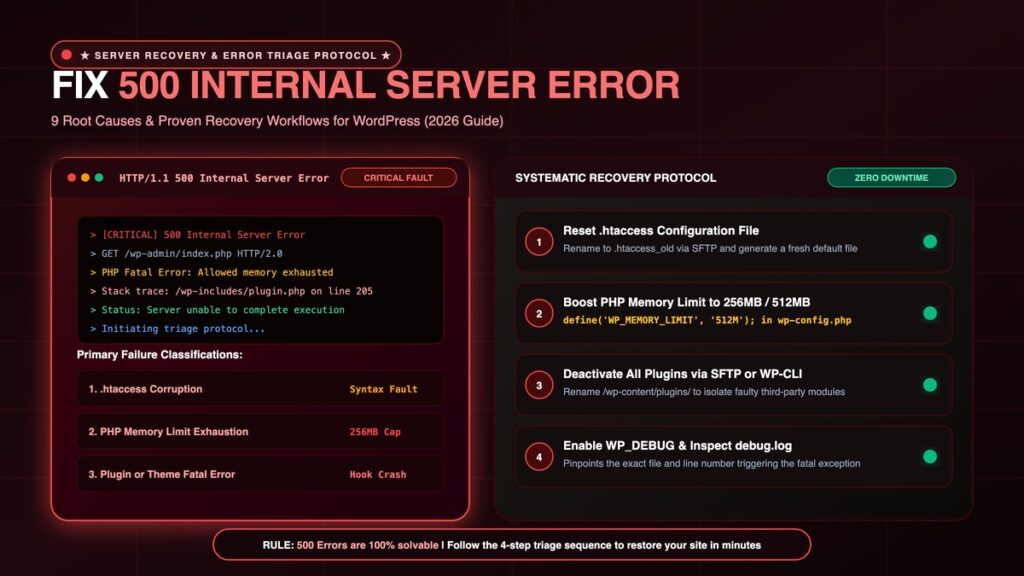
Fortunately, resolving a 500 internal server error wordpress is a completely standardized engineering process. Because WordPress relies on a predictable modular architecture composed of core files, themes, plugins, and the database, isolating the root cause is straightforward once you know where to look. Over 95% of all WordPress 500 errors can be resolved in under ten minutes using basic server tools.
In reality, understanding the technical mechanics of the 500 internal server error wordpress transforms anxiety into structured problem-solving. In any comprehensive 500 internal server error wordpress recovery plan, webmasters must systematically verify configuration files, memory limits, and extension conflicts. By diagnosing your 500 internal server error wordpress step by step, you eliminate downtime without risking data loss. In this comprehensive 2026 emergency recovery guide, we demystify the 500 internal server error wordpress from the ground up.
Furthermore, how you respond to a 500 internal server error wordpress directly impacts your search rankings, user trust, and business revenue. In this emergency masterclass on 500 internal server error wordpress solutions, we examine the nine root causes of server failure, explain the underlying HTTP execution pipeline, provide step-by-step recovery workflows for corrupted
.htaccess files, PHP memory ceilings, rogue plugins, and broken themes across three technical comparison tables, and deliver a production-ready Python triage diagnostic tool.Whether you are learning WordPress settings, managing extensions in how to install WordPress plugins, or evaluating server infrastructure in domain vs hosting, this definitive manual on 500 internal server error wordpress ensures your website recovers rapidly with zero data loss.
The Technical Anatomy of an HTTP 500 Internal Server Error
To effectively diagnose and permanently eliminate the 500 internal server error wordpress, you must first understand how web servers process incoming user traffic. The World Wide Web Consortium (W3C) HTTP specifications categorize status codes into five distinct classes: 1xx (Informational), 2xx (Success), 3xx (Redirection), 4xx (Client Errors), and 5xx (Server Errors).
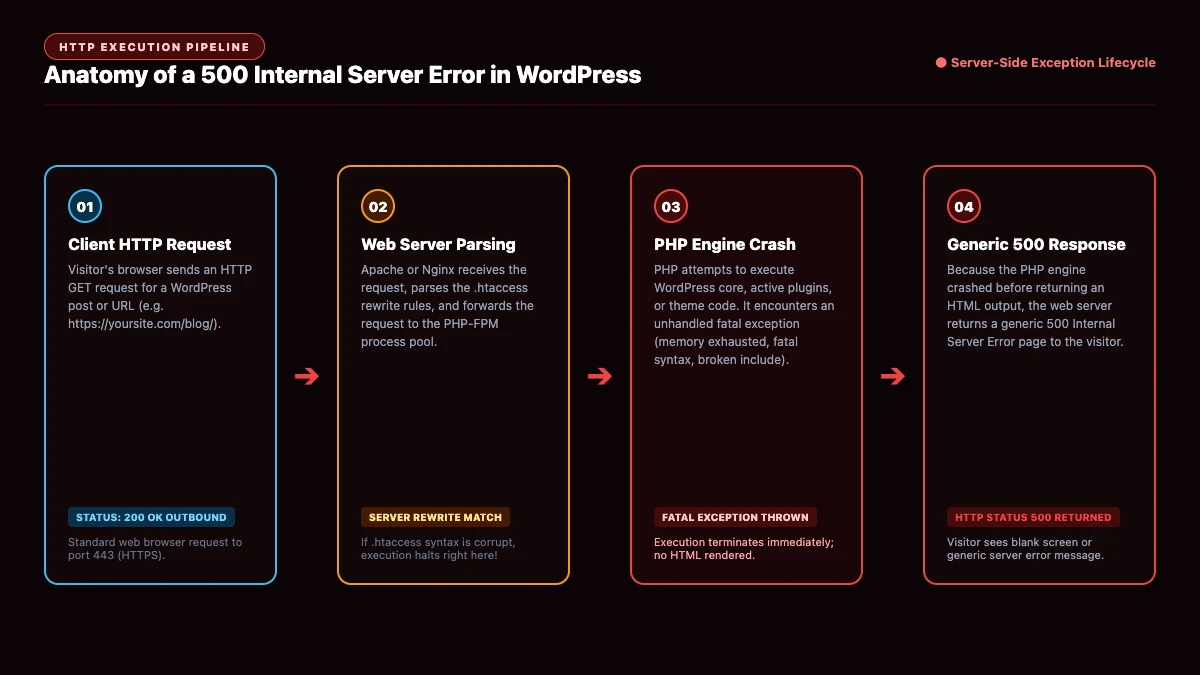
When an HTTP request triggers a 500 internal server error wordpress, the transaction unfolds across four specific milestones:
1. The Client Initiates the Request: A visitor types your domain into Chrome, Firefox, or Safari, or clicks a search result. The browser initiates a secure TLS handshake and dispatches an HTTP GET request for a specific resource (such as your homepage or a blog post).
2. The Web Server Intercepts and Rewrites: Your web server daemon (typically Apache, Nginx, or LiteSpeed) receives the packet. It evaluates robust web server security files, primarily your
.htaccess file on Apache or your Nginx virtual host directives. If your .htaccess file contains invalid syntax, unclosed directives, or infinite rewrite loops, the web server crashes immediately at this stage and issues a 500 internal server error wordpress before PHP is ever touched.3. The PHP Execution Engine Spawns: If server configurations are valid, the web server hands execution to the PHP processor (such as PHP 8.2 or PHP 8.3 managed via PHP-FPM). The PHP engine boots WordPress core (
wp-load.php, wp-config.php, and wp-settings.php), loads all active plugins, and initializes your theme. If a plugin executes a fatal syntax error, references a non-existent function, or allocates more RAM than the server allows, PHP halts execution abruptly.4. The Server Aborts and Returns HTTP 500: Because PHP crashed mid-execution without sending an HTML payload back to the web server, the web server has no content to deliver to the client. To comply with HTTP standards, the server returns status code 500 alongside a default, unbranded error template. This is why you see the dreaded 500 internal server error wordpress screen.
The 9 Root Causes of 500 Internal Server Error in WordPress Matrix
Review the comprehensive diagnostic matrix below detailing the nine most frequent causes of a 500 internal server error wordpress, along with their symptom signatures and average recovery times:
| Failure Vector | Frequency / Probability | Common Symptom Signature | Primary Resolution Method | Average Recovery Time |
|---|---|---|---|---|
| Corrupt .htaccess File | Very High (~40% of cases) | Site is 500; wp-admin is also 500; often occurs after updating permalinks | Rename to .htaccess_old via SFTP and regenerate default rules | 3 to 5 minutes |
| PHP Memory Limit Exhaustion | Very High (~30% of cases) | Error occurs when uploading media or accessing heavy admin screens like WooCommerce | Increase WP_MEMORY_LIMIT to 512M in wp-config.php | 2 to 4 minutes |
| Incompatible or Buggy Plugin | High (~15% of cases) | 500 error triggered immediately after activating or updating a plugin | Rename /wp-content/plugins/ to deactivate all plugins via SFTP | 5 to 8 minutes |
| Theme functions.php Syntax Flaw | Moderate (~5% of cases) | Error occurs after pasting custom code snippets into active theme functions | Revert edits via SFTP or switch to default Twenty Twenty-Four theme | 5 to 10 minutes |
| Corrupted WordPress Core Files | Moderate (~3% of cases) | Occurs after an automated background core update was interrupted mid-stream | Re-upload fresh /wp-admin/ and /wp-includes/ folders from WordPress.org | 8 to 15 minutes |
| Incorrect File & Folder Permissions | Low (~3% of cases) | Web server returns 500 or 403; PHP-FPM user denied read/write access | Reset directory permissions to 755 and file permissions to 644 | 3 to 5 minutes |
| PHP Version Incompatibility | Low (~2% of cases) | Error appears right after host upgrades PHP from 7.4 to 8.2/8.3 | Temporarily downgrade PHP version in hosting control panel or update code | 2 to 5 minutes |
| MySQL Database Server Hang | Low (~1% of cases) | Occurs during traffic spikes; database connection pool completely exhausted | Restart MySQL service or upgrade cloud VPS database resources | 5 to 15 minutes |
| Host Web Server Daemon Fault | Rare ( | Nginx/Apache proxy crashes, FastCGI socket timeouts, or physical host outage | Contact hosting technical support to inspect server-level error logs | 15 to 45 minutes |
Method 1: Diagnosing and Fixing a Corrupted .htaccess File
In over 40% of all real-world incidents, a 500 internal server error wordpress is caused by a corrupted or malformed
.htaccess file. The .htaccess file is an Apache distributed configuration file that controls URL rewrites, pretty permalinks, security headers, browser caching, and redirects. Caching plugins, security suites, and manual rewrite additions frequently modify this file, and a single misplaced character or unclosed directive will instantly crash the web server.
Follow this exact four-step protocol to isolate and resolve
.htaccess corruption in 500 internal server error wordpress situations:1. Connect to Your Server via SFTP or File Manager: Use an SFTP client (like FileZilla, Cyberduck, or Transmit) or log into your web hosting control panel (such as cPanel or Hostinger hPanel) and launch the File Manager. Navigate to the root directory of your WordPress installation (usually named
public_html, www, or htdocs).2. Enable Hidden Files Display: Files beginning with a dot (like
.htaccess) are treated as hidden dotfiles by Unix operating systems. If you do not see the file, open your SFTP or File Manager preferences and ensure ‘Show Hidden Files’ (dotfiles) is enabled.3. Rename the Active File: Right-click on
.htaccess and rename it to .htaccess_old or .htaccess_backup. By renaming the file, you immediately remove all custom rewrite rules from the server’s execution path without deleting your backup.4. Test Your Website Immediately: Return to your web browser and hard-refresh your website (Ctrl+F5 or Cmd+Shift+R). If your homepage loads cleanly, congratulations—you have confirmed that your 500 internal server error wordpress was caused by corrupted
.htaccess directives!5. Regenerate Clean Default WordPress Rewrite Rules: While your homepage may now load, your internal blog posts and pages will likely return 404 Not Found errors because rewrite rules are missing. To fix this, log into your WordPress administrative dashboard, navigate to Settings > Permalinks, and simply click the blue Save Changes button at the bottom of the screen without modifying anything. WordPress will automatically generate a brand new, pristine
.htaccess file containing standard rewrite rules.Method 2: Overcoming PHP Memory Limit Exhaustion
The second leading instigator of the 500 internal server error wordpress is PHP memory exhaustion. Every PHP script executed by WordPress requires an allocation of server RAM to process code, query the database, parse images, and render output. Web hosts establish default memory limits (often set as low as 64MB or 128MB). When a resource-intensive task runs—such as regenerating WooCommerce product thumbnails, running a backup, or compiling a page builder—the script hits the memory ceiling and PHP crashes instantly with a fatal error.
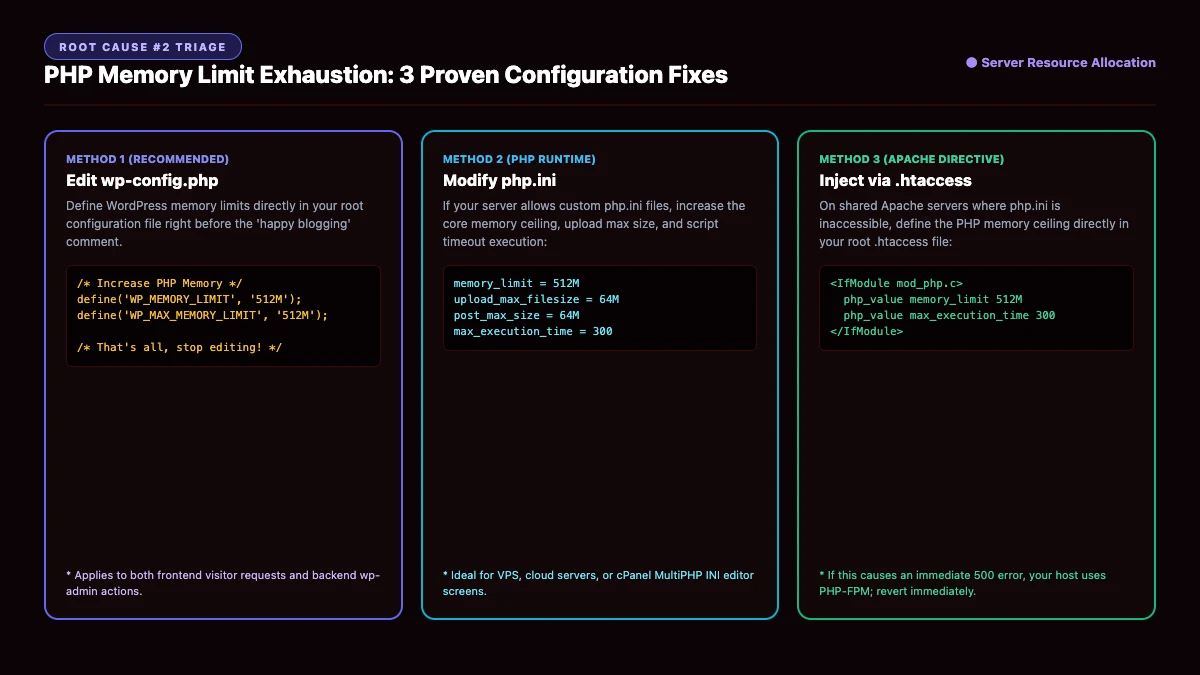
To resolve memory exhaustion causing a 500 internal server error wordpress, you can elevate your PHP memory limit using three proven methods:
• Method A: Edit wp-config.php (Recommended): Connect to your server via SFTP and locate the
Save the file and upload it back to the server. This explicitly instructs WordPress to allocate up to 512 megabytes of RAM for both frontend visits and backend administrative tasks.
• Method B: Modify php.ini: If your hosting environment provides access to a custom
• Method C: Apache Directive in .htaccess: On standard Apache shared hosting servers running mod_php, you can inject memory parameters directly into your
(Caution: If your web host uses PHP-FPM, adding php_value to .htaccess will trigger an immediate 500 error; if this happens, remove the line immediately).
wp-config.php file in your root directory. Open the file in a code editor and scroll down near the bottom, just above the line that reads /* That's all, stop editing! Happy publishing. */. Add the following lines:define('WP_MEMORY_LIMIT', '512M');define('WP_MAX_MEMORY_LIMIT', '512M');Save the file and upload it back to the server. This explicitly instructs WordPress to allocate up to 512 megabytes of RAM for both frontend visits and backend administrative tasks.
• Method B: Modify php.ini: If your hosting environment provides access to a custom
php.ini file (or a MultiPHP INI editor in cPanel), locate the memory_limit directive and increase it: memory_limit = 512M. Additionally, increase execution timeout: max_execution_time = 300.• Method C: Apache Directive in .htaccess: On standard Apache shared hosting servers running mod_php, you can inject memory parameters directly into your
.htaccess file:php_value memory_limit 512M(Caution: If your web host uses PHP-FPM, adding php_value to .htaccess will trigger an immediate 500 error; if this happens, remove the line immediately).
PHP Memory Limit Allocation Tiers & Workload Matrix
Review the standard memory allocation tiers below to determine the ideal RAM ceiling for your WordPress workload:
| Memory Limit (RAM) | Hosting Architecture Tier | Supported WordPress Workloads | 500 Error Risk Probability | Recommended Strategic Action |
|---|---|---|---|---|
| 64 MB | Legacy / Ultra-Budget Shared Hosting | Bare WordPress core with 2-3 text-only plugins | Extreme Risk (>75% on image upload) | Unacceptable in 2026; upgrade immediately |
| 128 MB | Standard Budget Shared Hosting | Standard personal blog with basic contact form plugins in WordPress | Moderate Risk (Crashes on heavy plugins) | Minimum viable baseline for basic sites |
| 256 MB | Quality Shared / LiteSpeed Cloud | Standard business sites, Elementor, Rank Math | Low Risk (Sufficient for 85% of blogs) | The industry standard recommended baseline |
| 512 MB | Managed WordPress / Cloud VPS | WooCommerce, LMS, Membership, High Traffic | Very Low Risk (Peak stability) | Recommended benchmark for commercial websites |
| 1024 MB (1 GB) | Dedicated Server / Enterprise Cloud | Enterprise portals, massive multi-site networks | Near Zero Memory Risk | Reserved for high-concurrency enterprise portals |
Method 3: Deactivating Faulty Plugins and Themes via SFTP & WP-CLI
If your
.htaccess file is clean and your PHP memory limit is elevated to 512MB, but you are still encountering a 500 internal server error wordpress, the culprit is almost certainly an incompatible or buggy third-party plugin or theme. A fatal PHP exception (such as calling a deprecated function or failing an external API curl call without a timeout) will halt execution instantly.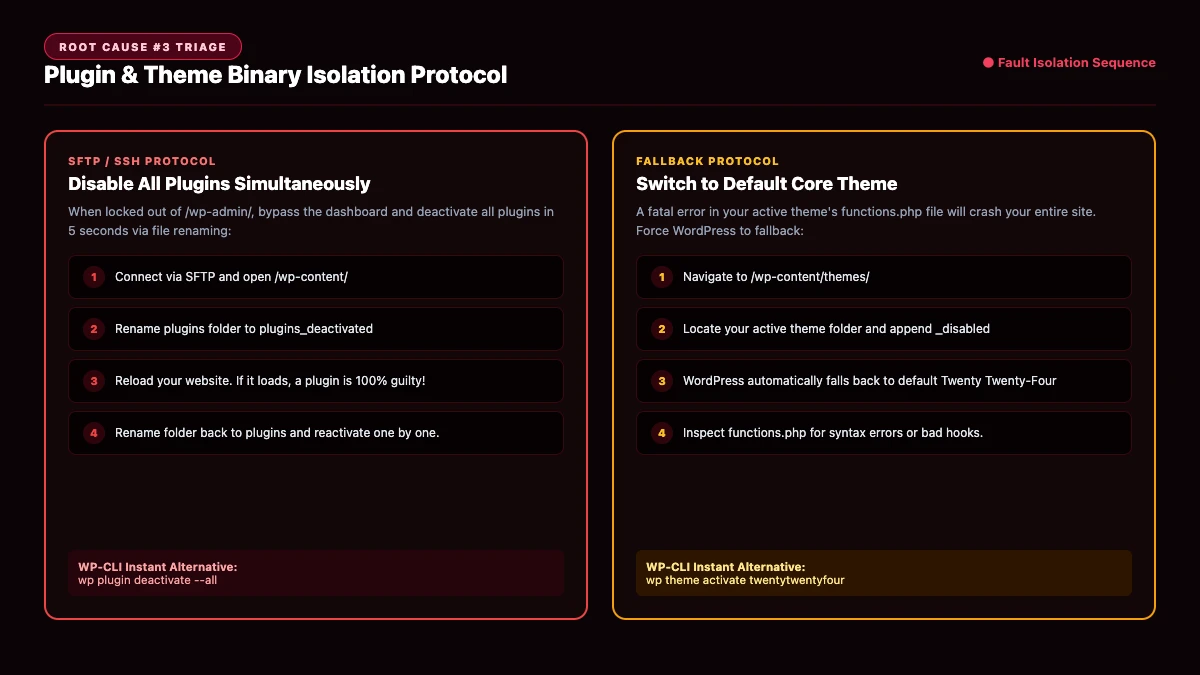
When locked out of
/wp-admin/, execute the binary isolation protocol to locate the rogue extension:1. Bulk Deactivate All Plugins via SFTP: Connect to your web server via SFTP and open the
/wp-content/ directory. Locate the folder named plugins. Right-click and rename it to plugins_deactivated. Because WordPress searches specifically for the directory path /wp-content/plugins/, renaming this folder instantly deactivates every single plugin on your site without altering their database configurations.2. Test the Site: Reload your website in your browser. If your site loads normally and you can access
/wp-admin/, a plugin is 100% responsible for the 500 internal server error wordpress.3. Isolate the Offending Plugin: Rename
plugins_deactivated back to plugins. Log into your WordPress administrative dashboard and navigate to Plugins > Installed Plugins. Your plugins will be listed as inactive. Reactivate them one by one, refreshing your site after each activation. The exact moment your site crashes with a 500 internal server error wordpress again, you have successfully caught the guilty plugin! Delete that plugin folder via SFTP and contact the developer for an updated patch.4. The WP-CLI Instant Shortcut: If you have SSH terminal access to your web server, you can bypass manual file renaming and deactivate all plugins in a single second using WP-CLI:
Once the site recovers, reactivate plugins selectively:
wp plugin deactivate --allOnce the site recovers, reactivate plugins selectively:
wp plugin activate wpforms-lite rank-math5. Theme Isolation: If deactivating all plugins does not resolve the issue, your active theme may have a syntax error in its
functions.php file. In SFTP, navigate to /wp-content/themes/ and rename your active theme’s folder (e.g., rename mytheme to mytheme_disabled). WordPress will automatically detect that the active theme is missing and fall back to a default core theme (like Twenty Twenty-Four). If the site loads, the error lies inside your theme code.Method 4: Enabling WP_DEBUG and Reading Error Stack Traces
Rather than stumbling in the dark and testing random fixes when faced with a 500 internal server error wordpress, you can force WordPress to tell you the exact file and line number causing the crash. By default, production WordPress installations suppress error messages to protect sensitive server paths from malicious hackers. However, you can safely enable error logging.
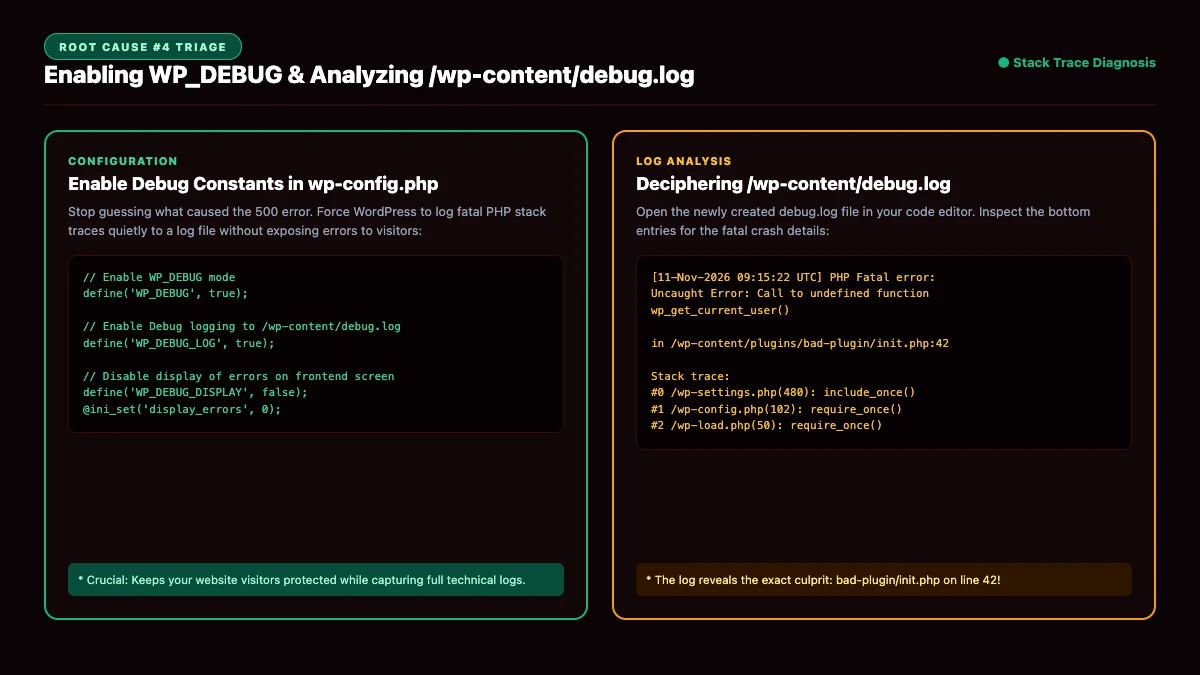
Configure WordPress diagnostic logging by following these steps:
1. Open wp-config.php: Connect via SFTP, download
wp-config.php, and search for the line containing define('WP_DEBUG', false);.2. Replace with Institutional Debug Constants: Replace that single line with the following hardened debugging configuration block:
php3. Trigger the Error: Save and re-upload
wp-config.php. Open your web browser and refresh the page that triggers the 500 internal server error wordpress. WordPress will execute the faulty code, intercept the fatal exception, and write a detailed stack trace directly into a hidden log file.4. Read /wp-content/debug.log: In SFTP, navigate into the
/wp-content/ folder and download the newly generated debug.log file. Open it in VS Code, Sublime, or Notepad, and scroll to the very bottom lines. You will see an entry structured like this:textThe log provides mathematical proof of the problem:
custom-theme/index.php threw a fatal exception on line 12. Using debug logs to isolate a 500 internal server error wordpress eliminates all guesswork in seconds!Methods 5–9: Advanced Server and Core File Recovery
If the foundational steps have not yet cleared the 500 internal server error wordpress, explore these five advanced recovery methods. Resolving a complex 500 internal server error wordpress sometimes requires addressing deeper filesystem or database corruption:
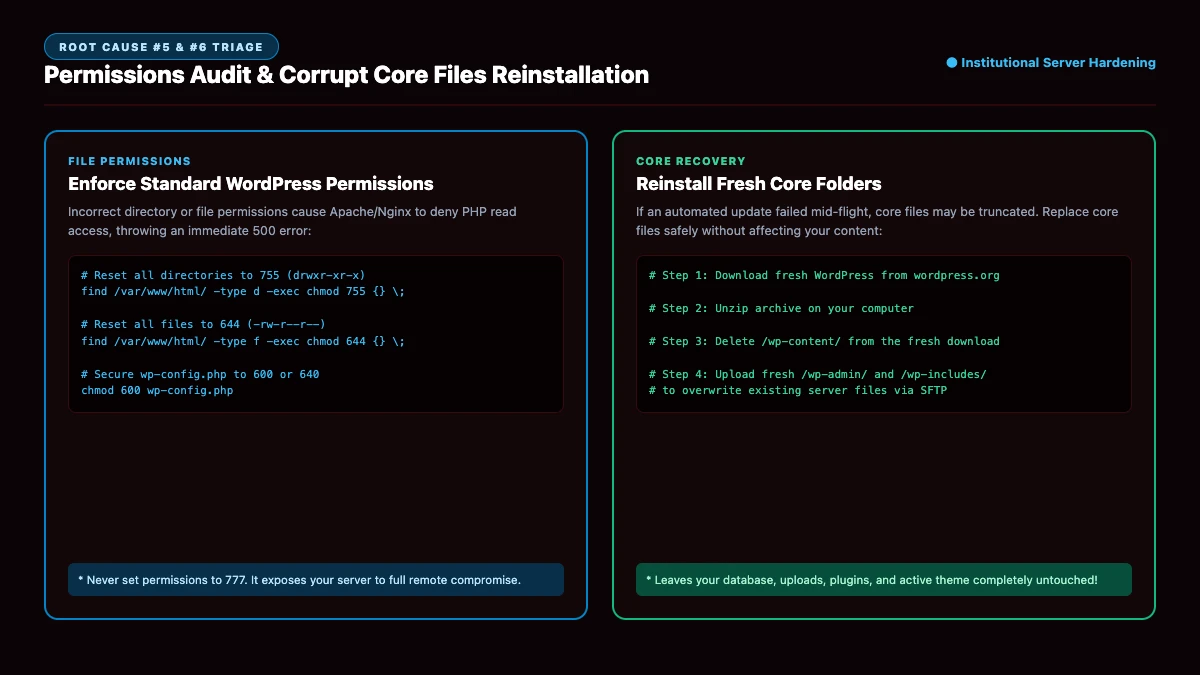
• Method 5: Re-uploading Fresh Core WordPress Files: Automated WordPress background updates can occasionally be interrupted by server timeouts or network drops, leaving corrupted or truncated core PHP files behind. Download the latest official
• Method 6: Auditing File and Directory Permissions: Incorrect file ownership or permissions will cause the web server process (e.g.
• Method 7: Checking for PHP Version Incompatibilities: If your web hosting company recently upgraded your server environment from PHP 7.4 to PHP 8.2 or 8.3, an older legacy plugin or abandoned theme may contain deprecated syntax that throws a fatal error in modern PHP runtimes. Access your hosting panel (cPanel MultiPHP Manager or hPanel PHP configuration) and test temporarily switching your PHP runtime to PHP 8.1 or 8.0. If the site restores, identify and replace the obsolete plugin.
• Method 8: Corrupted Database Tables and wp_options: In rare cases, a crashed MySQL table (such as a corrupted
• Method 9: Reviewing Server-Level Apache/Nginx Error Logs: If all application-level troubleshooting fails, the issue is rooted in the web server daemon itself (such as a crashed PHP-FPM socket, exhausted server inodes, or reverse proxy timeout). Request your web hosting support team to pull the master web server error log (
.zip release from WordPress.org. Extract the archive on your local computer, and delete the wp-content folder and wp-config-sample.php file from the unzipped files. Upload the fresh wp-admin and wp-includes folders via SFTP to overwrite the corrupted server copies. This repairs core files completely without affecting your themes, plugins, uploads, or database.• Method 6: Auditing File and Directory Permissions: Incorrect file ownership or permissions will cause the web server process (e.g.
www-data or nobody) to be denied read access to required files, throwing an immediate 500 error. The universal WordPress permission standard is: all directories must be set to 755 (drwxr-xr-x) and all files must be set to 644 (-rw-r--r--). The sensitive wp-config.php file should be hardened to 600 or 640. Run the standard Unix fix commands via SSH: find . -type d -exec chmod 755 {} ; and find . -type f -exec chmod 644 {} ;.• Method 7: Checking for PHP Version Incompatibilities: If your web hosting company recently upgraded your server environment from PHP 7.4 to PHP 8.2 or 8.3, an older legacy plugin or abandoned theme may contain deprecated syntax that throws a fatal error in modern PHP runtimes. Access your hosting panel (cPanel MultiPHP Manager or hPanel PHP configuration) and test temporarily switching your PHP runtime to PHP 8.1 or 8.0. If the site restores, identify and replace the obsolete plugin.
• Method 8: Corrupted Database Tables and wp_options: In rare cases, a crashed MySQL table (such as a corrupted
wp_options or wp_posts table) can cause PHP database calls to fail fatally. Add define('WP_ALLOW_REPAIR', true); to wp-config.php and visit https://yoursite.com/wp-admin/maint/repair.php to run the native WordPress database repair and optimization tool.• Method 9: Reviewing Server-Level Apache/Nginx Error Logs: If all application-level troubleshooting fails, the issue is rooted in the web server daemon itself (such as a crashed PHP-FPM socket, exhausted server inodes, or reverse proxy timeout). Request your web hosting support team to pull the master web server error log (
/var/log/apache2/error.log or /var/log/nginx/error.log).The WordPress HTTP 5xx Server Error Family Comparison Matrix
Examine how the 500 internal server error wordpress compares to related 5xx server status codes in the comparative guide below:
| HTTP Status Code | Official Status Name | Underlying Technical Cause | How It Differs from Error 500 | Immediate Fix Action |
|---|---|---|---|---|
| HTTP 500 | Internal Server Error | Generic server crash; fatal PHP exception or .htaccess syntax | Occurs entirely within the origin web server / PHP runtime | Rename .htaccess, increase memory limit, isolate plugins |
| HTTP 502 | Bad Gateway | Edge server or reverse proxy received an invalid upstream response | Origin web server failed to return valid HTTP data to proxy | Restart PHP-FPM service, check Nginx fastcgi buffer size |
| HTTP 503 | Service Unavailable | Server is temporarily overloaded or down for maintenance | Server is alive but throttling traffic due to capacity limits | Check for stuck .maintenance file or heavy bot scrape spike |
| HTTP 504 | Gateway Timeout | Upstream server took too long to complete a database or PHP request | Connection timed out before script completed execution | Increase max_execution_time and Nginx proxy_read_timeout |
| HTTP 520 – 524 | Cloudflare Origin Errors | Cloudflare edge proxy unable to connect to origin hosting server | Specific to websites routing traffic through Cloudflare CDN | Verify origin server IP, check SSL certificate validity |
Python Automation: WordPress 500 Error Triage Diagnostic Script
To accelerate the rapid diagnosis of a 500 internal server error wordpress, our engineering team has developed an automated Python triage utility:
wordpress_500_error_triage.py. This tool inspects local or remote HTTP response headers, validates .htaccess syntax integrity, parses wp-config.php memory limits, scans debug.log for fatal stack traces, and outputs an actionable remediation checklist.You can run this script via SSH on your server, inside a local terminal, or in staging environments to triage a 500 internal server error wordpress in seconds:
pythonPreventing Future 500 Errors: Institutional Site Hardening
Recovering from a 500 internal server error wordpress is a triumph, but establishing safeguards to ensure your site never crashes again is the hallmark of true webmaster excellence. Preventing another 500 internal server error wordpress requires proactive monitoring.
1. Always Test Updates on a Staging Environment: Never click ‘Update All Plugins’ on a live production website that generates revenue. Modern web hosts (like Hostinger, Bluehost, or Cloudways) provide 1-click staging environments. Duplicate your site to staging, run your theme and plugin updates, test checkout flows and contact forms, and only deploy to production once you are 100% certain no fatal 500 exceptions occur.
2. Enforce Automated Off-Site Backups: If a catastrophic server crash or database corruption takes your site down, having an independent, automated off-site backup (stored on Amazon S3, Google Drive, or Dropbox via the best WordPress backup plugins like UpdraftPlus) guarantees that you can restore your entire website in under 5 minutes with zero data loss.
3. Deploy Automated Uptime Monitoring: Don’t wait for an angry client or disappointed customer to email you that your site is down. Set up free 24/7 uptime monitoring through services like UptimeRobot, Better Uptime, or Pingdom. These services ping your site every 60 seconds and dispatch instant SMS or Slack alerts the second a 500 internal server error wordpress is detected.
4. Invest in Reputable Hosting Infrastructure: Budget shared hosts cramming thousands of accounts onto overloaded physical servers suffer frequent 500 errors due to CPU throttling and database connection drops. Upgrading to managed cloud infrastructure powered by LiteSpeed, Nginx, and modern NVMe SSDs ensures your server has ample resource headroom during unexpected viral traffic spikes.
The 500 internal server error in WordPress occurs when the server encounters an unexpected fatal condition that halts execution before outputting HTML. Over 95% of cases are caused by corrupted .htaccess files, exhausted PHP memory limits, fatal syntax errors in newly updated plugins/themes, or truncated core files from interrupted updates.
You can resolve most 500 errors without coding by connecting via SFTP or your hosting File Manager. First, rename your .htaccess file to .htaccess_old to test for rewrite corruption. Second, rename your /wp-content/plugins/ folder to /wp-content/plugins_old/ to deactivate rogue plugins. If the site loads, you have fixed the issue without writing code.
Yes. The .htaccess file directly configures the Apache web server daemon. If a plugin injects malformed rewrite syntax, unclosed directives, or invalid mod_php values, Apache cannot parse the file and crashes immediately with an HTTP 500 status before loading WordPress.
Open your wp-config.php file via SFTP and add define(‘WP_MEMORY_LIMIT’, ‘512M’); just above the line that reads ‘That’s all, stop editing!’. This instructs WordPress to allocate up to 512MB of RAM for script execution, preventing memory exhaustion crashes.
If your public frontend works but wp-admin returns a 500 error, the cause is almost certainly PHP memory exhaustion or an administrative dashboard hook conflict from a security or analytics plugin. Increase WP_MAX_MEMORY_LIMIT to 512M in wp-config.php and deactivate admin-heavy plugins via SFTP.
By enabling define(‘WP_DEBUG’, true); and define(‘WP_DEBUG_LOG’, true); in wp-config.php, WordPress records all PHP fatal errors and stack traces into /wp-content/debug.log. Reading the bottom of this log reveals the exact file and line number causing the crash, eliminating guesswork.
If resolved quickly (within a few hours), a 500 error will have zero negative impact on your SEO rankings. Google understands that occasional server glitches happen and will re-crawl later. However, if your site remains down with 500 errors for multiple consecutive days, Google will temporarily demote your rankings to protect user experience.
An HTTP 500 Internal Server Error occurs entirely within the origin web server or PHP runtime. An HTTP 502 Bad Gateway error occurs when an edge reverse proxy (such as Nginx, Cloudflare, or a load balancer) attempts to communicate with the origin server but receives an invalid or empty response.
All directories in your WordPress installation must have permissions set to 755 (drwxr-xr-x), and all files must have permissions set to 644 (-rw-r–r–). The wp-config.php file can be hardened to 600 or 640. Setting permissions to 777 is dangerous and can trigger server security blocks.
You should contact your host after you have confirmed that your .htaccess file is fresh, your plugins are deactivated, your PHP memory limit is 512MB, and core files are intact. At that point, the crash is occurring at the web server daemon level (such as PHP-FPM pool exhaustion or MySQL crashes), which only your host can resolve.
Conclusion: Transforming Server Downtime into Unshakable Resilience
Encountering a 500 internal server error wordpress is a rite of passage for every serious digital publisher, developer, and website administrator. While the generic error message can initially feel daunting, understanding the underlying HTTP pipeline transforms what seems like a catastrophic disaster into a routine, 5-minute diagnostic exercise.
By methodically testing your
.htaccess file, expanding your PHP memory ceiling to 512MB, executing binary plugin isolation, and inspecting /wp-content/debug.log, you can resolve virtually any 500 internal server error wordpress swiftly and permanently, returning your website to peak operational health with complete data integrity.With your server restored and hardened, explore our next technical masterclasses: master modular website architecture in WordPress plugin vs widget, configure essential security in WordPress settings, learn how to install WordPress plugins safely, clean up deprecated database records in remove unused shortcodes, or evaluate reliable hosting infrastructure in domain vs hosting. Troubleshoot methodically, protect your digital assets, and keep your website running with absolute reliability.