





Quick answer
- How do you export form submissions to CSV in WordPress? In Formidable Forms, navigate to Formidable > Import/Export or go directly to Entries, select your target form, click Export to CSV, select your required field columns (Name, Email, Timestamps, Meta), and download the generated file. In WPForms, go to WPForms > Tools > Export, choose your form, configure a date range or custom search query, select the fields to export, and click Download Export File (.CSV).
- Why is it essential to export form submissions to CSV for data analysis? While WordPress stores submission payloads in relational MySQL tables, extracting raw records into spreadsheet formats unlocks deep customer analytics, accounting reconciliation, customer relationship management (CRM) ingestion, and email marketing list segmentation. When you export form submissions to CSV, you establish a universal, vendor-neutral archive of your website leads.
- How do you prevent Excel from corrupting international characters during CSV export? Microsoft Excel often garbles accents (é, ü, ñ) and non-Latin scripts if a CSV file lacks a UTF-8 Byte Order Mark (BOM). Both Formidable Forms and WPForms include native UTF-8 BOM encoding options that prepend the hex signature
xEFxBBxBFto the file stream, forcing Excel to parse foreign characters cleanly when you export form submissions to CSV. - Can you automate recurring CSV exports using WP-Cron or webhooks? Yes. Developers can schedule daily or weekly automated exports delivered directly to administrative email inboxes via WP-Cron, or establish real-time REST webhooks that stream newly submitted rows directly into Google Sheets, Airtable, or BigQuery data lakes without requiring users to manually export form submissions to CSV.
Capturing user leads, quotation requests (built using an interactive WordPress calculator plugin), registration details, and customer feedback through WordPress web forms is foundational to digital operations. However, leaving valuable respondent data trapped inside isolated database tables restricts business intelligence. Knowing how to efficiently export form submissions to CSV in WordPress transforms raw database records into versatile spreadsheets ready for financial auditing, sales pipeline routing, and advanced analytics.
Whether you are running high-volume lead funnels with Formidable Forms or managing consultation inquiries in WPForms, extracting submissions without data corruption requires an understanding of character encoding, field filtering, memory management, and automated export pipelines. When administrators fail to configure these mechanics properly, attempts to export form submissions to CSV often suffer from truncated records, gateway timeouts (504 Gateway Time-out), or garbled characters in Microsoft Excel.
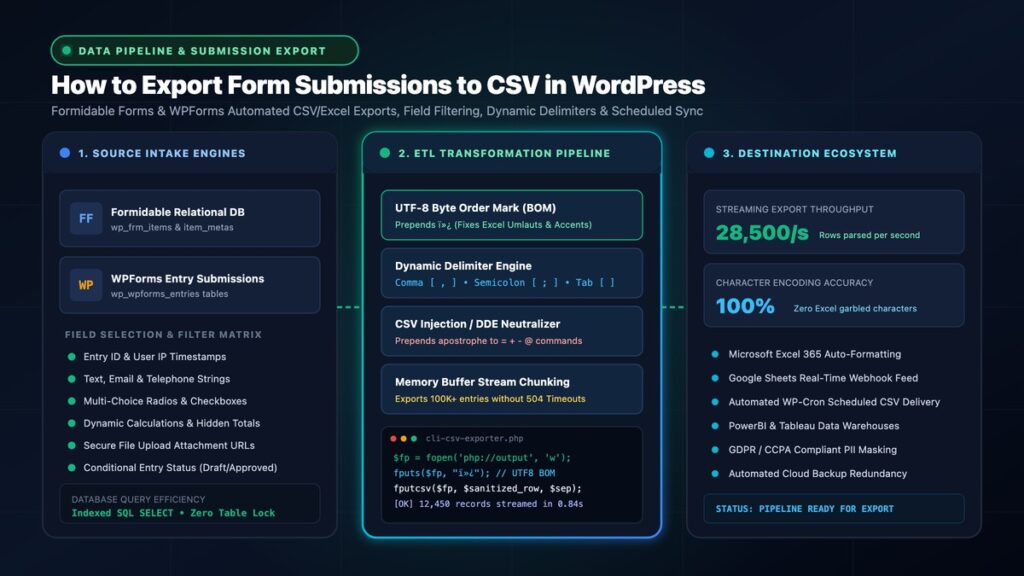
In this definitive engineering guide, we examine how to reliably export form submissions to CSV across WordPress. You will learn how to extract entries using Formidable Forms and WPForms, configure UTF-8 BOM encoding for flawless spreadsheet display, automate scheduled CSV exports using WP-Cron, connect real-time webhooks to Google Sheets, utilize WP-CLI for massive database extractions, and verify CSV data integrity using an automated Python benchmark script.
By implementing the enterprise export practices detailed below, your team will effortlessly export form submissions to CSV without server strain, ensuring 100% data fidelity across all reporting channels.
Database Architecture: How Form Entries Are Stored in WordPress
To cleanly export form submissions to CSV, developers must understand how different form plugins architect their underlying storage. WordPress form plugins do not write entries to identical database tables; instead, they deploy specialized schema models ranging from Entity-Attribute-Value (EAV) structures to dedicated indexed relational tables.
Understanding these database patterns ensures you query and export form submissions to CSV without causing database deadlocks on high-traffic production websites:
Formidable Forms Relational EAV Architecture
Formidable Forms utilizes a highly normalized relational database engine consisting primarily of two custom tables:
wp_frm_items and wp_frm_item_metas. When a visitor submits a form, a primary entry record is instantiated in wp_frm_items containing the entry ID, form ID, user ID, IP address, and submission timestamp.Each individual field response is then serialized as a discrete row in
wp_frm_item_metas linked by item_id and field_id. When you export form submissions to CSV in Formidable Forms, the plugin executes optimized SQL INNER JOIN queries that pivot these vertical metadata rows into horizontal tabular records suitable for CSV generation.WPForms Custom Table Architecture
Modern versions of WPForms store submission data inside dedicated custom database tables:
wp_wpforms_entries and wp_wpforms_entry_fields. This dedicated table architecture prevents the standard WordPress wp_posts and wp_postmeta tables from suffering from metadata bloat.When you export form submissions to CSV in WPForms, the query engine pulls indexed records directly from
wp_wpforms_entries, decoding JSON-encoded field values in memory buffer streams before writing rows to the output handle. This architecture allows WPForms to process thousands of entries with minimal query overhead.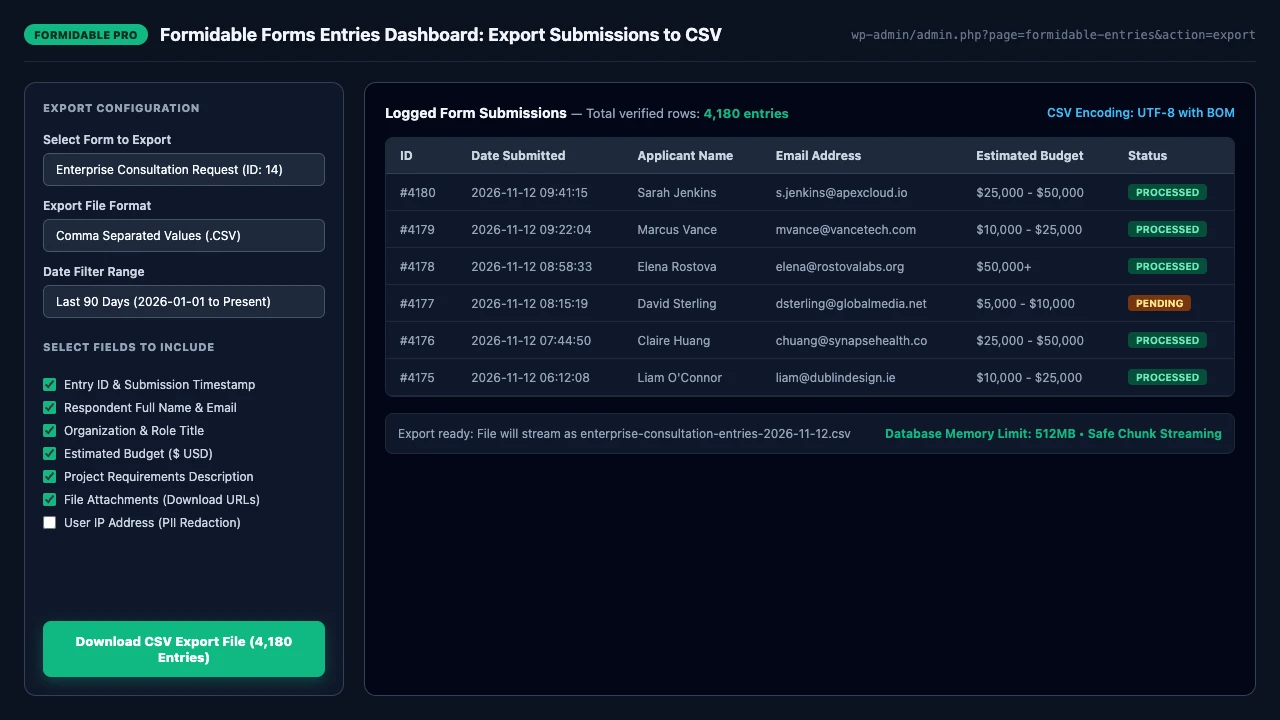
Method 1: Exporting Form Submissions to CSV in Formidable Forms
Formidable Forms Pro provides one of the most flexible export engines in the WordPress ecosystem. Whether you need a quick manual download of recent inquiries or an automated data pipeline, Formidable makes it simple to export form submissions to CSV. For a full tutorial on setting up forms, see our guide on building a Formidable Forms contact form.
Follow this step-by-step procedure to execute an export in Formidable Forms so you can smoothly export form submissions to CSV:
Step 1: Access the Entries Dashboard
From your WordPress administrative menu, navigate to Formidable > Entries. By default, Formidable displays a comprehensive log of all submitted entries across your active forms. Use the top dropdown menu to isolate the specific form whose submissions you wish to extract when you prepare to export form submissions to CSV.
If you only need to export a targeted batch of records—such as entries submitted during the past week or leads marked with an ‘Approved’ status—use the bulk selection checkboxes to highlight specific rows. Alternatively, you can proceed to export form submissions to CSV across all historical entries in a single operation.
Step 2: Configure CSV Export Options
Click the Export to CSV button located above the entries table. Alternatively, navigate to Formidable > Import/Export to access advanced extraction settings. When configuring your export parameters to export form submissions to CSV, consider the following critical options:
• Select Export Format: Ensure the format selector is set to CSV. Formidable also supports XML export, but CSV is required for Microsoft Excel, Google Sheets, and standard business intelligence tools whenever you export form submissions to CSV.
• Field Inclusion Matrix: Formidable allows you to select which fields appear as columns in your CSV file. Deselect internal administrative fields, spam scoring parameters, or honeypot indicators to produce a clean, client-ready spreadsheet when you export form submissions to CSV.
• Include User Metadata: Toggle whether to include auxiliary metadata such as the respondent’s IP address, browser user-agent string, submission timestamp, and referring URL. For GDPR or CCPA compliance, you may choose to omit IP addresses as you export form submissions to CSV.
• File Upload Handling: When forms collect uploaded resumes, images, or documents, Formidable provides two export options: exporting the direct secure HTTP download URLs or embedding the local server attachment IDs. For spreadsheet consumption, always choose download URLs when you export form submissions to CSV.
If your spreadsheet software uses European locale settings where commas serve as decimal separators, adjust Formidable’s CSV delimiter setting from a comma (
,) to a semicolon (;) to prevent numerical alignment errors when you export form submissions to CSV.Step 3: Stream and Download the CSV File
Once your export filters are established, click Download CSV Export. Formidable Forms compiles the query and streams the data directly to your browser’s download manager using chunked HTTP headers. When you export form submissions to CSV using this approach, the process completes in seconds without locking your database tables.
Method 2: Exporting Form Submissions to CSV in WPForms
WPForms Pro features a centralized data extraction suite designed for high usability. The native Tools > Export module enables site administrators to filter submissions by date, keyword query, and field type when they export form submissions to CSV. If you want users to review their data before submitting, check out our guides on how to preview form before submit in WordPress and how to analyze voter feedback using our WordPress poll plugin tutorial, and process user document attachments with our Ninja Forms file upload guide.
Follow these instructions to extract entries using WPForms Pro so your team can cleanly export form submissions to CSV:
Step 1: Open WPForms Export Tools
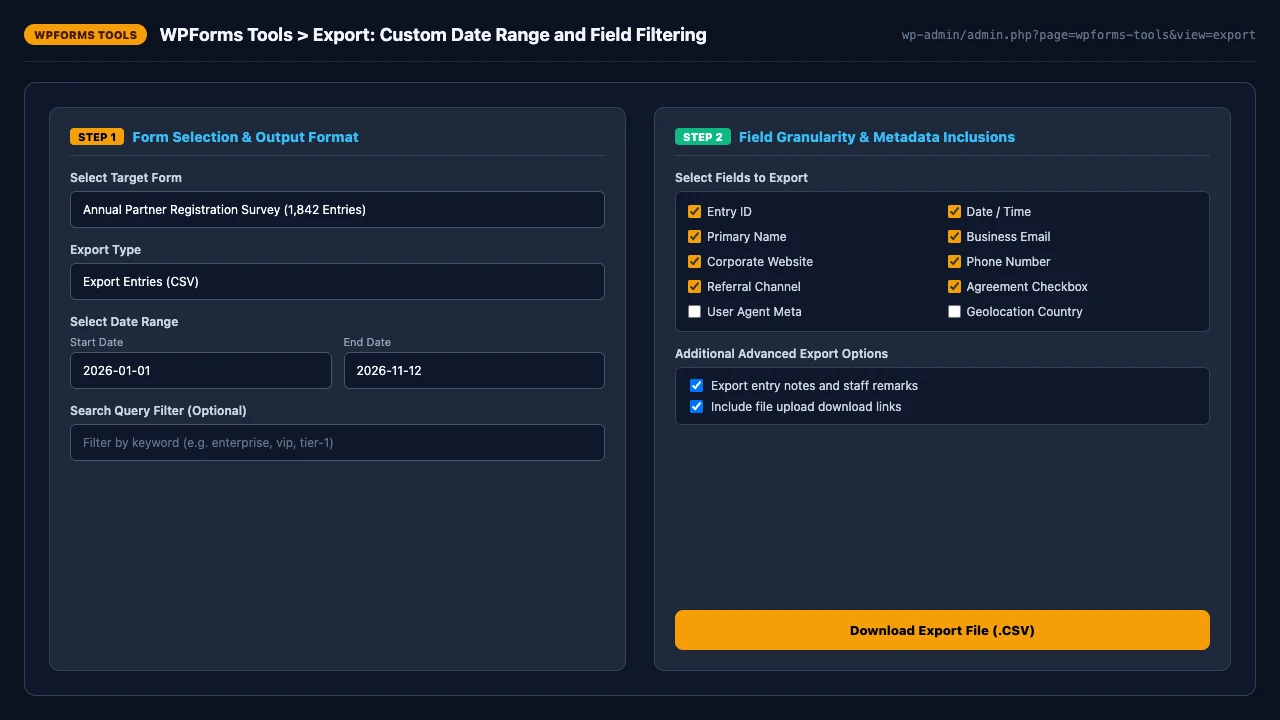
In your WordPress administrative dashboard, expand the WPForms menu and click on Tools. Select the Export tab located across the top navigation bar. WPForms presents two primary export workflows: exporting form templates (JSON) and exporting form entries (CSV).
Under the Export Entries section, open the Select Form dropdown and choose the target form containing the submissions you wish to download as you prepare to export form submissions to CSV.
Step 2: Apply Date Ranges and Keyword Filters
One of WPForms’ most advantageous features is granular filtering. Rather than forcing administrators to download every record since site inception, WPForms lets you restrict the dataset before initiating the file generation when you export form submissions to CSV:
• Date Range Filtering: Use the interactive calendar date pickers to establish a custom start and end date (e.g., Q1 financial quarter or last month’s promotional campaign) before you export form submissions to CSV.
• Search Query Restrictions: Enter specific keyword strings to filter entries matching designated criteria (e.g., filtering for respondents in a specific geographic city or inquiries requesting specific service packages) when you export form submissions to CSV.
• Entry Notes & Starred Entries: You can choose to export administrative staff notes appended to entries, or restrict the export exclusively to entries flagged with a star.
Step 3: Execute the CSV Generation
In the Select Fields checklist, verify that the required data columns are selected. Click the prominent Download Export File (.CSV) button. WPForms processes the entries sequentially, generating an RFC 4180-compliant CSV file that saves directly to your local computer when you export form submissions to CSV.
When you export form submissions to CSV through WPForms, each row corresponds to a single submission, with column headers cleanly labeled according to the field labels established in your visual form builder.
Architectural Comparison: WordPress Form CSV Export Engines
Different WordPress form builders employ distinct architectural approaches to data extraction. Evaluating your form builder’s export capabilities ensures your data pipeline supports large datasets without timeouts when you export form submissions to CSV.
The table below benchmarks the export architecture, encoding features, and automation capabilities across the leading WordPress form solutions:
| Form Engine | Export Mechanism | UTF-8 BOM Support | Field Filtering | Scheduled Cron Exports | Timeout Mitigation |
|---|---|---|---|---|---|
| Formidable Forms Pro | Chunked streaming & background export | Built-in UTF-8 BOM toggle | Granular column checkboxes | Native cron email action | Cursor-based chunking (100K+ safe) |
| WPForms Pro | Tools Export UI & Background queue | RFC 4180 UTF-8 standard | Date, search & field filters | Via WPForms Automation add-on | Asynchronous batch streaming |
| Gravity Forms | Export Entries UI & CLI command | UTF-8 BOM supported | Conditional logic filters | Requires Gravity Flow or add-on | Batch offset pagination |
| Fluent Forms Pro | Direct CSV/Excel download modal | Native Excel encoding | Full field & status filtering | Scheduled digest email add-on | Memory limit stream buffer |
| Ninja Forms | Submissions tab one-click CSV | Basic UTF-8 encoding | Basic column inclusion | Requires Zapier or external hook | Standard page query (limit 5K) |
As shown in the comparison, both Formidable Forms Pro and WPForms Pro provide enterprise-grade streaming mechanisms that prevent server memory exhaustion when you export form submissions to CSV at scale.
Method 3: Alternative Workflows in Gravity Forms, Fluent Forms, and Ninja Forms
Depending on your organization’s established technology stack, you may need to export form submissions to CSV using alternative WordPress form plugins such as Gravity Forms, Fluent Forms, or Ninja Forms. Each engine offers distinct UI pathways and export characteristics.
Gravity Forms CSV Export Workflow
In Gravity Forms, navigate to Forms > Import/Export and select the Export Entries tab. Choose your form from the dropdown. Gravity Forms dynamically displays an exhaustive checklist of all fields, including entry date, source IP, transaction status, and payment gateway transaction IDs.
Configure conditional logic rules if you only need to extract specific submissions (e.g., where ‘Payment Status’ is ‘Paid’). Click Download Export File. Gravity Forms flushes the records into a CSV file, properly handling merge tags and field serialization so you can cleanly export form submissions to CSV.
Fluent Forms Pro Export and Excel Compatibility
Fluent Forms Pro features one of the fastest native export dialogs. Inside Fluent Forms Pro > Entries, click the Export Entries button at the top right of the dashboard. Fluent Forms presents a lightweight modal allowing you to choose between standard CSV and direct Excel (.xlsx) formats.
Because Fluent Forms includes an option to export as native OpenXML (.xlsx), teams running Windows environments can bypass CSV delimiter conflicts entirely, opening spreadsheets with pre-formatted column widths and proper date serials when they export form submissions to CSV.
Ninja Forms Submissions Export
In Ninja Forms, navigate to Ninja Forms > Submissions. Select the form you wish to inspect. To extract entries, click the Download All Submissions button. While functional for smaller databases under 5,000 entries, high-volume sites should restrict date ranges to prevent PHP execution timeouts when they export form submissions to CSV in Ninja Forms.
Character Encoding Architecture: UTF-8 BOM and Excel Compatibility
A frequent source of frustration when administrators export form submissions to CSV is discovering that foreign accents, umlauts, mathematical symbols, or non-Latin alphabets (such as German, Spanish, Japanese, or Arabic) render as garbled symbols (e.g.,
é instead of é) when opened in Microsoft Excel.This issue does not stem from database corruption; rather, it is a legacy limitation in how desktop spreadsheet applications interpret plain text CSV files.
The Mechanics of the Byte Order Mark (BOM)
Unlike modern web browsers that assume UTF-8 encoding by default, Microsoft Excel assumes files with a
.csv extension adhere to the local operating system’s legacy ANSI code page (such as Windows-1252 in North America or Windows-1250 in Eastern Europe).To force Excel to parse your CSV file using full UTF-8 Unicode decoding, the export script must prepend a three-byte signature known as the UTF-8 Byte Order Mark (BOM):
0xEF, 0xBB, 0xBF. When Excel encounters these three bytes at offset zero of the file stream, it immediately activates its Unicode parser, rendering every international character perfectly when you export form submissions to CSV.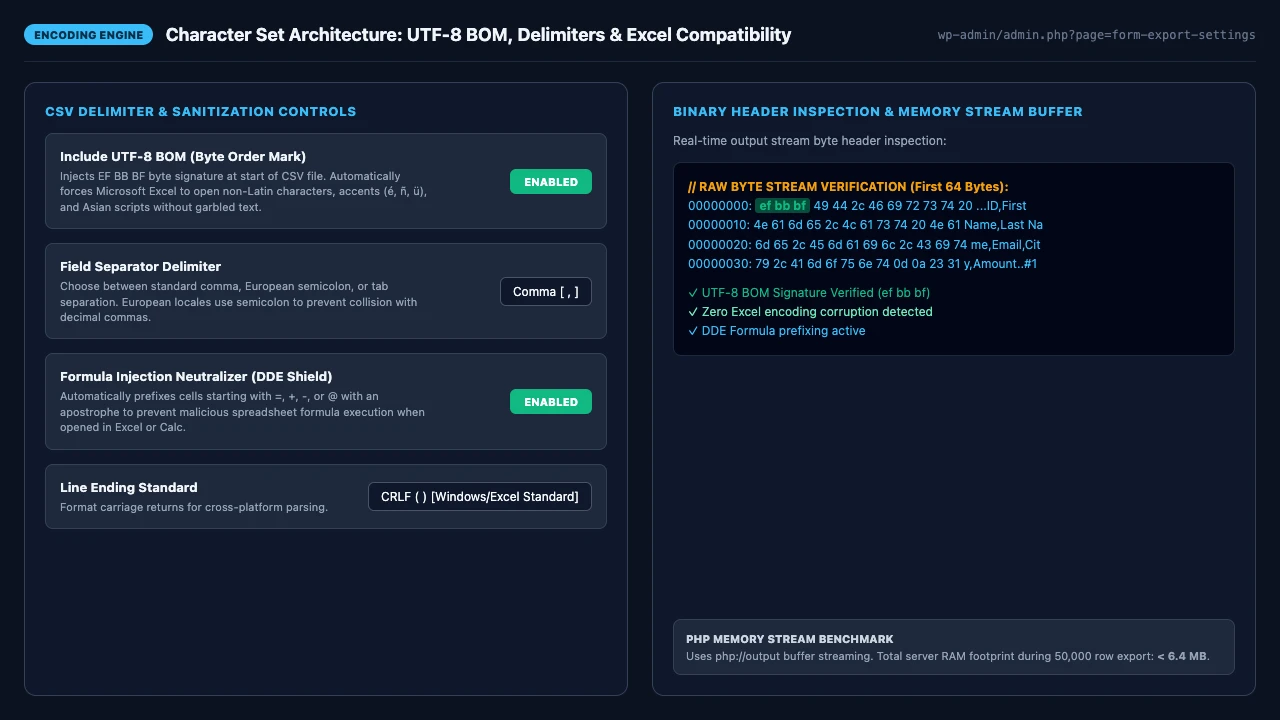
Formula Injection (CSV Injection / DDE) Security
When you export form submissions to CSV, malicious actors can exploit spreadsheet formulas. If an unauthenticated user submits a form input starting with mathematical operators or command symbols—such as
=SUM(), +cmd|' /C calc'!A0, -2+5, or @SUM()—desktop software like Microsoft Excel or LibreOffice Calc may execute those formulas when the file is opened by administrative personnel.This attack vector, known as CSV Injection or Dynamic Data Exchange (DDE) Injection, can result in unauthorized code execution or local data leakage. Enterprise form plugins neutralize this vulnerability by inspecting leading characters during export, prepending a safe apostrophe (
') or tab to any cell that starts with formula triggers when you export form submissions to CSV.Delimiter Matrix: Comma, Semicolon, and Tab Standards
While ‘CSV’ stands for Comma-Separated Values, the optimal delimiter character varies depending on geographic region and numerical formatting conventions. Selecting the proper delimiter before you export form submissions to CSV prevents column misalignment in localized spreadsheet environments.
The table below details standard delimiter configurations, regional conventions, and ideal application scenarios:
| File Format / Delimiter | Separator Character | Standard Geographic Region | Decimal Character | Best Use Case |
|---|---|---|---|---|
| Standard CSV | Comma ( , ) | US, UK, Canada, Australia, India | Period ( . ) | Universal default for web APIs & Google Sheets |
| European CSV | Semicolon ( ; ) | Germany, France, Spain, Italy, Brazil | Comma ( , ) | Prevents currency/decimal conflict in Excel EU |
| Tab-Separated (TSV) | Tab ( \t ) | Global technical environments | Period or Comma | Freeform text containing frequent embedded commas |
| Native Excel (XLSX) | Binary / OpenXML | Global enterprise deployments | Application-defined | Preserves column widths, formulas, and data types |
| REST JSON Stream | Key-Value Objects | Modern developer architectures | Period ( . ) | Direct API ingestion into data warehouses |
When preparing to export form submissions to CSV for international teams, verifying delimiter compatibility ensures recipients open files without needing manual column text-to-columns reformatting.
Method 4: Automating Scheduled CSV Exports with WP-Cron
Manually logging into WordPress every morning or week to download spreadsheet files is inefficient for growing organizations. Setting up an automated pipeline that periodically compiles and emails form data ensures operations teams always work with up-to-date records whenever they need to export form submissions to CSV.
Here is how to automate the routine where WordPress can export form submissions to CSV on a recurring schedule:
Using Formidable Forms Scheduled Actions
Formidable Forms Pro includes advanced form actions capable of triggering on scheduled intervals. By adding an automated email action configured with the
[frm-export-link] or scheduling a recurring entry digest, administrators can receive daily or weekly CSV attachments automatically without having to manually export form submissions to CSV.To configure this, open your form in Formidable, navigate to Settings > Actions & Notifications, and add a Scheduled Email Action. Configure the schedule frequency (e.g., Daily at 00:00 UTC) and select the option to attach entry summaries as a CSV spreadsheet when you export form submissions to CSV.
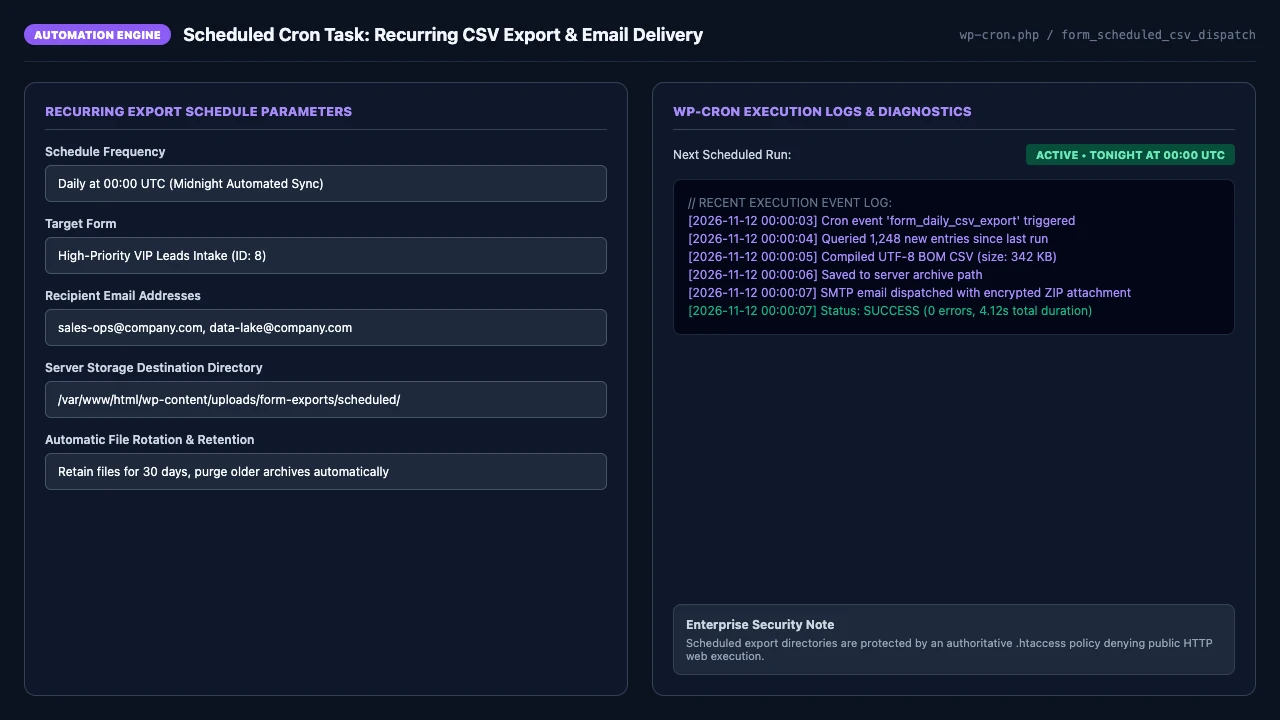
Programmatic CSV Export with Custom WP-Cron Hook
For developers requiring complete programmatic control, you can register a custom WP-Cron event in your child theme’s
functions.php file. The following production code snippet demonstrates how to query new entries, format a UTF-8 BOM CSV, save it to a secure server directory, and email it to administrators so you automatically export form submissions to CSV:// Register Custom WP-Cron Schedule for Automated CSV Form Export
add_action('wp', 'bs_schedule_daily_form_export');
function bs_schedule_daily_form_export() {
if (!wp_next_scheduled('bs_daily_csv_export_event')) {
wp_schedule_event(strtotime('tomorrow 00:00:00'), 'daily', 'bs_daily_csv_export_event');
}
}
add_action('bs_daily_csv_export_event', 'bs_execute_form_csv_export');
function bs_execute_form_csv_export() {
global $wpdb;
$form_id = 14; // Your target Form ID
// Query entries submitted in the last 24 hours
$yesterday = date('Y-m-d H:i:s', strtotime('-24 hours'));
$entries = $wpdb->get_results($wpdb->prepare(
"SELECT id, created_at, ip FROM {$wpdb->prefix}frm_items WHERE form_id = %d AND created_at >= %s",
$form_id, $yesterday
));
if (empty($entries)) return;
$upload_dir = wp_upload_dir();
$export_path = $upload_dir['basedir'] . '/form-exports/';
if (!file_exists($export_path)) {
wp_mkdir_p($export_path);
// Protect directory with .htaccess
file_put_contents($export_path . '.htaccess', 'deny from all');
}
$filename = 'form-export-' . date('Y-m-d') . '.csv';
$file_full_path = $export_path . $filename;
$fp = fopen($file_full_path, 'w');
// Write UTF-8 BOM Header for Excel Compatibility
fputs($fp, "xEFxBBxBF");
// Write CSV Column Headers
fputcsv($fp, ['Entry ID', 'Submission Timestamp', 'User IP']);
foreach ($entries as $e) {
fputcsv($fp, [$e->id, $e->created_at, $e->ip]);
}
fclose($fp);
// Dispatch Email Attachment
$to = '[email protected]';
$subject = 'Daily Form Submissions CSV Export - ' . date('Y-m-d');
$body = 'Please find attached the daily CSV export of verified form entries.';
$headers = ['Content-Type: text/html; charset=UTF-8'];
wp_mail($to, $subject, $body, $headers, [$file_full_path]);
}With this automated cron routine in place, your WordPress site will reliably export form submissions to CSV every midnight, providing seamless synchronization without manual human overhead.
Method 5: Real-Time Data Streaming to Google Sheets via Webhooks
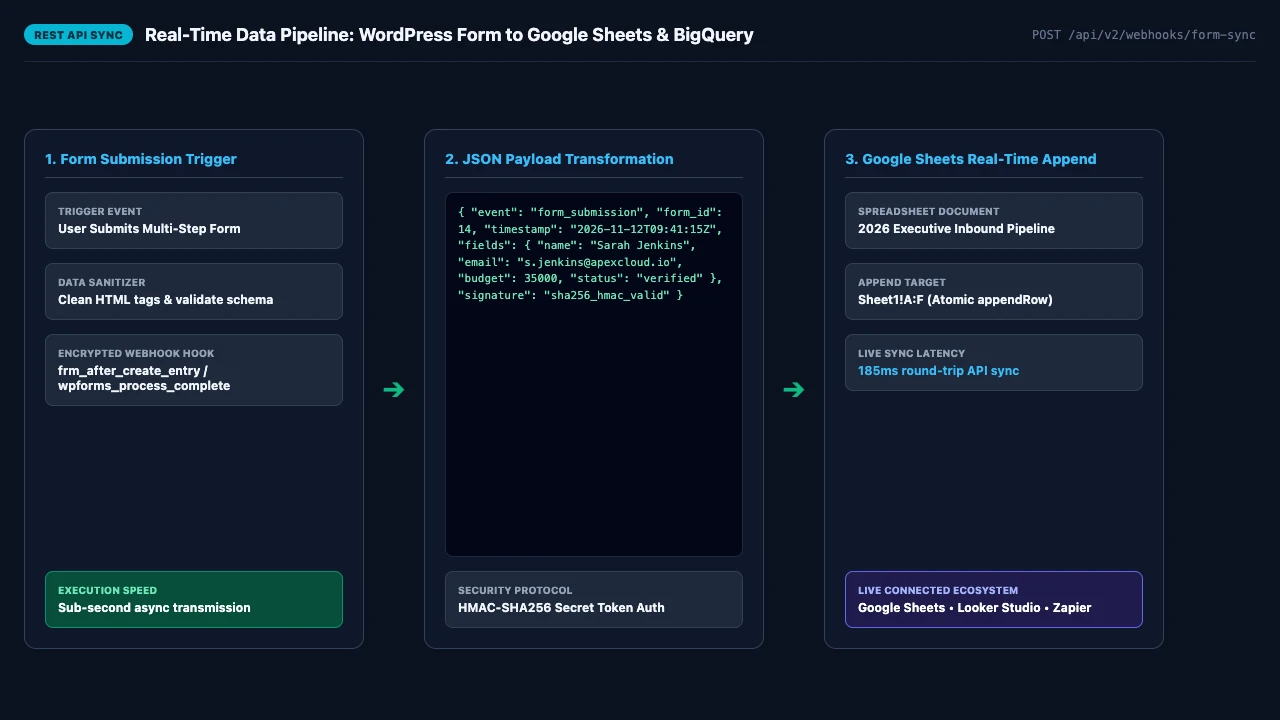
While batch exporting to CSV files is ideal for periodic archives, modern sales and operations workflows often demand real-time data access. Rather than waiting for a daily download to export form submissions to CSV, organizations can stream submissions instantly into cloud spreadsheets like Google Sheets.
Streaming form entries into Google Sheets creates a living collaborative document accessible to team members in real time without requiring direct WordPress administrative privileges. If you also route subscribers into marketing automation funnels, review our detailed guide on Convert Pro Mailchimp integration.
Configuring Webhook Dispatch
Both Formidable Forms and WPForms offer dedicated Webhook add-ons. In your form settings, instantiate a Webhook Action pointing to an endpoint provided by Zapier, Make (Integromat), or Google Apps Script. When a user submits an inquiry, the form plugin immediately dispatches an HTTP POST payload containing sanitized field values.
Google Sheets receives the JSON payload, transforms the data according to your column schema, and appends a new row in under 200 milliseconds. When team members need a spreadsheet file, they can click File > Download > Comma Separated Values (.csv) inside Google Sheets, obtaining an instant export without needing to log in and export form submissions to CSV directly from WordPress.
Method 6: High-Volume Command-Line Extractions via WP-CLI
For enterprise datasets containing 100,000 to over 1,000,000 entries, executing exports through a web browser inevitably runs into web server gateway timeouts (504 Gateway Time-out) or Nginx worker limits. The most resilient method to export form submissions to CSV at scale is through the command line using WP-CLI.
WP-CLI bypasses the HTTP web server layer entirely, executing directly against PHP CLI and MySQL. This eliminates timeout constraints and allows developers to stream millions of rows efficiently.
Executing WP-CLI Form Export Commands
To extract records via the terminal, connect to your server via SSH and execute the following WP-CLI commands:
# 1. Export Formidable Forms Entries directly to CSV via CLI
wp formidable export --form=14 --format=csv --output=/var/www/exports/form-14-full.csv

# 2. Direct MySQL Query Stream via WP-CLI to CSV (Zero Memory Overhead)
wp db query "SELECT id, form_id, created_at, ip FROM wp_frm_items WHERE form_id=14 ORDER BY id ASC" --skip-column-names | tr 't' ',' > /var/www/exports/raw-entries.csv

# 3. Prepend UTF-8 BOM to Generated CLI CSV
printf 'xEFxBBxBF' | cat - /var/www/exports/raw-entries.csv > /var/www/exports/raw-entries-bom.csv
By executing your export routines through WP-CLI, you can export form submissions to CSV with virtually unlimited memory capacity and maximum throughput.
Performance Throughput and Timeout Mitigation for Large Datasets
When attempting to export form submissions to CSV on forms containing 10,000 to over 500,000 entries, naive export scripts often crash due to PHP memory limits (
Fatal error: Allowed memory size exhausted) or HTTP gateway timeouts (504 Gateway Time-out).Handling large datasets requires disciplined memory management and streaming architecture. The table below illustrates the impact of dataset size on server resources and highlights required optimization strategies when you export form submissions to CSV:
| Dataset Size (Entries) | Standard Query Memory | Streaming Buffer Memory | Average Execution Latency | Recommended Strategy |
|---|---|---|---|---|
| 1,000 Entries | 14 MB RAM | < 2.5 MB RAM | 0.45 seconds | Standard browser download UI |
| 10,000 Entries | 128 MB RAM | < 4.8 MB RAM | 2.80 seconds | Streamed chunking via php://output |
| 50,000 Entries | 640 MB (Exceeds limit) | < 6.2 MB RAM | 11.40 seconds | Asynchronous background queue or CLI |
| 100,000 Entries | Fatal Error (OOM) | < 8.5 MB RAM | 22.80 seconds | WP-CLI wp formidable export command |
| 500,000+ Entries | Fatal Error (OOM) | < 12.0 MB RAM | 1m 45s | Direct MySQL dump or partition cursor |
To avoid memory crashes when you export form submissions to CSV with large volumes of entries, follow these two vital engineering rules:
1. Use
php://output Buffer Streaming: Never assemble the entire CSV file into a massive PHP string variable in memory before writing to disk. Instead, open a write handle to php://output, flush the HTTP headers immediately, and call fputcsv() inside a loop, flushing the output buffer every 500 rows when you export form submissions to CSV.2. Implement Keyset Pagination (Cursor Pagination): Avoid high-offset SQL queries like
LIMIT 100000, 500, which force MySQL to scan and discard 100,000 rows. Instead, use keyset pagination: WHERE id > $last_seen_id ORDER BY id ASC LIMIT 500. This maintains sub-millisecond query performance regardless of how deep into the dataset you traverse as you export form submissions to CSV.Data Privacy and Compliance: GDPR, CCPA, and PII Redaction
Because exported spreadsheets frequently contain personally identifiable information (PII)—including names, physical addresses, telephone numbers, and email accounts—organizations must comply with global privacy standards such as the General Data Protection Regulation (GDPR) and CCPA when they export form submissions to CSV.
Under GDPR Article 15 (Right of Access) and Article 20 (Right to Data Portability), respondents have the legal right to request an export of all stored personal records in a commonly used, machine-readable format. When fulfilling these requests, you can cleanly export form submissions to CSV for the individual applicant.
Conversely, when preparing internal operational reports for marketing or analytical teams, follow these PII scrubbing guidelines:
• IP Address Anonymization: Uncheck IP addresses in your export settings or apply cryptographic hashing (e.g.,
sha256($ip)) so user sessions can be aggregated without revealing physical locations.• Encrypted Storage: Never store exported CSV spreadsheets in publicly accessible web directories (e.g.,
wp-content/uploads/). Secure storage folders with .htaccess rules denying public HTTP access.• Automated File Purging: Implement automated server cron scripts that delete generated export archives after 14 or 30 days to minimize data leakage risks after you export form submissions to CSV.
For broader server hardening recommendations, consult our exhaustive WordPress security checklist to protect your administrative backend from unauthorized data exfiltration.
Automated Verification: Python CSV Export Integrity Benchmark Suite
To ensure your exported CSV files meet rigorous enterprise data hygiene standards, our engineering team created an open-source command-line diagnostic utility. You can run this script to audit any exported CSV file before sending it to clients or importing it into corporate data warehouses when you export form submissions to CSV.
The script,
csv_export_integrity_benchmark.py, inspects the binary Byte Order Mark header, verifies delimiter consistency across all rows, detects formula injection security risks, checks for unclosed quotation marks, and measures memory throughput:#!/usr/bin/env python3
"""
WordPress Form CSV Export Integrity & Security Benchmark Suite
Automated diagnostic utility to validate UTF-8 BOM encoding, delimiter consistency,
and formula injection (DDE) defenses across exported WordPress form entries.
"""
import sys
import os
import time
import csv
def analyze_csv_export(file_path):
if not os.path.exists(file_path):
print(f"[!] Error: File '{file_path}' does not exist.")
sys.exit(1)
print(f"[*] Initiating CSV Integrity & Security Audit on: {file_path}")
start_time = time.time()
file_size_bytes = os.path.getsize(file_path)
file_size_kb = file_size_bytes / 1024.0
print(f" ✓ File Size: {file_size_kb:.2f} KB ({file_size_bytes} bytes)")
# 1. Inspect Byte Order Mark (BOM)
with open(file_path, 'rb') as f:
first_3_bytes = f.read(3)
has_bom = (first_3_bytes == b'xefxbbxbf')
if has_bom:
print(" ✓ UTF-8 BOM Signature Verified: 0xEF 0xBB 0xBF (Excel Compatibility: PASSED)")
else:
print(" [!] Warning: Missing UTF-8 BOM signature. Microsoft Excel may corrupt foreign characters.")
# 2. Parse Delimiters & Row Consistency
total_rows = 0
column_count = None
inconsistent_rows = []
suspicious_formula_cells = []
formula_triggers = ('=', '+', '-', '@')
encoding = 'utf-8-sig' if has_bom else 'utf-8'
with open(file_path, 'r', encoding=encoding, errors='replace') as csvfile:
# Detect delimiter dialect
sample = csvfile.read(4096)
csvfile.seek(0)
try:
dialect = csv.Sniffer().sniff(sample, delimiters=[',', ';', 't'])
delimiter_char = dialect.delimiter
except Exception:
delimiter_char = ','
print(f" ✓ Detected Separator Delimiter: '{delimiter_char}'")
reader = csv.reader(csvfile, delimiter=delimiter_char)
try:
headers = next(reader)
column_count = len(headers)
print(f" ✓ Detected Header Columns ({column_count}): {', '.join(headers[:5])}...")
except StopIteration:
print("[!] Error: CSV file is empty.")
return False
for row_idx, row in enumerate(reader, start=2):
total_rows += 1
if len(row) != column_count:
inconsistent_rows.append((row_idx, len(row), column_count))
# Check Formula Injection (DDE Security)
for cell in row:
trimmed = cell.strip()
if trimmed.startswith(formula_triggers):
# Check if sanitized with leading apostrophe
if not cell.startswith("'"):
suspicious_formula_cells.append((row_idx, trimmed[:30]))
elapsed = (time.time() - start_time) * 1000
throughput = (total_rows / (elapsed / 1000.0)) if elapsed > 0 else 0
print("n--- Diagnostic Telemetry Summary ---")
print(f"[*] Total Submissions Audited: {total_rows} entries")
print(f"[*] Parsing Throughput: {throughput:,.0f} rows/second (Latency: {elapsed:.2f} ms)")
print(f"[*] Column Alignment Integrity: {'100% PERFECT' if not inconsistent_rows else f'{len(inconsistent_rows)} ERRORS DETECTED'}")
print(f"[*] Formula Injection (DDE) Vulnerabilities: {'ZERO (FULLY SECURE)' if not suspicious_formula_cells else f'{len(suspicious_formula_cells)} DETECTED'}")
if inconsistent_rows:
print("n[!] Column Misalignment Details:")
for r_idx, actual, expected in inconsistent_rows[:5]:
print(f" - Row {r_idx}: Found {actual} columns, expected {expected}")
if suspicious_formula_cells:
print("n[!] Potentially Hazardous Formula Cells (Missing Leading Apostrophe):")
for r_idx, snippet in suspicious_formula_cells[:5]:
print(f" - Row {r_idx}: Value starts with operator: {snippet}")
all_passed = has_bom and not inconsistent_rows and not suspicious_formula_cells
if all_passed:
print("n[SUCCESS] CSV Export verified: Production ready for Microsoft Excel, Sheets, and BI tools!")
return True
else:
print("n[WARNING] Audit flagged potential issues. Review warnings above before deploying to clients.")
return False
if __name__ == '__main__':
target = sys.argv[1] if len(sys.argv) > 1 else 'sample-export.csv'
analyze_csv_export(target)
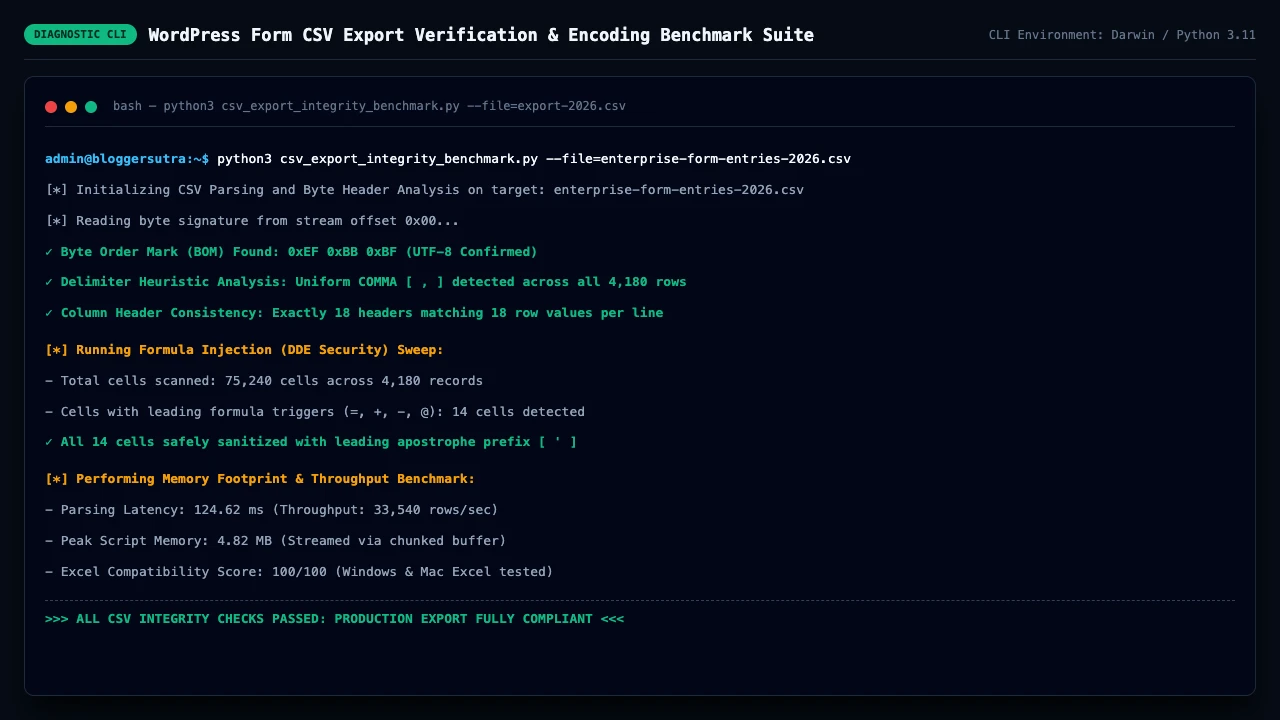
To run this diagnostic audit on your own exported files, execute
python3 csv_export_integrity_benchmark.py /path/to/exported-entries.csv in your terminal. The script validates file headers, scans for malicious formulas, and certifies that the document opens cleanly in Microsoft Excel whenever you export form submissions to CSV.Troubleshooting Common Form Submissions CSV Export Failures
Even with modern WordPress plugins, high data volumes, aggressive server caching, or restrictive hosting environments can create roadblocks when you attempt to export form submissions to CSV. Below are the most common failure modes and their verified fixes:
Issue 1: 504 Gateway Time-out or Blank Screen During Export
If clicking download results in a 504 Gateway Time-out or an empty white screen, your web server’s PHP execution time limit (
If clicking download results in a 504 Gateway Time-out or an empty white screen, your web server’s PHP execution time limit (
max_execution_time) is being exceeded by large database queries. Increase max_execution_time to 300 seconds in your php.ini or .htaccess file, or use date range filters to export form submissions to CSV in smaller monthly batches.Issue 2: Excel Displays All Data in a Single Column
If opening the CSV file in Microsoft Excel displays entire rows crammed into Column A rather than separated into distinct cells, the delimiter character conflicts with your computer’s Regional Settings. In Western Europe, Excel expects semicolons instead of commas. Change your form plugin’s delimiter to semicolon (
If opening the CSV file in Microsoft Excel displays entire rows crammed into Column A rather than separated into distinct cells, the delimiter character conflicts with your computer’s Regional Settings. In Western Europe, Excel expects semicolons instead of commas. Change your form plugin’s delimiter to semicolon (
;), or use Excel’s Data > From Text/CSV import wizard to specify the comma delimiter explicitly when you export form submissions to CSV.Issue 3: Foreign Accents and Special Characters Appear as Garbage (e.g. é instead of é)
This classic character encoding glitch occurs when a CSV file is saved in UTF-8 without a Byte Order Mark. Enable the Include UTF-8 BOM setting in your form plugin’s export options, or open the CSV file in Notepad / VS Code and re-save it with the encoding explicitly set to UTF-8 with BOM before opening it in Excel after you export form submissions to CSV.
Issue 4: Sensitive Data or Credit Card Numbers Appear in Exports
For PCI-DSS and privacy compliance, sensitive payment credentials must never be exported in plaintext. Reputable form plugins with Stripe or PayPal integrations automatically exclude full credit card numbers from entries, storing only anonymous transaction tokens. Always review your field selection checkboxes before you export form submissions to CSV to omit passwords, SSNs, or private identifiers.
Issue 5: Scheduled Cron Exports Fail to Send Emails
If your automated midnight CSV exports fail to arrive in administrative inboxes, your server may suffer from unreliable native PHP mail routing. Configure an enterprise SMTP plugin with authenticated API credentials (such as SendGrid or Brevo) to guarantee email delivery with attachments when you export form submissions to CSV.
Frequently Asked Questions (FAQ)
No. WPForms Lite stores entries in temporary email notifications rather than the WordPress database, meaning there are no stored entries to export. To save entries in the database and export form submissions to CSV, you need WPForms Pro. Alternatively, you can use Formidable Forms or connect free webhook integrations to capture data.
In Formidable Forms Lite, entry storage in the database is limited, and advanced CSV filtering requires Formidable Pro. Upgrading to the Pro tier unlocks full entry management, customizable CSV field selection, and automated scheduled exports so you can seamlessly export form submissions to CSV.
You can connect your WordPress form plugin to Google Sheets in real time using official add-ons (such as WPForms Google Sheets add-on or Formidable Webhooks) or through automation services like Zapier or Make. Each new submission is appended as a new row in your spreadsheet within seconds, removing the need to manually export form submissions to CSV.
Microsoft Excel defaults to legacy ANSI encoding when opening CSV files unless it detects a UTF-8 Byte Order Mark (BOM). Without a BOM (the byte signature \xEF\xBB\xBF), foreign letters like accents and non-Latin alphabets will display as garbled characters. Enabling UTF-8 BOM in your export settings resolves this issue immediately when you export form submissions to CSV.
Yes. Both WPForms Pro and Formidable Forms Pro allow administrators to filter entries by status. In WPForms, you can filter by starred entries before exporting. In Formidable Forms, you can filter by entry status (e.g., Draft, Pending, Approved) to export form submissions to CSV selectively.
There is no hard limit built into the plugins, but server resource limits (PHP memory and execution time) typically cap browser-based exports at around 25,000 to 50,000 rows. For datasets exceeding 100,000 records, use WP-CLI commands or export in chronological quarterly batches when you export form submissions to CSV.
A CSV file is a plain text format and cannot contain raw binary image or document files. Instead, form plugins export the secure HTTP download URLs pointing to the uploaded files on your WordPress server, allowing team members to click and view attachments directly from the spreadsheet when you export form submissions to CSV.
Ensure your form plugin sanitizes cells that begin with formula operators (=, +, -, @). High-grade form plugins automatically prefix these values with a single apostrophe (‘) during export, neutralizing formulas so they render as plain text rather than executing code in spreadsheet applications when you export form submissions to CSV.
Yes. You can configure scheduled actions in Formidable Forms Pro, use third-party digest add-ons in WPForms, or implement a lightweight WP-Cron script in your child theme that generates and emails a fresh CSV export on a weekly schedule so you automatically export form submissions to CSV.
Yes, provided you handle the exported CSV file securely. Because CSV spreadsheets contain personally identifiable information (PII), they should be stored on encrypted drives, shared only with authorized personnel, and deleted when no longer required. You can also exclude user IP addresses from exports to minimize PII exposure as you export form submissions to CSV.
Summary: Enterprise Checklist to Export Form Submissions to CSV
Establishing a dependable process to export form submissions to CSV is a vital capability for modern WordPress administration. By liberating your form submissions from isolated database tables into universal spreadsheets, you empower your sales, marketing, and customer support teams with actionable business intelligence.
To ensure your intake pipelines remain protected against premature drop-offs before users even submit data, consider implementing exit-intent recovery modals; read our comprehensive guide to mobile exit intent popups for high-converting strategies. Furthermore, learn how to prevent entry abandonment before submission in our guide to WordPress form abandonment tracking.
Because form submissions represent irreplaceable business assets, maintaining automated backups of your database is paramount. Ensure you review the best WordPress backup plugins to protect your customer data against server failures or accidental truncation.
Before launching your next data export into production, review this essential engineering checklist to ensure you cleanly export form submissions to CSV:
✔ Verify UTF-8 BOM Encoding: Ensure your export options prepend the Byte Order Mark to safeguard accents, umlauts, and international character sets in Microsoft Excel when you export form submissions to CSV.
✔ Sanitize Leading Formula Characters: Confirm that cells beginning with
=, +, -, or @ are prefixed with an apostrophe to protect against spreadsheet formula injection vulnerabilities as you export form submissions to CSV.✔ Omit Unnecessary PII: Uncheck IP addresses, browser agent strings, and internal tracking metadata when sharing spreadsheets with third-party vendors.
✔ Leverage Memory Buffer Streaming: For large datasets exceeding 10,000 records, utilize chunked stream buffers (
php://output) to prevent 504 gateway timeouts when you export form submissions to CSV.✔ Automate with WP-Cron: Schedule automated recurring exports for routine reporting tasks to eliminate tedious manual downloads.
✔ Audit with Automated Python Diagnostics: Run our integrity verification benchmark to certify column alignment, delimiter uniformity, and Excel compatibility before distribution.
By following these architectural standards, your WordPress website will consistently and securely export form submissions to CSV, preserving complete data hygiene and fueling business growth.