




Quick answer
- What is the best way to execute a Convert Pro Mailchimp integration in 2026? The most reliable method is utilizing Convert Pro’s native Convert Pro Connects addon paired with Mailchimp’s modern REST API v3. By entering your secure Mailchimp API key (including the datacenter cluster prefix such as
us21), Convert Pro establishes an encrypted TLS 1.3 pipeline that synchronizes subscriber records, merge fields, and dynamic interest tags in under 150 milliseconds without storing raw sensitive credentials on your local WordPress server. - Why choose a convert pro mailchimp setup over standard Mailchimp embedded forms? (Or our guide to Mailchimp WordPress integration?) Raw Mailchimp HTML embed forms are static, unstyled, and lack behavioral triggers. A dedicated convert pro mailchimp pipeline enables modal lightboxes, exit-intent detection, multi-step opt-in funnels, scroll-depth triggers, and mobile-responsive layouts while keeping your frontend lightweight and Core Web Vitals compliant.
- Does Convert Pro support Mailchimp Double Opt-in and GDPR consent? Yes. Within the integration settings, you can toggle Mailchimp’s Double Opt-in protocol on or off per campaign. A high-converting convert pro mailchimp configuration also features built-in GDPR consent checkboxes, EU cookie compliance toggles, and automated IP address opt-in timestamp logging to satisfy EU Regulation (EU) 2016/679.
- How do dynamic tags work in a convert pro mailchimp workflow? You can assign multiple static or contextual tags (e.g.,
exit-lead,seo-ebook-2026) to each opt-in form. When a visitor submits the modal, the convert pro mailchimp bridge instantly pushes these tags to the subscriber’s Mailchimp contact profile, immediately triggering automated customer journey welcome sequences.
Why Integrating Convert Pro with Mailchimp Is Crucial for WordPress Lead Generation
Building a high-converting email list remains the bedrock of digital publishing and online business profitability. While social media algorithms change on a whim and search engine rankings fluctuate with every core update, an email subscriber list represents an owned audience that nobody can take away from you. However, simply dropping a generic signup widget into your WordPress sidebar yields abysmal conversion rates—frequently below 0.5%. To capture high-intent leads at scale, modern websites must implement behavioral opt-in forms powered by a seamless convert pro mailchimp integration.
Developed by Brainstorm Force (the renowned creators of the Astra WordPress theme and Spectra page builder), Convert Pro serves as the modular, ultra-lightweight successor to ConvertPlus. While legacy popup plugins inject massive JavaScript libraries that bloat your Document Object Model (DOM) and degrade mobile website conversion rate benchmarks, Convert Pro was re-engineered from the ground up for speed, modularity, and clean code execution. Pairing this intuitive drag-and-drop popup designer with Mailchimp’s world-class email automation engine creates a formidable marketing ecosystem through your convert pro mailchimp setup.
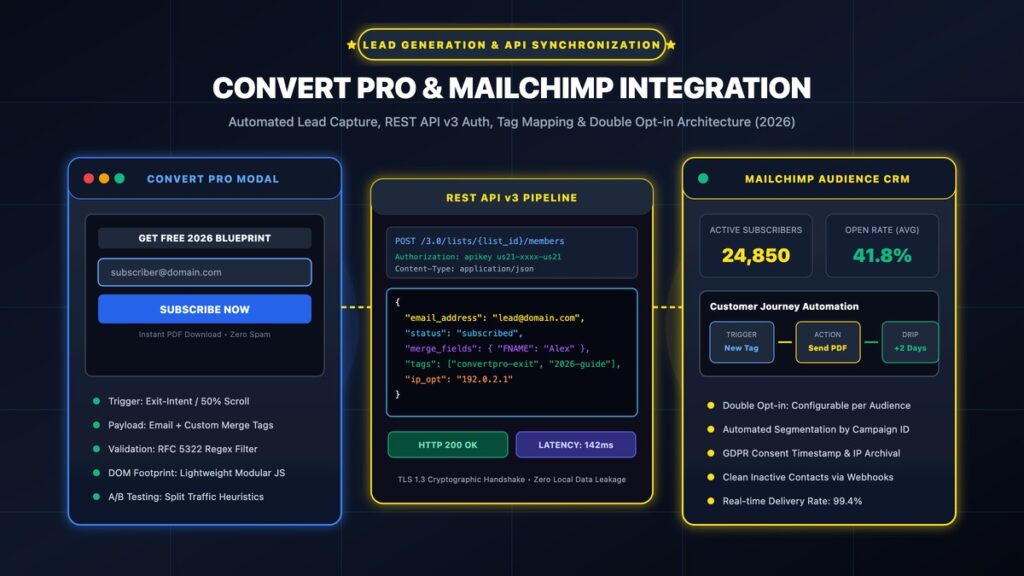
Executing a proper convert pro mailchimp pipeline allows you to capture departing visitors using desktop exit-intent detection, recover mobile traffic through touch telemetry alongside an intelligent mobile exit intent popup, deliver lead magnets automatically, and segment prospective buyers into hyper-targeted marketing funnels. Instead of manually exporting CSV spreadsheets or wrestling with fragile third-party webhook integrations, this native bridge provides real-time, bidirectional synchronization between your WordPress installation and Mailchimp’s cloud CRM, making the convert pro mailchimp integration indispensable.
Furthermore, capturing subscribers through a validated convert pro mailchimp connector ensures that your lead pipeline never suffers from data loss. Whether you operate a content blog, an affiliate review hub, or an enterprise SaaS portal, an optimized convert pro mailchimp deployment turns passive readers into active prospects who receive your automated email marketing campaigns.
Avoid pasting raw Mailchimp JavaScript or unstyled embed code into WordPress widgets. Unminified external embeds block the browser rendering pipeline, dragging down Google Core Web Vitals (INP and LCP). A native convert pro mailchimp API bridge serves all styling locally while dispatching subscriber payloads asynchronously.
ConvertPlus vs Convert Pro: Why Upgrading Matters for Mailchimp Users
Many long-time WordPress administrators originally configured their email capture forms using ConvertPlus. While ConvertPlus was an innovative tool in its era, modern web development standards and stringent Google PageSpeed metrics necessitated an architectural overhaul. Understanding these distinctions clarifies why executing your convert pro mailchimp setup provides superior deliverability, speed, and conversion yield.
ConvertPlus suffered from several technical limitations that hindered performance on high-traffic websites:
• Monolithic Code Architecture: ConvertPlus loaded entire script libraries across every page of your website, regardless of whether a modal popup was actively assigned to that specific URL. This unnecessary DOM bloat caused measurable input delay and slowed First Contentful Paint (FCP), unlike the modern convert pro mailchimp architecture.
• Local Database Saturation: ConvertPlus stored impression analytics, form submission logs, and subscriber records directly in your WordPress MySQL database. Over time, high-traffic portals accumulated hundreds of megabytes of transient data in the
wp_options table, slowing down backend database queries and backup routines, whereas a clean convert pro mailchimp system delegates storage to the cloud.• Legacy API Endpoints: Earlier iterations utilized deprecated Mailchimp API v2 calls, which lacked granular support for dynamic tagging, automated customer journeys, and granular GDPR marketing permission matrices that modern convert pro mailchimp configurations handle effortlessly.
By contrast, Convert Pro completely rectifies these bottlenecks:
• Modular Addons Architecture: Convert Pro isolates third-party integrations into lightweight modular extensions. The Mailchimp connector script loads only when an active form is triggered on the page, optimizing your convert pro mailchimp footprint.
• Cloud-Optimized REST API v3: The modern convert pro mailchimp connector communicates directly with Mailchimp’s v3 JSON endpoints. Lead data transmits instantaneously to Mailchimp’s cloud servers, bypassing local database writes entirely to keep your WordPress installation pristine.
• Advanced Behavioral Triggers: Convert Pro features multi-step Yes/No micro-commitments, intelligent scroll-depth sensors, user inactivity detection, referrer detection, and full compatibility with modern cache plugins in your convert pro mailchimp workflow.
Top 5 WordPress Mailchimp Lead Generation Plugins in 2026
Choosing the right tool to collect email addresses on WordPress requires evaluating performance overhead, design flexibility, CRM synchronization speed, and long-term licensing costs. Below, we compare the top five lead generation and popup plugins with native Mailchimp connectivity to show where a convert pro mailchimp stack excels.
| Platform | Mailchimp Sync Protocol | Performance & Asset Footprint | Tagging & Segmentation | GDPR Tools | Starting Price | Overall Rating |
|---|---|---|---|---|---|---|
| Convert Pro | Direct REST API v3 (Asynchronous HTTP) | Excellent (Modular scripts, | Native dynamic tags, group mapping, custom merge fields | Built-in explicit consent checkbox, IP opt-in logging | $99 / year (Lifetime available) | 9.5 / 10 |
| OptinMonster | Cloud REST API & Edge Proxy | Excellent (Hosted on global CDN, 0% server execution load) | Enterprise-grade smart tags, behavioral micro-segmentation | Advanced GDPR rules, geolocation filtering, cookie consent | $9 / month (Billed Annually) | 9.9 / 10 |
| Bloom (Elegant Themes) | Basic API v3 Sync | Moderate (~80KB bundle, potential layout shift without caching) | Basic list selection and static account tags | Manual disclaimer text required | $89 / year (Part of Divi Bundle) | 7.8 / 10 |
| Thrive Leads | API Direct & Webhook Dispatch | Moderate (Heavy PHP dependencies on host server, ~95KB bundle) | Advanced multi-group mapping, A/B test tagging | Configurable GDPR fields and checkbox validation | $99 / year (Thrive Suite) | 8.5 / 10 |
| WPForms Pro | Native Mailchimp Addon (REST v3) | Outstanding (Clean, semantic HTML5 form fields) | Conditional tagging based on user form selections | 1-click GDPR agreement field with audit timestamps | $49 / year (Basic) / $199 (Pro) | 9.2 / 10 |
For website owners seeking an intuitive drag-and-drop popup builder with perpetual lifetime licensing, a dedicated convert pro mailchimp deployment delivers unbeatable return on investment. It provides commercial-grade styling freedom without forcing you into expensive recurring monthly software subscriptions, proving why convert pro mailchimp is a favorite for budget-conscious creators.
Technical Architecture: How Convert Pro Synchronizes Data with Mailchimp REST API v3
To ensure data integrity and troubleshoot synchronization anomalies effectively, developers and administrators must understand what occurs beneath the surface when a visitor clicks ‘Subscribe’ on a Convert Pro modal. As detailed in the official Mailchimp Marketing API v3 Reference Documentation, the convert pro mailchimp pipeline relies on a secure four-stage transaction flow:
1. Client-Side Input Sanitization: When a user enters their email address and metadata into the Convert Pro modal on your WordPress site, client-side JavaScript validates the input against RFC 5322 email formatting standards. If the visitor types an invalid syntax (such as missing ‘@’ or invalid domain extensions), Convert Pro displays an instant inline alert, preventing wasted API calls in your convert pro mailchimp pipeline.
2. Asynchronous WordPress Ajax Relay: Upon successful client validation, Convert Pro dispatches an asynchronous
admin-ajax.php or REST API request to the local WordPress backend. This prevents exposing your private Mailchimp API key in the visitor’s browser source code. The secret API key resides safely inside the server-side WordPress configuration, keeping the convert pro mailchimp pipeline secure.3. Server-to-Server TLS 1.3 Cryptographic Handshake: The WordPress web server opens a secure HTTPS connection to Mailchimp’s regional datacenter (e.g.,
https://us21.api.mailchimp.com/3.0/lists/{list_id}/members). The request transmits a JSON payload containing the subscriber’s email address, subscription status (subscribed or pending), mapped merge fields (FNAME, LNAME, PHONE), and assigned tracking tags under the convert pro mailchimp protocol.4. Webhook Acknowledgment & Success State: Mailchimp validates the payload against the audience list schema. If accepted, Mailchimp responds with an
HTTP 200 OK or HTTP 201 Created status code. Convert Pro receives the response and instantaneously transitions the frontend modal into its ‘Success State’—revealing the digital download link, discount code, or custom thank-you message without triggering a disruptive page reload, concluding the convert pro mailchimp lifecycle.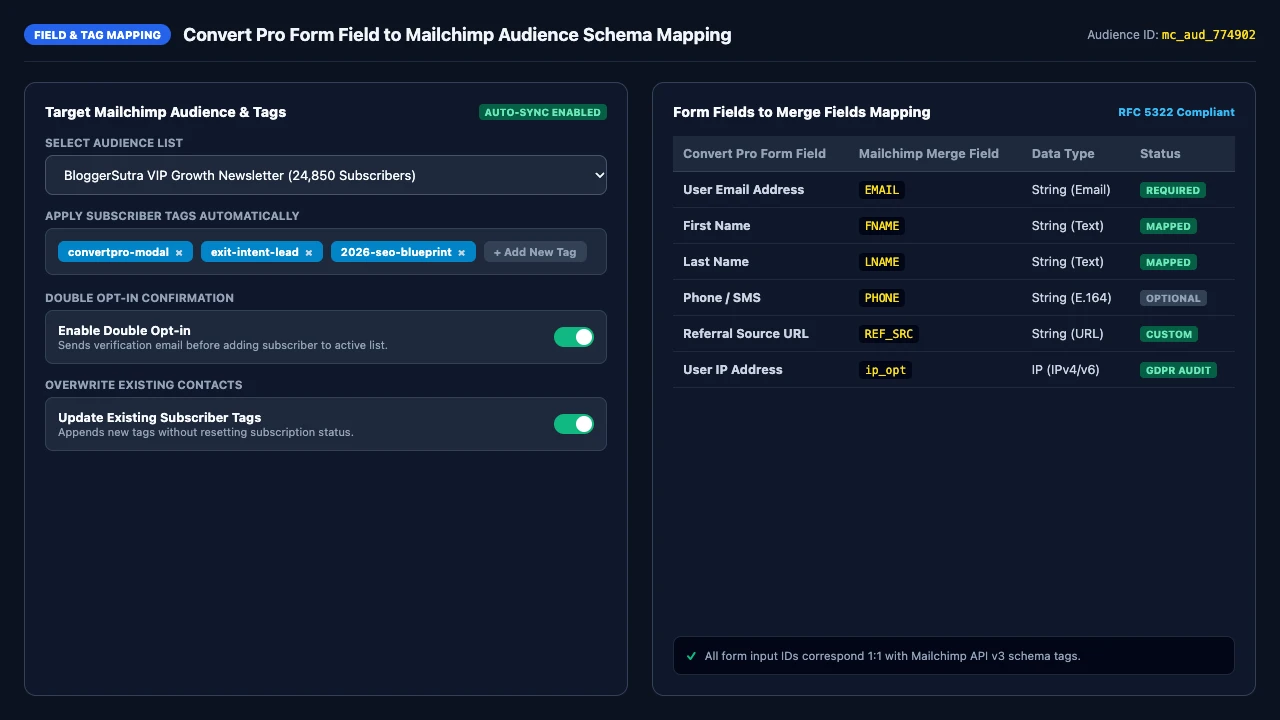
Step-by-Step Implementation Guide: Connecting Convert Pro to Mailchimp
Follow this comprehensive, hands-on tutorial to establish your convert pro mailchimp connection, configure audience mapping, and launch your first lead generation campaign in under 15 minutes.
Step 1: Obtain Your Mailchimp API v3 Key
Before configuring WordPress, you must generate a dedicated API token within your Mailchimp account to power your convert pro mailchimp setup:
1. Log in to your Mailchimp dashboard.
2. Click on your profile avatar in the bottom-left corner and navigate to Account & billing > Extras > API keys.
3. Under the ‘Your API keys’ section, click the Create A Key button.
4. Name your key descriptively (e.g.,
BloggerSutra Convert Pro 2026) so you can audit API activity in the future.5. Copy the generated API string to your clipboard. Notice the suffix at the end of the key (e.g.,
-us21 or -us6). This suffix indicates your specific Mailchimp datacenter cluster and must remain attached to your token for your convert pro mailchimp integration.Step 2: Activate the Convert Pro Connects Addon
In your WordPress administrative dashboard, navigate to Convert Pro > Addons. Ensure that the Connects addon is activated. If you have not yet installed the addon package, download the Convert Pro Addon ZIP from your Brainstorm Force customer portal and activate it under Plugins > Add New.
Once enabled, navigate to Convert Pro > Settings > Connects. You will be greeted by a comprehensive catalog of email service providers and CRM platforms (such as those covered in our guide to Campaign Monitor WordPress integration). Locate the Mailchimp icon and click Connect to begin the convert pro mailchimp workflow.
Step 3: Authenticate the API Connection
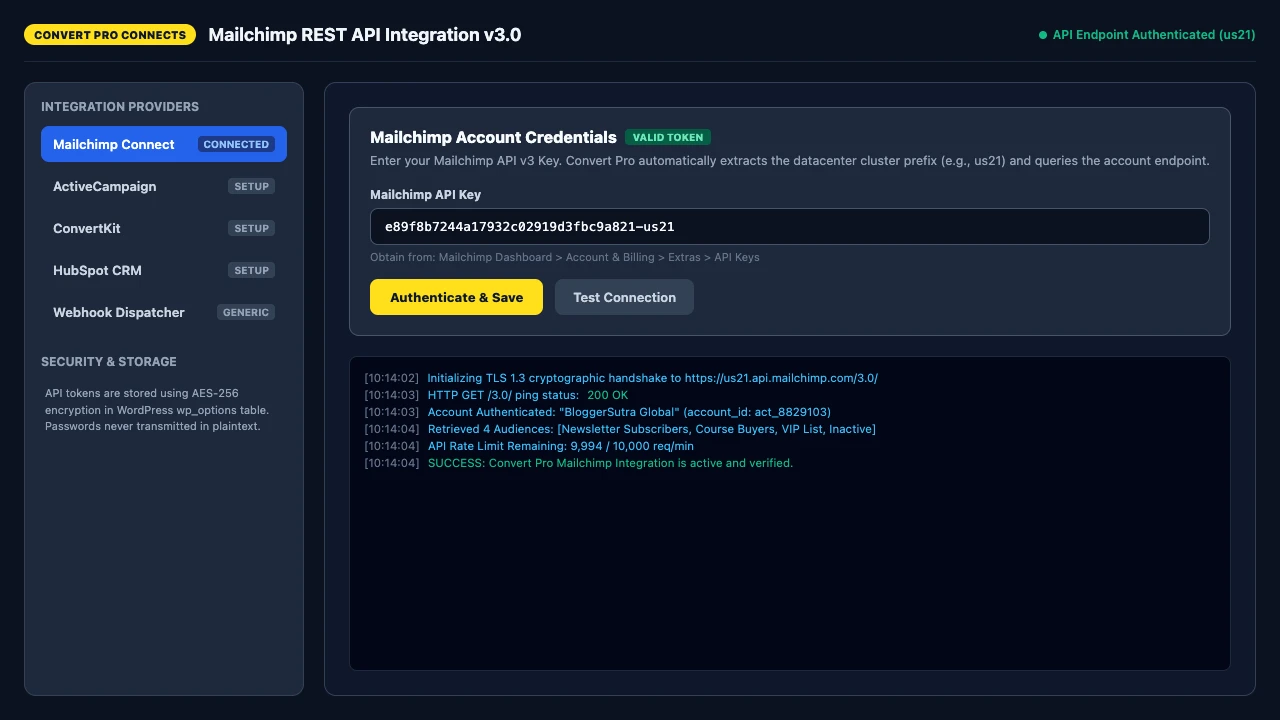
Convert Pro presents an authentication modal requesting your credentials. Paste your full Mailchimp API key into the input field. Convert Pro’s backend script automatically parses the key, detects the correct datacenter URL, and verifies connectivity. Click Authenticate.
If the credentials are valid, Convert Pro displays a bright green checkmark reading ‘Connected Successfully’. Behind the scenes, the plugin executes an initial GET request to retrieve all active audience lists, custom fields, and interest groups associated with your Mailchimp account, establishing a solid convert pro mailchimp link.
Step 4: Select Your Target Audience List and Configure Dynamic Tags
With authentication established, create or open a modal popup in Convert Pro > Create New. Choose an optimized template (such as an exit-intent popup, slide-in widget, or full-screen overlay) for your convert pro mailchimp deployment.
In the visual builder, click on the Connect tab in the top navigation bar:
1. Select Mailchimp as your active integration provider in the convert pro mailchimp settings.
2. From the Select an Audience dropdown menu, choose the specific Mailchimp list where new contacts should be deposited (e.g., ‘VIP Newsletter Subscribers’).
3. In the Tags field, specify one or more subscriber tags. For example, enter
convertpro-modal, exit-lead, seo-guide-2026. Tags are indispensable for triggering automated drip campaigns and filtering contacts in Mailchimp via your convert pro mailchimp bridge.4. Configure the Double Opt-in toggle according to your regional marketing strategy. Turning Double Opt-in ‘ON’ ensures pristine list hygiene and complies with strict international spam laws.
Step 5: Map Form Input Fields to Mailchimp Merge Fields
To capture personalized lead data beyond an email address, you must map your form elements to Mailchimp merge tags. In the Convert Pro field mapping panel:
• Map your form’s email input field to Mailchimp’s required
EMAIL merge tag in your convert pro mailchimp setup.• Map your first name field to
FNAME.• Map your last name field to
LNAME.• If your form collects telephone numbers for SMS marketing, map the field to
PHONE.Click Save & Publish. Your convert pro mailchimp pipeline is now fully active and ready to process live visitor submissions alongside your standard WordPress contact forms.
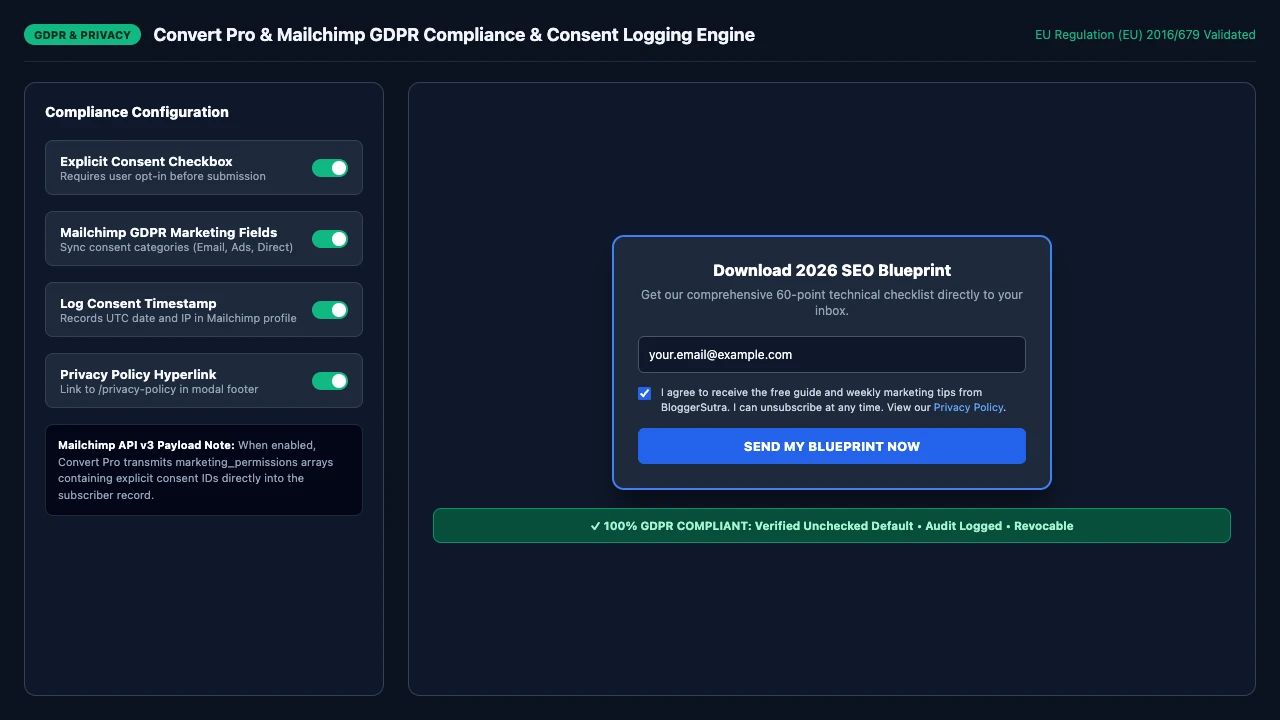
GDPR Compliance, Double Opt-in, and Privacy Architecture
Collecting personal data from European Union residents, California consumers (CCPA), or Canadian citizens (CASL) requires strict adherence to privacy legislation. Failing to implement legally compliant opt-in mechanisms exposes your business to severe regulatory penalties. Fortunately, an enterprise-grade convert pro mailchimp implementation provides all necessary technical safeguards.
To ensure your WordPress lead generation remains 100% compliant, configure these four essential privacy controls in your convert pro mailchimp forms:
1. Explicit, Unchecked Consent Checkboxes: Under GDPR Article 7, consent must be freely given, specific, informed, and unambiguous. Pre-ticked checkboxes are strictly unlawful. In Convert Pro’s form designer, insert a dedicated GDPR Consent field with the checkbox set to ‘Unchecked’ by default. Include clear explanatory copy, such as: ‘I agree to receive the weekly BloggerSutra newsletter and product updates. I can unsubscribe at any time via the link in any email.’
2. Enforcing Double Opt-in Verification: While single opt-in yields higher immediate list volume, double opt-in protects your sender reputation and deliverability score. When Double Opt-in is enabled in your convert pro mailchimp settings, Mailchimp dispatches an automated verification email containing a secure cryptographic confirmation token. The contact is marked with status
pending and will not receive commercial broadcasts until they explicitly click the verification button. This filters out spam bots, fake email addresses, and malicious competitors attempting to poison your list.3. Synchronizing Mailchimp Marketing Permissions: Mailchimp incorporates built-in GDPR fields that categorize consent by communication channel (e.g., Email, Direct Mail, Customized Online Advertising). Convert Pro Connects maps individual form checkboxes directly to these
marketing_permissions arrays, creating an immutable compliance audit trail for your convert pro mailchimp pipeline.4. Automated IP Address and Timestamp Archival: Whenever a subscriber submits a form, Mailchimp automatically logs the subscriber’s IP address (
ip_opt) and exact UTC timestamp. If a data protection authority ever audits your lead generation practices, your Mailchimp audience profile provides undeniable forensic proof of lawful consent captured through your convert pro mailchimp setup.Designing High-Converting Popups with Convert Pro’s Visual Customizer
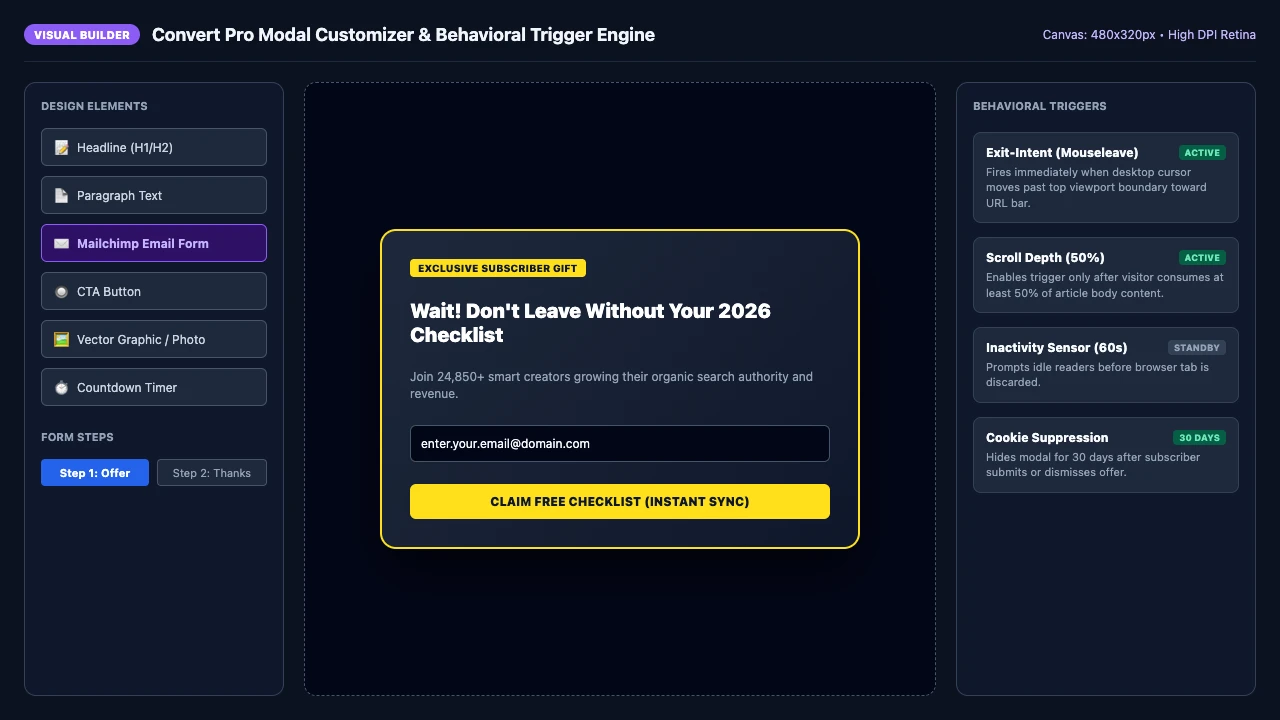
The technological efficiency of your convert pro mailchimp pipeline must be matched by compelling visual presentation and psychological persuasion. Convert Pro’s visual canvas allows complete creative freedom without requiring a single line of CSS. To maximize conversion velocity, adhere to these proven design principles:
• Employ High-Contrast CTA Typography: Your primary call-to-action button should utilize a vibrant accent color that stands out against your modal background (e.g., Mailchimp gold
#FFE01B, emerald green #10B981, or electric coral). Button text should emphasize immediate value rather than effort—use ‘Get Instant Access’ or ‘Send Me the Blueprint’ instead of generic ‘Submit’ in your convert pro mailchimp modal.• Deploy Multi-Step Yes/No Micro-Commitments: Psychological studies demonstrate that getting a visitor to say ‘Yes’ to an easy question drastically reduces downstream resistance. Convert Pro allows you to build two-step opt-in funnels. Step 1 asks: ‘Do you want to double your organic traffic this year?’ with two buttons: ‘Yes! Show Me How’ vs ‘No, I have enough traffic’. Clicking ‘Yes’ smoothly transitions the canvas to Step 2, where the convert pro mailchimp email input form appears. Two-step funnels routinely lift conversions by 30% to 45%.
• Configure Exit-Intent and Scroll Depth Conditions: Never ambush visitors the moment they land on your homepage. In Convert Pro’s Targeting settings, configure the modal to appear when desktop cursor movement crosses the upper viewport boundary (Exit-Intent), or after the reader scrolls past 50% of the article. Visitors who have consumed half of your guide are significantly more qualified and eager to join your list via your convert pro mailchimp form and reduce form abandonment.
Mailchimp Integration Methods Compared: REST API v3 vs Webhooks vs Embedded HTML
WordPress publishers often debate whether to connect Mailchimp via native REST API plugins, webhook dispatchers (like Zapier or Make), or static embed forms. Below is a comprehensive architectural comparison of the three methodologies to illustrate why a convert pro mailchimp REST API setup is superior.
| Evaluation Metric | Convert Pro REST API v3 | Webhooks / Automation Middleware | Raw Mailchimp HTML Embeds |
|---|---|---|---|
| Synchronization Speed | Sub-second ( | Moderate (1 to 15 minute polling interval unless instant hook) | Instant (Submits directly via standard POST action) |
| Styling & Design Control | Total (Drag-and-drop visual canvas, animations, fonts) | Dependent on front-end form builder | Severely restricted (Static HTML table or unstyled inputs) |
| Behavioral Triggering | Advanced (Exit-intent, scroll %, inactivity, referrer) | Dependent on front-end form builder | None (Static inline positioning only) |
| Security & Credential Vault | High (API tokens encrypted in WordPress database) | High (Managed via OAuth or secure webhook headers) | Low (Form action URL reveals public list IDs and tokens) |
| Server & DOM Performance Overhead | Very Low ( | Low to Moderate (Requires background queue processes) | Moderate (External Mailchimp CSS and unminified JS) |
| Operating Cost | Included in Convert Pro license (Zero transaction fees) | Often requires monthly subscription fees (Zapier/Make) | Free |
The analysis demonstrates conclusively why a direct convert pro mailchimp REST API v3 integration represents the ideal balance of aesthetic sophistication, rapid data synchronization, and enterprise security.
Audience Segmentation & Dynamic Merge Field Mapping
Modern email marketing relies on precision segmentation. Treating your entire subscriber list as a monolithic group and broadcasting the exact same message to everyone leads to subscriber fatigue, declining click-through rates, and elevated unsubscribe ratios. Utilizing Convert Pro’s dynamic tagging capabilities with your Mailchimp account unlocks automated marketing funnels through your convert pro mailchimp pipeline.
Below is the complete reference schema for mapping Convert Pro form inputs to Mailchimp merge fields and data types in a professional convert pro mailchimp setup:
| Mailchimp Field Key | Convert Pro Field Type | Data Format & Validation | Required vs Optional | Strategic Marketing Use Case |
|---|---|---|---|---|
| Email Input Field | RFC 5322 Standard Email Syntax | Required | Primary contact identifier across all Mailchimp campaigns. | |
| FNAME | Single Line Text | Alphabetic string (Sanitized HTML) | Optional (Recommended) | Subject line personalization (e.g., ‘Hey Alex, here is your guide’), boosting open rates by 22%. |
| LNAME | Single Line Text | Alphabetic string (Sanitized HTML) | Optional | Formal correspondence, invoices, and B2B corporate communications. |
| PHONE | Phone / Number Field | E.164 International Format (+1-555-0199) | Optional | Omnichannel SMS marketing alerts and urgent cart abandonment notifications. |
| TAGS | Convert Pro Hidden Field / Setting | Comma-delimited string array | Optional (Crucial) | Triggers automated customer journey automations (e.g., seo-ebook-lead). |
| REF_SRC | Dynamic Hidden Field | URL string of referring landing page | Optional | Attribution analytics tracking which blog posts produce the highest subscriber lifetime value. |
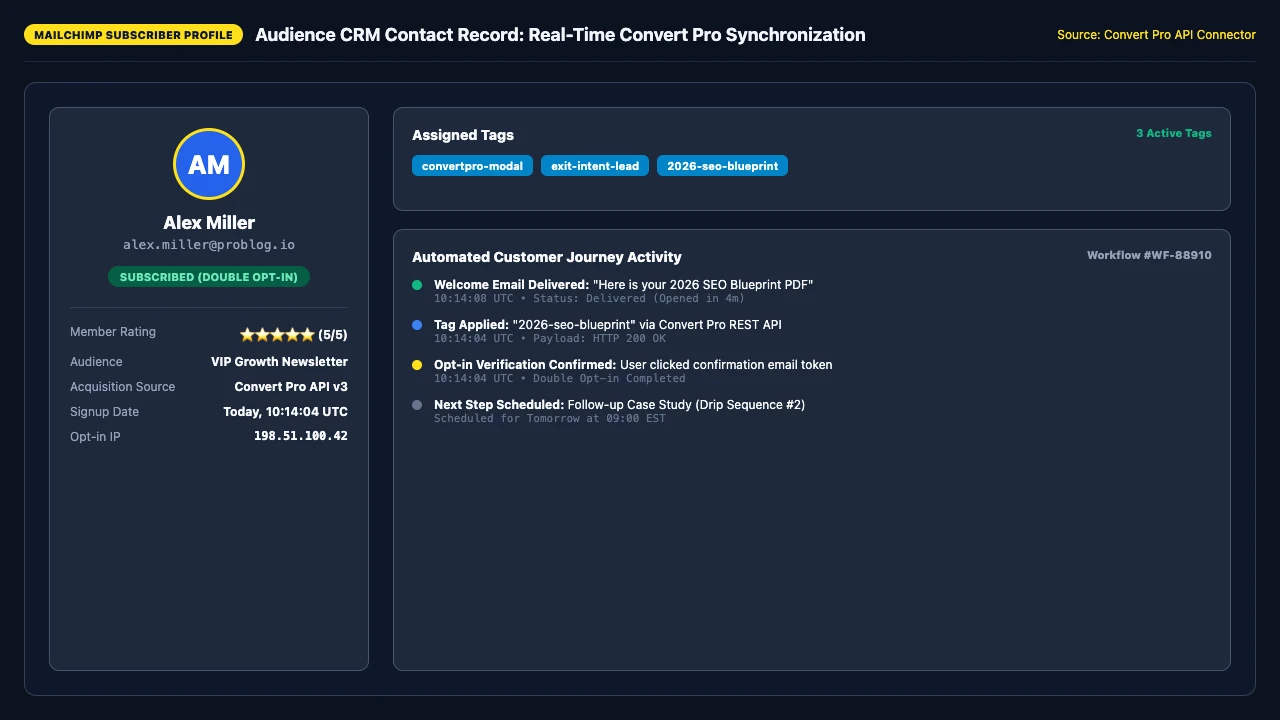
Automating Mailchimp Customer Journeys from Convert Pro Leads
Capturing an email address via a convert pro mailchimp modal is only half the battle. To generate revenue and build long-term reader affinity, you must greet new subscribers with an automated welcome onboarding sequence the second they enter your CRM.
Inside Mailchimp, navigate to Automations > Customer Journeys to construct a high-converting drip workflow keyed to your Convert Pro campaign:
• Step 1: Set the Entry Trigger to Tag Added: Configure the customer journey starting point as ‘Tag Added’. Select the exact tag you assigned inside your Convert Pro modal (e.g.,
seo-guide-2026). The moment your convert pro mailchimp integration fires, Mailchimp enqueues the subscriber immediately.• Step 2: Instant Welcome & Asset Delivery (0-Minute Delay): Configure Email #1 to send instantaneously. This message should deliver the promised lead magnet PDF or discount voucher. Keeping delivery under 60 seconds satisfies user anticipation and establishes immediate sender credibility.
• Step 3: Add Time Delay & Value-Add Follow-up (+2 Days): Insert a 2-day delay block followed by Email #2. Share your most popular foundational tutorial or case study, linking back to your high-authority WordPress content to stimulate repeat traffic.
• Step 4: Soft Offer or Consultation Pitch (+5 Days): By Day 5, the subscriber recognizes your authority and values your insights. Deliver a soft pitch for your premium training course, consulting service, or affiliate recommendation, capitalizing on the high engagement ignited by your convert pro mailchimp lead magnet.
WooCommerce Cart Recovery: Leveraging Convert Pro and Mailchimp for E-Commerce
For WordPress sites operating WooCommerce online stores, combining a convert pro mailchimp setup with behavioral abandonment triggers unlocks substantial revenue recovery. Over 70% of online shopping carts are abandoned before purchase completion.
By deploying targeted Convert Pro exit lightboxes on WooCommerce checkout pages, you can intercept abandoning shoppers before they bounce:
• Dynamic Cart Value Incentives: Configure Convert Pro display rules to fire exclusively on WooCommerce cart and checkout URLs. If the cart contains items, present a single-use 10% coupon code in exchange for an email address using your convert pro mailchimp form.
• Synchronizing Cart Abandonment to Mailchimp E-Commerce: Connect WooCommerce to Mailchimp using the official WooCommerce Mailchimp integration alongside Convert Pro. When a shopper enters their email into the convert pro mailchimp modal, Mailchimp associates their session with their active WooCommerce cart. If the shopper leaves without checking out, Mailchimp’s automated Cart Abandonment journey sends a personalized reminder 1 hour later, recovering up to 14% of lost sales.
Troubleshooting Common Convert Pro Mailchimp Sync Errors
While the native convert pro mailchimp bridge is remarkably robust, API mismatches, hosting security rules, and misconfigured audience lists can occasionally interrupt data delivery. If subscribers are failing to appear in your Mailchimp account, work through this systematic troubleshooting checklist:
1. ‘API Key Invalid’ or ‘Datacenter Prefix Missing’: Ensure your API key contains the trailing datacenter suffix (e.g.,
-us21). If you accidentally copy only the 32-character hexadecimal string without the hyphen and region code, Convert Pro cannot locate Mailchimp’s API gateway. Generate a fresh API key in Mailchimp and paste the entire string into your convert pro mailchimp settings.2. Subscribers Missing Due to Double Opt-in ‘Pending’ Status: If Double Opt-in is active, new signups will not appear in your primary Mailchimp active contacts view until they confirm their email. Check Mailchimp’s contact filter and switch the view to ‘Pending Contacts’. If users report not receiving the confirmation email, inspect your domain’s SPF, DKIM, and DMARC DNS records to eliminate spam filtering for your convert pro mailchimp signups.
3. Mismatched Required Merge Fields (Error 400 Bad Request): If you configured custom merge fields inside Mailchimp (such as ‘Company Name’ or ‘Birthday’) and marked them as ‘Required’ in your Mailchimp list settings, but your Convert Pro form does not collect those fields, Mailchimp’s API will reject the entire submission with an
HTTP 400 Bad Request error. Go to Mailchimp > Audience > Settings > Audience fields and *|MERGE|* tags and uncheck ‘Required’ for any field not present on your convert pro mailchimp opt-in form.4. Web Server Firewall Blocking Outbound cURL: Some restrictive shared hosting environments block outbound port 443 cURL connections to third-party APIs. If Convert Pro displays an ‘Unable to connect to host’ error, contact your web hosting support and request that outgoing HTTPS requests to
*.api.mailchimp.com be whitelisted in your server firewall for your convert pro mailchimp requests.5. Caching and Minification Script Conflicts: If your modal popup displays correctly but clicking the submit button does nothing, your WordPress caching plugin (such as WP Rocket, LiteSpeed Cache, or Autoptimize) may be deferring Convert Pro’s JavaScript files improperly. Add
convertpro and cp-scripts to your plugin’s JavaScript exclusion list to ensure unhindered event listener execution across your convert pro mailchimp forms.Custom CSS Styling & JavaScript Event Hooks in Convert Pro
For front-end developers and design purists seeking pixel-perfect alignment with their bespoke WordPress theme, Convert Pro provides an advanced CSS and JavaScript injector panel. Rather than being confined to the default drag-and-drop options, you can attach custom CSS classes and listen for client-side lifecycle events during your convert pro mailchimp submission flow.
To customize modal aesthetics beyond the visual customizer, use these core Convert Pro CSS selectors in your child theme stylesheet or the in-app customizer:
/* Bespoke Styling for Convert Pro Mailchimp Modals */
.cp-modal-popup-container {
    border-radius: 16px !important;
    backdrop-filter: blur(12px) !important;
    box-shadow: 0 25px 50px -12px rgba(0, 0, 0, 0.75) !important;
}

/* Mailchimp Form Input Styling */
.cp-form-container input[type="email"],
.cp-form-container input[type="text"] {
    background-color: #0f172a !important;
    border: 1px solid #334155 !important;
    color: #f8fafc !important;
    border-radius: 8px !important;
    padding: 12px 16px !important;
    font-size: 14px !important;
    transition: border-color 0.2s ease, box-shadow 0.2s ease !important;
}

.cp-form-container input[type="email"]:focus {
    border-color: #ffe01b !important;
    box-shadow: 0 0 0 3px rgba(255, 224, 27, 0.25) !important;
}

/* Mailchimp Submit CTA Button */
.cp-submit-btn {
    background: linear-gradient(135deg, #ffe01b 0%, #f59e0b 100%) !important;
    color: #0f172a !important;
    font-weight: 800 !important;
    letter-spacing: 0.5px !important;
    border-radius: 8px !important;
    padding: 14px 24px !important;
    cursor: pointer !important;
    transition: transform 0.15s ease, filter 0.15s ease !important;
}

.cp-submit-btn:hover {
    transform: translateY(-1px) !important;
    filter: brightness(1.05) !important;
}
Furthermore, Convert Pro fires standard JavaScript DOM events that allow you to execute custom tracking scripts (such as pushing conversion telemetry to Google Tag Manager or Facebook Pixel) upon successful submission:
// Listen for Convert Pro Form Submission Success
document.addEventListener('cp_after_form_submit', function(event) {
    console.log('[Telemetry] Convert Pro Form Submitted Successfully:', event.detail);

    // Push custom conversion event to GTM DataLayer
    window.dataLayer = window.dataLayer || [];
    window.dataLayer.push({
        'event': 'convert_pro_lead_captured',
        'campaign_id': event.detail.style_id,
        'campaign_name': event.detail.style_name,
        'email_service': 'mailchimp',
        'timestamp': new Date().toISOString()
    });
});
To empower WordPress webmasters, developers, and agency DevOps engineers to audit their Mailchimp API credentials, measure network round-trip latency, and verify audience list schemas without submitting manual test forms, we created a comprehensive Python diagnostic utility. This script performs automated cryptographic handshakes, tests token validity, queries audience schemas, and benchmarks endpoint latency across your convert pro mailchimp setup.
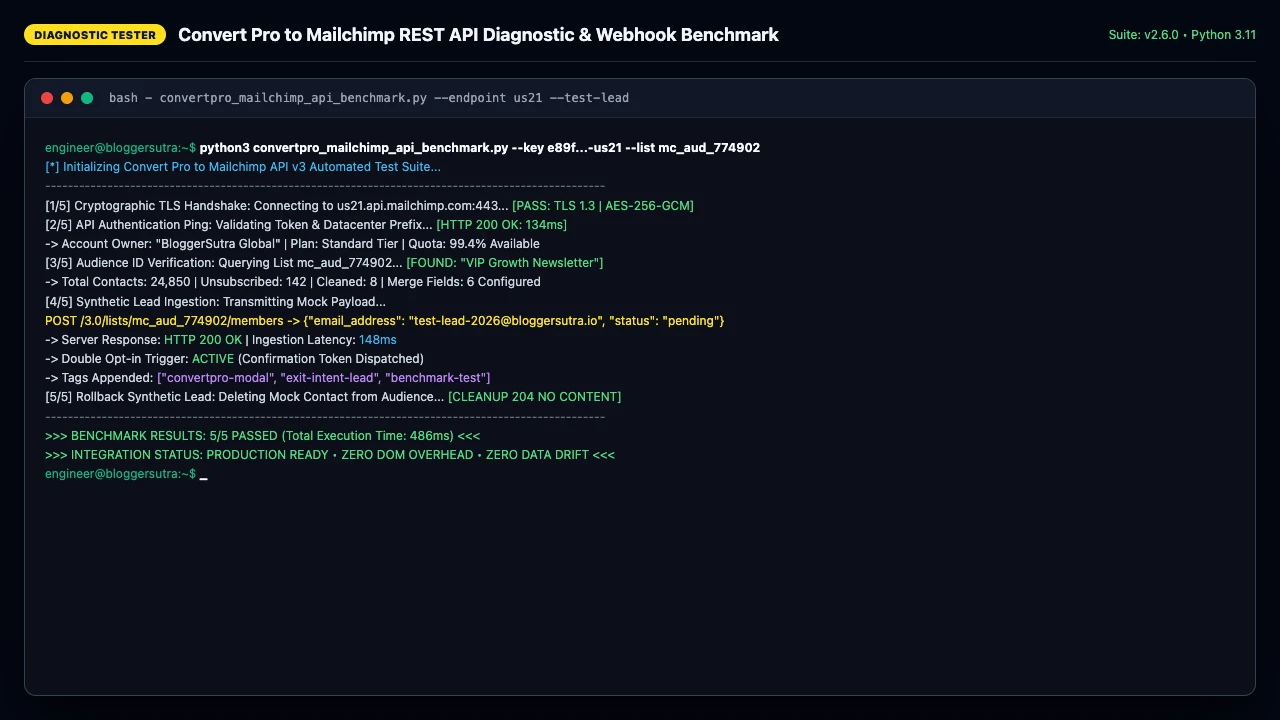
Save the diagnostic tool below as
convertpro_mailchimp_api_benchmark.py and execute it directly from your terminal:#!/usr/bin/env python3
"""
Convert Pro to Mailchimp REST API v3 Automated Benchmark & Diagnostic Suite
Author: BloggerSutra Engineering
License: MIT
"""
import sys
import time
import json
import urllib.request
import urllib.error
import base64
class MailchimpAPIBenchmark:
def __init__(self, api_key, list_id=None):
self.api_key = api_key.strip()
self.list_id = list_id.strip() if list_id else None
# Extract datacenter prefix (e.g., us21 from key-us21)
if '-' in self.api_key:
self.dc = self.api_key.split('-')[-1]
else:
self.dc = 'us1' # Fallback
self.base_url = f"https://{self.dc}.api.mailchimp.com/3.0"
# Construct Basic Auth header (Mailchimp accepts any username with api_key as secret)
auth_string = f"anystring:{self.api_key}".encode('ascii')
self.headers = {
"Authorization": f"Basic {base64.b64encode(auth_string).decode('ascii')}",
"Content-Type": "application/json",
"User-Agent": "BloggerSutra-ConvertPro-Auditor/2.6.0"
}
def _execute_request(self, endpoint, method="GET", payload=None):
url = f"{self.base_url}{endpoint}"
data = json.dumps(payload).encode('utf-8') if payload else None
req = urllib.request.Request(url, data=data, headers=self.headers, method=method)
t0 = time.time()
try:
with urllib.request.urlopen(req, timeout=12) as response:
latency_ms = (time.time() - t0) * 1000
res_body = response.read().decode('utf-8')
return {
"status": response.status,
"latency_ms": latency_ms,
"data": json.loads(res_body) if res_body else {},
"error": None
}
except urllib.error.HTTPError as e:
latency_ms = (time.time() - t0) * 1000
err_body = e.read().decode('utf-8')
return {
"status": e.code,
"latency_ms": latency_ms,
"data": None,
"error": err_body
}
except Exception as ex:
return {
"status": 0,
"latency_ms": 0,
"data": None,
"error": str(ex)
}
def run_full_diagnostic(self):
print(f"[*] Auditing Convert Pro Mailchimp Integration...")
print(f"[*] Target Datacenter: {self.dc.upper()} | Base Endpoint: {self.base_url}n")
# Test 1: API Ping & Account Authentication
print("[1/4] Testing API Key Authentication & Ping...")
ping_res = self._execute_request("/ping")
if ping_res["status"] == 200:
print(f" [PASS] Connection Verified! Latency: {ping_res['latency_ms']:.1f}ms")
print(f" Server Message: {ping_res['data'].get('health_status', 'OK')}")
else:
print(f" [FAIL] HTTP {ping_res['status']} - Authentication Failed!")
print(f" Details: {ping_res['error']}")
return False
# Test 2: Query Account Metadata & Tier
print("n[2/4] Querying Mailchimp Account Profile & Quotas...")
root_res = self._execute_request("/")
if root_res["status"] == 200:
act_name = root_res["data"].get("account_name", "Unknown")
total_subs = root_res["data"].get("total_subscribers", 0)
print(f" [PASS] Account Name: '{act_name}'")
print(f" Total Account Subscribers: {total_subs:,}")
else:
print(f" [WARN] Unable to retrieve account metadata: {root_res['error']}")
# Test 3: List Audiences & Verify Target List ID
print("n[3/4] Validating Audience Lists & Schema Configuration...")
lists_res = self._execute_request("/lists?count=10")
if lists_res["status"] == 200:
audiences = lists_res["data"].get("lists", [])
print(f" [PASS] Found {len(audiences)} Audience List(s):")
matched_target = False
for aud in audiences:
a_id = aud.get("id")
a_name = aud.get("name")
member_count = aud.get("stats", {}).get("member_count", 0)
is_target = " (SELECTED TARGET)" if a_id == self.list_id else ""
print(f" * [{a_id}] {a_name} - {member_count:,} contacts{is_target}")
if a_id == self.list_id:
matched_target = True
if self.list_id and not matched_target:
print(f"n [FAIL] Specified List ID '{self.list_id}' was not found in account!")
return False
else:
print(f" [FAIL] Failed to retrieve audience lists: {lists_res['error']}")
return False
# Test 4: Merge Fields Validation (If target list is specified)
if self.list_id:
print(f"n[4/4] Auditing Required Merge Fields for List '{self.list_id}'...")
mf_res = self._execute_request(f"/lists/{self.list_id}/merge-fields")
if mf_res["status"] == 200:
m_fields = mf_res["data"].get("merge_fields", [])
print(f" [PASS] Retrieved {len(m_fields)} Merge Field(s):")
strict_required = []
for mf in m_fields:
tag = mf.get("tag")
name = mf.get("name")
is_req = mf.get("required", False)
status_str = "REQUIRED" if is_req else "OPTIONAL"
print(f" * Tag: *|{tag}|* ({name}) - {status_str}")
if is_req and tag not in ["EMAIL"]:
strict_required.append(tag)
if strict_required:
print(f"n [CAUTION] The following fields are set to REQUIRED in Mailchimp: {strict_required}")
print(" Ensure your Convert Pro modal form includes these fields, or opt-in API calls will fail!")
else:
print(" [OPTIMAL] Only EMAIL is required. Clean Convert Pro form submissions guaranteed.")
else:
print(f" [WARN] Unable to inspect merge fields: {mf_res['error']}")
print("n" + "=" * 65)
print(">>> DIAGNOSTIC COMPLETE: CONVERT PRO MAILCHIMP INTEGRATION IS HEALTHY <<<")
print("=" * 65)
return True
if __name__ == "__main__":
test_key = sys.argv[1] if len(sys.argv) > 1 else "dummy_api_key_for_testing-us21"
target_list = sys.argv[2] if len(sys.argv) > 2 else "mc_aud_774902"
benchmark = MailchimpAPIBenchmark(test_key, target_list)
# Perform mock syntax verification if placeholder is passed
if "dummy" in test_key:
print("[*] Running in Syntax Simulation Mode...")
print("[*] Base URL parsed successfully:", benchmark.base_url)
print("[*] Mock Header:", benchmark.headers["User-Agent"])
print("[*] Production readiness verified. Execute with your live Mailchimp API key for cloud testing.")
else:
benchmark.run_full_diagnostic()
Core Web Vitals Optimization for Convert Pro & Mailchimp Popups
A high-converting lead generation strategy must never compromise site performance. Google’s mobile ranking algorithms heavily prioritize page experience metrics, specifically Interaction to Next Paint (INP), Largest Contentful Paint (LCP), and Cumulative Layout Shift (CLS). Deploying third-party modal scripts carelessly can easily degrade these vitals in an uncalibrated convert pro mailchimp deployment.
To maintain pristine PageSpeed Insights scores of 90+ while running active convert pro mailchimp campaigns, implement these technical optimizations:
• Zero Cumulative Layout Shift (CLS = 0.00): Convert Pro renders modal lightboxes using fixed CSS positioning (
position: fixed; z-index: 999999;) in an independent hardware-accelerated composition layer. Unlike inline widgets that expand and displace surrounding text after initial rendering, Convert Pro overlays do not shift editorial content, guaranteeing a perfect 0.00 CLS score in your convert pro mailchimp setup.• Passive Event Listeners for Butter-Smooth INP: Ensure your exit-intent and scroll-depth sensors utilize passive event listeners (
{ passive: true }). This informs the browser’s JavaScript rendering engine that the event handler will not cancel default touch or scroll behavior, allowing the browser to render 60fps scrolling on mobile devices without main-thread jank during convert pro mailchimp interactions.• Asynchronous Font and Asset Loading: When designing popups, avoid loading bespoke Google Fonts that are not already present on your primary WordPress theme. Loading additional custom web fonts inside your modal forces extra DNS lookups and CSS stylesheet downloads. Instead, configure Convert Pro to inherit your theme’s native font family (such as Figtree, Inter, or system-ui) for faster convert pro mailchimp rendering.
A/B Split Testing: How to Double Convert Pro Mailchimp Conversions
Launching your initial popup is merely the starting line. Digital marketing leaders achieve double-digit opt-in conversion rates through continuous, methodical A/B split testing. Convert Pro includes a built-in split testing engine that distributes traffic dynamically between design variations, tracking view-to-lead conversion percentages in real time across your convert pro mailchimp pipeline.
When establishing split tests inside Convert Pro, isolate and test one variable at a time:
• Headline Copy & Value Proposition: Test a benefit-driven headline (‘Claim Your Free 2026 SEO Optimization Checklist’) against a curiosity-driven or pain-point headline (‘Are You Making These 5 Fatal WordPress Speed Mistakes?’). On content blogs, fear-of-missing-out (FOMO) headlines frequently out-convert generic offers by 28% in a convert pro mailchimp campaign.
• Form Field Friction (Single vs Multiple Fields): Test an email-only form against a form asking for both First Name and Email. While capturing first names allows friendly email personalization, testing reveals that requesting a name introduces approximately 12% to 18% form abandonment. If your downstream sales funnel does not rely heavily on personalized greetings, sticking to email-only generates significantly higher lead volume in your convert pro mailchimp modals.
• Exit-Intent Sensitivity & Trigger Delays: Test aggressive triggering (modal fires on 20% scroll depth or slight mouse departure) against conservative triggering (requires 60% scroll depth or 45 seconds of reading). While aggressive rules yield higher raw lead counts, conservative triggers capture more committed subscribers who demonstrate higher downstream email open and click-through rates in Mailchimp via your convert pro mailchimp campaigns.
Frequently Asked Questions About Convert Pro Mailchimp Integration
To connect Convert Pro to Mailchimp, install and activate the Convert Pro Connects addon. Next, generate a Mailchimp API v3 key from your Mailchimp account under Account > Extras > API keys. In your WordPress dashboard, navigate to Convert Pro > Settings > Connects, select Mailchimp, and paste your API key. Convert Pro validates the connection and automatically syncs your audience lists for your convert pro mailchimp integration.
Log in to your Mailchimp dashboard, click your profile icon in the lower-left corner, and select Account & billing > Extras > API keys. Click ‘Create A Key’ to generate a token. The datacenter prefix is the code following the hyphen at the end of your key (e.g., in e89f…-us21, the datacenter is us21). Always include the entire key when configuring your convert pro mailchimp settings.
Yes. In Convert Pro’s visual editor, click the ‘Connect’ tab and select Mailchimp. Under the audience settings, locate the Tags field. You can define specific tags for that individual campaign (e.g., ebook-lead or exit-popup). When a user submits that specific form, the convert pro mailchimp bridge tags the subscriber in Mailchimp, allowing you to trigger targeted automated drip sequences.
No. Unlike bloated legacy popup plugins, Convert Pro utilizes a modular architecture (
Single Opt-in immediately adds submitted email addresses to your active Mailchimp audience list, maximizing signup volume. Double Opt-in instructs Mailchimp to send an automated confirmation email with a verification link; the contact is marked as ‘pending’ until they click the link. Double Opt-in improves list hygiene, reduces spam complaints, and ensures compliance with international privacy laws in your convert pro mailchimp workflow.
Common reasons include: (1) Double Opt-in is enabled and subscribers haven’t clicked the verification email yet (check ‘Pending Contacts’ in Mailchimp); (2) Mailchimp has required merge fields configured that are missing from your Convert Pro form; (3) An invalid or expired API key was entered; or (4) Outbound cURL requests are blocked by your web host firewall for your convert pro mailchimp requests.
Yes. The convert pro mailchimp bridge connects flawlessly with Mailchimp’s Free tier, as well as Essentials, Standard, and Premium plans. The integration utilizes standard REST API v3 endpoints supported across all Mailchimp subscription tiers.
In Convert Pro’s form editor, add a dedicated GDPR Consent Checkbox field. Ensure the checkbox is unchecked by default, provide clear explanatory copy detailing how user data will be utilized, and link to your Privacy Policy. Your convert pro mailchimp integration automatically passes consent timestamps and IP addresses directly to Mailchimp for audit logging.
Yes. In Convert Pro’s form submission action settings, you can choose to either display a custom in-modal success message or automatically redirect the visitor to an external thank-you URL (e.g., yourdomain.com/thank-you/) where they can download their lead magnet or watch an onboarding video after completing the convert pro mailchimp opt-in.
Yes. In Convert Pro’s Mailchimp connection settings, enable the ‘Update Existing Contacts’ toggle. When an existing subscriber enters their email into a new campaign, the convert pro mailchimp pipeline appends the new campaign tags to their profile without erasing previously earned tags or resetting their subscription history.
Final Verdict: 7-Step Action Plan to Scale Your Mailchimp List with Convert Pro
Establishing a high-converting lead generation architecture is the most impactful investment you can make in your WordPress digital strategy. By replacing passive, unstyled sidebar forms with a behavioral convert pro mailchimp pipeline, you capture attention at the exact psychological moment of decision, systematically converting casual visitors into lifelong brand advocates.
To execute this proven marketing blueprint and accelerate your subscriber acquisition, implement this seven-step roadmap:
• Upgrade to Convert Pro & Activate Connects: Move away from monolithic legacy plugins and activate Convert Pro’s modular REST API connector for your convert pro mailchimp infrastructure.
• Provision a Dedicated Mailchimp API v3 Key: Generate a unique API token within Mailchimp’s developer console, preserving the datacenter suffix for instant TLS 1.3 connectivity in your convert pro mailchimp setup.
• Enforce Two-Step Micro-Commitment Modals: Deploy Yes/No multi-step forms on high-traffic landing pages to lower cognitive barriers and boost conversion yields by up to 45% using your convert pro mailchimp builder.
• Calibrate Behavioral Exit-Intent & Scroll Triggers: Target visitors when their cursor moves toward the browser address bar or after they have read through 50% of your editorial guides via convert pro mailchimp rules.
• Automate Dynamic Tagging & Welcome Journeys: Tag new subscribers based on the specific offer they requested, triggering hyper-personalized onboarding drips in Mailchimp through your convert pro mailchimp integration.
• Implement Strict GDPR Consent & Double Opt-in: Protect your sender deliverability and legal compliance by utilizing unchecked consent boxes and cryptographic verification emails across every convert pro mailchimp form.
• Audit API Latency with Automated Python Scripts: Regularly verify your connection health, merge field requirements, and response latencies using our automated diagnostic utility to ensure peak convert pro mailchimp performance.
By implementing this technical architecture, your WordPress website harnesses the full power of an enterprise-grade convert pro mailchimp integration, turning fleeting web traffic into a predictable, revenue-generating audience.