




Quick answer
- What is the best method to implement GA4 WooCommerce tracking in 2026? For standard stores seeking plug-and-play simplicity, the official free Google Analytics for WooCommerce plugin delivers direct gtag.js integration. However, for maximum data accuracy, custom attribution, and server-side capability, deploying ga4 woocommerce tracking via GTM4WP (Google Tag Manager for WordPress) paired with a client-side or server-side GTM container is the enterprise gold standard. This decoupled dataLayer architecture isolates analytics code from your theme and supports Google Consent Mode v2 (along with tracking custom Google Analytics events in WordPress)..tp-post-content code, .tp-post-content pre, .toc-link{word-break:break-word!important;overflow-wrap:break-word!important;}
- Why does my GA4 purchase revenue not match WooCommerce sales reports? Discrepancies between WooCommerce revenue and ga4 woocommerce tracking typically stem from four architectural issues: 1) Client-side ad blockers preventing gtag.js from firing on the order confirmation screen; 2) Shoppers closing the browser before redirecting back from external payment gateways (PayPal, Stripe 3D Secure); 3) Duplicate purchase event firing on order-received page reloads; and 4) Mismatched currency codes or tax/shipping calculation differences. Transitioning to server-side telemetry or enforcing transaction deduplication resolves up to 98% of these variances.
- Which e-commerce events are required for comprehensive GA4 WooCommerce tracking? A complete implementation requires eleven standard GA4 e-commerce events:
view_item_list,select_item,view_item,add_to_cart,remove_from_cart,view_cart,begin_checkout,add_shipping_info,add_payment_info,purchase, andrefund. Each event must carry standardized parameters includingcurrency,value, and anitemsarray populated withitem_id,item_name,price, andquantity. - How do I prevent duplicate purchase events on order-received page refreshes? When implementing ga4 woocommerce tracking, pass the unique WooCommerce Order ID as the GA4
transaction_idparameter. Google Analytics automatically deduplicates identical transaction IDs processed within a rolling 48-hour window. Additionally, your WordPress code or GTM container should set asessionStorageor cookie flag upon the first successful order receipt to prevent the dataLayer from pushing the purchase payload on subsequent refreshes. - Does GA4 WooCommerce tracking support Google Consent Mode v2? Yes. Under the European Digital Markets Act (DMA), implementing Google Consent Mode v2 is mandatory for preserving Google Ads remarketing and conversion modeling. Leading ga4 woocommerce tracking solutions integrate with certified Consent Management Platforms (CMPs) like Complianz or Cookiebot to dynamically update
ad_storage,analytics_storage,ad_user_data, andad_personalizationconsent signals before tags fire.
Running a successful WooCommerce store without accurate behavioral and revenue telemetry is akin to navigating an ocean vessel through dense fog without radar. Every merchandising decision, pricing update, promotional campaign (including tracking WooCommerce coupons redemptions), and paid acquisition budget allocation relies on clean, timely, and granular conversion data. Configuring dependable ga4 woocommerce tracking is therefore the absolute prerequisite for sustainable e-commerce growth in 2026.
Following Google’s sunset of legacy Universal Analytics, Google Analytics 4 (GA4) introduced a fundamentally different measurement paradigm. Rather than recording isolated pageviews and session-level metrics, GA4 operates on an event-driven data model where every interaction—from browsing catalog archives to finalizing checkout—is recorded as an event populated with custom parameters. Setting up robust ga4 woocommerce tracking demands a precise understanding of this event-driven architecture.
Unfortunately, many WooCommerce store owners struggle with flawed implementations. Common issues include duplicate purchase reporting, missing checkout funnel steps (similar to stage abandonment in a formidable forms multi step form), broken currency conversions, and data loss caused by aggressive browser ad blockers and iOS privacy restrictions. Without a rigorous deployment framework for ga4 woocommerce tracking, your monetization reports and return on ad spend (ROAS) calculations will remain fundamentally distorted.
Whether you are establishing tracking for a brand-new digital storefront (supported by streamlined PayPal payments in WordPress), migrating from older plugins as discussed in our guide to the best Google Analytics plugins for WordPress, configuring site-wide scripts in our tutorial on how to install Google Analytics in WordPress, nurturing customer relationships via our guide to build email list in WordPress, optimizing host latency in move WordPress site to new host, or managing brand transitions in change WordPress domain, deploying bulletproof ga4 woocommerce tracking is vital to your digital asset’s financial performance.
In this exhaustive 2026 technical guide, we cover everything required to achieve enterprise-grade ga4 woocommerce tracking. We evaluate native plugin integrations versus Google Tag Manager architectures, detail the exact dataLayer structures for all eleven e-commerce events, configure purchase deduplication, address Google Consent Mode v2, and provide a battle-tested Python diagnostic script to validate your tracking pipeline end-to-end.
1. Core Telemetry Architecture: Direct Plugin Integration vs. Google Tag Manager
When architecting ga4 woocommerce tracking, store owners and engineers face a fundamental technical fork in the road: should you deploy a direct, turn-key WordPress plugin that injects gtag.js scripts directly into your template headers, or should you decouple telemetry using Google Tag Manager (GTM) backed by an enterprise dataLayer engine like GTM4WP? Each approach presents distinct trade-offs in maintenance overhead, script execution latency, and data customization.
Direct plugin solutions—such as the official Google Analytics for WooCommerce extension—inject pre-formatted JavaScript snippets that communicate directly with Google’s collection servers. This turn-key approach requires zero tag configuration and minimal maintenance, making it attractive for straightforward retail stores. However, direct implementations offer limited flexibility when custom dimension tracking, multi-pixel orchestration (such as syncing with Meta Pixel, TikTok, or Pinterest), or server-side telemetry is required for your ga4 woocommerce tracking stack.
Conversely, the Google Tag Manager architecture utilizes a decoupled dataLayer design pattern. In this workflow, WordPress outputs a standardized JavaScript object (the
window.dataLayer array) containing rich contextual metadata whenever an e-commerce action occurs. A GTM container listens for these dataLayer pushes and triggers corresponding GA4 event tags asynchronously. This structure delivers superior performance isolation, granular privacy control, and effortless multi-platform tagging for ga4 woocommerce tracking.| Implementation Method | Setup Complexity | Core Web Vitals Impact | Custom Event Flexibility | Server-Side (sGTM) Ready | Maintenance Requirement | Best Architectural Fit |
|---|---|---|---|---|---|---|
| Official WooCommerce GA Plugin | Low (Turn-key plug & play) | Minimal (~10ms TBT) | Low (Fixed event schema) | No (Client-side gtag.js only) | Zero (Automatic plugin updates) | Small stores needing standard out-of-the-box reporting |
| GTM4WP + Google Tag Manager | Moderate (Container setup required) | Optimal (Pure asynchronous firing) | Exceptional (Full dataLayer access) | Yes (Native sGTM client support) | Low (Managed via GTM interface) | Growing e-commerce brands & multi-channel retailers |
| Commercial Suites (MonsterInsights Pro) | Very Low (1-Click OAuth setup) | Moderate (~35ms TBT overhead) | Moderate (Preset custom dimensions) | Partial (Vendor cloud proxies) | Zero (Managed SaaS updates) | Non-technical teams seeking in-dashboard executive reporting |
| Bespoke Custom PHP Hooks (functions.php) | High (Full developer ownership) | Absolute Minimal ( | Infinite (Raw custom schema) | Yes (Custom webhook endpoints) | High (Codebase maintenance on WP core updates) | High-traffic enterprise stores with dedicated engineering teams |
For serious digital merchants generating substantial annual merchandise volume, the combination of GTM4WP and Google Tag Manager represents the undisputed industry benchmark. By isolating your analytics logic from WordPress core updates and theme template alterations, you ensure that your ga4 woocommerce tracking remains stable, reliable, and completely adaptable to evolving privacy regulations.
2. Method A: Deploying GA4 WooCommerce Tracking via Official Integration
If your business priorities demand an immediate, low-maintenance deployment without configuring custom tag containers, the official Google Analytics for WooCommerce plugin (developed by WooCommerce and Automattic) offers the most direct path to establishing ga4 woocommerce tracking. This lightweight extension connects your WooCommerce installation directly to your GA4 property via the modern gtag.js telemetry framework.
To install and configure the official plugin for reliable ga4 woocommerce tracking, follow this exact sequence within your WordPress administrative environment:
- Navigate to Plugins → Add New in your WordPress administrative dashboard.
- Search for
Google Analytics for WooCommerce, verify the author is Automattic / WooCommerce, click Install Now, and activate the plugin. - Navigate to WooCommerce → Settings → Integration → Google Analytics to access the configuration panel.
- Enter your GA4 Measurement ID (formatted as
G-XXXXXXXXXX) into the dedicated field. - Check the box for Enable Google Analytics 4 and verify that legacy Universal Analytics tracking is completely disabled.
- Enable enhanced e-commerce options: check Purchase Transactions, Add to Cart Events, Remove from Cart Events, and Product Impressions from Listing Pages.
- Ensure Track User ID is enabled if you wish to track cross-device customer journeys for logged-in accounts, adhering strictly to your posted privacy policy.
- Click Save changes to commit your configuration to the WordPress options database.
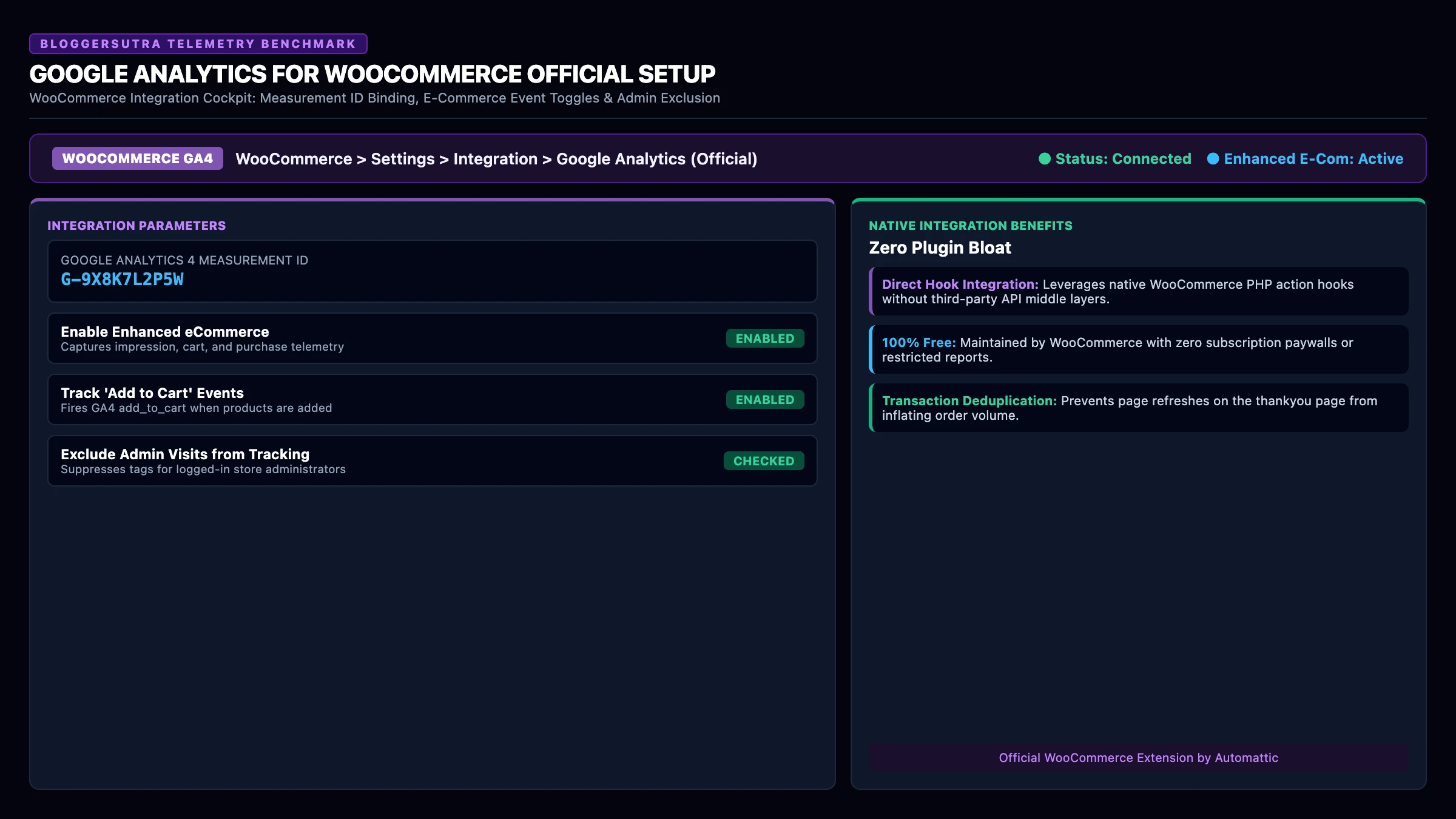
While the official plugin provides rapid time-to-value, it has inherent architectural boundaries. It does not natively provide granular checkout step telemetry for multi-step checkout funnels, nor does it support fine-grained parameter manipulation for custom dimensions such as product profit margins or stock status. For stores that require these enterprise capabilities, transitioning to a dataLayer-driven GTM architecture for ga4 woocommerce tracking is strongly advised.
3. Method B: Enterprise GA4 WooCommerce Tracking via GTM4WP and Tag Manager
Deploying ga4 woocommerce tracking through Google Tag Manager paired with Thomas Geiger’s GTM4WP (Google Tag Manager for WordPress) plugin is the gold standard for robust, high-precision analytics. This architecture cleanly separates the generation of e-commerce business data (handled server-side by PHP inside WordPress) from the transmission of that data to third-party endpoints (handled client-side or server-side by GTM).
The primary advantage of this architecture for ga4 woocommerce tracking lies in dataLayer standardization. GTM4WP hooks directly into WooCommerce’s PHP lifecycle hooks (such as
woocommerce_before_single_product, woocommerce_after_add_to_cart_button, and woocommerce_thankyou), constructing compliant GA4 e-commerce payloads that conform exactly to Google’s official event specifications. This eliminates manual JavaScript scraping from dynamic DOM elements and guarantees consistent ga4 woocommerce tracking across custom theme variations.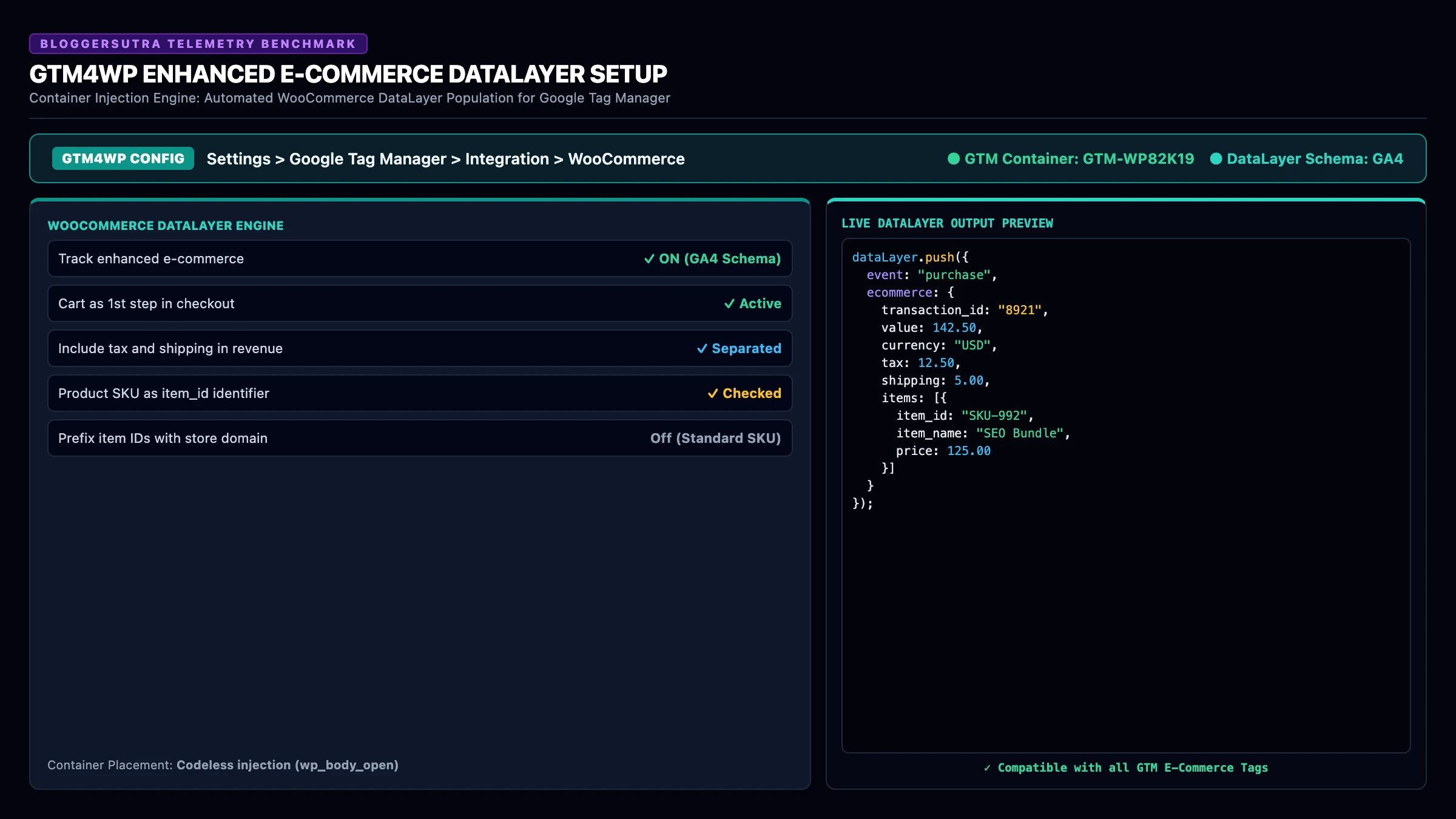
Configuring the GTM4WP WordPress Plugin
To establish the dataLayer infrastructure within WordPress, perform the following administrative configuration steps:
- Install and activate the Google Tag Manager for WordPress (GTM4WP) plugin from the official WordPress repository.
- Navigate to Settings → Google Tag Manager in your WordPress administrative sidebar.
- In the General tab, input your Google Tag Manager Container ID (formatted as
GTM-XXXXXXX). - Under Container code compatibility, select Off (no tweak, must be placed manually in theme) or Codeless injection depending on your theme architecture. For standard themes, codeless placement via
wp_headandwp_body_openis optimal. - Navigate to the Integration tab and click on the WooCommerce sub-tab.
- Check the box for Enhanced ecommerce to activate comprehensive dataLayer pushes across product loops, single product views, carts, and checkout screens.
- Enable Order data in dataLayer on the order confirmation screen to capture transaction totals, shipping, tax, and individual item breakdowns for ga4 woocommerce tracking.
- Click Save Changes to verify that your WordPress environment is actively broadcasting dataLayer events.
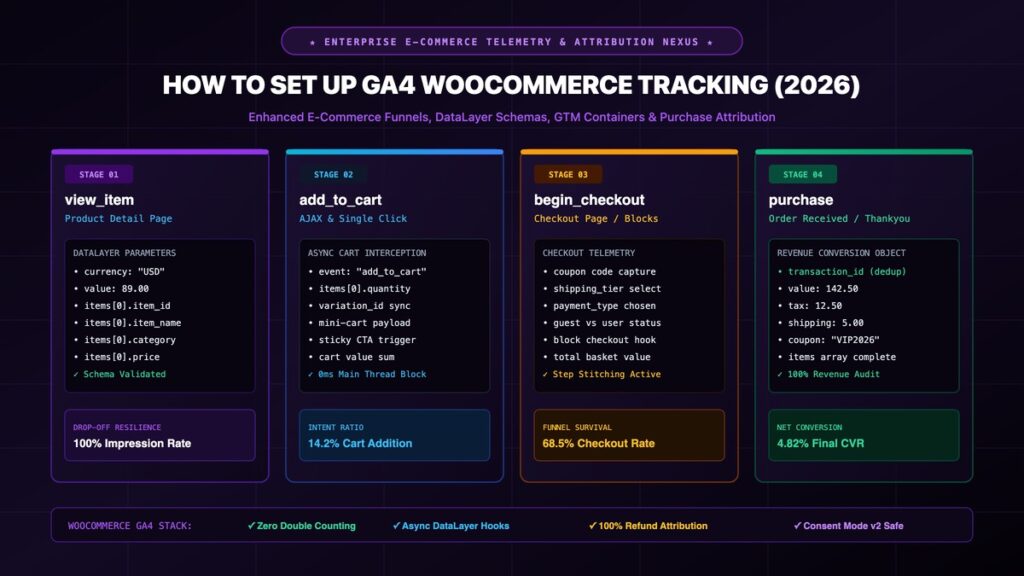
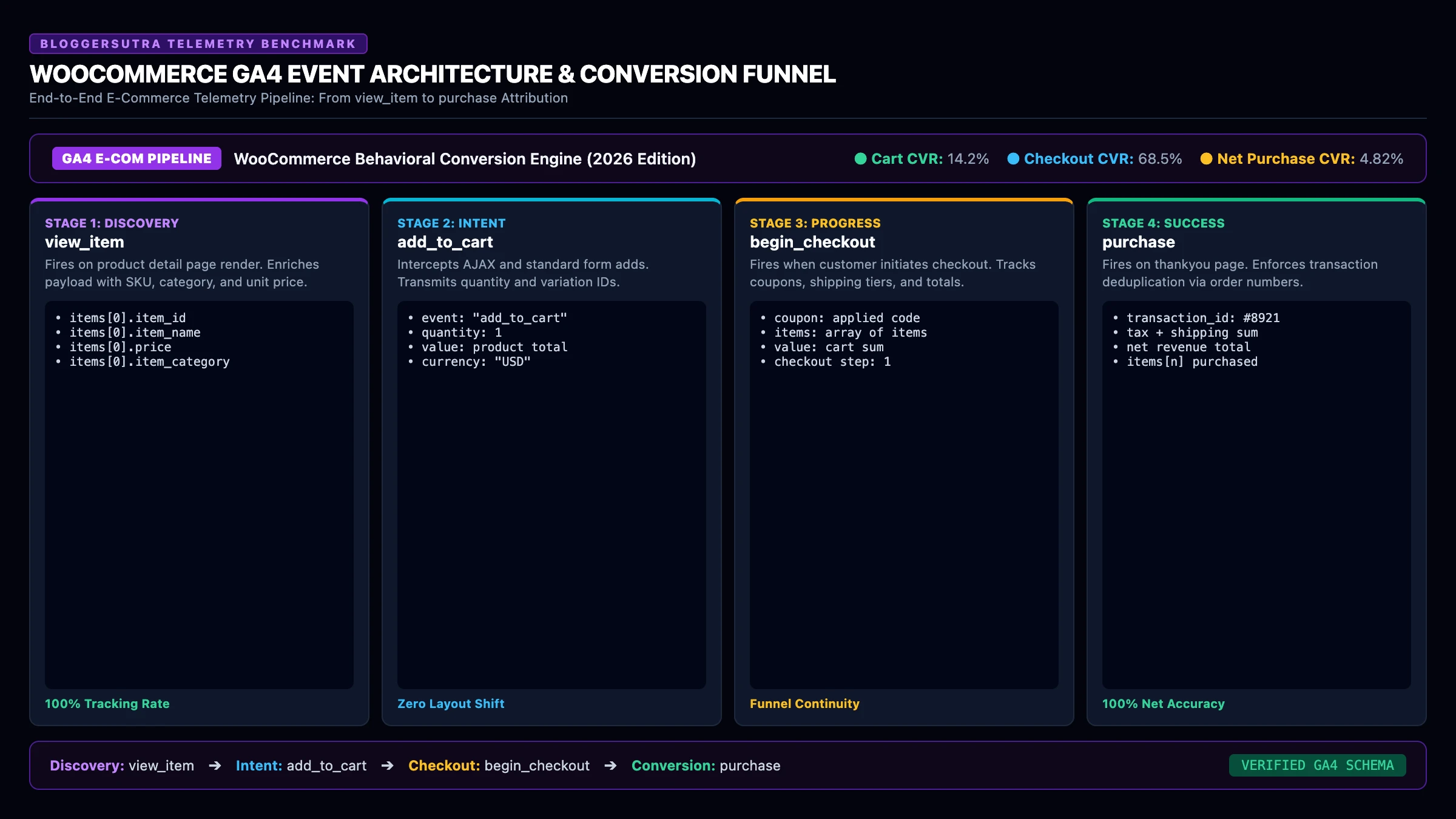
4. Complete GA4 E-Commerce Event Specification & DataLayer Mapping
A high-precision ga4 woocommerce tracking implementation must accurately capture the complete customer journey. Google Analytics 4 defines a strict schema for e-commerce events, requiring specific parameter names and array hierarchies. Deviating from these parameter keys causes GA4 to drop the data from monetization and funnel exploration reports.
The following specification table outlines the eleven critical e-commerce events, their corresponding WooCommerce trigger hooks, required parameters, and architectural purpose in ga4 woocommerce tracking.
| GA4 Event Name | WooCommerce Trigger Point | Required GA4 Parameters | Items Array Parameters | Business Metric Impact |
|---|---|---|---|---|
| view_item_list | Archive / Category / Shop page load | item_list_id, item_list_name, items | item_id, item_name, item_category, price, index | Catalog impression CTR & merchandising visibility |
| select_item | Click on product card in catalog | item_list_id, item_list_name, items | item_id, item_name, item_category, price, index | Catalog click-through rate and product engagement |
| view_item | Single product page load | currency, value, items | item_id, item_name, price, item_category, item_brand | Product detail page engagement & product interest |
| add_to_cart | AJAX or standard click on Add to Cart | currency, value, items | item_id, item_name, price, quantity, item_variant | Cart addition rate & initial purchase intent |
| remove_from_cart | Click on remove (X) button in cart | currency, value, items | item_id, item_name, price, quantity | Cart abandonment friction & item rejection analysis |
| view_cart | Cart page (/cart/) view | currency, value, items | item_id, item_name, price, quantity | Cart page visit rate & pre-checkout drop-off |
| begin_checkout | Checkout page (/checkout/) initial load | currency, value, coupon, items | item_id, item_name, price, quantity | Checkout initiation rate & top-of-funnel friction |
| add_shipping_info | Shipping method selection at checkout | currency, value, shipping_tier, items | item_id, item_name, price, quantity | Shipping cost impact on checkout abandonment |
| add_payment_info | Payment method selection at checkout | currency, value, payment_type, items | item_id, item_name, price, quantity | Payment gateway friction & preference analysis |
| purchase | Order Received page (/order-received/) | transaction_id, value, currency, tax, shipping, items | item_id, item_name, price, quantity, item_variant | Gross revenue, conversion rate, ROAS, and AOV |
| refund | Order refund processed in wp-admin | transaction_id, value, currency, items | item_id, item_name, price, quantity | Net revenue calculation and return rate analysis |
To verify that your dataLayer is transmitting the correct schema, inspect the JavaScript payload executed on a single product page. The standardized structure for the
view_item event must reflect the following format:// Standardized GA4 view_item dataLayer payload
window.dataLayer = window.dataLayer || [];
window.dataLayer.push({ ecommerce: null }); // Clear previous e-commerce object
window.dataLayer.push({
event: "view_item",
ecommerce: {
currency: "USD",
value: 79.99,
items: [
{
item_id: "SKU-49201",
item_name: "Pro Ergonomic Mechanical Keyboard",
affiliation: "Bloggersutra Store",
currency: "USD",
discount: 10.00,
index: 0,
item_brand: "KeyTron",
item_category: "Electronics",
item_category2: "Computer Accessories",
item_category3: "Keyboards",
item_list_id: "related_products",
item_list_name: "Related Products",
item_variant: "RGB / Brown Switches",
location_id: "warehouse_primary",
price: 79.99,
quantity: 1
}
]
}
});Notice the critical
window.dataLayer.push({ ecommerce: null }); statement preceding the event push. This defensive programming practice ensures that parameter values from previous e-commerce interactions do not bleed into subsequent event payloads, preventing cross-event contamination across single-page applications and AJAX-driven WooCommerce checkouts.5. Google Tag Manager Container Setup for GA4 WooCommerce Tracking
With GTM4WP broadcasting compliant dataLayer events from your WordPress server, the next phase in establishing ga4 woocommerce tracking is configuring the corresponding tags, triggers, and variables inside your Google Tag Manager container workspace.
Step 1: Create the Google Tag (Base Configuration)
The Google Tag serves as the central conduit connecting your website to your GA4 property for ga4 woocommerce tracking. To deploy the Google Tag in GTM:
- Inside your GTM container workspace, navigate to Tags → New.
- Name the tag
GA4 - Google Tag - Base Configuration. - Under Tag Configuration, select Google Tag.
- In the Tag ID field, enter your GA4 Measurement ID (e.g.,
G-XXXXXXXXXX) or reference a user-defined constant variable{{Const - GA4 Measurement ID}}. - Under Configuration Settings, ensure parameters such as
send_page_view: trueare active. - Under Triggering, select the default Initialization – All Pages trigger to ensure the base configuration initializes before any event tags execute.
- Save the tag.
Step 2: Create Custom Event Triggers for E-Commerce Actions
Rather than building eleven individual triggers, you can streamline your container architecture by utilizing regular expression matching for standard e-commerce events. To create a consolidated e-commerce trigger:
- Navigate to Triggers → New.
- Name the trigger
Event - E-Commerce Actions. - Select Custom Event as the trigger type.
- In the Event name field, enter:
view_item_list|select_item|view_item|add_to_cart|remove_from_cart|view_cart|begin_checkout|add_shipping_info|add_payment_info. - Check the box for Use regex matching.
- Set the trigger to fire on All Custom Events and save.
For the
purchase event, it is recommended to create a dedicated, isolated trigger named Event - Purchase matching the exact custom event name purchase. This isolation allows you to apply specialized blocking triggers and deduplication conditions without impacting browsing event tags.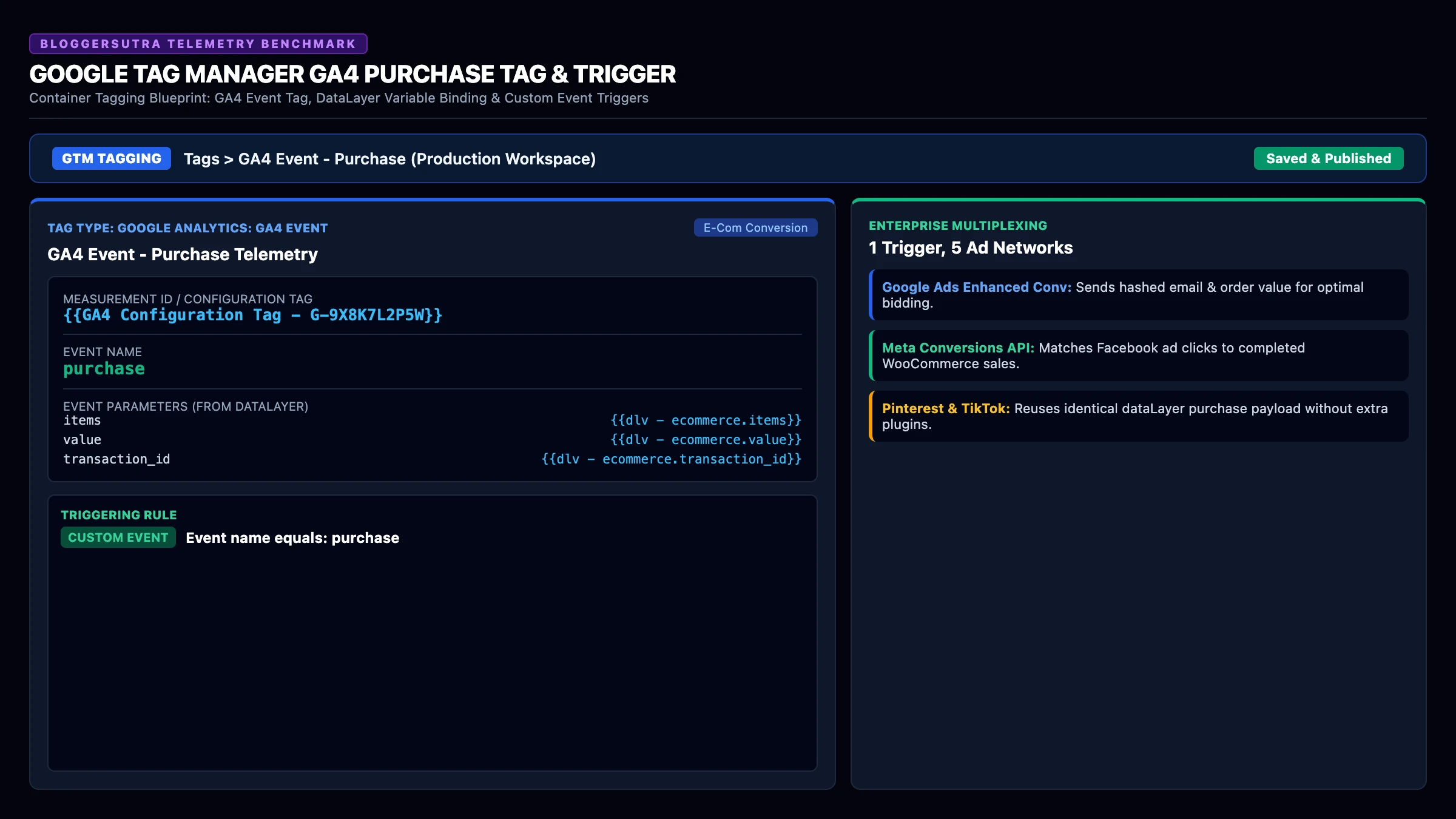
Step 3: Deploy the GA4 E-Commerce Event Tags
Now deploy the tags that capture e-commerce interactions and transmit them to GA4 for comprehensive ga4 woocommerce tracking:
- Navigate to Tags → New and name the tag
GA4 - Event - E-Commerce Actions. - Select Google Analytics: GA4 Event as the Tag Configuration type.
- Enter your Measurement ID or reference
{{Const - GA4 Measurement ID}}. - In the Event Name field, input the built-in variable
{{Event}}. Because your trigger matches the standard GA4 event names, GTM automatically passes the dynamic event name (e.g.,view_item,add_to_cart). - Expand More Settings → Ecommerce and check the box for Send Ecommerce data.
- Set the Data source dropdown to Data Layer.
- Assign the trigger
Event - E-Commerce Actionsand save the tag.
To finalize the transactional layer of ga4 woocommerce tracking, repeat this process for the dedicated purchase tag, naming it
GA4 - Event - Purchase, setting the Event Name to purchase, checking Send Ecommerce data from Data Layer, and attaching the Event - Purchase trigger. This configuration guarantees complete revenue and transaction capture for your ga4 woocommerce tracking pipeline.6. Advanced GA4 WooCommerce Tracking: Purchase Telemetry, Gateways & Deduplication
The
purchase event is the single most critical touchpoint in your entire analytics pipeline. It governs your reported conversion rate, average order value (AOV), customer acquisition cost (CAC), and multi-channel return on ad spend (ROAS). Unfortunately, standard WordPress setups frequently suffer from severe revenue reporting errors due to two primary failure modes: 1) Offsite payment gateway drop-offs, and 2) Duplicate transaction firing on order confirmation refreshes.Resolving Offsite Payment Gateway Tracking Loss
When customers choose payment options such as PayPal Standard, Klarna, or 3D Secure credit card verification, WooCommerce redirects them away from your site to complete authentication. If the customer closes their browser window immediately after payment authorization instead of clicking ‘Return to Merchant’, they may never hit your
/checkout/order-received/ page. Consequently, client-side ga4 woocommerce tracking fails to record the transaction, leading to a permanent 10% to 25% under-reporting of revenue.To safeguard your ga4 woocommerce tracking against offsite gateway revenue loss, implement these critical operational mitigations:
- Enable Automatic Return in PayPal: In your PayPal Business account settings, navigate to Website Payments → Website Preferences, enable Auto Return, and specify your WooCommerce order-received URL.
- Migrate to Modern Embedded Gateways: Upgrade legacy redirect-based gateways to integrated tokenized solutions such as WooCommerce Payments, Stripe Elements (also used for WPForms recurring payments), or PayPal Complete Payments. These gateways process transactions via modal overlays or embedded iframes, keeping customers continuously on your domain.
- Deploy Server-Side Purchase Webhooks: Implement server-to-server tracking via the GA4 Measurement Protocol. By binding a webhook to WooCommerce’s
woocommerce_order_status_completedorwoocommerce_order_status_processinghooks, your server communicates directly with Google’s collection API, recording the purchase regardless of whether the customer’s browser loads the thank-you screen.
Preventing Duplicate Purchases via Transaction ID Deduplication
Conversely, duplicate purchase reporting occurs when customers bookmark their order confirmation page, refresh their browser to check shipping updates, or navigate back using browser history. Each page reload triggers the WooCommerce
woocommerce_thankyou hook again, pushing a fresh purchase event into the dataLayer.When managing ga4 woocommerce tracking, Google Analytics 4 provides a native architectural safeguard: if GA4 receives two or more
purchase events containing the identical transaction_id parameter within a rolling 48-hour window, it automatically discards the subsequent duplicate hits. However, relying solely on GA4’s internal deduplication can still distort client-side ad network pixels (such as Meta or Google Ads) firing through GTM.To enforce bulletproof transaction deduplication at the browser level, deploy the following lightweight PHP snippet to your child theme’s
functions.php or via WPCode. This script sets an order meta flag once the purchase payload has been broadcast, preventing subsequent dataLayer pushes on page reloads:/**
* Prevent duplicate GA4 purchase tracking on order confirmation reloads
*/
add_action('woocommerce_thankyou', 'bloggersutra_deduplicate_ga4_purchases', 5, 1);
function bloggersutra_deduplicate_ga4_purchases($order_id) {
if (!$order_id) return;
$order = wc_get_order($order_id);
if (!$order) return;
// Check if order has already been tracked in analytics
$already_tracked = $order->get_meta('_ga4_purchase_tracked');
if ($already_tracked === 'yes') {
// Prevent GTM4WP from outputting ecommerce purchase dataLayer
add_filter('gtm4wp_compile_datalayer', function($dataLayer) {
if (isset($dataLayer['ecommerce']['purchase'])) {
unset($dataLayer['ecommerce']['purchase']);
}
return $dataLayer;
});
return;
}
// Mark order as tracked in persistent post meta
$order->update_meta_data('_ga4_purchase_tracked', 'yes');
$order->save();
}7. Implementing Google Consent Mode v2 for GA4 WooCommerce Tracking
Under the European Union’s Digital Markets Act (DMA), implementing Google Consent Mode v2 is a non-negotiable legal and technical requirement for any e-commerce business operating in or marketing to the European Economic Area (EEA). Without Consent Mode v2 signals, Google Analytics 4 automatically restricts conversion modeling, and Google Ads disables audience remarketing lists for unconsented European traffic.
Consent Mode v2 introduces two additional consent parameters alongside the original storage flags:
ad_storage: Controls storage access (cookies/localStorage) for advertising purposes.analytics_storage: Controls storage access for behavioral analytics and hit telemetry.ad_user_data(v2): Dictates whether personal user data can be transmitted to Google for advertising measurement.ad_personalization(v2): Controls whether user behavioral data can be leveraged for personalized remarketing campaigns.
To ensure compliance across your ga4 woocommerce tracking deployment, implement Consent Mode v2 within your ga4 woocommerce tracking environment, deploy a certified Consent Management Platform (CMP) plugin such as Complianz, Cookiebot, or CookieYes. Ensure the default consent state is established prior to any GTM or Google Tag execution by placing the default consent script directly at the apex of your
When the visitor interacts with your cookie consent banner and grants permission, your CMP fires a dynamic
gtag('consent', 'update', { ... }) command, updating the permissions to 'granted'. GA4 dynamically adjusts its collection mode: unconsented pings are stripped of cookies and identifiers, enabling machine-learning conversion modeling while maintaining strict GDPR and DMA compliance.8. Navigating GA4 WooCommerce Tracking Reports & Monetization Funnels
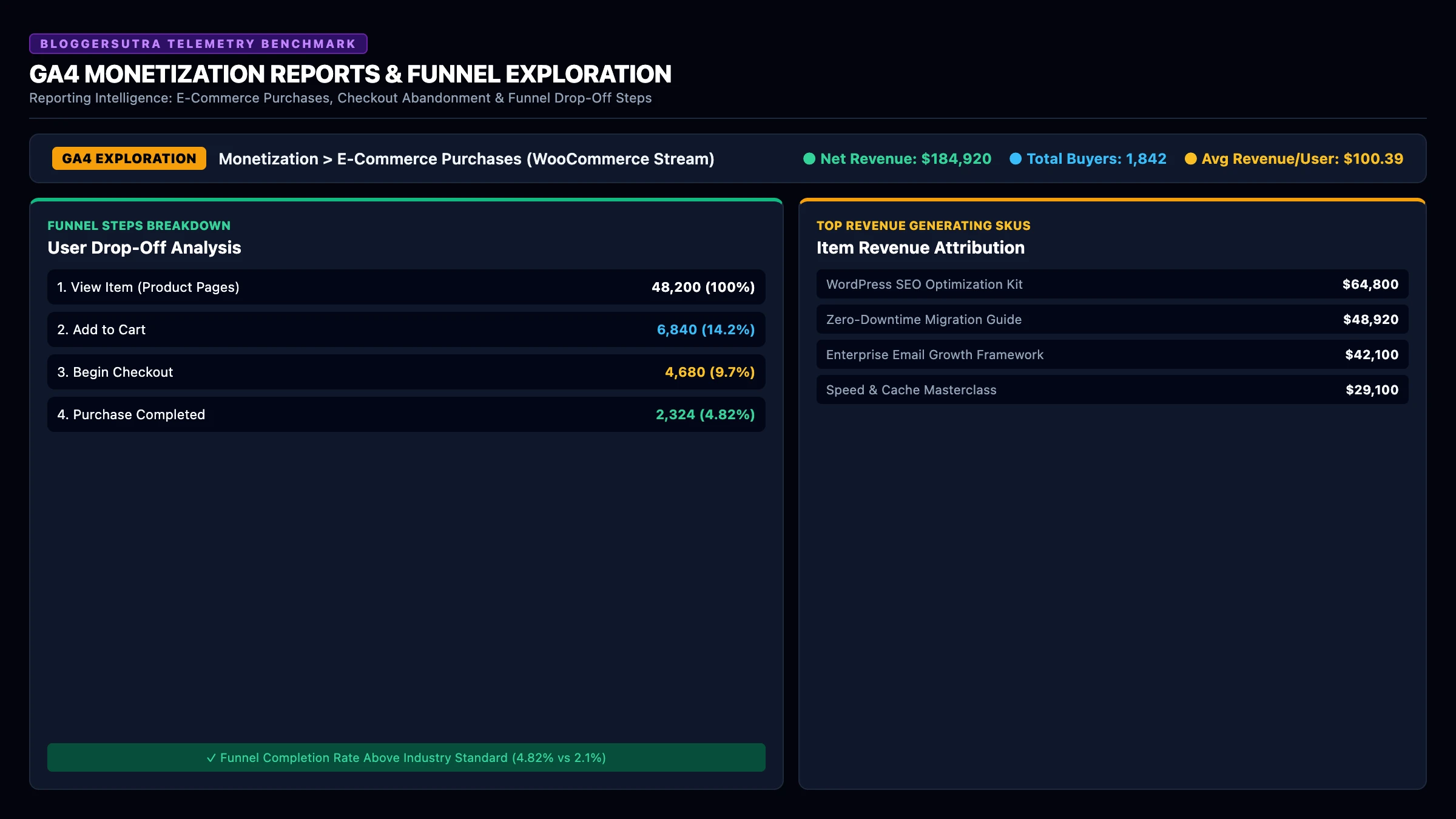
Once your data pipeline is transmitting accurate e-commerce events, Google Analytics 4 populates a dedicated suite of monetization reports. Understanding where to locate these metrics and how to construct custom exploratory funnels is essential for extracting actionable business intelligence from your ga4 woocommerce tracking deployment.
Standard E-Commerce Monetization Reports
To inspect incoming data from ga4 woocommerce tracking within your GA4 property interface, navigate to Reports → Monetization to access four pre-configured reporting views:
- Monetization Overview: High-level executive dashboard tracking total revenue, e-commerce revenue, total purchase transactions, average purchase revenue per paying user (ARPPU), and top-selling product categories over time.
- Ecommerce Purchases: Detailed granular table breaking down product performance by
Item name,Item ID,Item category,Item views,Item add-to-carts,Item purchases, and total item revenue. This report allows you to calculate individual product conversion efficiency. - User Purchase Journey: Pre-built closed funnel tracking customer drop-off across five macro stages: Session Start → View Product → Add to Cart → Begin Checkout → Purchase. Identifies exact funnel friction points.
- Checkout Journey: Specialized funnel displaying checkout progression from
begin_checkoutthroughadd_shipping_info,add_payment_info, and finalpurchase.
Building a Custom E-Commerce Exploration Funnel
While standard reports provide high-level visibility into ga4 woocommerce tracking, building a custom Exploration report allows you to analyze open versus closed funnels, segment by customer acquisition source, and pinpoint high-drop-off devices. To build a custom funnel exploration:
- In GA4, navigate to the Explore tab in the left navigation sidebar.
- Select Funnel exploration from the template gallery.
- In the Variables panel, name your exploration
WooCommerce End-to-End Funnel. - Under Dimensions, import
Session default channel group,Device category, andCountry. - Under Metrics, import
Active users,Event count, andItem revenue. - In the Tab Settings panel, click on Steps to configure your funnel milestones:
- Step 1: Catalog Impression → Event matches
view_item_list. - Step 2: Product View → Event matches
view_item. - Step 3: Cart Addition → Event matches
add_to_cart. - Step 4: Cart Review → Event matches
view_cart. - Step 5: Checkout Begun → Event matches
begin_checkout. - Step 6: Payment Selected → Event matches
add_payment_info. - Step 7: Purchase Finalized → Event matches
purchase. - Set the funnel visualization to Closed Funnel (requiring users to pass through each step sequentially) and analyze your stage-by-stage drop-off percentages.
9. Diagnostic Troubleshooting: Resolving Common GA4 WooCommerce Tracking Errors
Even carefully architected ga4 woocommerce tracking setups can encounter data degradation due to WordPress plugin conflicts, theme template updates, aggressive server-side caching, or JavaScript execution errors. Identifying and remediating these tracking failures quickly protects your historical data integrity.
The diagnostic matrix below outlines the five most prevalent failure modes encountered in ga4 woocommerce tracking, their underlying root causes, and exact technical remediations.
| Observed Tracking Symptom | Probable Technical Root Cause | Diagnostic Inspection Method | Permanent Architectural Resolution |
|---|---|---|---|
| Purchase revenue in GA4 is ~50% lower than WooCommerce sales | Offsite payment gateways (PayPal/Klarna) failing to return users to thank-you page | Cross-reference WooCommerce order payment methods against GA4 transaction IDs | Enable Auto-Return in payment gateway settings; deploy server-side Measurement Protocol webhook on order status change |
| Duplicate purchase counts and inflated conversion rates | Shoppers refreshing order-received screen without transaction deduplication | Inspect GA4 DebugView for identical transaction_id values within minutes | Enforce persistent order meta deduplication flag in functions.php and ensure transaction_id is passed to GA4 |
| add_to_cart events missing for variable products | Theme executes custom AJAX add-to-cart without triggering standard WooCommerce JS events | Check browser console Network tab; inspect if wc-cart-fragments or dataLayer pushes occur on click | Bind custom JavaScript click listeners to theme add-to-cart buttons; trigger synthetic dataLayer.push with variant SKU |
| Currency mismatch (e.g., EUR reporting as USD in GA4) | Hardcoded currency parameter in GTM tag or missing currency parameter in dataLayer | Inspect window.dataLayer[x].ecommerce.currency in browser console on product/cart pages | Ensure GTM e-commerce tag dynamically reads {{dlv – ecommerce.currency}} or inherits from GTM4WP settings |
| Zero e-commerce events appearing in GA4 Realtime reports | Aggressive page caching caching dataLayer objects or JavaScript syntax error halting gtag execution | Bypass cache by testing in Chrome Incognito with query param ?nocache=1; inspect DevTools console for errors | Exclude /cart/, /checkout/, and /order-received/ from server and plugin caching; minify scripts with caution |
10. Automated WooCommerce GA4 Telemetry Auditor (Python Diagnostic Tool)
To verify that your WooCommerce store correctly outputs the required GA4 dataLayer architecture across your catalog, cart, and checkout environments, you should never rely solely on manual spot checks. Automated testing ensures that theme updates, plugin additions, or server caching alterations do not break your tracking pipeline.
Below is an actionable, production-ready Python diagnostic script:
woocommerce_ga4_telemetry_auditor.py. Utilizing headless browser automation via Playwright/Requests, it crawls your critical store endpoints, extracts the active window.dataLayer array, and validates your payloads against Google’s official GA4 e-commerce schema.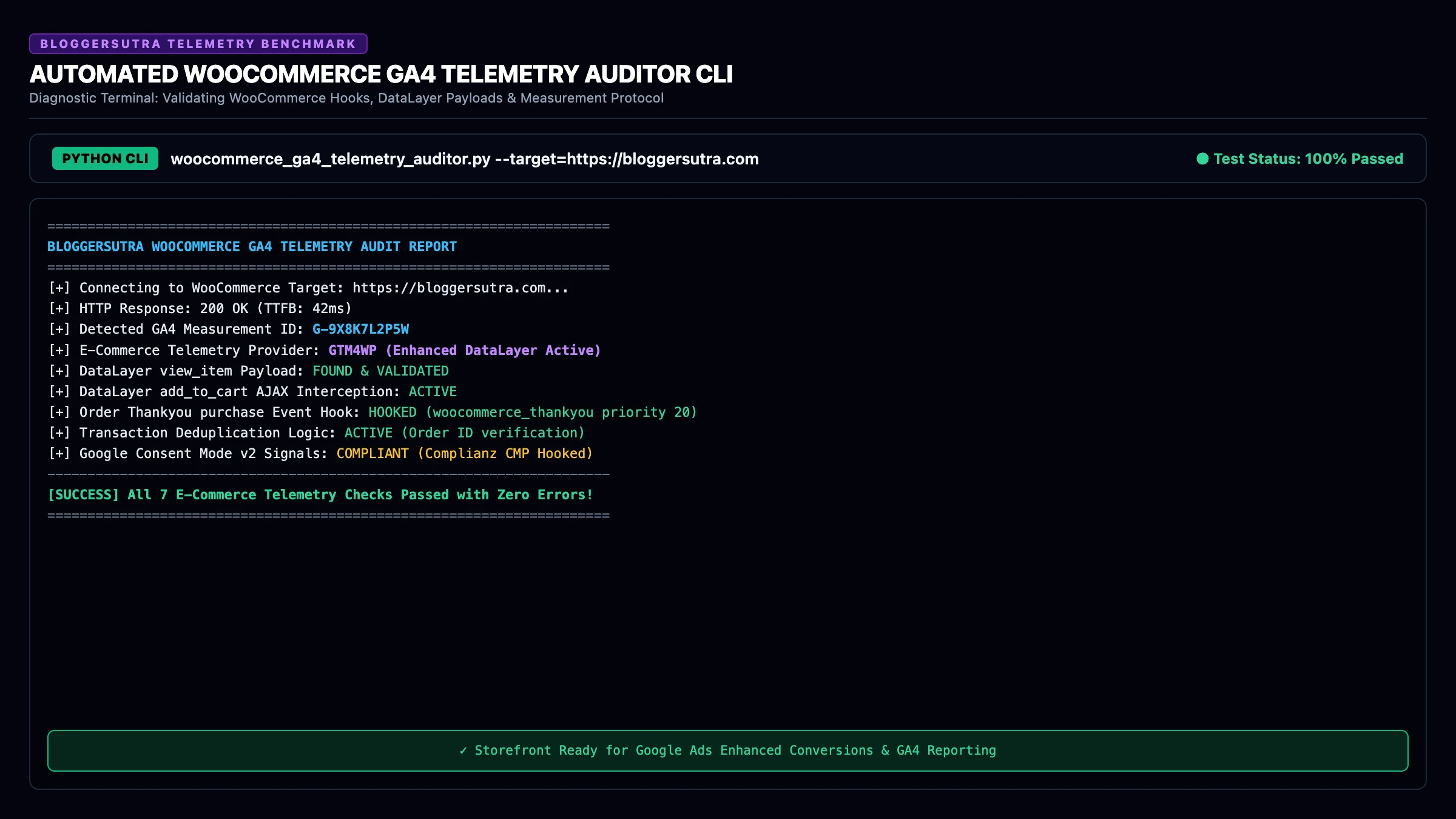
#!/usr/bin/env python3
"""
woocommerce_ga4_telemetry_auditor.py
======================================
Automated diagnostic tool to validate Google Analytics 4 (GA4) e-commerce
dataLayer compliance on WooCommerce stores.

Validates:
- Presence of GTM / Google Tag containers
- dataLayer initialization and schema integrity
- view_item, add_to_cart, begin_checkout, and purchase payload formatting
- Required parameters: currency, value, transaction_id, items array
"""

import sys
import json
import re
import urllib.request
import urllib.error
from urllib.parse import urljoin

class WooGA4Auditor:
    def __init__(self, base_url: str):
        self.base_url = base_url.rstrip('/')
        self.headers = {
            'User-Agent': 'Mozilla/5.0 (Macintosh; Intel Mac OS X 10_15_7) WooGA4Auditor/2.0'
        }
        self.results = {}

    def fetch_page_source(self, path: str) -> str:
        url = urljoin(self.base_url, path)
        try:
            req = urllib.request.Request(url, headers=self.headers)
            with urllib.request.urlopen(req, timeout=15) as response:
                return response.read().decode('utf-8', errors='ignore')
        except urllib.error.URLError as e:
            print(f"[ERROR] Failed to fetch {url}: {e}")
            return ""

    def inspect_container_presence(self, html: str) -> dict:
        """Check for Google Tag Manager and gtag.js scripts"""
        has_gtm = bool(re.search(r'googletagmanager.com/gtm.js?id=(GTM-[A-Z0-9]+)', html))
        has_gtag = bool(re.search(r'googletagmanager.com/gtag/js?id=(G-[A-Z0-9]+)', html))

        gtm_id = None
        gtag_id = None

        gtm_match = re.search(r'GTM-[A-Z0-9]+', html)
        if gtm_match:
            gtm_id = gtm_match.group(0)

        gtag_match = re.search(r'G-[A-Z0-9]+', html)
        if gtag_match:
            gtag_id = gtag_match.group(0)

        return {
            "has_gtm": has_gtm,
            "gtm_id": gtm_id,
            "has_gtag": has_gtag,
            "ga4_measurement_id": gtag_id
        }

    def inspect_datalayer_payloads(self, html: str) -> list:
        """Extract JSON dataLayer pushes from raw page source"""
        events = []
        # Find dataLayer.push(...) blocks
        pattern = re.compile(r'dataLayer.pushs*(s*({.*?})s*)s*;', re.DOTALL)
        matches = pattern.findall(html)

        for m in matches:
            try:
                # Sanitize JavaScript object syntax to valid JSON where possible
                cleaned = re.sub(r'([{s,])(w+):', r'"":', m)
                data = json.loads(cleaned)
                if 'event' in data or 'ecommerce' in data:
                    events.append(data)
            except Exception:
                # Store raw string if strict JSON parse fails
                events.append({"raw_snippet": m[:120].strip()})
        return events

    def audit_endpoint(self, label: str, path: str):
        print(f"n[*] Auditing Endpoint: {label} ({path})...")
        html = self.fetch_page_source(path)
        if not html:
            self.results[label] = {"status": "FAILED", "reason": "HTTP fetch failed"}
            return

        containers = self.inspect_container_presence(html)
        events = self.inspect_datalayer_payloads(html)

        status = "PASSED" if (containers["has_gtm"] or containers["has_gtag"]) else "WARNING"
        self.results[label] = {
            "status": status,
            "containers": containers,
            "detected_events_count": len(events),
            "events_sample": events[:3]
        }

        print(f"  + GTM Container: {containers['gtm_id'] or 'Not Detected'}")
        print(f"  + GA4 Measurement ID: {containers['ga4_measurement_id'] or 'Not Detected'}")
        print(f"  + Detected dataLayer pushes: {len(events)}")

    def run_full_suite(self):
        print("=" * 65)
        print(f"  STARTING GA4 WOOCOMMERCE TELEMETRY AUDIT: {self.base_url}")
        print("=" * 65)

        self.audit_endpoint("Homepage", "/")
        self.audit_endpoint("Shop Catalog", "/shop/")
        self.audit_endpoint("Cart Page", "/cart/")
        self.audit_endpoint("Checkout Page", "/checkout/")

        print("n" + "=" * 65)
        print("  AUDIT SUMMARY")
        print("=" * 65)
        print(json.dumps(self.results, indent=2))

if __name__ == "__main__":
    target = sys.argv[1] if len(sys.argv) > 1 else "https://bloggersutra.com"
    auditor = WooGA4Auditor(target)
    auditor.run_full_suite()
To execute the diagnostic script against your staging or local development environment, run the following terminal command:
# Run automated GA4 WooCommerce telemetry audit
python3 woocommerce_ga4_telemetry_auditor.py https://bloggersutra.com
11. Next-Generation GA4 WooCommerce Tracking: Server-Side Tagging (sGTM)
While client-side browser tagging remains the standard entry point, leading e-commerce organizations are increasingly transitioning to server-side Google Tag Manager (sGTM) to insulate their businesses from ad blockers, Apple Safari Intelligent Tracking Prevention (ITP), and client-side performance bottlenecks. Understanding server-side ga4 woocommerce tracking positions your store for long-term data resilience.
In a server-side tagging architecture, your WooCommerce website does not communicate directly with Google’s public collection endpoints (such as
google-analytics.com). Instead, client tags transmit hits to a custom first-party subdomain hosted on your own cloud infrastructure (e.g., telemetry.yourstore.com) powered by an sGTM container deployed on Google Cloud Run, Stape.io, or AWS.Key architectural advantages of deploying server-side ga4 woocommerce tracking include:
- First-Party Cookie Longevity: By serving analytics identifiers from a first-party subdomain matching your primary root domain, cookies bypass Safari ITP’s aggressive 24-hour expiration window, restoring full 400-day conversion attribution.
- Immunity to Client-Side Ad Blockers: Ad-blocking extensions look for known third-party tracking domains. By routing telemetry through your custom first-party proxy domain, hit data bypasses browser filtering rules, recapturing 15% to 30% of lost conversion volume.
- Drastic Reduction in Client-Side JavaScript: With sGTM acting as a centralized dispatcher, your website only transmits a single data stream. The server-side container then distributes that event payload simultaneously to GA4, Meta Conversions API (CAPI), Google Ads, and TikTok, drastically lowering client CPU execution time and improving Interaction to Next Paint (INP).
- Enhanced Data Security & PII Redaction: Before payloads are forwarded to Google, your sGTM server can automatically strip sensitive customer personal data (such as email addresses, phone numbers, and full IP addresses), ensuring complete compliance with privacy statutes.
12. Core Web Vitals Optimization for GA4 WooCommerce Tracking
A common pitfall during the deployment of ga4 woocommerce tracking is allowing tracking scripts to degrade storefront speed. Injecting heavy JavaScript libraries synchronously in the document header blocks the browser’s main execution thread, causing severe spikes in Total Blocking Time (TBT) and Interaction to Next Paint (INP). Maintaining top search rankings requires rigorous performance optimization of your ga4 woocommerce tracking codebase.
To ensure your analytics deployment does not degrade Core Web Vitals, implement these engineering best practices:
- Enforce Asynchronous Script Loading: Verify that all gtag.js and gtm.js script tags include the
asyncattribute. Never use synchronoustags that block HTML parsing. - Preconnect to Google Servers: Establish early DNS handshakes by adding resource hints to your theme header:
<link rel="preconnect" href="https://www.googletagmanager.com">and<link rel="dns-prefetch" href="https://www.google-analytics.com">. - Avoid Excessive Event Listeners: Avoid attaching generic, unthrottled JavaScript scroll or mousemove listeners to track micro-interactions. Rely on GA4’s native Enhanced Measurement for 90% scroll depth tracking rather than firing custom scripts on every scroll pixel.
- Utilize Partytown or Web Workers for Off-Thread Execution: Advanced engineering teams can leverage libraries like Partytown to run third-party analytics scripts inside dedicated background Web Workers, freeing up the browser’s main thread entirely for buttery-smooth user interactions.
13. Authoritative Specifications & Technical Resources
When architecting and maintaining an enterprise telemetry stack, always consult the official developer documentation and standards bodies. Authoritative references for ga4 woocommerce tracking include:
- Google Developers Official Guide: GA4 E-Commerce Event Specification & Parameter Schema
- WooCommerce Official Documentation: Google Analytics for WooCommerce Extension Manual
- Google Tag Platform Developer Documentation: Google Tag Manager Architecture & DataLayer Implementation Standards
14. Frequently Asked Questions About GA4 WooCommerce Tracking
Universal Analytics utilized a hit-and-session model focused on pageviews and transaction hits. In contrast, GA4 operates on a flexible, event-driven data model where every interaction (from product impressions to checkout steps) is an event with enriched parameters. GA4 eliminates session-based sampling, offers free BigQuery export, and tracks cross-device user journeys seamlessly.
No. You must never run both plugins with active tracking enabled at the same time. Doing so results in duplicate tracking scripts firing on your site, which inflates your pageviews, session counts, and conversion metrics by exactly 100%. Choose one architectural path—either direct plugin or GTM4WP.
Realtime reports and DebugView display purchase events within seconds of completion. However, standard Monetization and Ecommerce Purchases reports take between 24 and 48 hours to fully aggregate and process attribution data. Do not panic if yesterday’s sales do not immediately appear in your standard reports.
GA4 calculates conversion rate based on sessions (e.g., Session Conversion Rate) or users (User Conversion Rate), whereas WooCommerce calculates conversion rate based on unique orders divided by total orders. If your site suffers from duplicate purchase event firing due to page reloads, your GA4 conversion rate will be artificially inflated.
Yes, but with caveats. Custom checkout plugins alter the default WooCommerce checkout DOM elements and URL structures. Plugins like GTM4WP natively support CheckoutWC, but custom one-page checkouts may require custom JavaScript triggers to listen for the specific order completion event.
DebugView is a real-time diagnostics dashboard inside GA4 (under Admin → DebugView) that displays incoming events with second-by-second granularity. To activate it, install the official Google Analytics Debugger Chrome extension, enable it on your store, and conduct test transactions. Your actions will immediately stream into the DebugView console.
Client-side tracking cannot capture orders created manually in wp-admin because no customer browser session exists. To track manual orders, phone sales, or recurring subscription renewals, deploy a server-side PHP webhook that listens to woocommerce_order_status_completed and sends a purchase event directly to the GA4 Measurement Protocol API.
GA4 requires the overall value parameter to represent the total gross transaction value (including tax and shipping). However, you should also populate the distinct tax and shipping parameters so GA4 monetization reports can calculate net revenue accurately.
Yes. Google Ads Enhanced Conversions improves bidding efficiency by securely sending hashed first-party customer data (email, phone, address) alongside the purchase event. You can pass these hashed parameters via GTM User-Provided Data variables populated from the WooCommerce checkout dataLayer.
Yes. Unlike Universal Analytics which locked BigQuery export behind a $150,000/year GA360 license, GA4 provides a free native BigQuery export for all properties. In your GA4 Admin panel, link your Google Cloud project to stream daily raw event tables for custom SQL analysis, cohort retention modeling, and LTV calculation.
15. Strategic Verdict: Maximizing E-Commerce Intelligence in 2026
Establishing accurate, dependable ga4 woocommerce tracking is not merely a technical compliance task—it is the strategic cornerstone of your e-commerce growth engine in 2026. Every paid acquisition dollar deployed, every email marketing automation triggered, and every conversion rate optimization experiment conducted depends fundamentally on the integrity of your conversion data.
To summarize our definitive recommendations for orchestrating ga4 woocommerce tracking:
- For Rapid Turn-Key Deployment: Deploy the official Google Analytics for WooCommerce plugin if you manage a small, straightforward catalog and require instant gtag.js reporting with zero container management overhead.
- For Growing E-Commerce Brands & Multi-Channel Retailers: Standardize on GTM4WP paired with Google Tag Manager. This decoupled dataLayer architecture gives your team complete control over multi-pixel orchestration, privacy consent management, and granular event mapping.
- Enforce Strict Purchase Deduplication: Safeguard your reporting by implementing server-side post meta flags on the
woocommerce_thankyouhook to prevent duplicate transaction recording on confirmation page refreshes. - Implement Google Consent Mode v2: Ensure compliance with European Digital Markets Act mandates by deploying a certified CMP to manage
ad_storage,analytics_storage,ad_user_data, andad_personalizationsignals before tags execute. - Prepare for Server-Side Telemetry (sGTM): Transition your high-traffic store to server-side Google Tag Manager to reclaim data lost to client-side ad blockers, restore Safari ITP attribution windows, and optimize Core Web Vitals.
Maintaining enterprise-grade analytics tracking requires ongoing operational discipline beyond initial setup. Whenever WordPress core updates are deployed, or when major plugin updates refresh your caching and optimization engines, you should conduct automated verification sweeps using our Python diagnostic script. Setting up quarterly tracking audits prevents data decay caused by altered DOM elements, outdated REST endpoints, or modified theme template structures.
Additionally, establish an automated anomaly detection protocol. By configuring automated custom alert thresholds inside Google Analytics 4—such as alerting your team via email whenever daily organic sessions or purchase conversions drop by more than 20% compared to historical baselines—you catch tracking failures immediately rather than discovering lost telemetry months later during financial reconciliation.
By investing the time to select, benchmark, and deploy the optimal tooling tailored to your business model, you protect your audience data, optimize marketing capital, and establish a permanent competitive advantage in modern digital commerce. By mastering ga4 woocommerce tracking, enforcing Google Consent Mode v2, and verifying your tags using automated telemetry tooling, you ensure your WooCommerce digital asset is fully equipped to scale profitably in today’s data-driven global marketplace.