




Quick answer
- How you customize a theme depends on its type. Block themes use the Site Editor (Appearance → Editor). Classic themes use the Customizer (Appearance → Customize).
- Use Styles to change colors, fonts and layout across your whole site in one place.
- Edit headers, footers and page layouts as templates and template parts, without touching code.
- Back up your site or use a staging copy before big changes, and avoid editing theme files directly.
Every WordPress theme can be customized, but the way you do it has changed. Newer block themes let you design almost everything visually, while classic themes rely on the Customizer and theme settings. This guide shows you both, so you can change your site’s look with confidence.
The steps below follow WordPress’s own documentation for WordPress 7.1, checked on November 7, 2026.
First, find out what kind of theme you have
Go to Appearance in your dashboard. If you see Editor, you have a block theme. If you see Customize instead, you have a classic theme. Some themes, like Astra or Kadence, are classic themes with their own extra settings inside the Customizer.
How to customize a block theme with the Site Editor
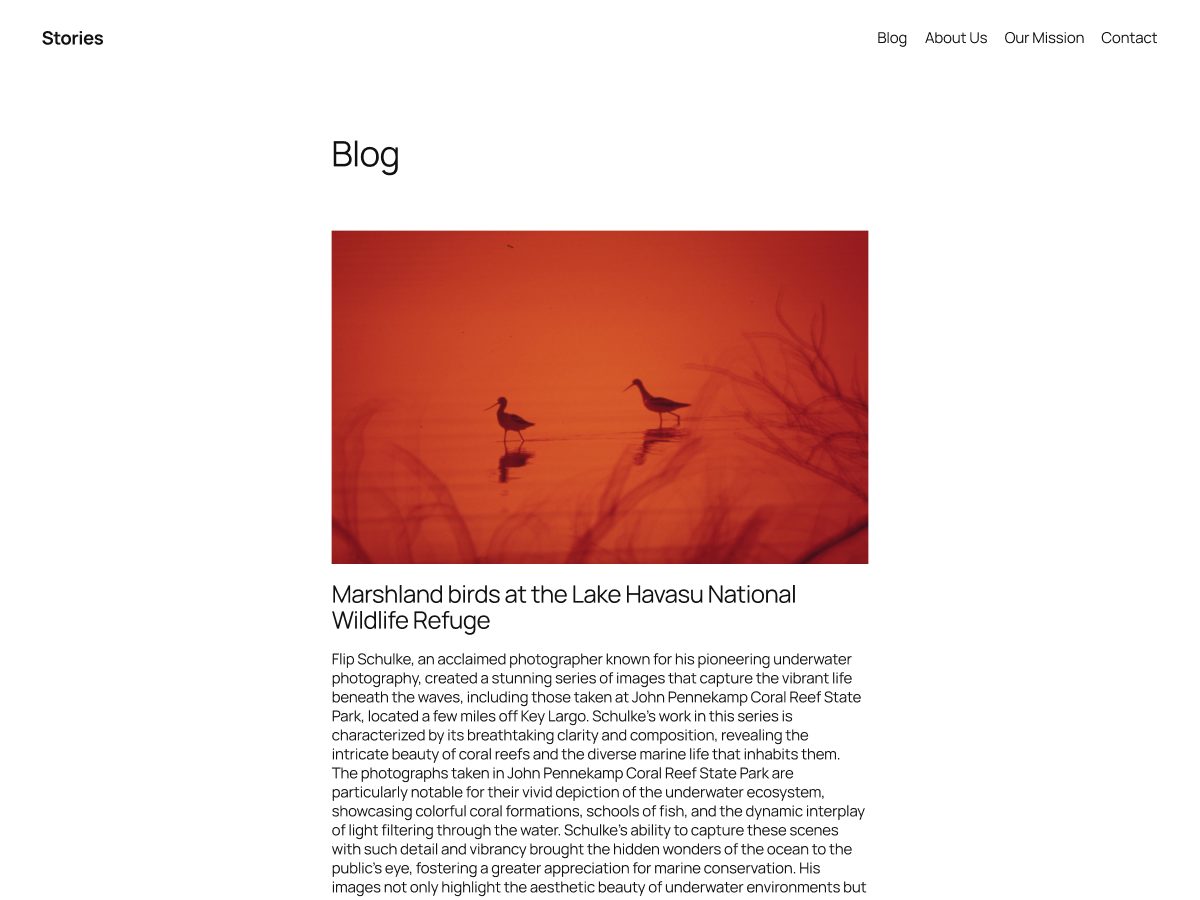
Go to Appearance → Editor to open the Site Editor. In WordPress 7.1 you’ll see these sections:
- Identity: set your site title, tagline, logo and site icon.
- Styles: change colors, typography and layout for the whole site, or pick a style variation that comes with your theme.
- Pages: edit your pages right inside the Site Editor.
- Navigation: manage your menus.
- Patterns: manage synced patterns and template parts such as the header and footer.
- Templates: change the layout of your home page, single posts, archives, search results and 404 page.
Change colors and fonts
Open Styles and choose a style variation, or set your own color palette and fonts. Changes apply across the whole site, so you don’t have to edit each page. If you don’t like the result, the three-dot menu lets you view style revisions or reset your changes.
Edit the header or footer
Go to Patterns, find the Header or Footer template part, and click the pencil icon. Add, move or remove blocks, then save. Remember that changes to the header and footer appear on every page that uses them.
Change a page layout
Go to Templates, pick the template you want, such as Single Posts, and edit it with blocks. The Query Loop block controls how lists of posts look, and the Navigation block controls your menu.
Handy tools
- Command Palette: press Cmd+K on a Mac or Ctrl+K on Windows to jump to any template, page or setting.
- List View: shows every block on the page, which makes it easier to select nested blocks.
- Apply globally: under a block’s Advanced settings, you can apply its style to all blocks of the same type.
- Export: under the three-dot menu, choose Tools → Export to download your theme with your changes.
How to customize a classic theme with the Customizer
Go to Appearance → Customize. You’ll see a live preview of your site with settings on the left. Most classic themes let you change:
- Site identity: logo, site title and site icon
- Colors and fonts
- Header and footer layout (many themes, like Astra and Kadence, include a header and footer builder)
- Menus and widgets
- Homepage settings, such as showing your latest posts or a static page
Click Publish when you’re happy. Nothing changes on your live site until you do.
Use a page builder if you want more control
If you want full drag-and-drop design for pages, a page builder such as Elementor works with most themes. Hello Elementor is a minimal theme made specifically for it.
Customize safely
- Back up first. Take a full backup, or work on a staging copy of your site, before big design changes.
- Don’t edit theme files directly. Theme updates replace those files and your changes will be lost. If you need code changes, a developer can use a child theme.
- Check on your phone. Preview your changes on mobile before you publish.
- Make one change at a time. It’s easier to undo a single change if something looks wrong.
Still choosing a theme? See our guide on how to choose a WordPress theme and our list of the best WordPress themes.
Customizing WordPress themes FAQs
Block themes use the Site Editor at Appearance → Editor. Classic themes use the Customizer at Appearance → Customize.
You’re probably using a block theme. Use Appearance → Editor instead.
Changes made in the Site Editor or the Customizer are kept. Changes made directly in theme files are lost on update.
In a block theme, open Styles in the Site Editor. In a classic theme, look for Colors and Typography in the Customizer.
Yes. In the Site Editor’s Styles section you can view revisions or reset changes, and you can always restore a backup.
No. Both the Site Editor and the Customizer let you make most changes visually.